
Find your way around Ruuster
The sidebar, header, account menu and phone bottom bar in Ruuster 2.0, where each page lives, what the badges mean and how to collapse the menu.
The sidebar on the left lists every page in Ruuster, and the header at the top holds Search, +, Chat and Notifications. Your name at the bottom of the sidebar opens your account menu, where you log out.
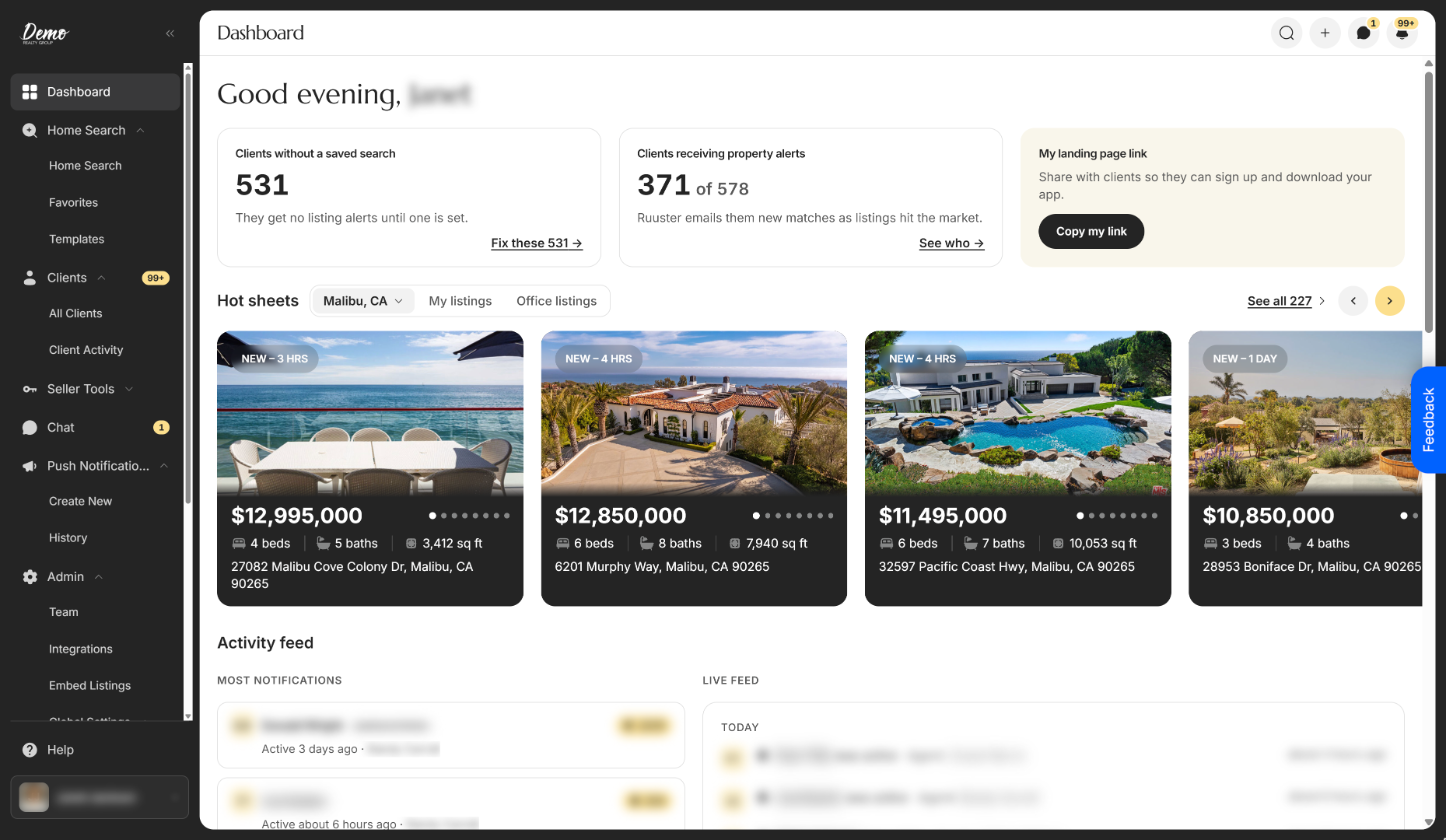
The sidebar
Click a group to open or close it. The group that holds the page you're on starts open.
| Control | What it does | Learn more |
|---|---|---|
| Brokerage logo | Takes you to your dashboard. Shows your brokerage's logo, or its name if no logo is uploaded. | |
| Arrow beside the logo (Collapse navigation) | Shrinks the sidebar to a rail of icons. Hover an icon to see its name. Click the arrow again (Expand navigation) to open it. Computers only. | |
| Dashboard | Your home page. | Find your way around your dashboard |
| Home Search group, Home Search | Search listings on the map. | Search for properties |
| Favorites | The homes you've favorited yourself. | Favorite properties |
| Templates | Your search templates and AI searches. | Find your way around Templates |
| Clients group | Holds All Clients and Client Activity. The red number counts unread activity from your clients and can read 99+. | Notifications and badges |
| All Clients | The list of your clients. Admins see every client in the brokerage. | Find your way around All Clients |
| Client Activity | The feed of what your clients viewed, favorited and searched. | Use the Client Activity feed |
| Chat | Your conversations with clients. The red number counts unread messages. | Chat with your clients |
| Push Notifications group, Create New | Write a push notification to your clients' phones. | Send a push notification |
| History | Push notifications already sent. | Review push notification history |
| Admin group (Admin) | Shown to admins only. Holds Team, Integrations, Embed Listings and Global Settings. | See the next table |
| Help | Opens the Ruuster Help panel in the bottom-right corner. A number on it means new announcements. | Get help inside Ruuster |
| Your name and photo | Opens your account menu, upward. | See Your account menu below |
Rentals are part of Home Search: set Home type to Rental. Some apps also have a separate Rental Search page in the menu, in place of Favorites. See Search for rentals.
Admin pages (Admin)
Admins see these under Admin. Global Settings opens a second group with eight settings pages.
| Control | What it does | Learn more |
|---|---|---|
| Team | Everyone on your brokerage account and your seats. | Find your way around Team |
| Integrations | Your CRM, IDX provider, Zapier and Google Tag Manager connections. | Find your way around Integrations |
| Embed Listings | Build the code that puts your search on your own website. | Put Ruuster listings on your website |
| Client Onboarding | The questions new clients answer when they sign up. | Turn the client questionnaire on or off |
| UI Customization | Your Brand kit: theme, fonts and colors. | Brand the app with your brand kit |
| Branding | Your agency logo. | Set your agency logo |
| Vendors | The trusted vendors your clients see. | Manage your trusted vendors |
| Content | Education articles for each client stage. | Manage education articles |
| External Links | Links added to your clients' sidebar. | Add links to your clients' sidebar |
| Default Search Settings | The search new clients see first. | Set the default search for your brokerage |
| Default Search Filters | Which search filters clients see, and in what order. | Choose the search filters clients see |
The header
The header names the page you're on, and your browser tab shows the same name. Four round buttons sit on the right.
| Control | What it does | Learn more |
|---|---|---|
| Page name | The name of the page you're on, for example Dashboard or Push Notification History. A client's page shows their name. | |
| Search (magnifier) | Opens the search palette to find a client or a page. Ctrl+K (Cmd+K on a Mac) does the same. | Find anything with the search palette |
| + | Opens the create menu: Invite a Client, New Template and, for admins, Add a New Agent. | Use the + create menu |
| Chat (speech bubble) | Opens Chat. The number counts unread messages. | |
| Notifications (bell) | Opens Client Activity. The number counts unread activity from your clients, the same count as the Clients group. |
Your account menu
Click your name at the bottom of the sidebar. Press Esc or click outside the menu to close it.
| Control | What it does | Learn more |
|---|---|---|
| My Account | Opens Settings, with your Profile, Landing page and Default search. | Update your contact information |
| View Landing Page | Opens your public landing page in a new tab. The copy icon beside it copies the link and shows "Landing page URL copied". | Your landing page |
| Roadmap | Opens Ruuster's roadmap in a new tab. | |
| Facebook Group | Opens the Ruuster User Group on Facebook in a new tab. | |
| Logout | Signs you out and opens the sign-in page. In your brokerage's app, that phone also stops getting push notifications for your account. | Sign in to Ruuster |
Elsewhere on the screen
| Control | What it does | Learn more |
|---|---|---|
| Feedback button | On a computer, sends the Ruuster team an idea. Agents only. Hidden on Chat, Home Search and New Push Notification. | Send feedback or request a feature |
| Bottom bar (phones) | Menu, Dashboard, a gold +, Search and Activity. Menu opens the full sidebar as a drawer. Tap the dark area beside the drawer to close it. | Use Ruuster on your phone |
| Get the app banner (phones) | In a phone browser, offers your brokerage's app if it has one. | |
| License line | Your brokerage's license text, at the end of each page. |
Good to know
- Collapsed stays collapsed. The sidebar remembers collapsed or expanded in this browser only. Another computer or browser starts expanded.
- Groups don't stay open. Next visit, only the group holding the page you're on starts open.
- Badges refresh every minute. The red numbers update about once a minute while Ruuster is open.
- The bell opens a feed. Notifications opens Client Activity. It isn't a dropdown list.
FAQ
How do I sign out of Ruuster?
Click your name at the bottom of the sidebar, then click Logout. On a phone, tap Menu first.
What are the round buttons at the top right?
From left to right: Search, + (create), Chat and Notifications.
Where did Invite a Client go in the new design?
It's in the + menu in the header. All Clients also has an Invite a client button.
Why can't I see the Admin section?
Only admins see it. Ask your brokerage admin if you need admin access.
Can I make the menu on the left smaller?
Yes, on a computer. Click the arrow beside the logo to shrink it to icons, and click it again to bring the labels back.
Where is the hamburger menu on my phone?
There isn't one at the top. Tap Menu at the bottom left of the screen.
Still need help? Reach out to us at helpme@ruuster.com and we'd be happy to assist!