
Find your way around All Clients
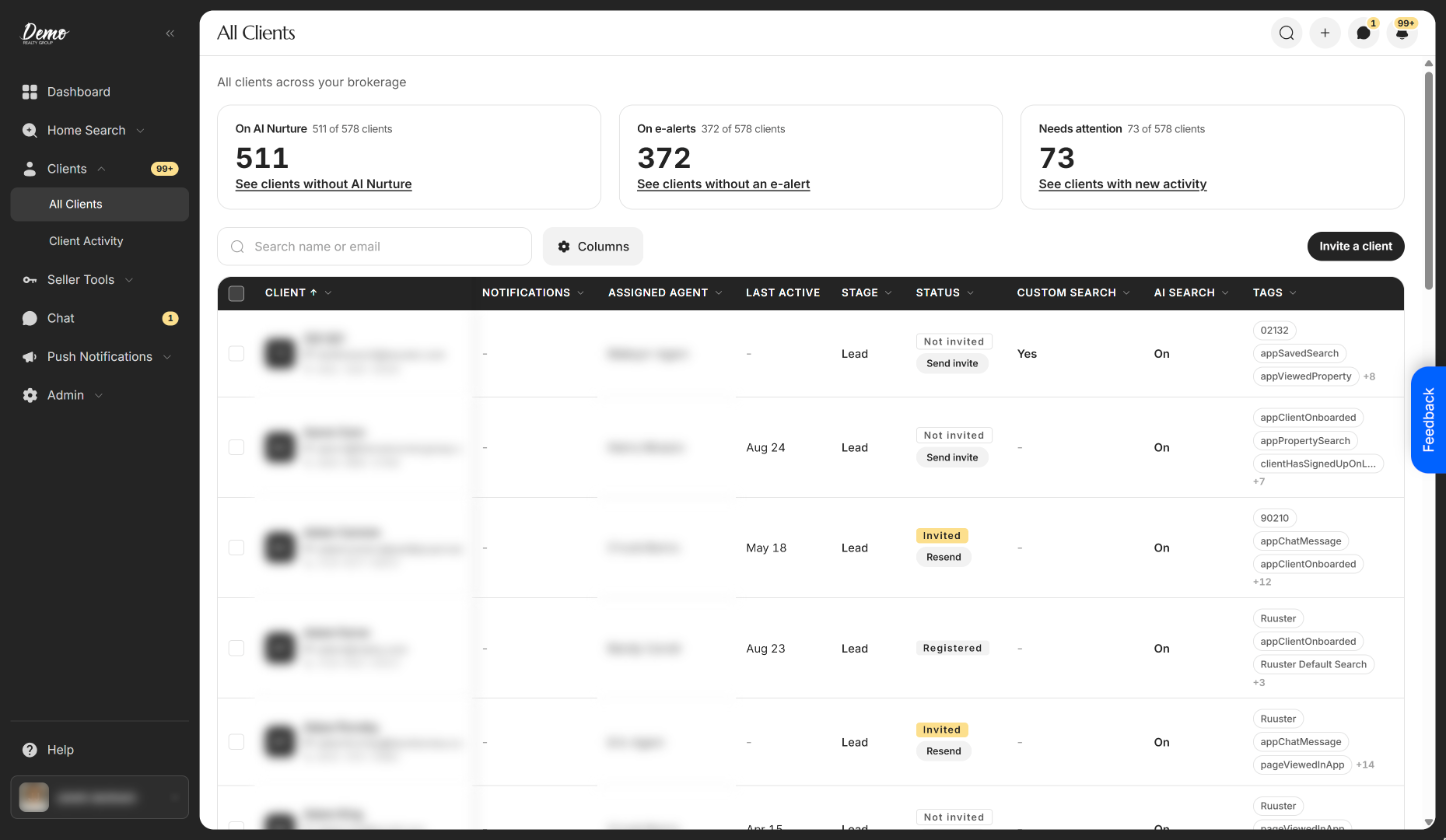
All Clients lists every client and lead you work, with stat cards, columns, invite status, CRM links and actions for one or many clients.
All Clients, under Clients in the sidebar, lists every client and lead you work in one table. Agents see the clients assigned to them, and admins and owners see every client in the brokerage. Click a name to open that client beside the list.
Use the cards at the top
Each card counts part of your list and has a link that filters the table below it.
| Control | What it does | Learn more |
|---|---|---|
| On AI Nurture | How many clients are on an AI search, shown as "N of M clients". Only shows when your account is connected to your CRM. | Put leads on AI Nurture |
| See clients without AI Nurture | Filters the table to clients with AI Search set to Off. | |
| On e-alerts | How many clients receive property alert emails. | Why isn't my client getting property alerts? |
| See clients without an e-alert | Filters the table to clients with E-alert set to Off. | |
| Needs attention | How many clients have activity you haven't seen yet. | Notifications and badges |
| See clients with new activity | Filters the Notifications column to Has notifications. |
Search, filter and set up the table
| Control | What it does | Learn more |
|---|---|---|
| Search name or email | Finds clients whose name or email contains what you type. | Find clients with search, filters and columns |
| Columns | Shows, hides and reorders the columns. Desktop only. | |
| Invite a client | Opens the form to invite a new client. | Invite a client |
| Column headers | Click a header to sort. Click the arrow beside it to pick a sort direction or filter. | |
| Filtered: bar | Shows one chip per active filter. Click a chip's x to remove it, or Clear all. | |
| Checkboxes | Tick rows, or the header checkbox for the whole page, to open Bulk actions. | Act on many clients at once |
Read a client's row
| Column | What it shows | Learn more |
|---|---|---|
| Client | Name, email and phone. Click the name to open the client beside the list. | |
| Notifications | A bell with the number of unread activities, or a dash when there are none. | |
| Assigned agent | The agent who owns the client. Admins and owners only. | |
| Last active | The last date the client was active, such as "Apr 12". A dash means never. | |
| Stage | The client's lead stage from your connected CRM. | |
| Status | Registered, Invited or Not invited. Onboarding shows beside Registered until the client finishes signing up. Leads have a Send invite or Resend button. | Resend a client invite |
| Custom search | Yes when the client has a custom saved search. A dash means they receive no listings from one. | Add a search for a client |
| AI Search | On when the client is on an AI search. Only shows when your account is connected to your CRM. | |
| Email status | Why a client does or doesn't get email: a stop reason such as Client unsubscribed, or Email validated, Unconfirmed or Undeliverable. Hidden until you turn it on in Columns. | |
| Tags | Up to five of the client's CRM tags, plus "+N" for the rest. Hover to see them all. | |
| CRM Link | The Open in CRM icon opens the client in Follow Up Boss, Sierra Interactive or Sure Send in a new tab. |
Stage, Tags and CRM Link show only when your brokerage has a CRM connected.
Work through clients in the side panel
When you click a client's name, the table folds into a list of names on the left and the client's page opens on the right.
| Control | What it does | Learn more |
|---|---|---|
| Search clients | Searches the names list by name or email. | |
| A name in the list | Loads that client into the panel. Bells show who has new activity. | |
| Page arrows under the names | Move through the list a page at a time ("Page 2 of 6"). | |
| ‹ and › (Previous lead, Next lead) | Step to the previous or next client in the table's order, across pages. The panel shows "N of M". | |
| Expand icon | Open full client page leaves the list and opens the client's own page. | Find your way around a client's page |
| x or Esc | Closes the panel and returns to the table, scrolled to the client you were reading. |
Page through your list
The footer reads "Showing 1-25 of N" and has page arrows and page numbers. All Clients shows 25 clients per page. If the table can't load, it says "We couldn't load your clients." with a Try again button.
On a phone, each client is a card instead of a row. Tap Sort & filter to sort and filter, and tap a name to open the client's page.
Cards use slightly different labels: Saved search for Custom search, AI Nurture for AI Search and Agent for Assigned agent.
Good to know
- Your role sets the list. The line above the cards reads "All clients across your brokerage" for admins and owners, or "Your assigned clients" for agents.
- Card totals ignore filters. The "of M clients" number always counts your whole list, so it stays the same while you filter.
- Your view is in the link. Search, filters, sort, page and the open client are saved in the page address. A bookmark or the Back button returns the same view.
- Leads sit beside clients. Leads from your CRM and pending invitations appear as rows too, marked Invited or Not invited.
FAQ
Can I see every agent's leads in one place?
Yes, if you're an admin or owner. All Clients covers the whole brokerage, and the Assigned agent column shows who owns each client. Agents only ever see their own clients.
How many of my leads aren't on any search?
Open the arrow beside Custom search and tick None. If you use AI Nurture, also tick Off under AI Search. The footer shows how many clients match.
What does Not invited mean?
The person is in your list, usually from your CRM, but hasn't been sent an invitation to the app. See Leads who haven't signed up yet.
Clicking a name opens the full client page instead of the panel. Why?
The side panel needs a wide window. On a smaller screen or a narrow browser window, a click opens the client's full page instead.
Why does the table scroll sideways?
The columns you have turned on are wider than your screen. The Client column stays in place while the rest scroll. Hide a few columns in Columns to fit the table.
Still need help? Reach out to us at helpme@ruuster.com and we'd be happy to assist!