
Find clients with search, filters and columns
Search All Clients by name or email, filter by stage, tags, alerts or agent, sort any column and choose which columns show.
On All Clients, type in Search name or email to find a client. Click a column header to sort, or the arrow beside it to filter. Click Columns to choose and reorder the columns you see.
Search and sort your clients
- In the sidebar, click Clients.
- Click All Clients.
- In Search name or email, type part of a client's name or email.
- Click a column header, such as Notifications, to sort by it.
- Click the same header again to reverse the order.
The list updates as you type and goes back to page 1. Search matches names and emails, not phone numbers. The page opens sorted by Client, A to Z.
Filter by a column
- Click the arrow beside a column header, such as Status.
- Under Filter by Status, tick one or more options.
- Press Esc or click outside the menu to close it.
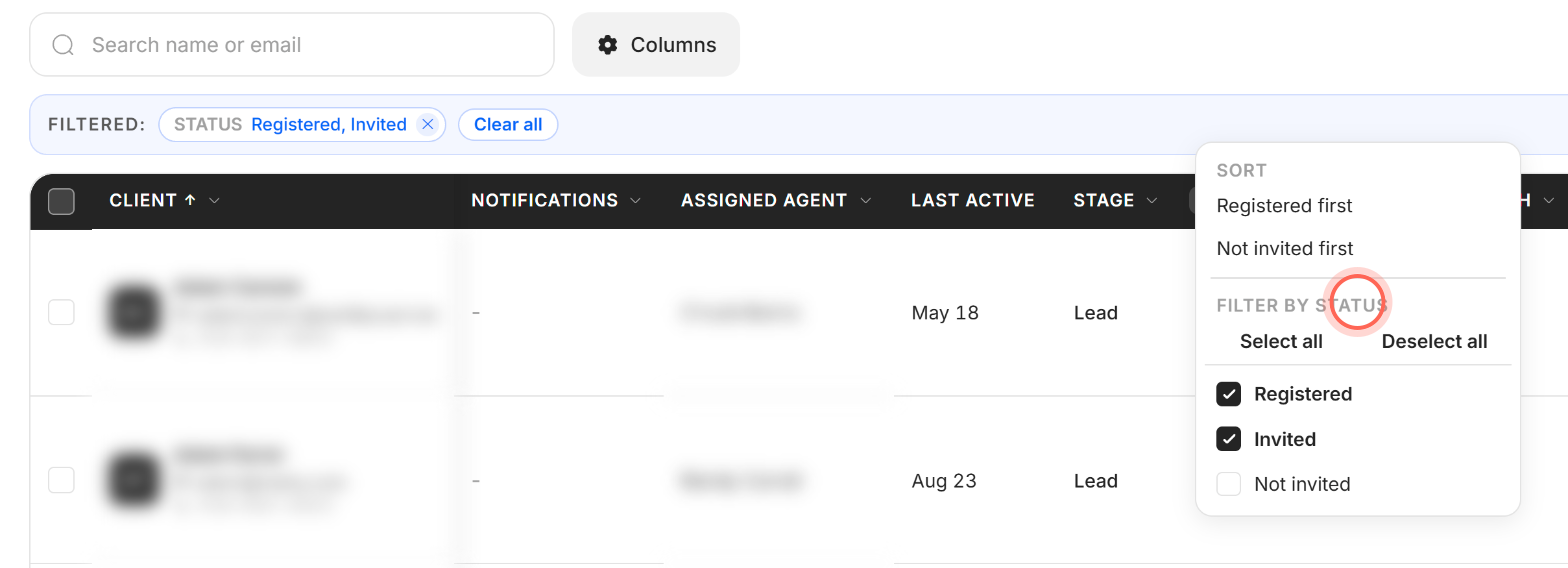
A chip such as "Status Registered, Invited" appears in the Filtered: bar above the table. Click a chip's x to remove that filter, or click Clear all to remove every filter and the search.
The same arrow menu also lists the sort directions for that column.
| Column | Sort | Filter |
|---|---|---|
| Client | A to Z, Z to A | |
| Notifications | Most new first, Fewest new first | Has notifications, No notifications |
| Assigned agent (admins and owners) | A to Z, Z to A | Each agent, with a search box |
| Stage | A to Z, Z to A | The CRM stages your clients have, with a search box |
| Status | Registered first, Not invited first | Registered (includes clients still onboarding), Invited, Not invited |
| Custom search | Has one first, None first | Has one, None |
| AI Search | On first, Off first | On, Off |
| Tags | Your 10 most-used tags. Type to search all of them. | |
| E-alert (no column) | On, Off. Set it with See clients without an e-alert at the top of All Clients. |
Last active, Email status and CRM Link can't be sorted or filtered. To learn what a stage means, see Client stages.
Choose and reorder columns
- Click Columns.
- Tick or untick a column to show or hide it.
- Drag a column by its handle to move it.
- To undo your changes, click Reset column order.
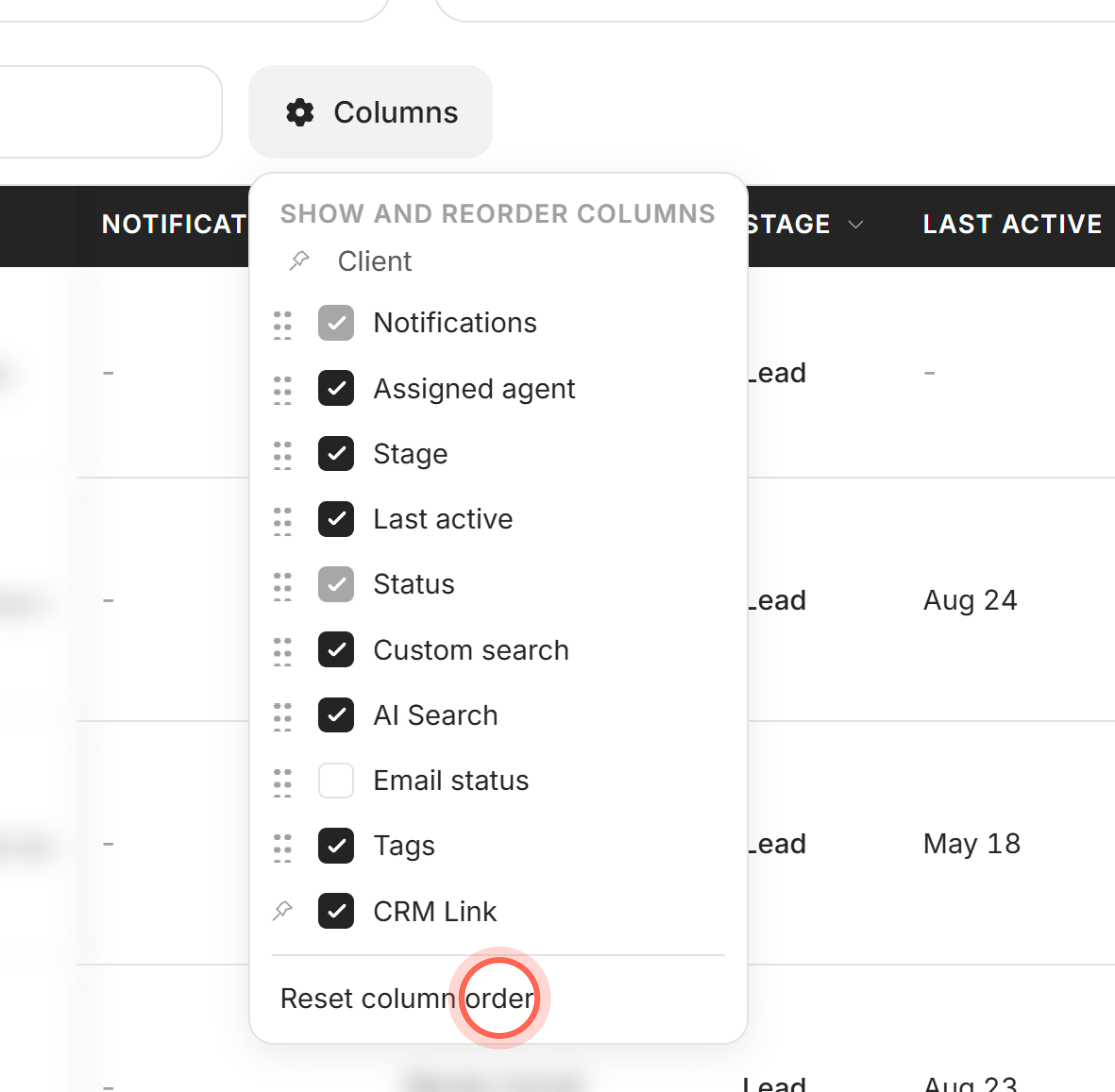
The table changes right away. Client always stays first and CRM Link always stays last. Notifications and Status can be moved but not hidden, and Email status starts hidden.
Sort and filter on a phone
- Tap Sort & filter.
- Under Sort by, tap a sort, such as "Notifications: most new first".
- Under a Filter by section, tick the options you want.
- Tap Done.
The number on Sort & filter shows how many filters are on. To remove them all, tap Clear all in the sheet.
Good to know
- Select all isn't the same as no filter. Deselect all removes the filter. Select all hides clients with no value in that column, such as clients with no tags.
- Filters combine. A client must match every filter you set. Within one filter, any ticked option counts.
- Links keep your view. Search, filters, sort and page are saved in the page address. That's how the dashboard's Clients without a saved search card opens All Clients already filtered.
- Columns are saved per device. Your column choices stay in this browser and don't change anyone else's view.
- CRM columns need a CRM. Stage, Tags and CRM Link need your brokerage to have a CRM connected. Stage and AI Search also need your own account connected to it.
FAQ
Can I look up a client by phone number?
No. Search name or email matches names and email addresses only. Search by their name instead.
Why don't I see the Stage or Tags column?
Your brokerage may not have a CRM connected, or the column is turned off. Click Columns and tick it if it's listed.
How do I see only clients who aren't getting any listings?
Click the arrow beside Custom search and tick None. If you use AI Nurture, also tick Off under AI Search.
My filters show nobody. How do I start over?
The table says "No clients match these filters." Click Clear all filters to remove every filter and the search.
Can I sort by last active date?
No. Last active is shown for each client but can't be sorted or filtered.
Still need help? Reach out to us at helpme@ruuster.com and we'd be happy to assist!