
Act on many clients at once
Select clients on All Clients to apply an AI search, send a push notification or clear notifications. Actions cover the page you're on.
On All Clients, tick the clients you want, click Bulk actions and choose Apply AI search, Send push notification or Clear notifications. A selection covers the page you're on, up to 25 clients.
Before you start
- Apply AI search shows only when your account is connected to your CRM and you have at least one AI search.
- Push notifications reach registered clients only. Leads who haven't signed up are left out.
Select clients
- In the sidebar, click Clients.
- Click All Clients.
- Narrow the list with Search name or email or a column filter, if you need to.
- Tick the checkbox beside each client you want.
- To take the whole page, tick the checkbox in the header row instead.
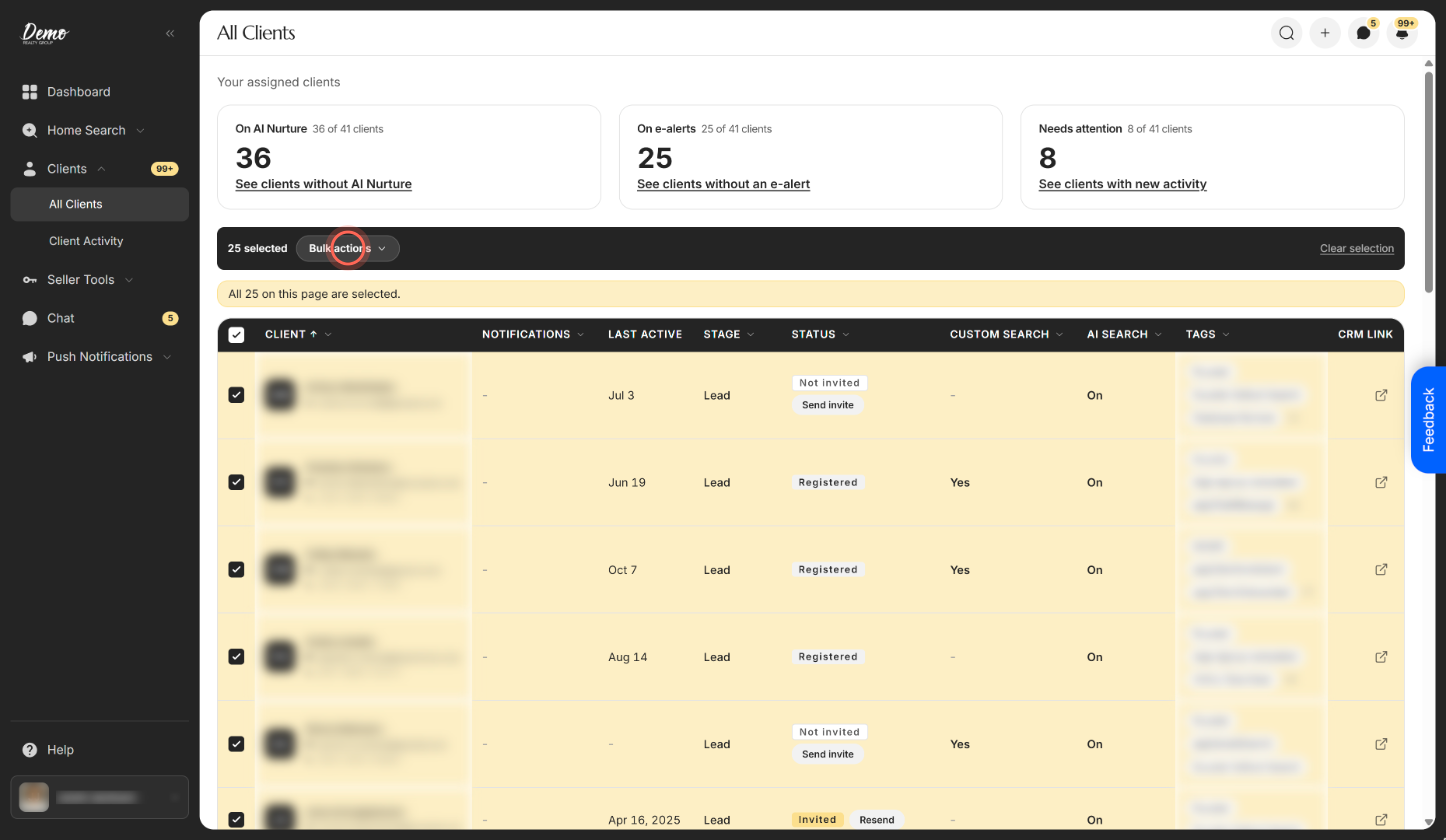
The toolbar changes to show "N selected", Bulk actions and Clear selection. With a full page ticked, a banner reads "All 25 on this page are selected." Click Clear selection to untick everyone.
Put selected clients on AI Nurture
- Click Bulk actions.
- Click Apply AI search.
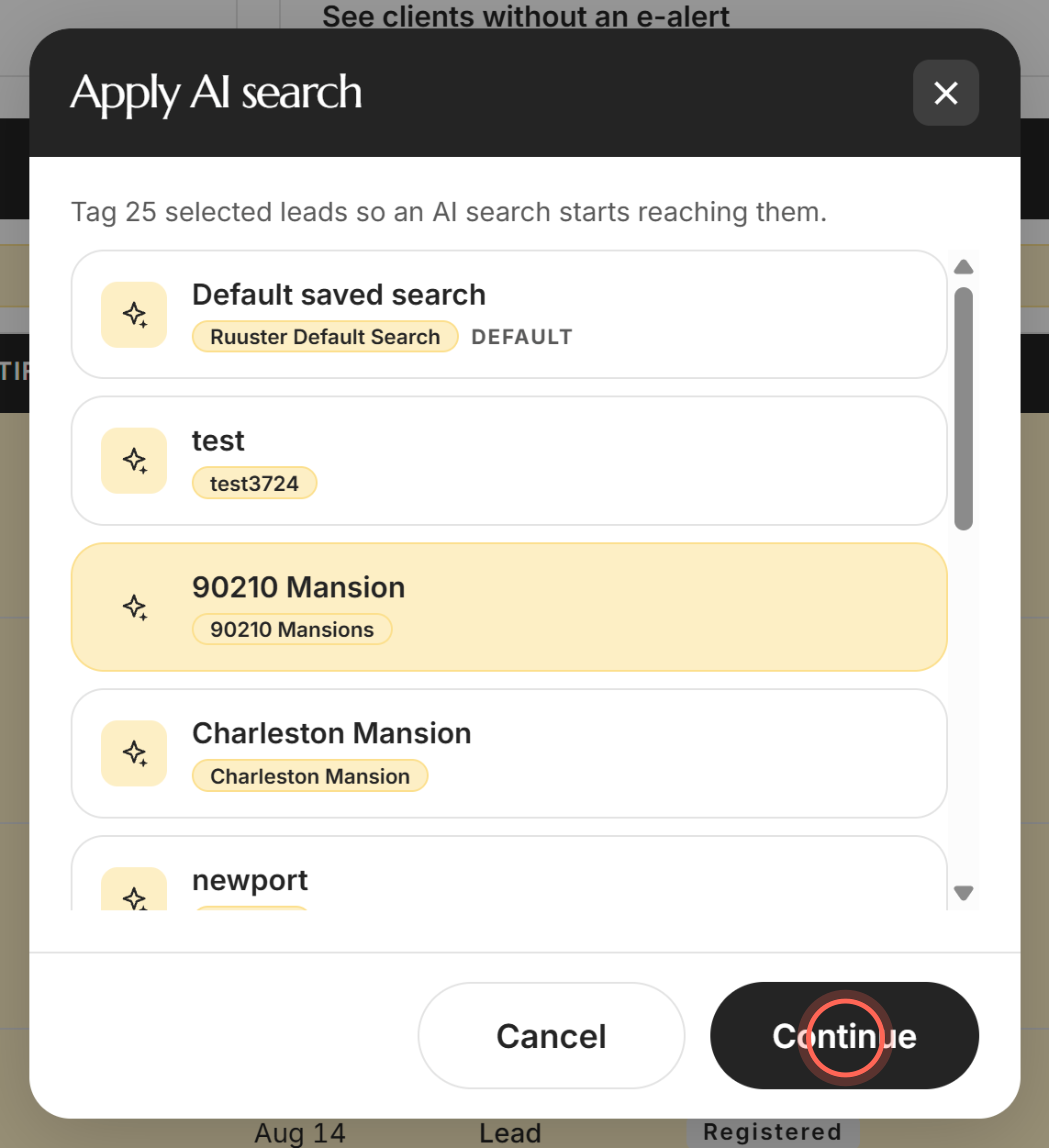
- Pick the AI search you want.
- Click Continue.
- Check the summary, then click Apply AI search.
- Click Done.
A message confirms the search name and "applied to N leads". The result lists who was Tagged, who was Already on this search and who is Not connected to your CRM. For more on AI searches, see Put leads on AI Nurture.
Send a push notification to selected clients
- Click Bulk actions.
- Click Send push notification.
- On the Create New page, check the clients filled in under Select clients.
- Enter a Notification title and Notification message.
- Click Send push notification.
A message confirms "Push notification sent successfully". If none of your ticked clients have signed up, you see "Push notifications can only be sent to registered clients" instead. See Send a push notification for the rest of the form.
Clear notifications for selected clients
- Click Bulk actions.
- Click Clear notifications.
A message confirms "Notifications cleared for N clients", and their Notifications badges go away. If some ticked clients had nothing new, the message says how many. Learn what the counts mean in Notifications and badges.
Good to know
- One page at a time. A selection holds up to 25 clients, and moving to another page clears it.
- Three actions only. There's no bulk delete, reassign or e-alert. Custom searches are added one client at a time.
- Mixed agents narrow the list. If an admin's selection spans more than one agent, only brokerage-level AI searches are offered.
- Admins can clear for anyone. Clear notifications works on other agents' clients too, unlike opening their page.
FAQ
Select all only picks some of my clients. How do I select everyone?
The header checkbox selects the clients on the page you're on, up to 25. There's no option to select every client. Filter the list down, act on the first page, then go to the next page and repeat.
Can I add the same custom search to a bunch of clients?
Not from All Clients. Build the search in Home Search, click Save and pick several clients under Selected clients. See Save a search for clients from Home Search.
Why were some clients left off my push notification?
They haven't signed up for the app yet, so they can't receive push notifications. Only registered clients are filled in.
Does clearing notifications delete anything?
No. It only marks the activity as seen. Everything stays on each client's page and in Client Activity.
Still need help? Reach out to us at helpme@ruuster.com and we'd be happy to assist!