
Send a push notification
Write a push notification with a title, message, link and photo, pick clients, preview it on iPhone and Android, and send it.
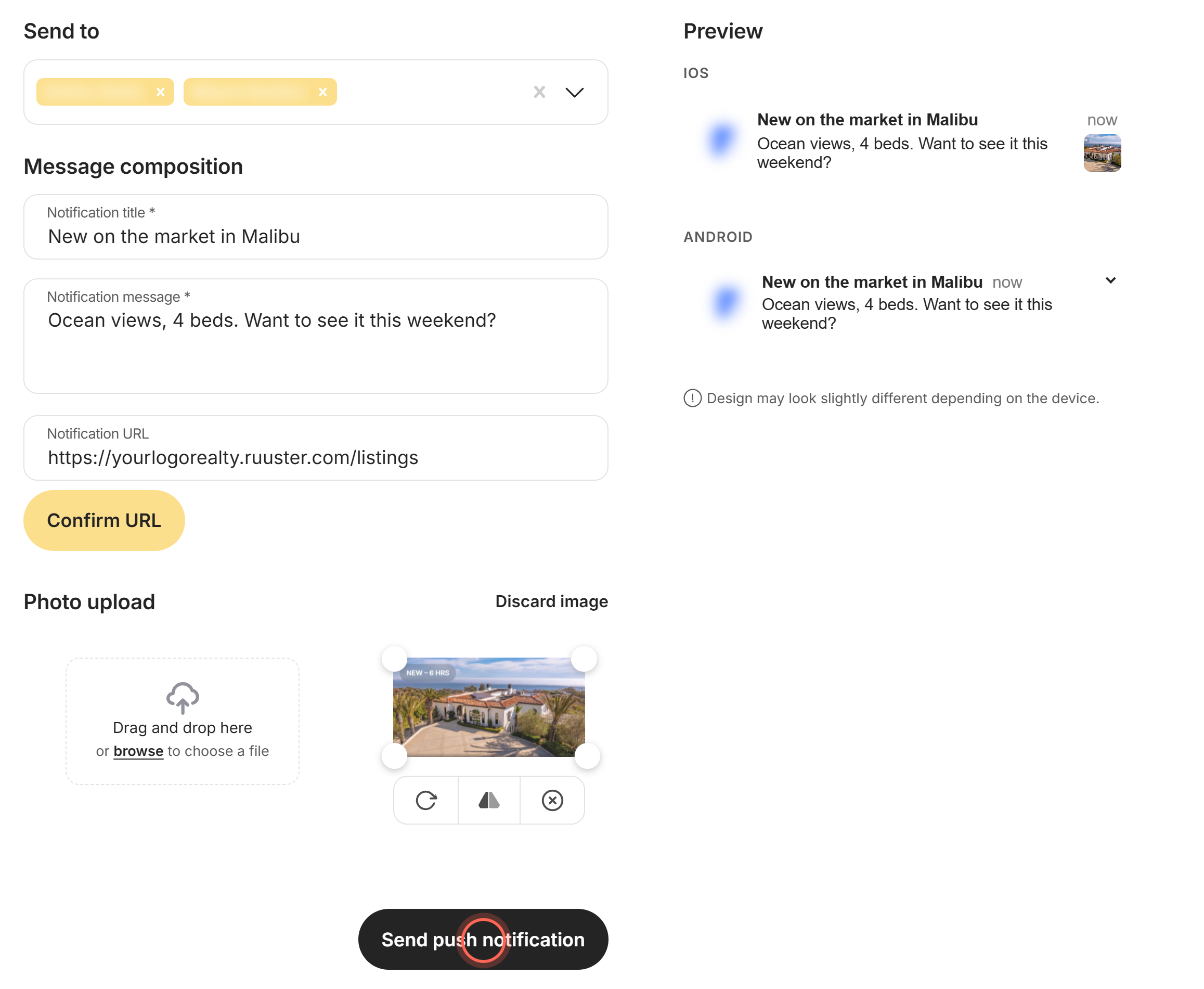
Click Push Notifications in the sidebar, then Create New. Pick clients in Select clients, write a Notification title and Notification message, add a link or photo if you like, and click Send push notification. It reaches the phones of clients who have your brokerage's app.
Before you start
- A push reaches only registered clients who have your brokerage's app on their phone with notifications allowed.
- Once sent, a push can't be recalled or edited.
Write and send a push notification
- In the sidebar, click Push Notifications, then Create New.
- Open **Select clients *** and tick each client, or click Select all.
- Type a **Notification title *** of 3 to 55 characters.
- Type a **Notification message *** of 3 to 150 characters.
- To open a page on tap, type its address in Notification URL.
- Click Confirm URL to check the page in a new tab.
- To add a photo, drag it into Photo upload, or click browse.
- Click Send push notification.
"Push notification sent successfully" appears and the form clears. The notification is listed in Review push notification history. If something is missing, "The form is invalid" appears and the page scrolls to the field to fix.
Admins can first pick agents in Filter by agents so Select clients lists only their clients.
Send to clients you picked in All Clients
- On All Clients, tick the clients you want.
- In the bar that appears, click Send push notification.
- Write the title and message on New Push Notification.
- Click Send push notification.
New Push Notification opens with those clients already picked. Leads who haven't signed up are left out. If none of them have, you see "Push notifications can only be sent to registered clients". See Act on many clients at once.
Good to know
Enter sends. Pressing Enter in the title or URL field sends the notification. Finish every field first.
Previews are close, not exact. The iOS and Android previews update as you type. "Design may look slightly different depending on the device." Click a preview to show or hide the photo.
Photo limits. JPG, PNG, GIF or WEBP up to 15 MB, and you can crop it before sending. Discard image removes it.
Links get https. Notification URL takes up to 100 characters, and "https://" is added if you leave it off.
Push a home. On a home's page, Share with clients can send it as a Push notification. See Share a property with clients.
FAQ
How do I send a push to all of my clients at once?
Open **Select clients *** and click Select all. Admins can also click Select all in Filter by agents to cover every agent.
Do I have to click Confirm URL?
No, but it's your last check. It opens your link in a new tab so you can see where every phone will land. It's greyed out until you type a link.
Can I add an image to a push notification?
Yes. Drag a photo into Photo upload or click browse. It shows in the previews before you send.
My client didn't get the push. Why?
They may not have your brokerage's app, may have notifications turned off on their phone, or may not have signed up yet. See Notification types for agents and clients.
Can I take back a push I sent by mistake?
No. Send a follow-up push with the correction.
Still need help? Reach out to us at helpme@ruuster.com and we'd be happy to assist!