
Chat with your clients
Using Ruuster 1.0? Read the 1.0 version of this article.
Open Chat to find a conversation, filter unread, send messages, files and homes, and see tour requests in the thread.
Click Chat in the sidebar to see your conversations with clients who have signed up. Click a row to open it, type in Enter message and press Enter to send. Use Search by name and the Messages filter to find a conversation fast.
Before you start
- Only registered clients have a chat. Leads who haven't signed up don't appear. A new client's conversation shows as soon as they register, even before anyone writes.
- Agents see their own clients' conversations. Admins and owners see every conversation in the brokerage.
Find a conversation
- In the sidebar, click Chat.
- Type part of the client's name in Search by name.
- To see unread chats only, click the arrow beside Messages and choose Unread.
- To flip the order, click Last sent/received.
- Click the client's row to open the conversation.
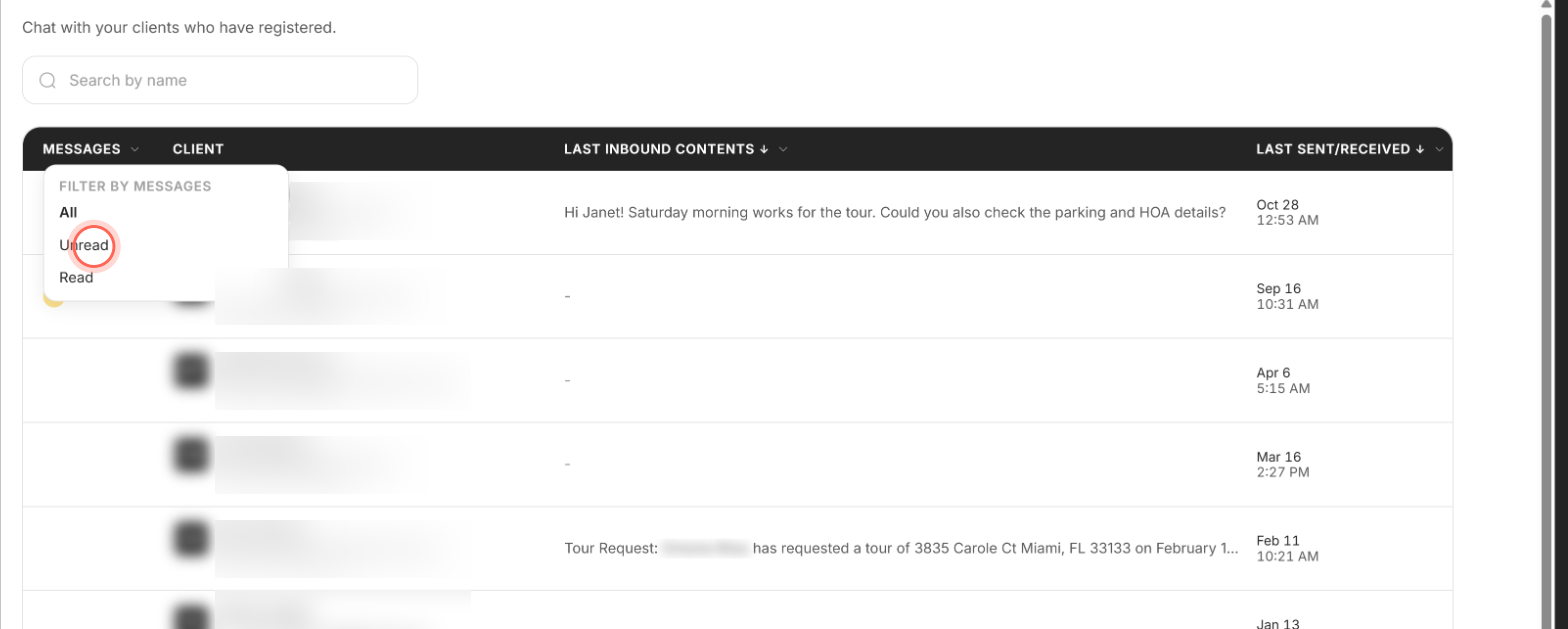
Each row shows the unread count, the client's name, email and phone, and the last message ("You:" when it's yours). A green dot means they're online. Conversations with no messages yet sit at the end of the list, with a hyphen for the message and time.
The conversation opens on the newest message, with the client's name and Online or "Last seen" at the top. Scroll up to load older messages. Click the X at the top right to go back. In the Messages menu, Read hides unread chats and All shows everything. Last inbound contents sorts the same way, and its menu offers Newest first and Oldest first.
Send a message or file
- Click in Enter message at the bottom of the conversation.
- Type your message.
- Press Enter, or click the paper plane icon.
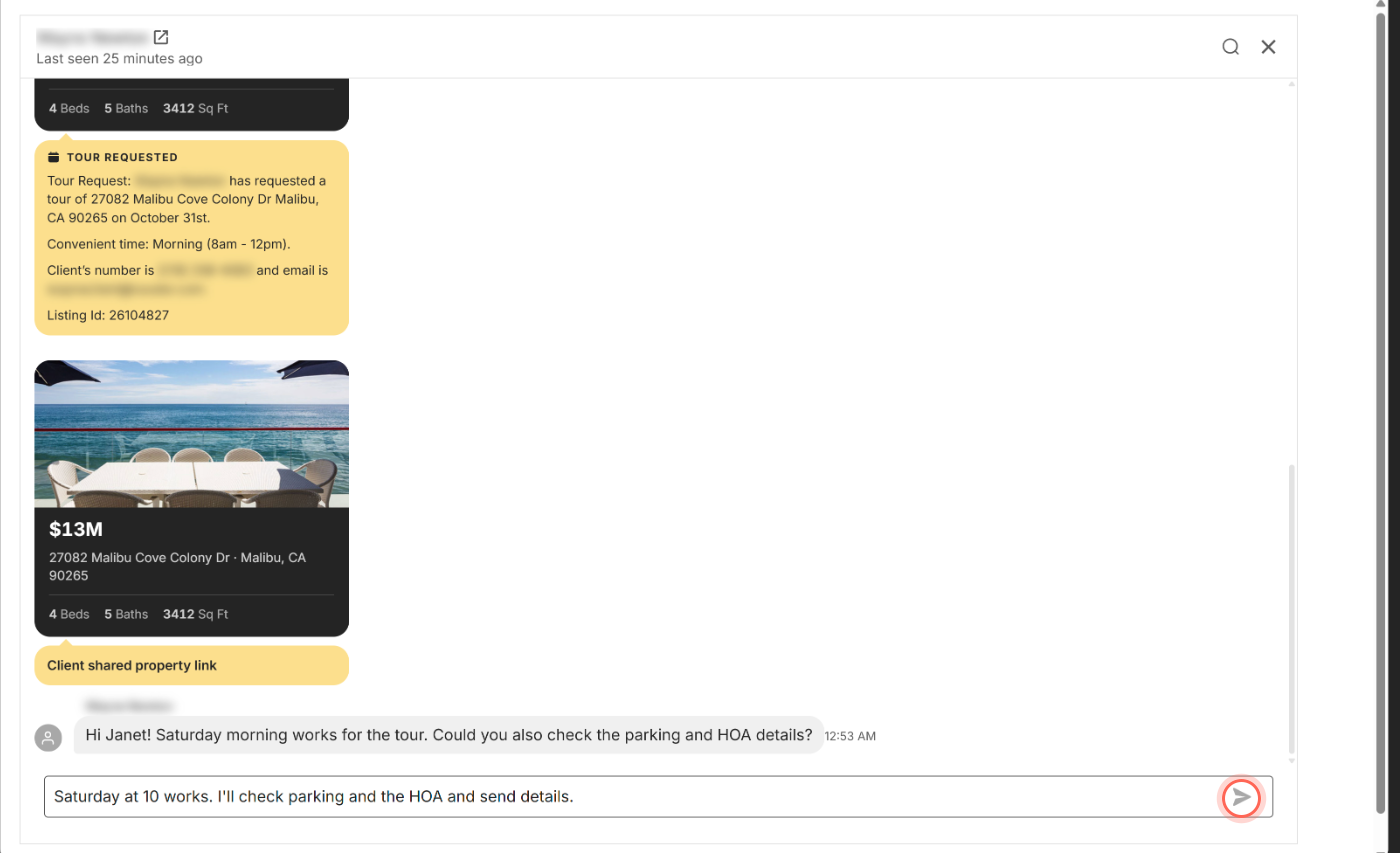
Your message appears in the thread and your client sees it as unread. Shift+Enter adds a new line; on a phone, Enter adds a line and the paper plane sends.
To send a file or photo, leave Enter message empty and click the paperclip icon. Files can be up to 25 MB. You'll see "Uploading file..." while it sends.
Search inside a conversation
- Open the conversation.
- Click the magnifier icon at the top right.
- Type a word or phrase in Search.
- Click a result.

The chat jumps to that message and highlights it. Click the back arrow (Close search) to return to the chat.
Messages you might see
| Message | What to do |
|---|---|
| "No conversations yet." | None of your clients has registered yet. "When a client registers, their conversation appears here." |
| "No conversations match your filters." | Click Clear filters to reset the search, the Messages filter and the sort. |
| "We couldn't load your conversations." | Click Try again. |
| "No Messages" | The conversation is empty. Type the first message. |
| "Access denied" | The link is to a chat that isn't between you and your client. Click Back to chats. |
Good to know
- Filters cover what's loaded. Read and Oldest first apply to the conversations loaded so far. Click Load more for 10 more; a note beside it names the rules in use.
- Phones and tablets show cards. Below desktop width the list has no column headers, so the filter and sort aren't there. Search by name still works.
- Homes and tours show in the thread. A shared home shows as a card you can open. A tour request shows as a Tour requested block with the date, time and listing ID. See Respond to tour requests and property questions.
- Greyed rows are locked. Admins and owners may see greyed conversations that belong to clients outside their agency. They can't be opened.
- Fix a sent message. Hover over your message and open its menu to Edit, Copy or Delete it.
FAQ
Why does a chat show a message I never typed?
That's the automatic first message Ruuster posts in your name to new clients. See The automatic first-contact message.
How do I start a chat with a client who isn't on the list?
Open the client from All Clients and click the Chat icon at the top of their page. If they haven't signed up yet, they have no chat.
Can I jump to the client's profile from a conversation?
Yes. Click the client's name at the top of the conversation to open their page.
A client says they messaged me, but I can't find it. What do I check?
Clear any search or filter, then search their name. If the list is long, click Load more.
Do chat messages show up as notes in Follow Up Boss or Sierra?
Yes, if your brokerage uses Follow Up Boss. Chat messages show as notes on the lead's profile and under Chat in the Ruuster panel.
Why can't I filter or sort my chats on my phone?
The phone and tablet layout has no column headers, so the Messages filter and the sort are desktop only.
Still need help? Reach out to us at helpme@ruuster.com and we'd be happy to assist!