
Share a property with clients
Using Ruuster 1.0? Read the 1.0 version of this article.
Share one home or several. Send a home to clients in chat or by push notification, or select homes in your search and share one link.
To send a home to your clients, open it from Home Search and click Share with clients in the Share and Market panel. It goes to them in chat or as a push notification. To send several homes in one link, tick their cards and click Share.
Before you start
- You need an agent account. Admin accounts see these controls when they also have the agent role.
- Push notifications reach clients who use your brokerage's app on their phone.
Send a property to clients in chat
- Open a home from your Home Search results.
- In the Share and Market panel, click Share with clients. On a phone, tap Share with clients at the bottom.
- Under Choose share method, leave Chat selected.
- Under Select clients, pick one or more clients, or tick Select all clients.
- Type a message in Note (optional) if you like.
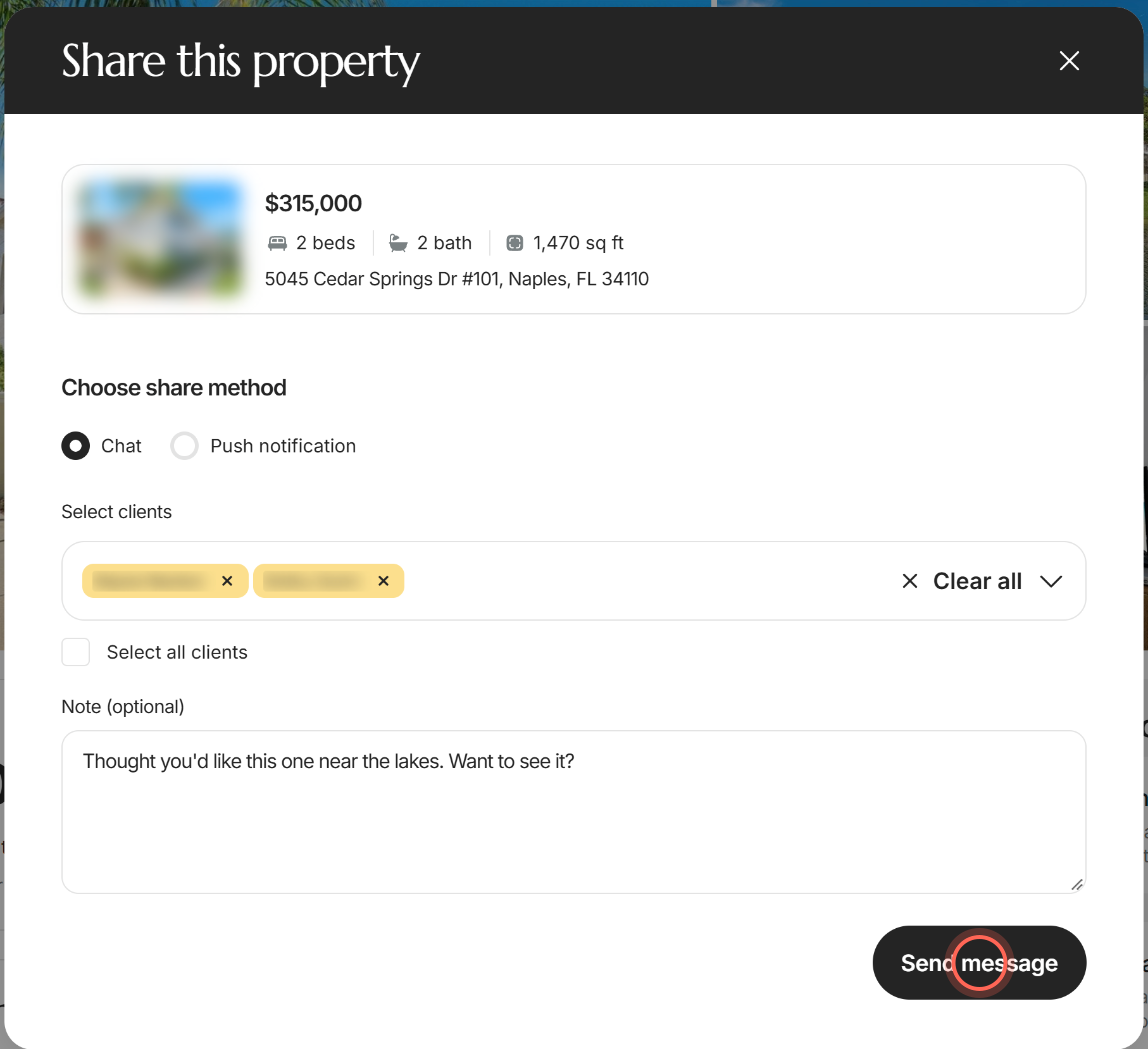
- Click Send message.
"Your message has been delivered" confirms it. Each client gets the home as a card in their chat with you, and their replies show in Chat. If something goes wrong, you see "Couldn't share this property". See Chat with your clients.
Send a property as a push notification
- Open the home and click Share with clients.
- Under Choose share method, click Push notification.
- Under Select clients, pick the clients to notify. Admins can narrow the list with Filter by agent first.
- Type a Notification title and a Notification message.
- Check the Notification URL, which opens the home by default. Click Try it to test it.
- To add a picture, click Select photos under Upload photo.
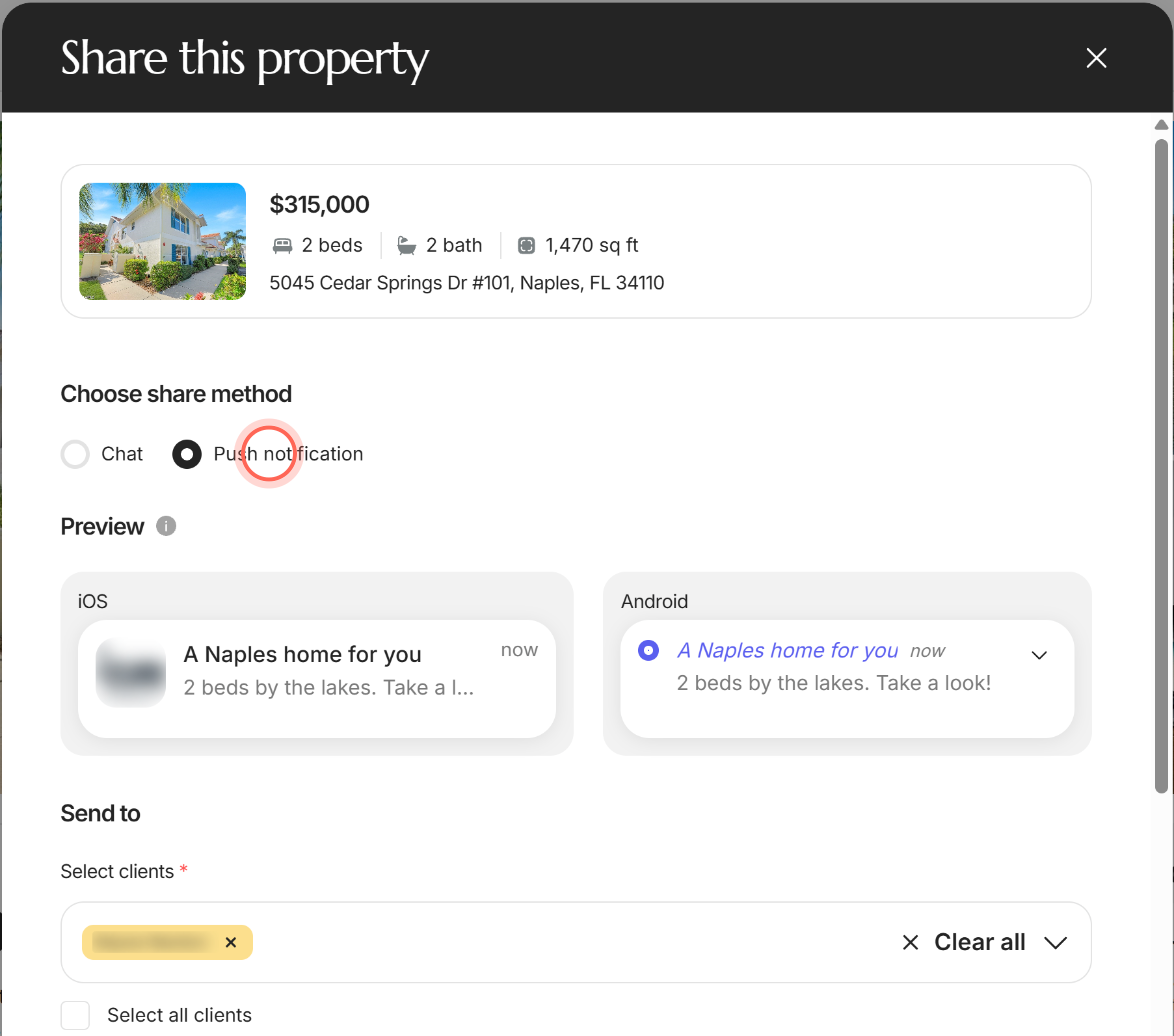
- Check the Preview, then click Send push notification.
"Notification sent" confirms it went out. If it fails, you see "Couldn't send your push notification". For more on push messages, see Send a push notification.
The title takes 2 to 60 characters and the message 2 to 150. The picture can be a PNG, JPG or GIF up to 5MB. Admins see every client in the brokerage until they pick an agent, and changing Filter by agent clears the clients you picked.
Share several homes in one link
- On Home Search, tick the checkbox at the top right of each home's card.
- In the bar that shows how many homes are selected, click Share.
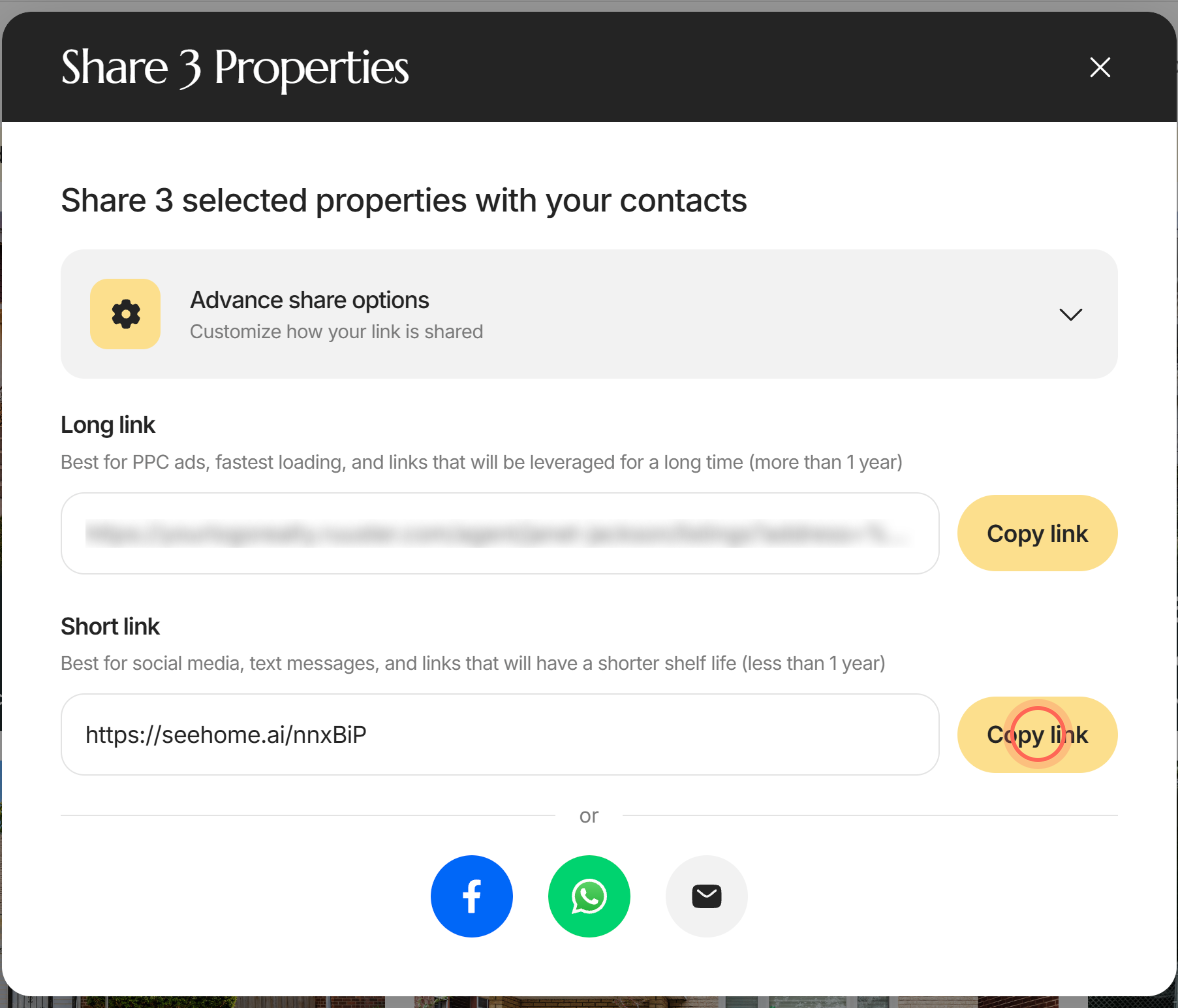
- Click Copy link next to Short link, or use the Facebook, WhatsApp or email button.
The link opens Home Search with your filters and only the homes you picked. Its preview shows the first home's photo and reads "Look at these properties I think you’ll be interested in." Click Clear selection in the bar to start over.
You can pick up to 25 homes; a 26th shows "Max 25 Properties Per Send". To add a sign-up wall or tags first, see Share a search link to get new leads.
Share a link to one home
- Open the home from Home Search.
- In the Share and Market panel, click Market property.
- Click Copy link next to Short link, then paste it into a text or email.
Anyone who opens the link sees the home, and people who sign up from it are credited to you. For sign-up walls, tags and tracking, see Market a property with a share link.
Good to know
- Chat and push only. The Share with clients card mentions email, but the window offers Chat and Push notification. To email a home, use Market property and its email button.
- Selections stay put. Ticked homes stay selected while you change filters. Checkboxes don't show on Favorites.
- Same panel in the gallery. The Share and Market panel also shows when you open the home's photo gallery.
FAQ
What happened to Refer to Client?
Share with clients replaced it. It sends the home straight to the clients you pick, in chat or as a push notification.
Can I share a property by text or email?
Yes. Click Market property, copy the Short link into a text, or click the email button to open your mail app with the link.
When I share by text, WhatsApp, Facebook or email, the preview photo or link is missing. Why?
Facebook, WhatsApp and text apps build the preview from the home's first photo, link title and description. A home with no photos shows no picture. The email button sends plain text without a photo. If the link is missing, paste the Short link into your message yourself.
Can I pick several homes and send them to a client in one link?
Yes. Tick up to 25 cards on Home Search, click Share in the bar and copy the link.
Do my clients need the app to get a push notification?
Yes. Clients without your brokerage's app won't get it. Send the home in chat instead.
Still need help? Reach out to us at helpme@ruuster.com and we'd be happy to assist!