
Ask for a filter your MLS has
Search for the filter in More filters, then click Request this filter to tell Ruuster which MLS field you need. Our team replies by email.
On Home Search, open More filters and type the filter's name in Search all filters…. If nothing matches, click Request this filter, say where you see the filter today and click Send request. Ruuster's team reviews it and gets back to you by email.
Before you start
- Requests start from Search all filters…, which only agents see.
- Try a few names first, like "primary", "master" and "main level". The filter may already exist under another name. See Filter your search with More filters.
- Have the MLS name, or a website where you see the field, ready.
Request a filter
- On Home Search, click More filters.
- Click Search all filters… and type the filter's name.
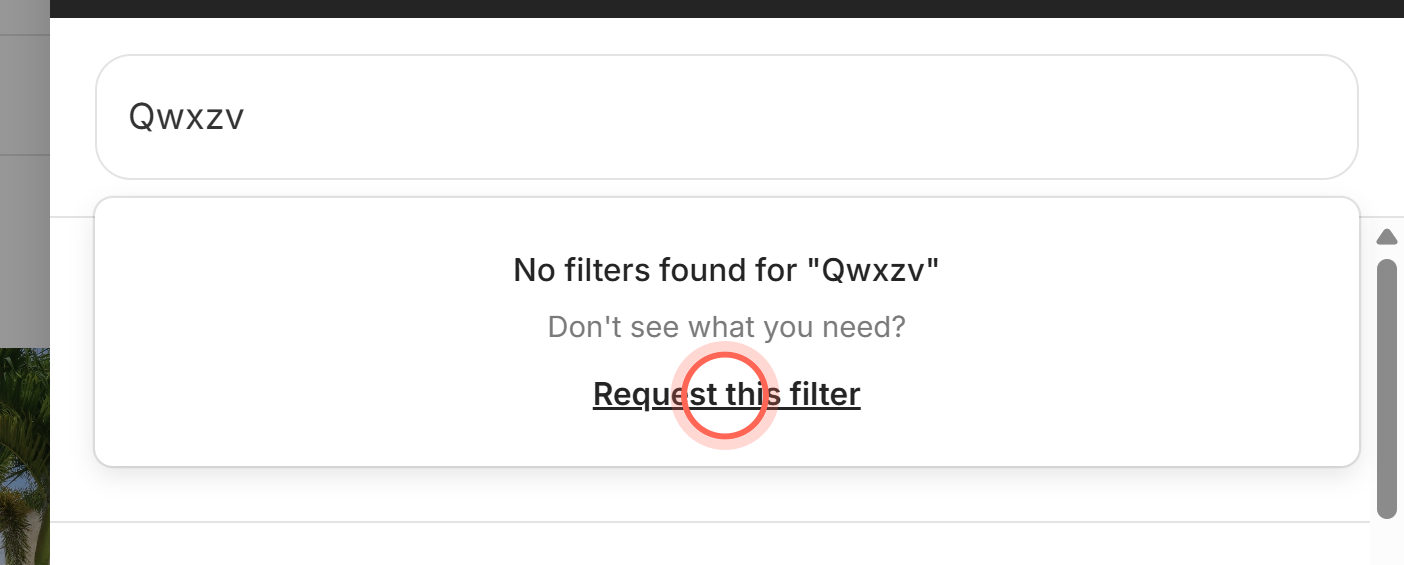
- When the menu says "No filters found for" your term, click Request this filter.
- Check Filter name. It's filled in with what you typed.
- In Where do you see this filter today?, enter the MLS name or a website address.
- Optional: in Additional context, add example listings, common values or why you need it.
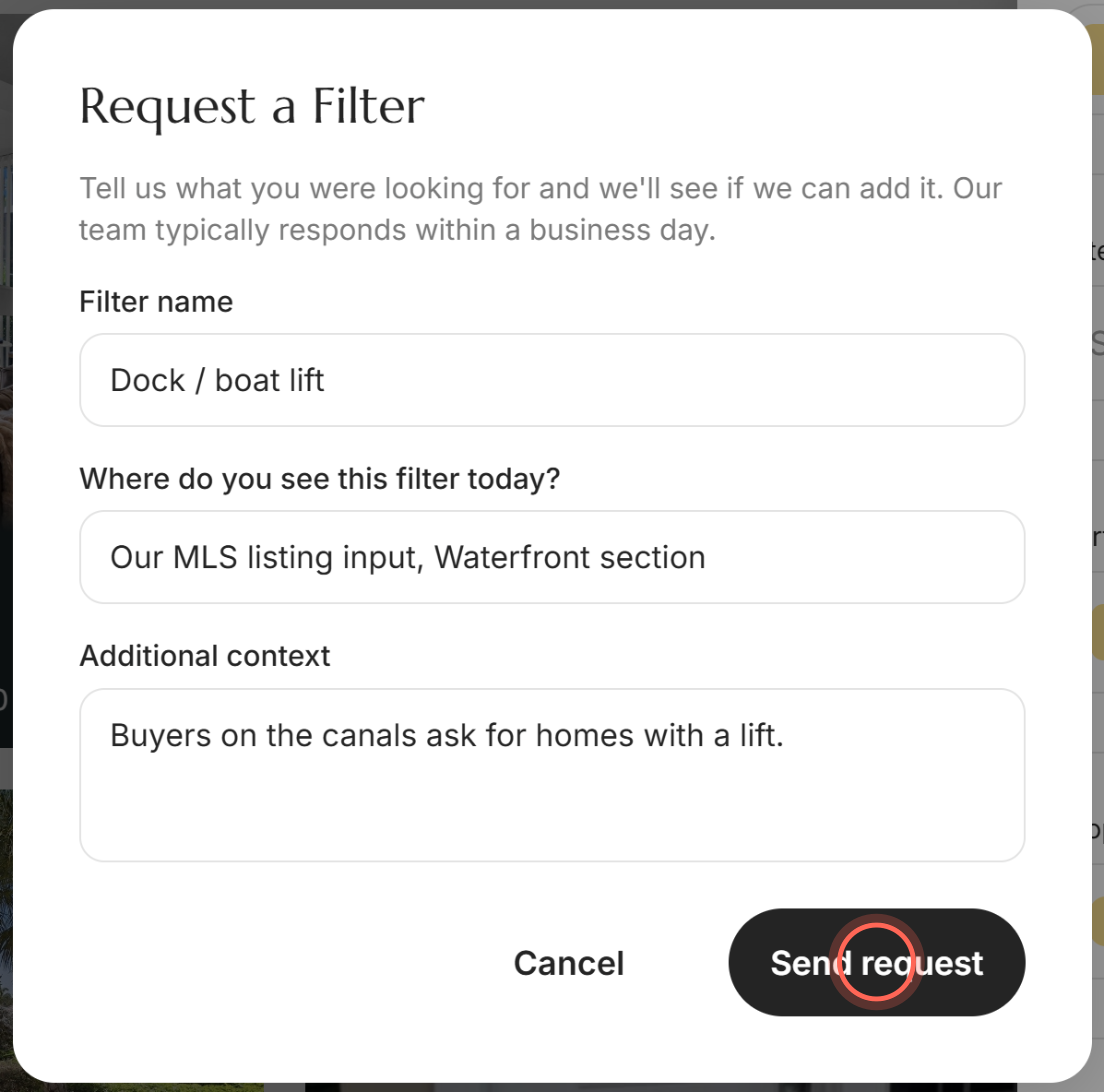
- Click Send request.
A message says "Filter request sent" and "Our team will review it and get back to you." You also get a copy of the request at your email address.
Good to know
- Reply time. The form says the team typically responds within a business day.
- Both fields are required. Filter name and Where do you see this filter today? need at least 3 characters. You can't click Send request until both are filled in.
- Length limits. Filter name takes up to 150 characters, the source up to 500 and Additional context up to 2,000.
- Screenshots help. The form takes text only. Email a screenshot of the field in your MLS, plus an example listing, to helpme@ruuster.com.
- If sending fails. You'll see "Could not send request". Wait a moment and click Send request again.
FAQ
Can I filter by room location, like a primary bedroom or full bath on the main level?
Type "main" or "primary" in Search all filters…. If your MLS sends room levels, the filter shows up and you can add it. If nothing matches, click Request this filter right there.
Why don't I see Request this filter?
It appears only after you type at least 3 characters and the search finds no filters. If the search finds filters but none is right, email helpme@ruuster.com instead.
Can my admin add a new MLS filter?
Admins choose which existing filters clients see, in Choose the search filters clients see. A field Ruuster doesn't offer yet has to be requested from Ruuster's team.
Can my clients request filters?
No. Search all filters… and Request this filter are only for agents. Ask your clients what they need and send the request yourself.
The filter exists but my results still look wrong. What now?
That's usually a data or filter setting, not a missing filter. See My search results don't match the MLS.
Still need help? Reach out to us at helpme@ruuster.com and we'd be happy to assist!