
Choose the search filters clients see
Choose which filters appear in Home Search, their order and names, and which ones clients can see as well as agents.
Admins only. On Default Search Filters (Admin), choose the filters in every agent's filter panel and drag them into order. Rename them in Display as, tick Client facing for the ones clients see too, and click Save changes.
Before you start
- You need to be an admin. Changes reach every agent and client on your brokerage.
Add filters
In the sidebar, go to Admin > Global Settings > Default Search Filters.
Click Add filter.
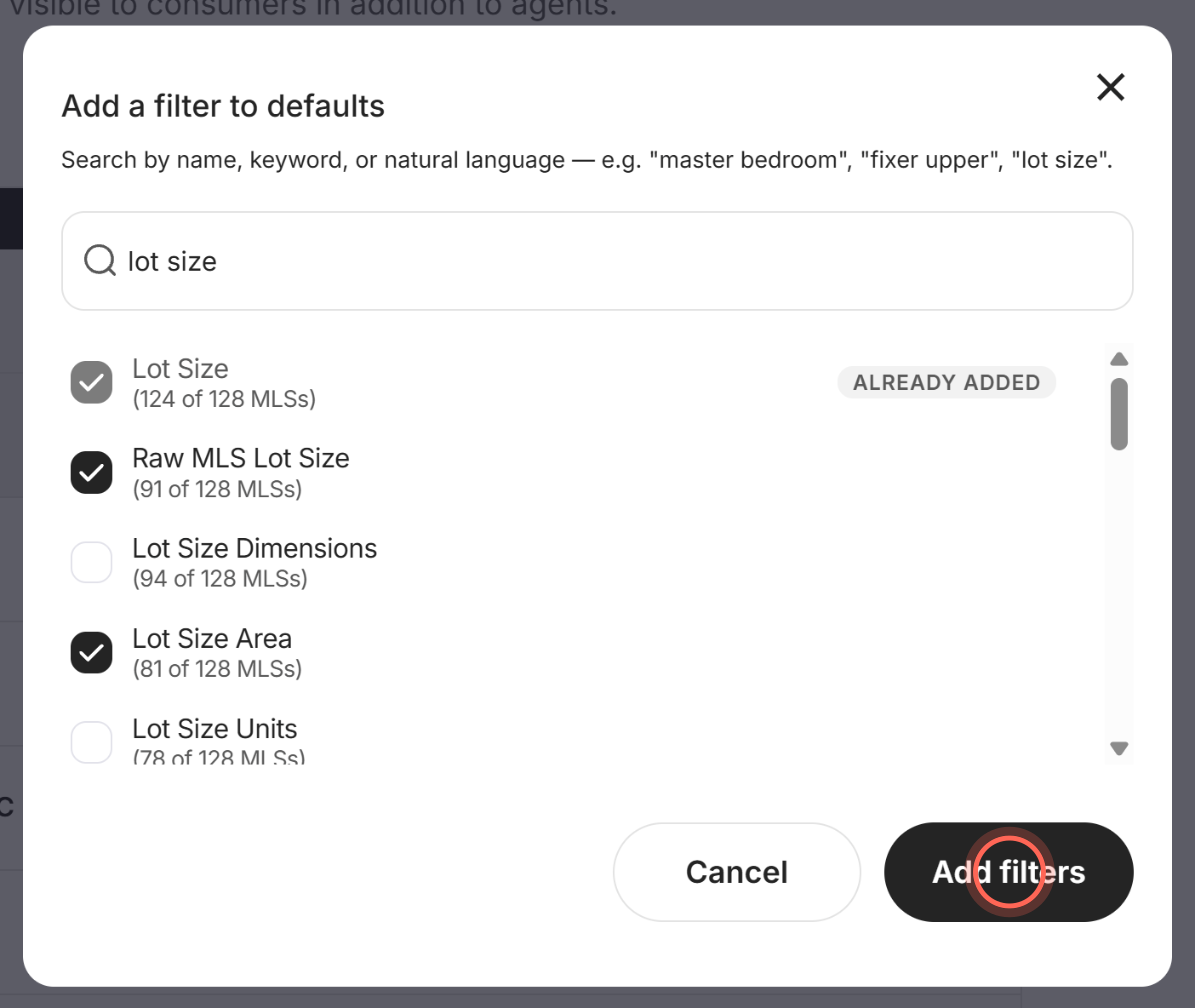
Type a name, keyword or plain words in Search filters, such as "lot size".
Tick each filter you want to add.
Click Add filters.
Click Save changes in the bar at the bottom of the page.
A message says "Default filters have been saved successfully," and the new filters show in the list. An empty page says "No default filters yet." until you add some.
Reorder, rename or show filters to clients
In the sidebar, go to Admin > Global Settings > Default Search Filters.
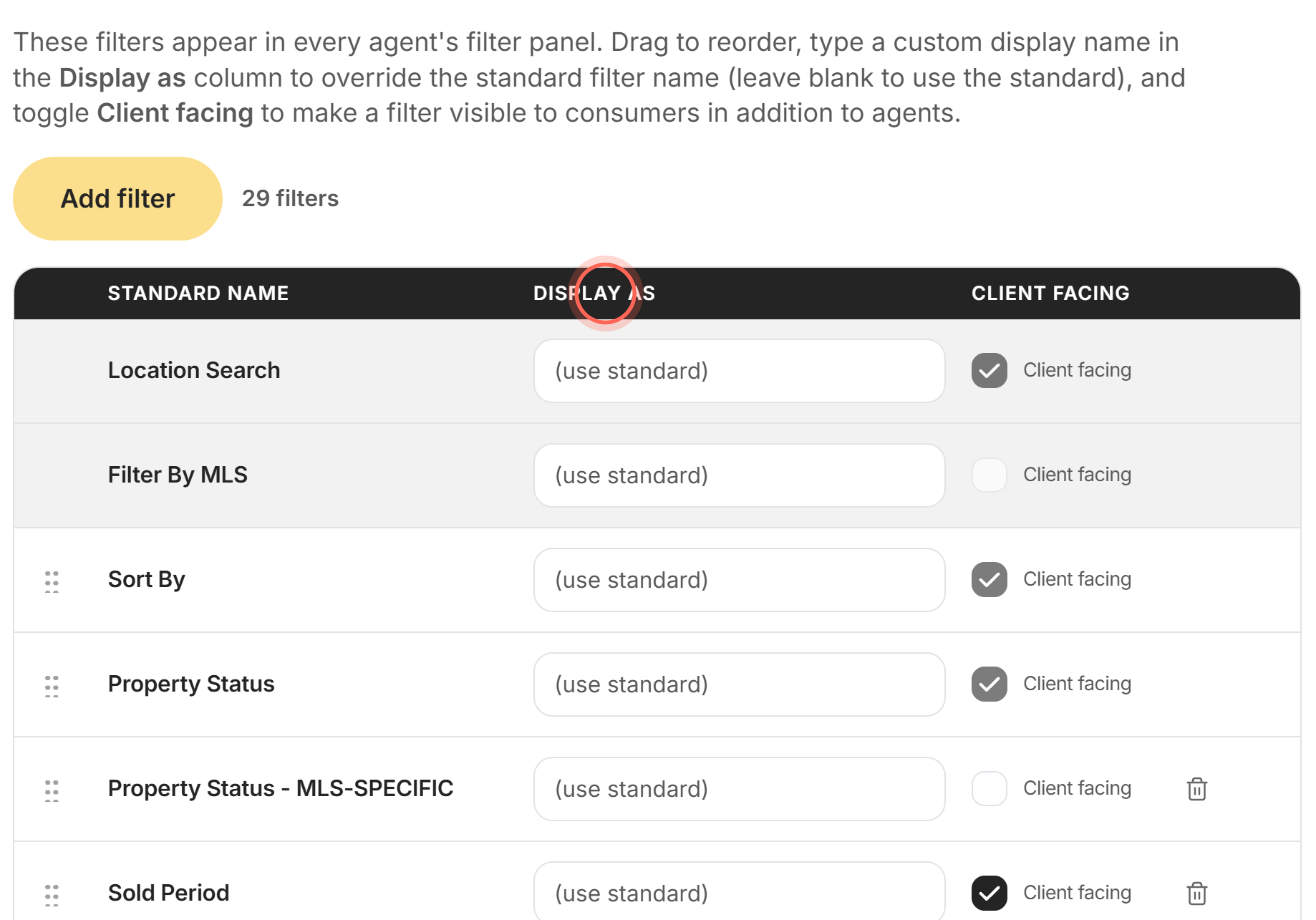
Drag a filter by its handle to a new position.
Type a new name in the filter's Display as field.
Tick Client facing to show the filter to clients as well as agents.
Click Save changes.
A message says "Default filters have been saved successfully."
Remove a filter
- In the sidebar, go to Admin > Global Settings > Default Search Filters.
- Click the trash icon on the filter's row.
- Click Save changes.
The filter leaves every agent's filter panel. There is no confirmation, so check the list before you save.
Go back to the app defaults
In the sidebar, go to Admin > Global Settings > Default Search Filters.
Click Reset to defaults in the bar at the bottom of the page.
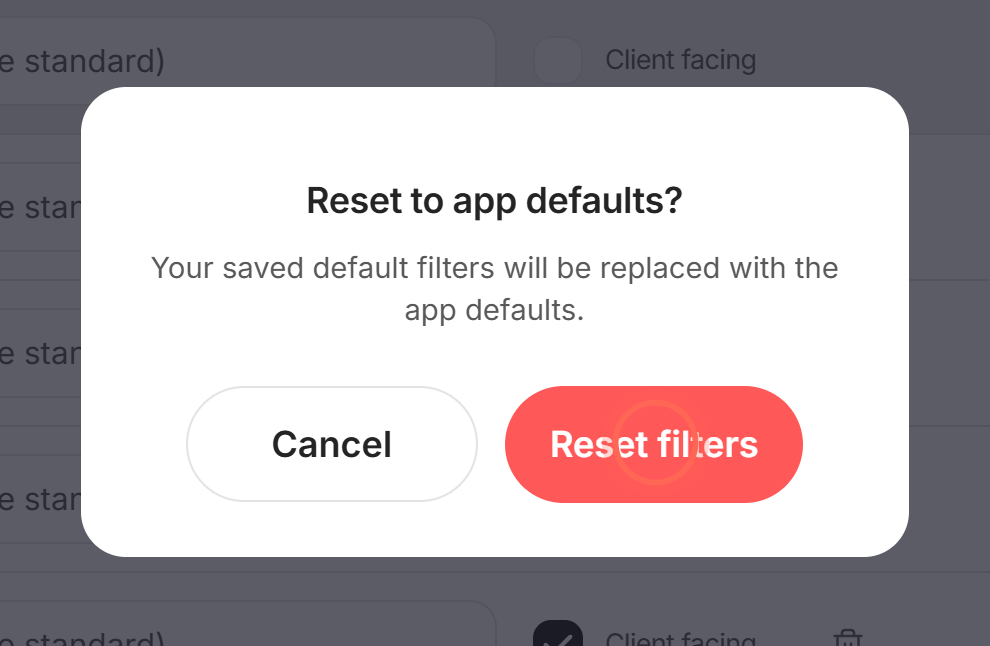
Click Reset filters in the Reset to app defaults? window.
Your saved filters are replaced with the app defaults. Reset to defaults only shows once your brokerage has saved its own set.
Good to know
- Pinned filters. Location search and MLS always come first and show a pin ("Pinned: always first, in this order") instead of a drag handle.
- Locked filters. Location search, MLS, price, sort, bedrooms, bathrooms, status and type can't be removed, and their Client facing box can't be changed.
- Standard names. Leave Display as blank to use the standard name. A standard name can list several MLS names joined with "/".
- Up to 100 filters. At 100, the button reads "Max filters limit reached" until you remove one.
- Unsaved changes. An amber Unsaved changes note shows until you save. Cancel throws away your edits and reloads the saved list.
FAQ
Can agents see more filters than clients?
Yes. Agents see every filter in this list. Clients see only the filters marked Client facing.
I reordered the filters but clients still see the old order. Why?
The new order wasn't saved. Drag the filters again and click Save changes before you leave the page.
My MLS has a field I can't find in the list. What do I do?
Search the Add filter window with other words. If it still says "No filters match", see Ask for a filter your MLS has.
How is Cancel different from Reset to defaults?
Cancel drops edits you haven't saved. Reset to defaults replaces your saved set with the app's default filters.
The page says "We couldn't load your default filters." What now?
Check your connection and click Try again.
Still need help? Reach out to us at helpme@ruuster.com and we'd be happy to assist!