
Manage your trusted vendors
Using Ruuster 1.0? Read the 1.0 version of this article.
Add, edit, copy and remove the trusted vendors clients see on Services, grouped into categories inside each tab.
Admins only. On Vendors (Admin), click Edit vendors on a tab, pick a category, click + Add vendor, fill in the vendor's details and click Save. Clients of that tab's agents see the vendor on their Services page.
Before you start
- You need to be an admin. Agents can't add or change vendors.
- You need at least one vendor tab. See Manage vendor tabs.
- Have the vendor's email address. Vendors without one aren't shown to clients.
Add a vendor
In the sidebar, go to Admin > Global Settings > Vendors.
Click Edit vendors on the tab's card.
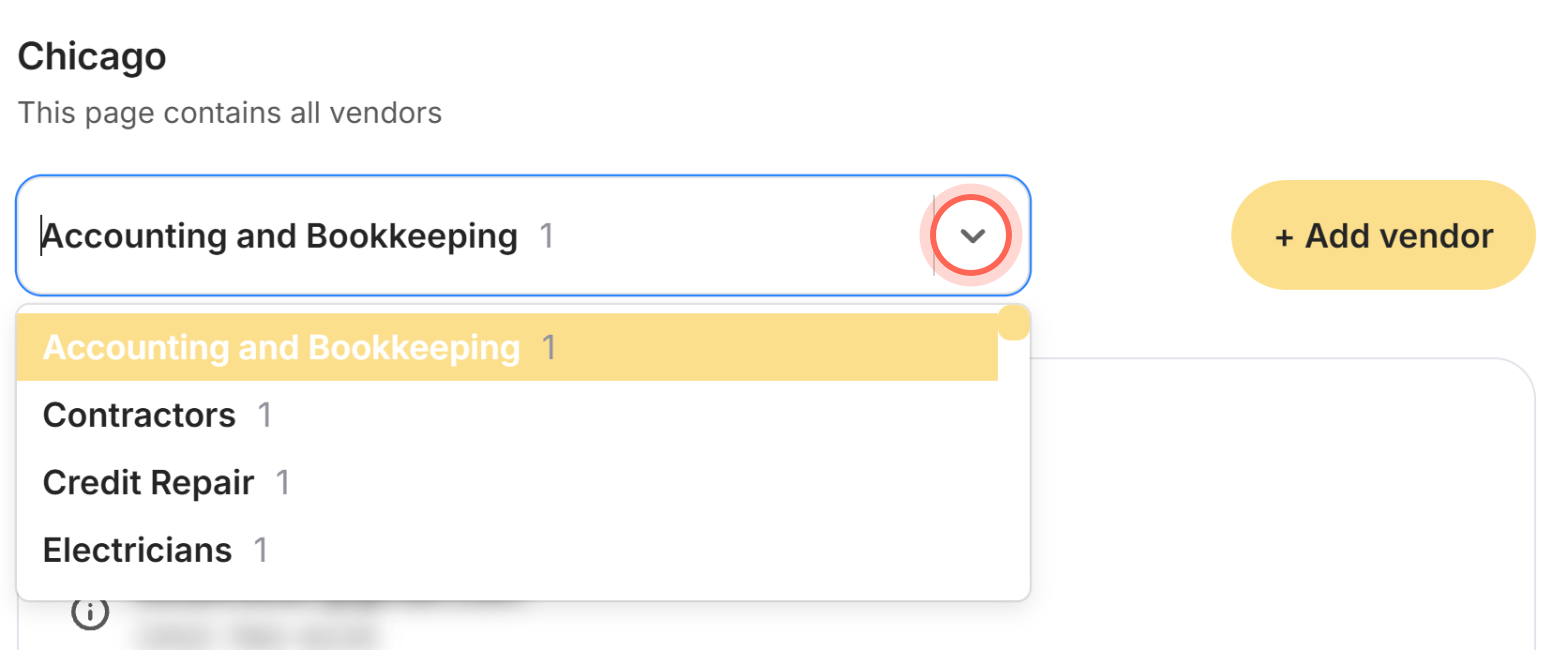
Pick a category, such as Mortgage or Inspection, from the dropdown at the top.
Click + Add vendor.
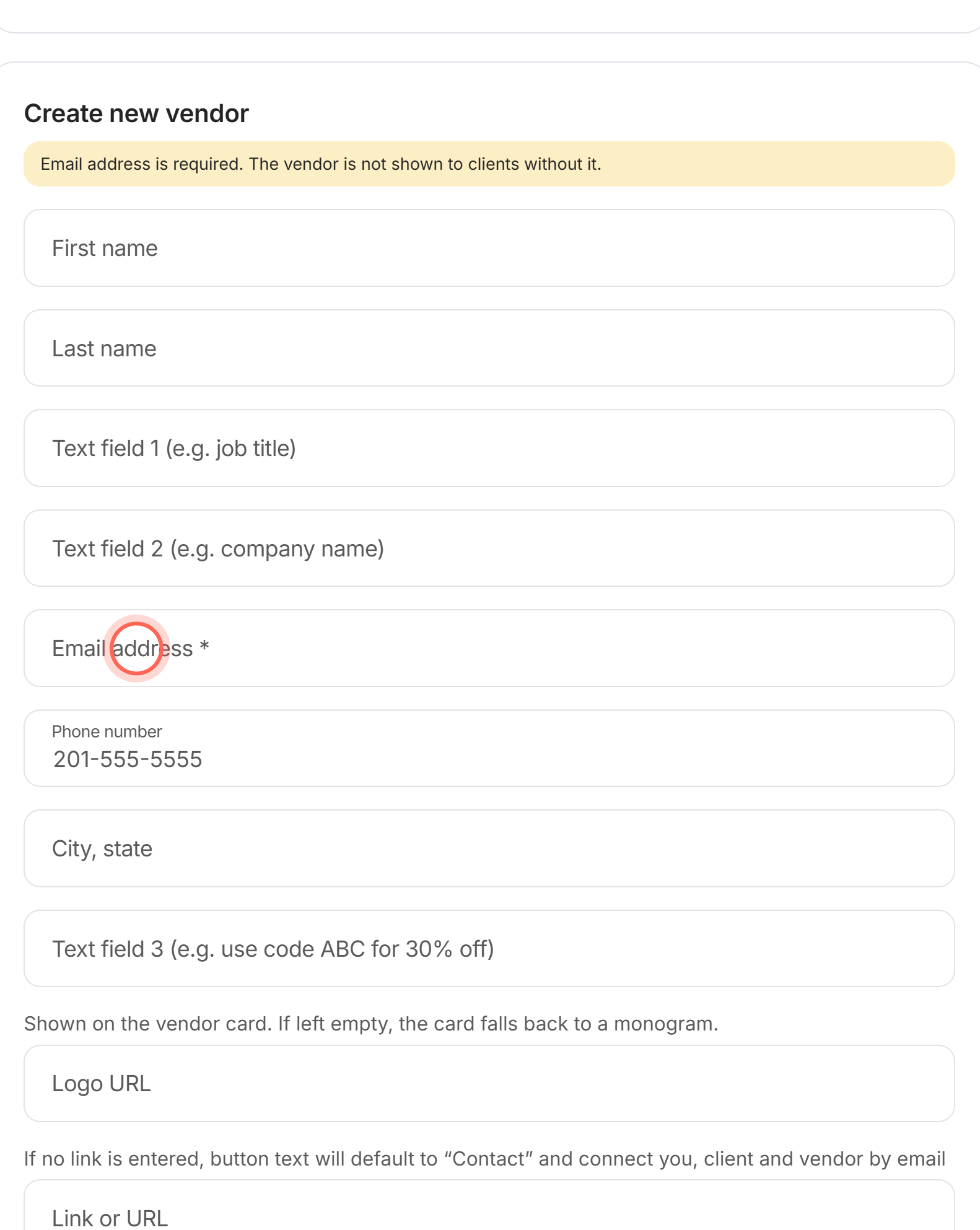
Fill in the vendor's details, including the required Email address.
Add a Link or URL and Button text if the vendor has a site to send clients to.
Click Save.
The vendor's card appears in that category, and the category's count goes up.
| Field | What to enter | Limit |
|---|---|---|
| First name, Last name | The vendor's name | 20 characters each |
| Text field 1 (e.g. job title) | A job title or other short line | 30 characters |
| Text field 2 (e.g. company name) | The company name | 50 characters |
| Email address | Required. The vendor isn't shown to clients without it. | 50 characters |
| Phone number | Written like 201-555-5555 | 14 characters |
| City, state | Where they work | 30 characters |
| Text field 3 (e.g. use code ABC for 30% off) | An offer. Shows only on tabs with a CRM tag. | 250 characters |
| Logo URL | The web address of the vendor's logo image. Preview Logo opens it. | 250 characters |
| Link or URL | Where the vendor's button goes. Preview Link opens it. | 250 characters |
| Button text | The words on that button. Without it, the button reads "Contact". | 20 characters |
Edit a vendor
- In the sidebar, go to Admin > Global Settings > Vendors.
- Click Edit vendors on the tab's card.
- Pick the vendor's category from the dropdown.
- Click Edit vendor on the vendor's card.
- Change the details in the Update vendor form.
- Click Save.
The card shows the new details, and clients see them on Services. Cancel closes the form without saving.
Copy a vendor to another tab
In the sidebar, go to Admin > Global Settings > Vendors.
Click Edit vendors on the tab that has the vendor.
Pick the vendor's category from the dropdown.
Click the copy icon on the vendor's card.
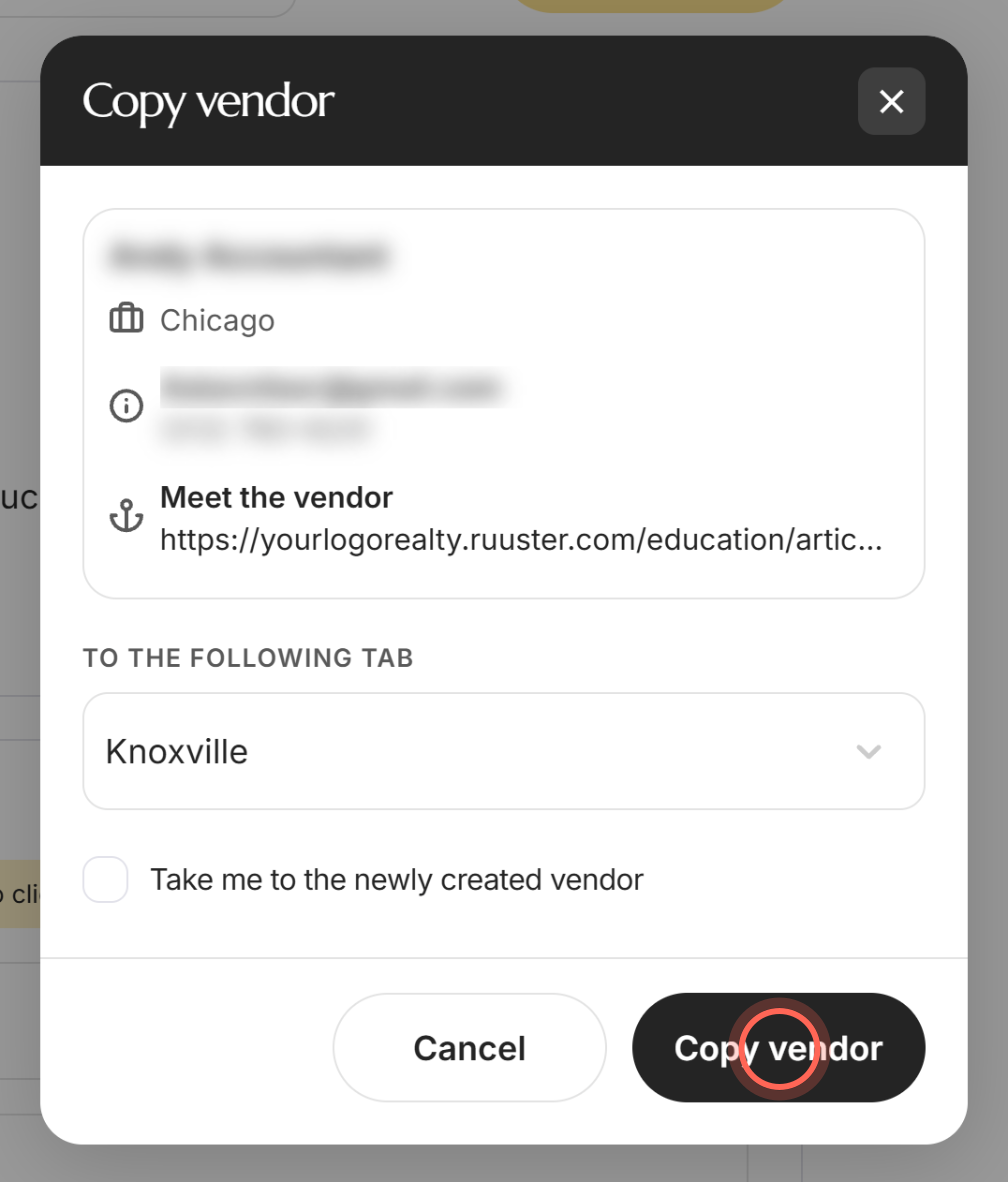
Choose a tab under To the following tab.
Click Copy vendor.
A message says "Vendor copied." Tick Take me to the newly created vendor before copying to jump to the copy. The copy icon shows only when you have two or more tabs.
Delete a vendor
- In the sidebar, go to Admin > Global Settings > Vendors.
- Click Edit vendors on the tab's card.
- Pick the vendor's category from the dropdown.
- Click the trash icon on the vendor's card.
- Click Delete vendor in the confirmation window.
The vendor is removed from this tab, and clients no longer see them.
Good to know
- What clients see. Each vendor card has a contact menu named for the vendor, such as "Contact Jane", to text, call or email them. The email copies the client's agent.
- The second button. With a Link or URL, it shows your Button text and opens the link. Without one, it reads Contact and emails the client and vendor an introduction, copying the agent.
- Reorder vendors. Use the up and down arrows under Order on a vendor's card. Each click moves the vendor one place and saves.
- Up to 100 per category. At 100 vendors, + Add vendor turns off for that category.
FAQ
How do I put a lender or inspector in front of my clients?
Add them as a vendor in the matching category of a tab those clients' agents can see. They show on the client's Services page.
Can you add new vendor categories?
No. Categories come from a fixed list of about 150 service types. Use a tab name or Text field 1 to group vendors your own way.
Why can't my clients see a vendor I added?
Check that the vendor has an email address and that the tab is shown to the client's agent. Tabs with a CRM tag also hide vendors from clients who don't match.
What's the difference between a tab and a category?
A tab is a section you name and choose who sees. Categories sort vendors inside a tab and come from the fixed list.
Can my agents add their own vendors?
No. Admins manage vendors for the whole brokerage. To show different vendors to different agents' clients, use separate tabs.
Still need help? Reach out to us at helpme@ruuster.com and we'd be happy to assist!