
Brand the app with your brand kit
Using Ruuster 1.0? Read the 1.0 version of this article.
Pick a theme, fonts and brand colors in UI Customization, preview them on the app around you, and save so every page matches your brand.
Admins only. Set your brand kit on UI Customization (Admin): pick a suggested theme or choose two fonts and seven colors, then click Save changes. The new look applies to every agent and client on your brokerage.
Before you start
- You need to be an admin.
- Your logo is not set here. See Set your agency logo.
Start from a suggested theme
In the sidebar, go to Admin > Global Settings > UI Customization.
Under Suggested themes, open the Theme dropdown (it reads Choose a theme when no theme matches).
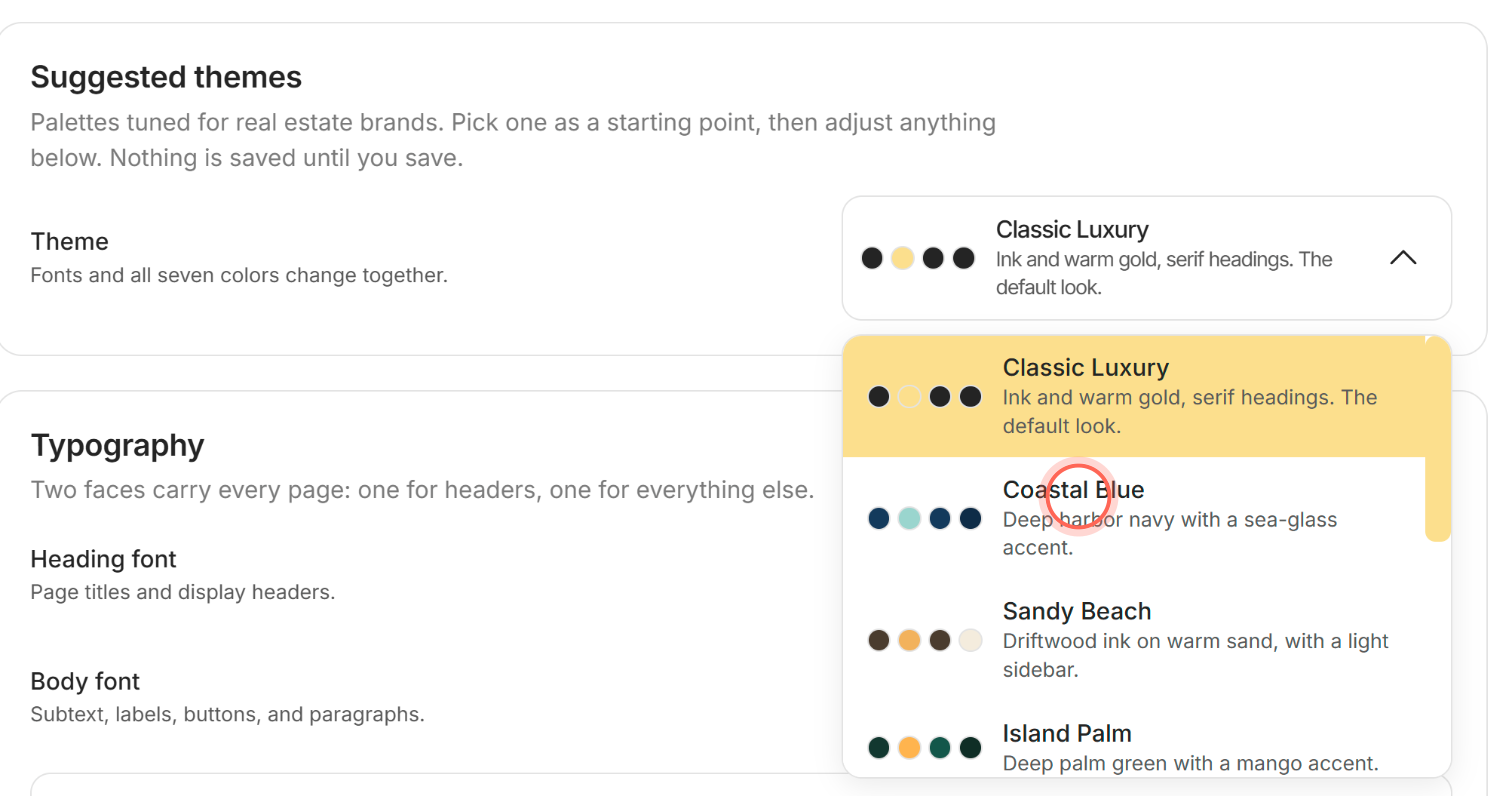
Pick a theme, such as Coastal Blue or Urban Slate.
Click Save changes in the bar at the bottom of the page.
A message says "Settings saved successfully" and the amber Unsaved changes note goes away.
There are eight themes: Classic Luxury (Ruuster's default look), Coastal Blue, Sandy Beach, Island Palm, Mountain Lodge, Urban Slate, Vineyard Estate and Desert Sunset. A theme sets both fonts and all seven colors at once, and you can still change any of them afterwards.
Set your own fonts and colors
In the sidebar, go to Admin > Global Settings > UI Customization.
Under Typography, choose a font from the Heading font dropdown.
Choose a font from the Body font dropdown.
Click the color swatch next to a field, such as Primary color.
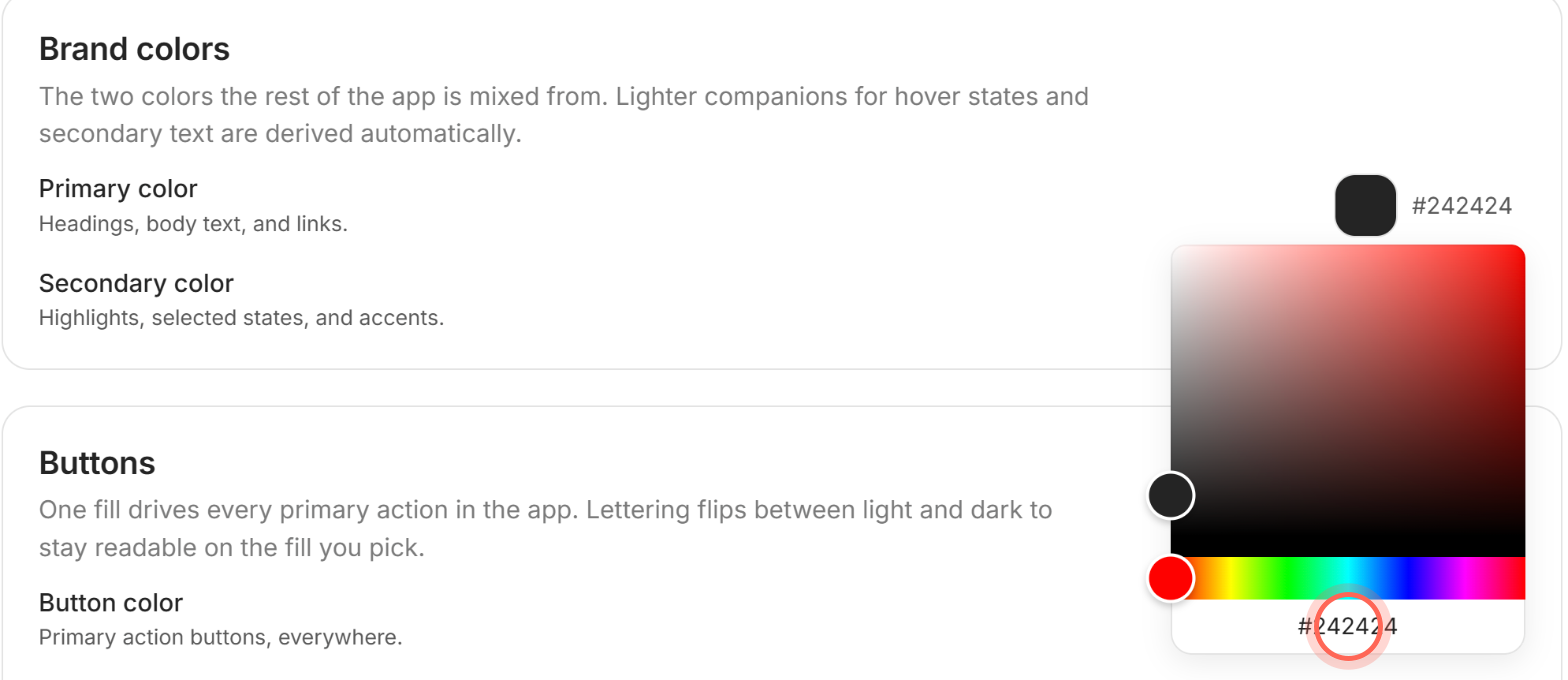
Drag in the color picker, or type a hex code in the box under it.
Repeat for each other color you want to change.
Click Save changes in the bar at the bottom of the page.
A message says "Settings saved successfully."
| Setting | Section | What it changes |
|---|---|---|
| Heading font | Typography | Page titles and display headers |
| Body font | Typography | Subtext, labels, buttons and paragraphs |
| Primary color | Brand colors | Headings, body text and links |
| Secondary color | Brand colors | Highlights, selected states and accents |
| Button color | Buttons | Every primary action button. Its lettering turns light or dark to stay readable. |
| Sidebar color | Surfaces | The sidebar and the page header. When it's dark, the sign-in pages use it as their background too. |
| Sidebar lettering | Surfaces | Text in the sidebar. It follows the sidebar color until you set it. |
| Page background | Surfaces | Behind the content on every page |
| Border color | Surfaces | Dividers, card edges and input borders |
Go back to the default look
In the sidebar, go to Admin > Global Settings > UI Customization.
Click Reset to defaults in the bar at the bottom of the page.
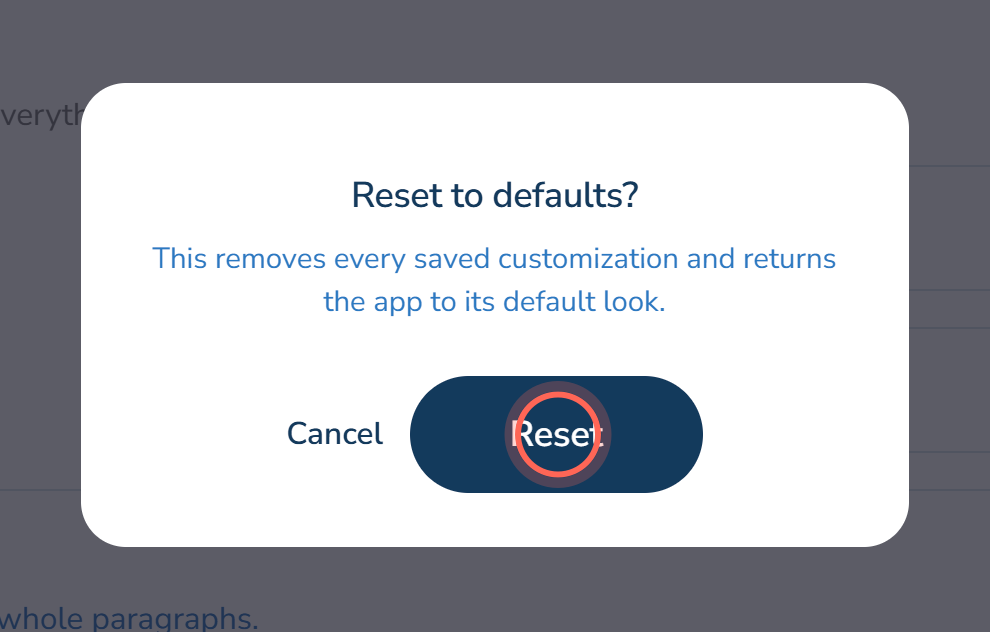
Click Reset in the Reset to defaults? window.
A message says "Settings successfully restored to original." Every saved customization is removed and the app returns to Classic Luxury. Reset to defaults is available only after you have saved a brand kit.
Good to know
- Preview only you see. As you edit, the sidebar, header and buttons around you change. Everyone else keeps the saved look until you click Save changes, and leaving the page drops unsaved edits.
- Cancel undoes unsaved edits. Cancel returns every field to your last save. The amber Unsaved changes note shows while edits are pending.
- Readability warnings. A note appears under Primary color or Sidebar lettering when text would be hard to read. If it would be unreadable, the app uses standard black or white lettering until you pick a readable color.
- Linked colors. Button color and Sidebar color follow Primary color until you change them yourself. Your logo turns white automatically on a dark sidebar.
- Where it shows. Saved changes restyle the app, your agents' landing pages and your listings on your own website (Put Ruuster listings on your website). Most emails keep Ruuster's look; see Ruuster's name or logo shows instead of ours.
FAQ
Will my agents see the colors while I'm still trying things out?
No. The preview is only on your screen. Agents and clients see the new look after you click Save changes.
Can I get my previous colors back after saving a new look?
Not automatically. Cancel only undoes unsaved edits, and Reset to defaults goes back to Ruuster's default look. Note your hex codes before you experiment.
I chose a theme, then changed one color. Why is the theme dropdown blank now?
The dropdown names a theme only while all nine settings still match it. Your colors are kept; the kit is now your own.
Where do I upload our brokerage logo?
On Branding, under Admin > Global Settings. The brand kit covers colors and fonts only.
The page says "We couldn't load your brand kit." What do I do?
Your saved settings are safe. Check your connection and click Try again.
Still need help? Reach out to us at helpme@ruuster.com and we'd be happy to assist!