
Set your agency logo
Using Ruuster 1.0? Read the 1.0 version of this article.
Upload your agency logo in Branding, crop it, and choose whether it goes to all agents, future agents only or the agents you pick.
Admins only. Upload your logo on Branding (Admin), click Save, then choose which agents get it and click Apply. The logo then shows in the app for those agents and their clients.
Before you start
- You need to be an admin. Agents can't change the agency logo.
- Have a JPG, PNG, GIF or WEBP file under 15 MB. A short, wide logo works best.
Upload your logo
In the sidebar, go to Admin > Global Settings > Branding.
Click Change logo (it reads Add logo if no logo is set yet).
Drag your image into the box, or click browse to choose a file.
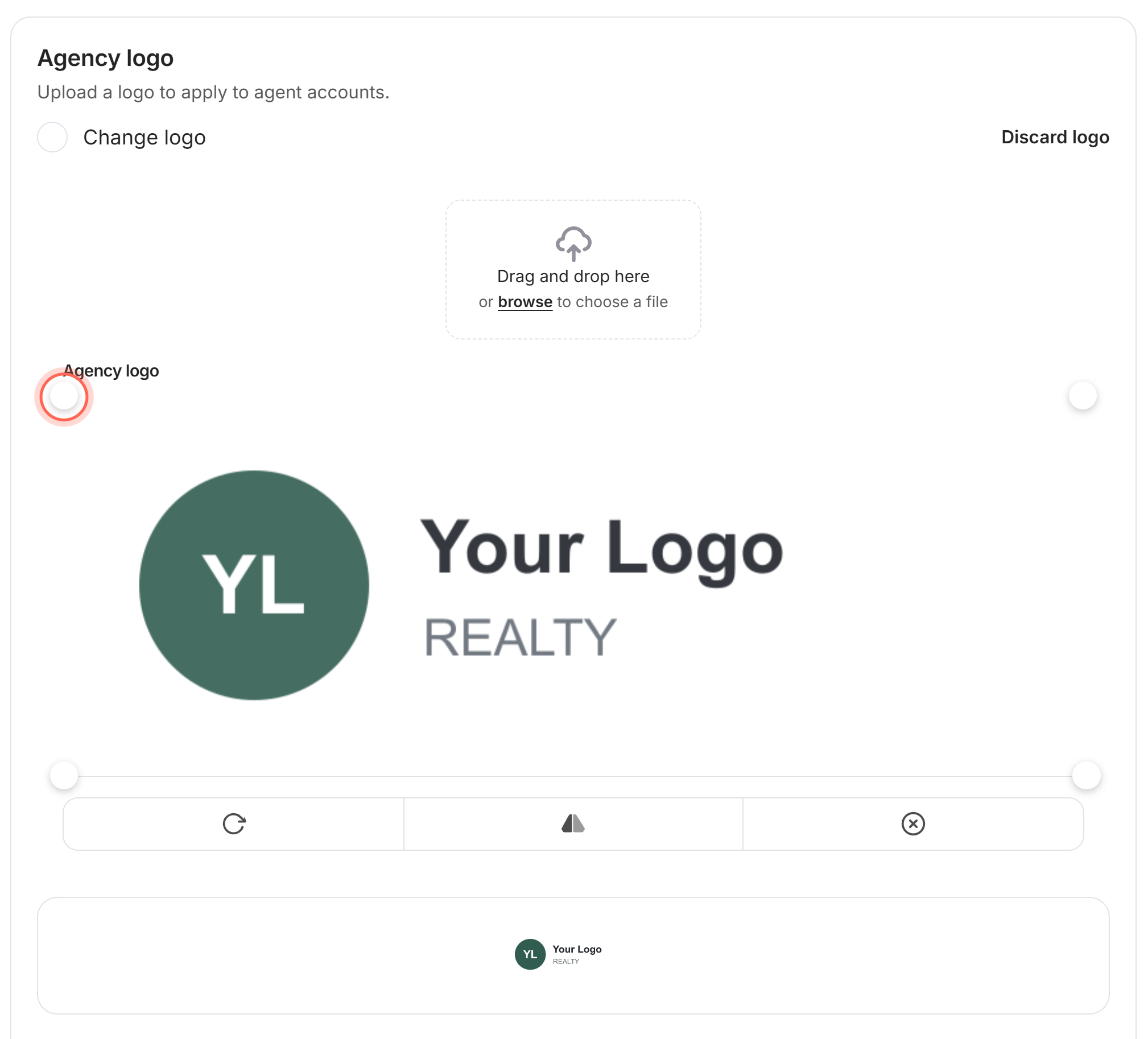
Drag the edges of the crop box until it frames your logo.
Click Save.
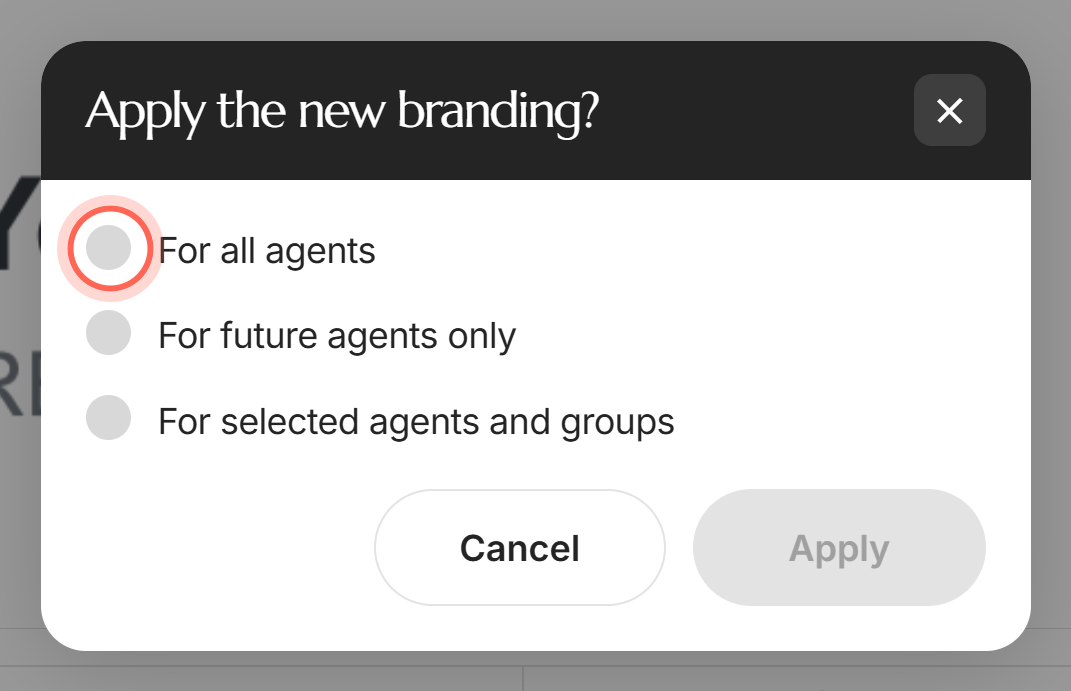
Choose who gets the logo (see the table below).
Click Apply.
A "Success" message says "Changes saved," and the preview on the Agency logo card shows your logo.
| Option | Who gets the logo |
|---|---|
| For all agents | Every current agent. It replaces the logo they have now. |
| For future agents only | Agents who join from now on. Current agents keep their logo. |
| For selected agents and groups | Only the agents you tick in Select agents |
Give the logo to specific agents
In the sidebar, go to Admin > Global Settings > Branding.
Click Save.
In Apply the new branding?, choose For selected agents and groups.
Open Select agents and tick each agent who should get the logo.
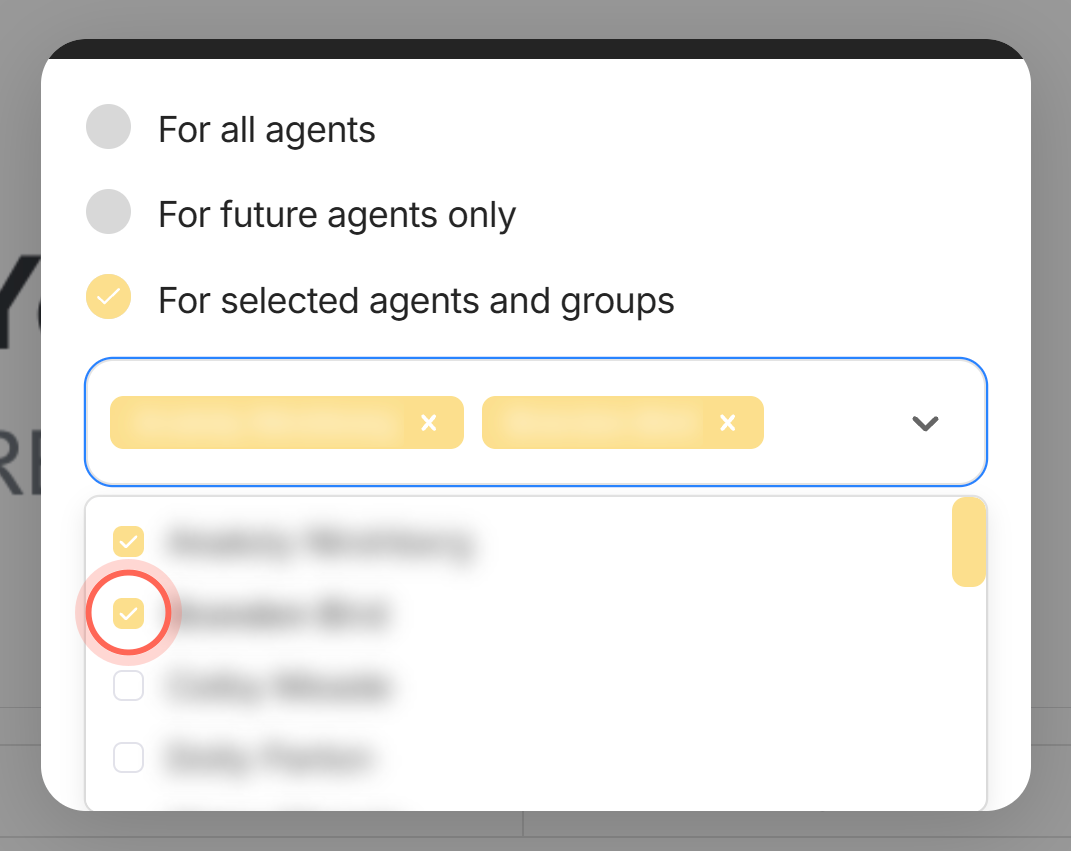
Click Apply.
A "Success" message says "Changes saved for these users." If the list shows "We couldn't load your agents.", click Try again.
Good to know
- Shape and size. The sidebar shows the logo up to 28 pixels tall and as wide as the sidebar allows. A square or tall logo comes out small.
- White on a dark sidebar. When your Sidebar color is dark, the app and the sign-in page show your logo in white. Details in a second color, like a letter inside a circle, are cut out so they still show. Change that color in Brand the app with your brand kit.
- Turn or flip the image. Use the rotate, flip and reset buttons under the crop box if your file came in sideways.
- Undo before applying. Discard logo clears an image you picked but haven't saved. Revert changes brings back the saved logo.
- No logo yet. Until an agent has a logo, their sidebar shows your agency's name instead.
FAQ
What size should our brokerage logo be?
Use a short, wide logo, ideally a PNG with a transparent background. The sidebar fits it into a strip 28 pixels tall, so wide marks read best.
I chose "For future agents only." Can current agents get the logo later?
Yes. Open Branding again, click Save, and choose For all agents or For selected agents and groups.
Why is our logo white in the sidebar?
Your sidebar color is dark, so the app reverses the logo to white to keep it readable. The sign-in page does the same, because it uses your dark sidebar color as its background. On a light sidebar color it shows as uploaded.
I closed the window without clicking Apply. Did the logo change?
No. Nothing is saved until you click Apply. Cancel, the close button and the Esc key all leave things as they were.
The page says "We couldn't load your branding settings." What now?
Your agents keep whatever logo they have. Check your connection and click Try again.
Still need help? Reach out to us at helpme@ruuster.com and we'd be happy to assist!