
Add links to your clients' sidebar
Add links with icons to your clients' sidebar, like your website, a lender or an email address, then change or remove them later.
Admins only. On External Links (Admin), click Add link, enter a Link name and Link URL, pick an Icon, and click Save changes. The link shows in every client's sidebar, below Education.
Before you start
- You need to be an admin. Links apply to every client on your brokerage.
- Have the full web address, starting with https://, or an email address.
Add a link
In the sidebar, go to Admin > Global Settings > External Links.
Click Add link.
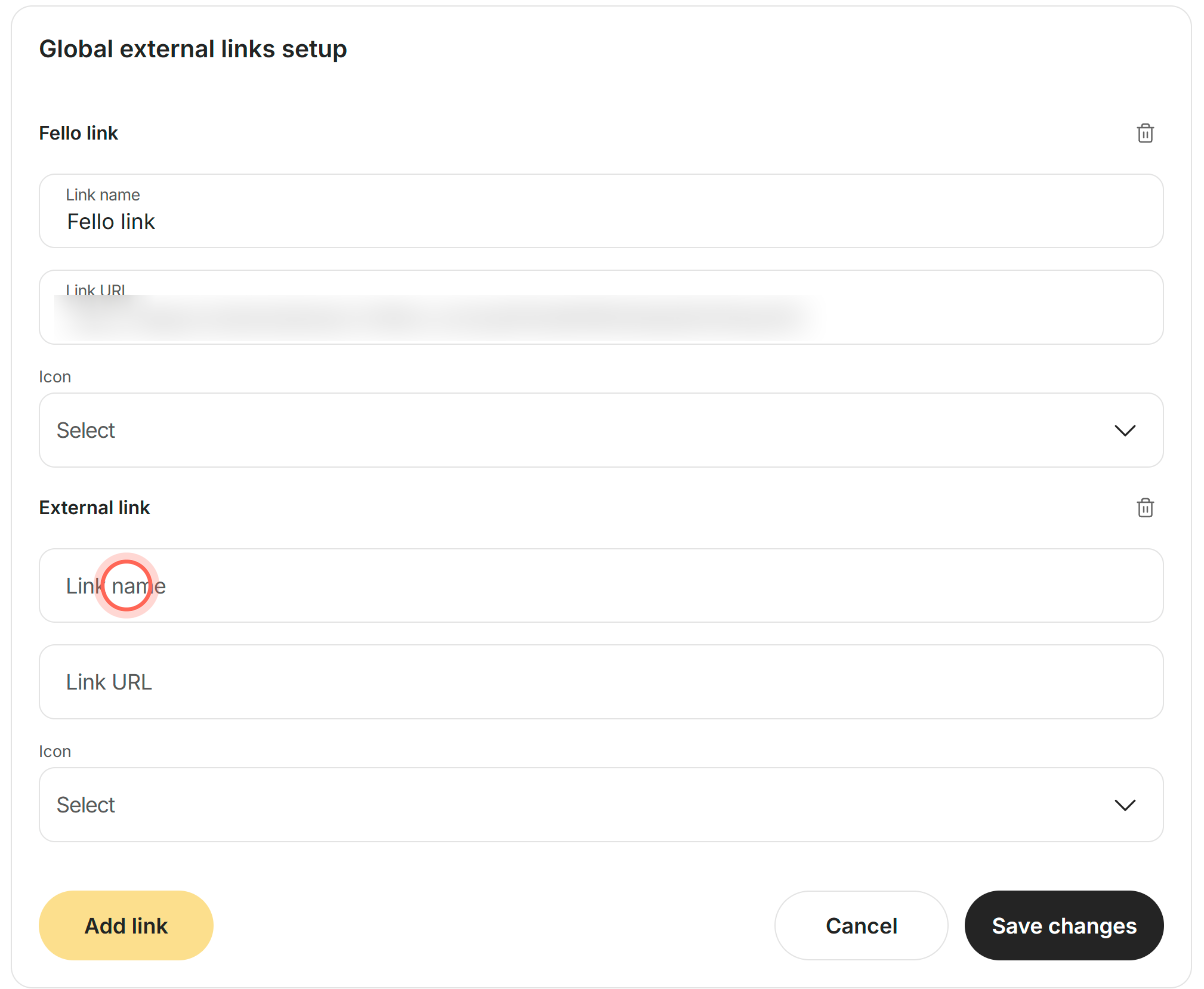
Type the Link name clients will see, such as "Our website".
Type the Link URL, such as https://yourbrokerage.com or mailto:info@yourbrokerage.com.
Choose an Icon from the dropdown.
Click Save changes.
No message appears; clients see the new link in their sidebar. On a page with no links yet, the Add link button sits under "No links added yet."
Change a link
- In the sidebar, go to Admin > Global Settings > External Links.
- Edit the Link name, Link URL or Icon in the link's row.
- Click Save changes.
Clients see the new name, address or icon in their sidebar.
Remove a link
In the sidebar, go to Admin > Global Settings > External Links.
Click the trash icon on the link's row.
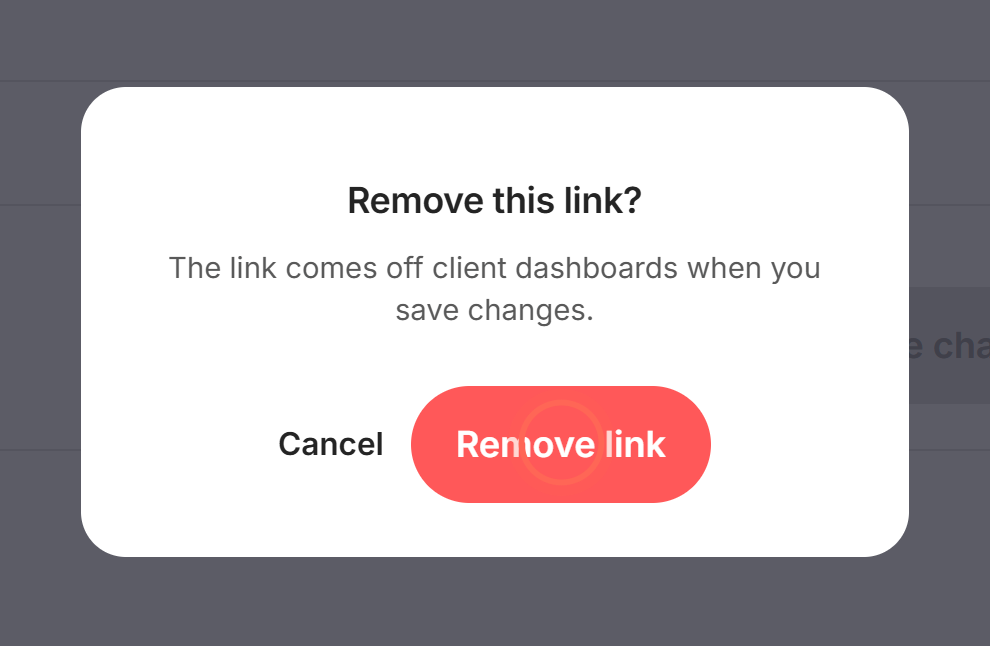
Click Remove link in the Remove this link? window.
Click Save changes.
The link comes off clients' sidebars when you save.
Good to know
- Full addresses only. The URL must start with http:// or https://, or mailto: for email. A bare address like yourbrokerage.com shows "Enter a valid URL".
- How links open. Web links open inside the app in a viewer with an Open in new tab button. Links to a page of your own app open that page. Email links open the client's email app.
- Icons. Choose from Link, Calculator, Briefcase, Education, Key, Heart, Home and Search. Without a choice, the link shows the Link icon.
- Nothing changes until you save. Cancel puts back the saved list. Both Link name and Link URL are required.
- Dashboard button warning. If the remove window says a dashboard button uses the link, that button goes back to its default text and destination after you save.
FAQ
Can I link clients to our brokerage website?
Yes. Add a link with your site's full address, starting with https://. It opens inside the app, with a button to open it in a new tab.
Can I put an email address in the client menu?
Yes. Use mailto: followed by the address, such as mailto:info@yourbrokerage.com. Tapping it opens the client's email app.
Can my agents add their own links?
No. Admins manage these links for the whole brokerage, and every client sees the same set.
Why does my link say "Enter a valid URL"?
The address is missing https:// at the front, or the email after mailto: isn't valid. Fix it and click Save changes again.
Can I change the order of the links?
Clients see links in the order they appear on this page. There is no drag to reorder, so remove a link and add it again to move it to the bottom.
The page says "We couldn't load your links." What now?
Check your connection and click Try again.
Still need help? Reach out to us at helpme@ruuster.com and we'd be happy to assist!