
Manage vendor tabs
Using Ruuster 1.0? Read the 1.0 version of this article.
Create vendor tabs, limit them to certain agents or CRM tags, reorder them and set the message clients see instead.
Admins only. On Vendors (Admin), click + Add tab, name the tab, choose which agents' clients see it, and click Save. Clients see your tabs on their Services page, in the order you set here.
Before you start
- You need to be an admin. Agents don't manage vendor tabs.
- Plan your tabs: by vendor type, by market or state, or by team.
Create a tab
In the sidebar, go to Admin > Global Settings > Vendors.
Click + Add tab.
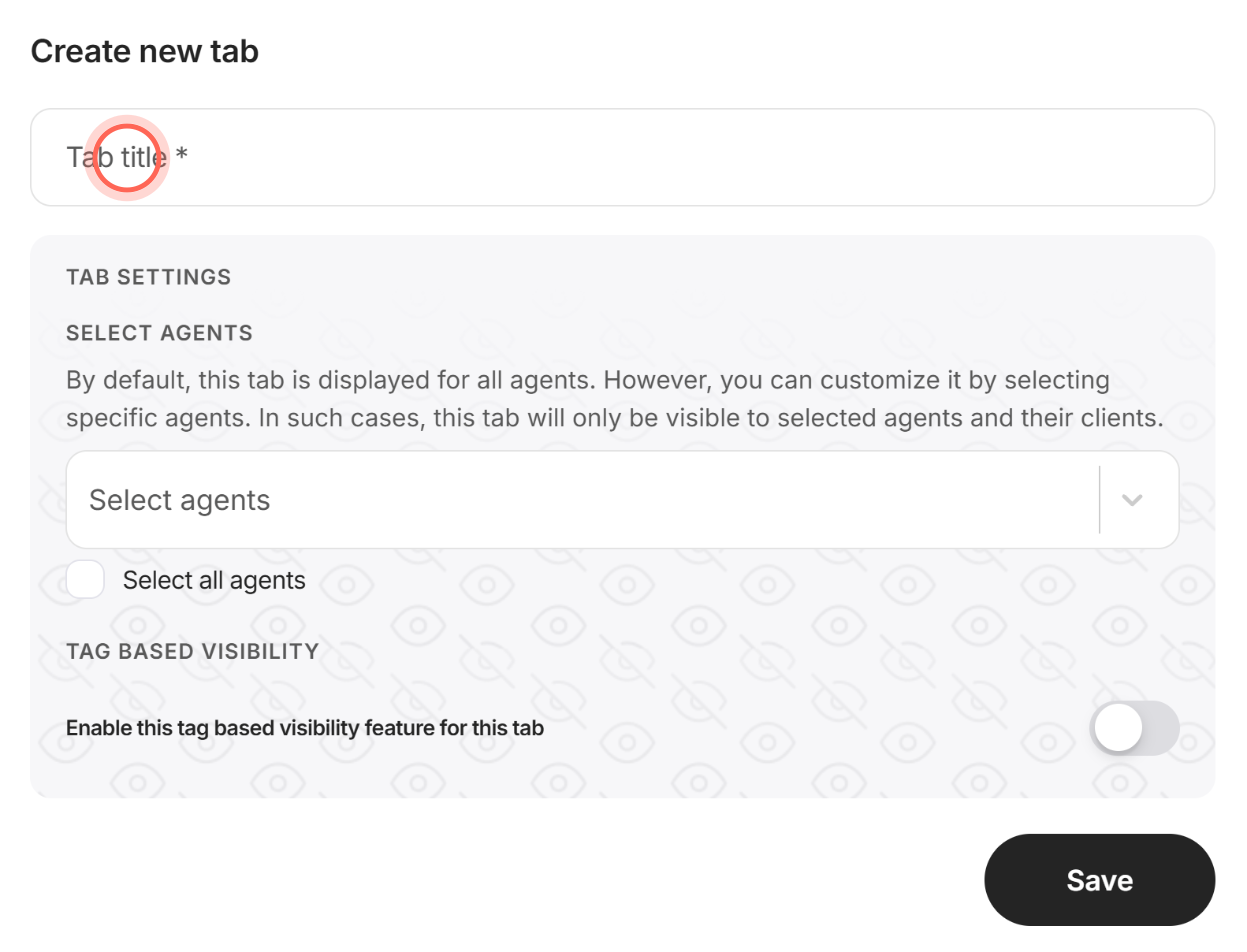
Type a Tab title of 2 to 30 characters.
To limit the tab, pick agents in Select agents, or tick Select all agents.
Click Save.
The tab appears in the list as a card that says "No vendors". Add vendors with Manage your trusted vendors.
Edit or delete a tab
In the sidebar, go to Admin > Global Settings > Vendors.
Click Tab settings on the tab's card.
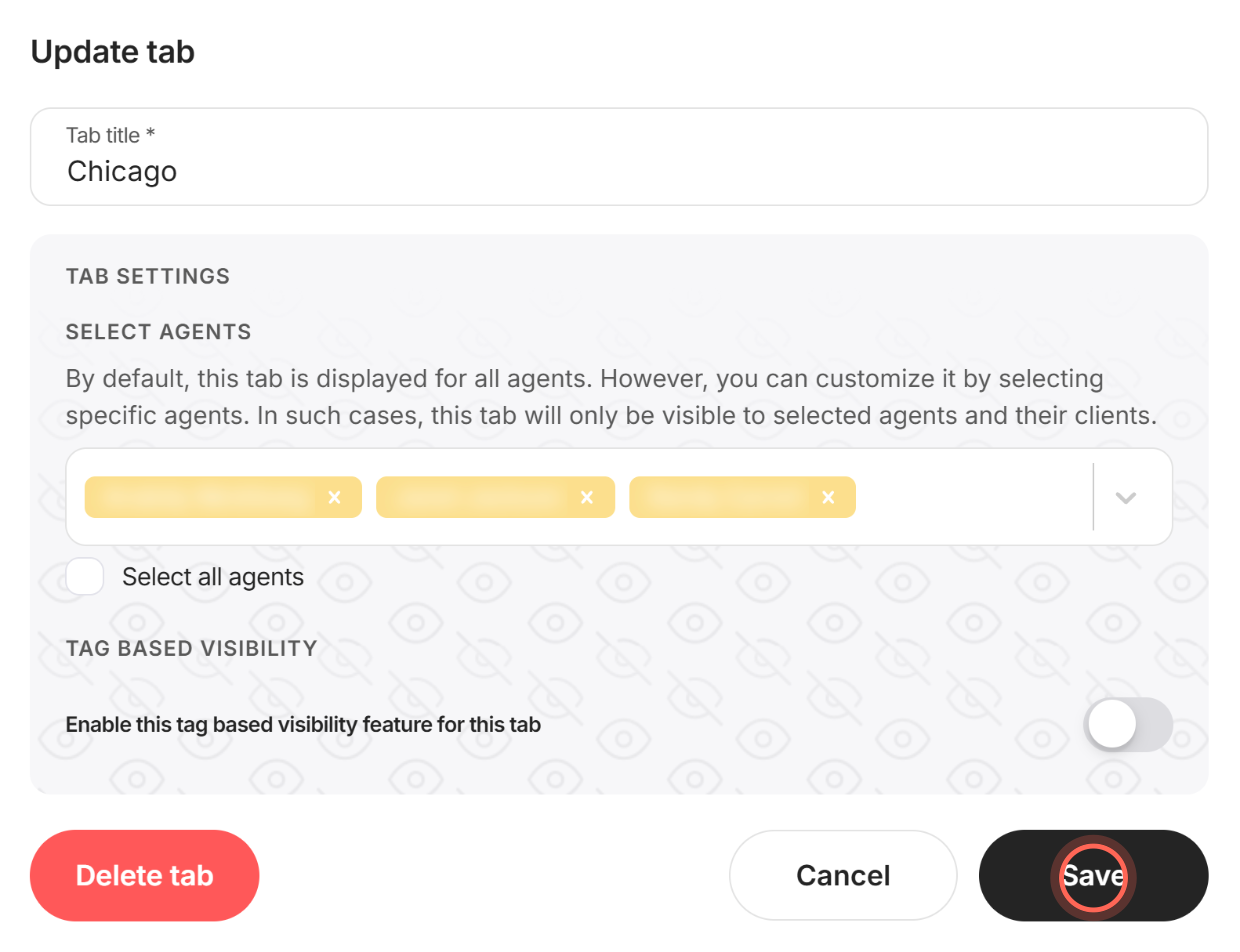
Change the Tab title or the agents in Select agents.
Click Save.
The card shows your changes. To delete the tab instead, click Delete tab, then Delete tab again in the confirmation window. Every vendor and category in the tab is deleted with it.
Reorder tabs
- In the sidebar, go to Admin > Global Settings > Vendors.
- Clear the Search by tab name box if it has text.
- Under Order on a tab's card, click the up or down arrow.
Each click moves the tab one place and saves right away. Clients see tabs in this order.
Show a tab only to clients with a CRM tag
If you don't see Tag based visibility, your brokerage has no CRM connected.
In the sidebar, go to Admin > Global Settings > Vendors.
Click Tab settings on the tab's card.
Switch on Enable this tag based visibility feature for this tab.
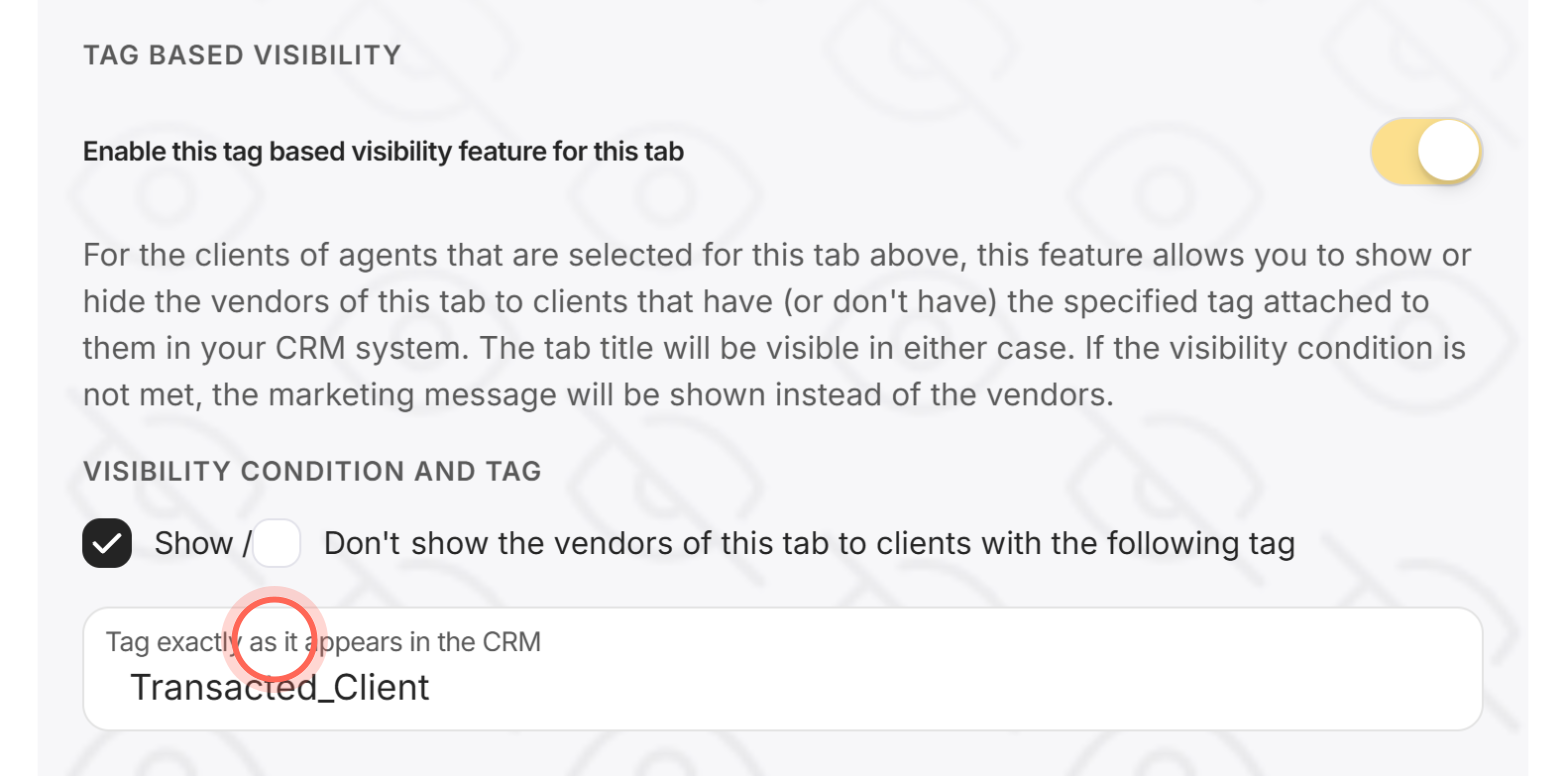
Tick Show or Don't to show or hide the tab's vendors for clients with the tag.
Type the tag in Tag exactly as it appears in the CRM.
Write a Marketing message for clients who don't meet the condition.
Click Save.
Clients who don't meet the condition still see the tab's title, with your marketing message in place of the vendors.
Good to know
- Every agent by default. A tab with no agents picked shows to every agent and their clients.
- Search hides ordering. The Order arrows hide while the search box has text, and show only when you have two or more tabs.
- Message box needs a saved tab. The Marketing message editor shows only when you edit a tab that is already saved.
- Tagged tabs get a promo line. Once a tab has a tag, its vendors get an extra field, Text field 3, for offers such as a discount code.
- Deleting is permanent. Deleting a tab removes all its vendors and categories, and it can't be undone.
FAQ
How do I edit a tab I already made instead of starting a new one?
Click Tab settings on that tab's card. + Add tab always starts a new tab.
Can each state or market have its own vendor list?
Yes. Make one tab per market and pick that market's agents in Select agents. Their clients see only the tabs meant for them.
Can I delete a vendor category?
No. Categories come from a fixed list inside every tab. Delete the vendors in a category, or delete the whole tab.
Why don't I see the arrows to move my tabs?
The search box probably has text in it. Clear Search by tab name and the arrows come back. You also need at least two tabs.
The page says "We couldn't load your vendor tabs." What now?
Check your connection and click Try again.
Still need help? Reach out to us at helpme@ruuster.com and we'd be happy to assist!