
Manage education articles
Using Ruuster 1.0? Read the 1.0 version of this article.
Write education articles for each stage of buying a home. Clients see them all in Education, and the first ones in their stage on the dashboard.
Admins only. On Content (Admin), click Add article, write it, choose its Stage and Order, add a Banner image and click Save changes. Every client sees it in Education, and up to 5 articles of a stage show on the dashboard of clients in that stage.
Before you start
- You need to be an admin. Articles apply to all agents' clients in your brokerage.
- Have a banner image ready. It is cropped to a wide 16:9 shape.
Add an article
In the sidebar, go to Admin > Global Settings > Content.
Click Add article at the start of the list.
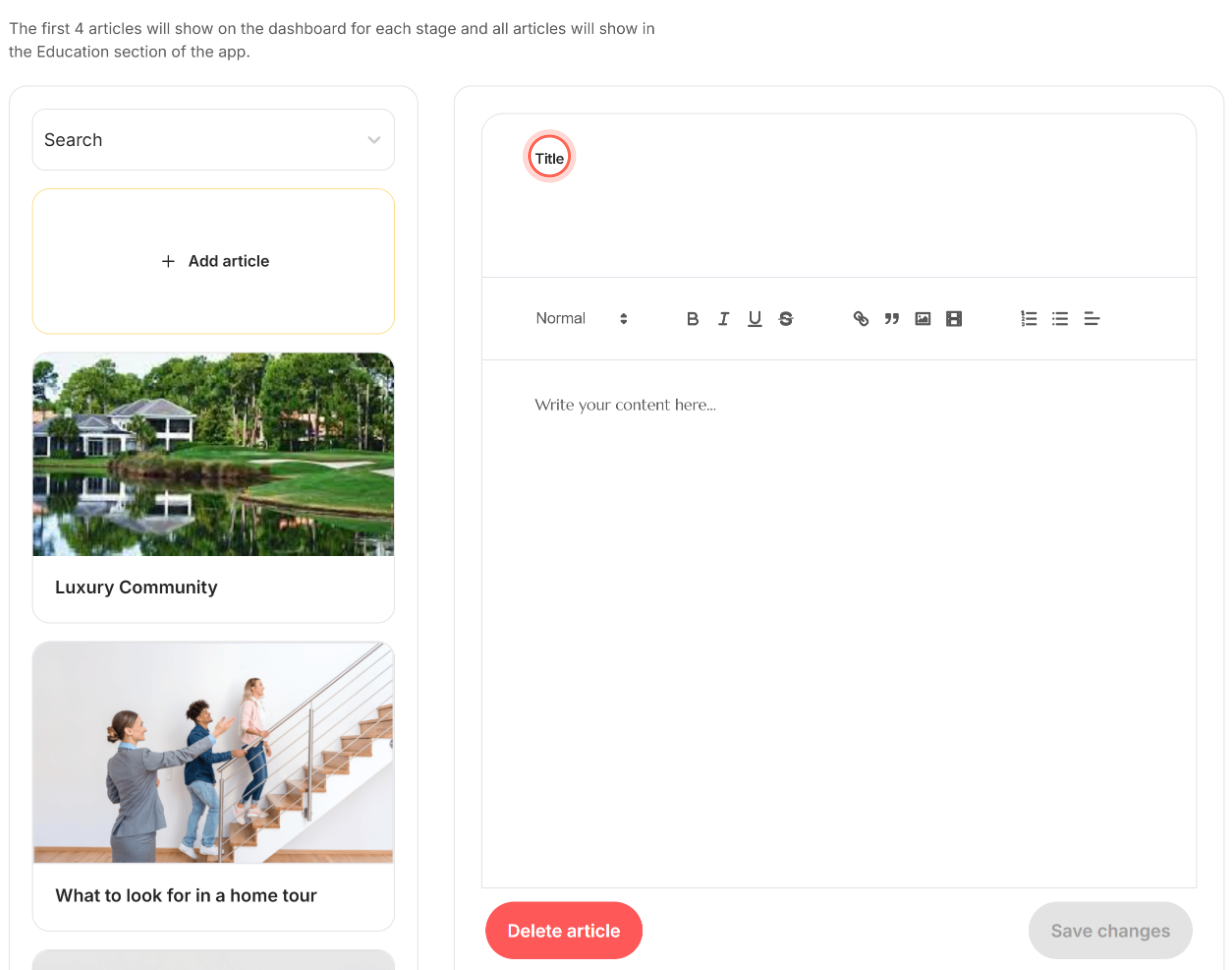
Type the Title.
Write the article in the text editor under the title.
Under Display settings, choose the Stage and then the Order.
Drop an image into Banner image, or click browse to choose one.
Click Save changes in the bar at the bottom of the editor.
Click Save in the Save this article? window.
The bar shows "Saved" with how long ago, and the article appears in its stage's list.
Edit an article
In the sidebar, go to Admin > Global Settings > Content.
Choose a stage from the Stage dropdown: Planning, Search, Offer or Closing.
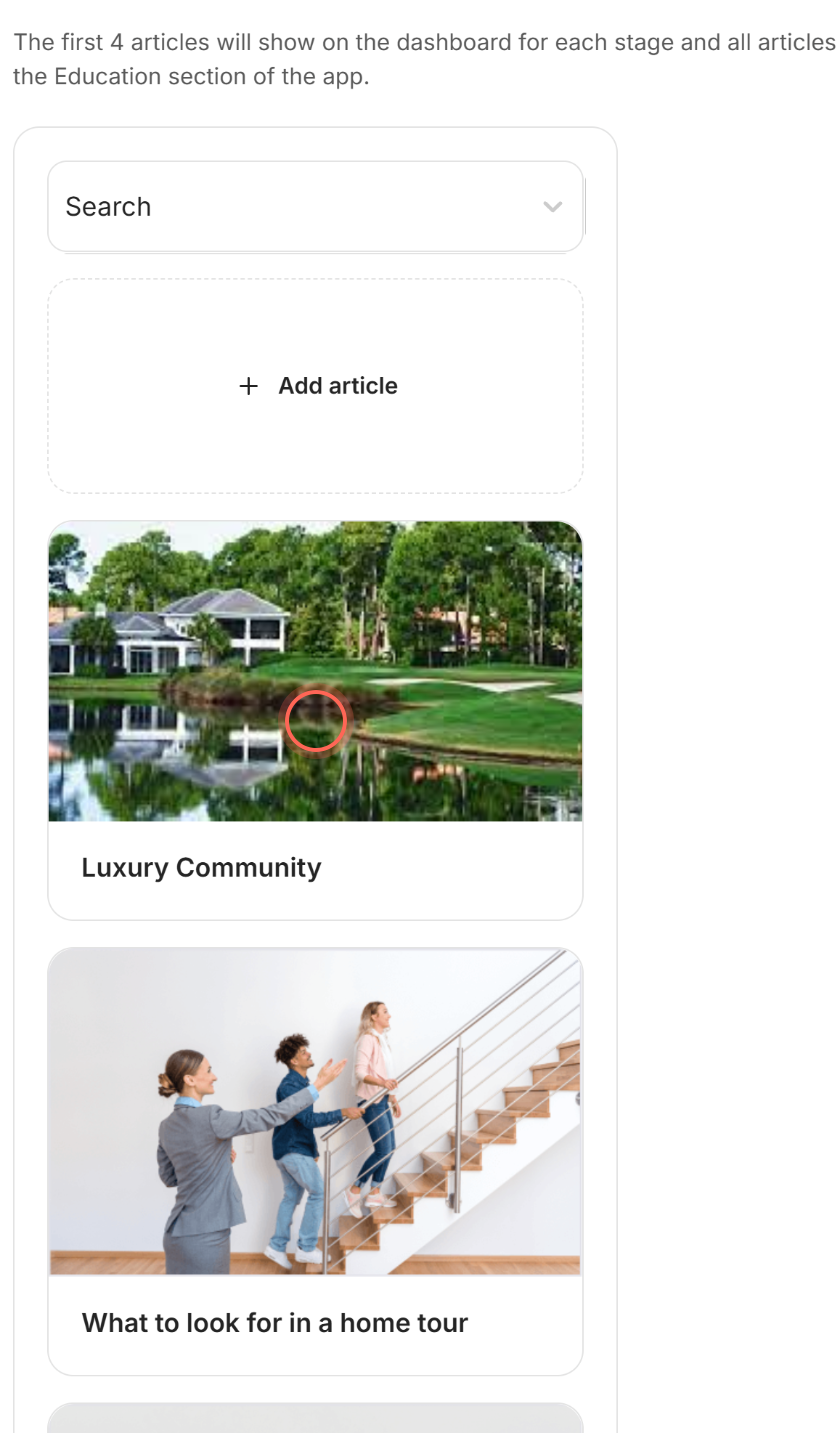
Click the article's tile.
Make your changes.
Click Save changes.
Click Save in the Save this article? window.
The bar shows "Saved" with the new time. The change applies to all agents in the brokerage.
Delete an article
- In the sidebar, go to Admin > Global Settings > Content.
- Choose the article's stage from the Stage dropdown.
- Click the article's tile.
- Click Delete article at the left of the bar.
- Click Delete article in the Delete this article? window.
The article is removed for all agents in the brokerage. This can't be undone.
Good to know
- Every field is required. Title, text, Stage, Order and Banner image must all be filled in, or a message says "The form is invalid".
- What the dashboard shows. A client's dashboard lists up to 5 articles, by Order, from the stage that client is in. All articles show in their Education section.
- Order is a number. Pick it from the Order dropdown; there is no dragging. Order 1 comes first.
- Undo edits. Discard changes returns a saved article to its last saved version. The amber Unsaved changes note shows while edits are pending.
- Closing the editor. The close button asks first if you have unsaved work: Keep editing, or Discard changes (Discard article for a new one).
FAQ
How do I share education articles with my agents and clients?
Save the article here. Every client in your brokerage sees it in Education, and agents don't need to do anything.
Why isn't my new article on the client dashboard?
Check its Stage and Order. The dashboard shows only the first 5 articles of the stage the client is in, so a later Order or another stage won't appear there.
Can I move an article to another stage?
Yes. Open it, choose a different Stage under Display settings, and save.
Can I get a deleted article back?
No. Deleting is permanent, so copy the text somewhere first if you might need it.
The page says "We couldn't load the articles." What do I do?
Check your connection and click Try again.
Still need help? Reach out to us at helpme@ruuster.com and we'd be happy to assist!