
Market a property with a share link
Market property builds a long or short link to a listing, with an optional sign-up wall, lead routing to an agent, CRM tags and UTM tracking.
Open a home from Home Search and click Market property in the Share and Market panel. The Market Property window has a long and a short link to copy, and buttons for Facebook, WhatsApp and email. Its Advance share options add a sign-up wall, tags, UTM codes and lead routing.
Before you start
- You need an agent account. People who sign up through your link become your clients, unless an admin picks another agent.
- The options are built into the link, so set them before you copy it.
Copy a link to a home
- Open a home from your Home Search results.
- In the Share and Market panel, click Market property. On a phone, tap Market property at the bottom.
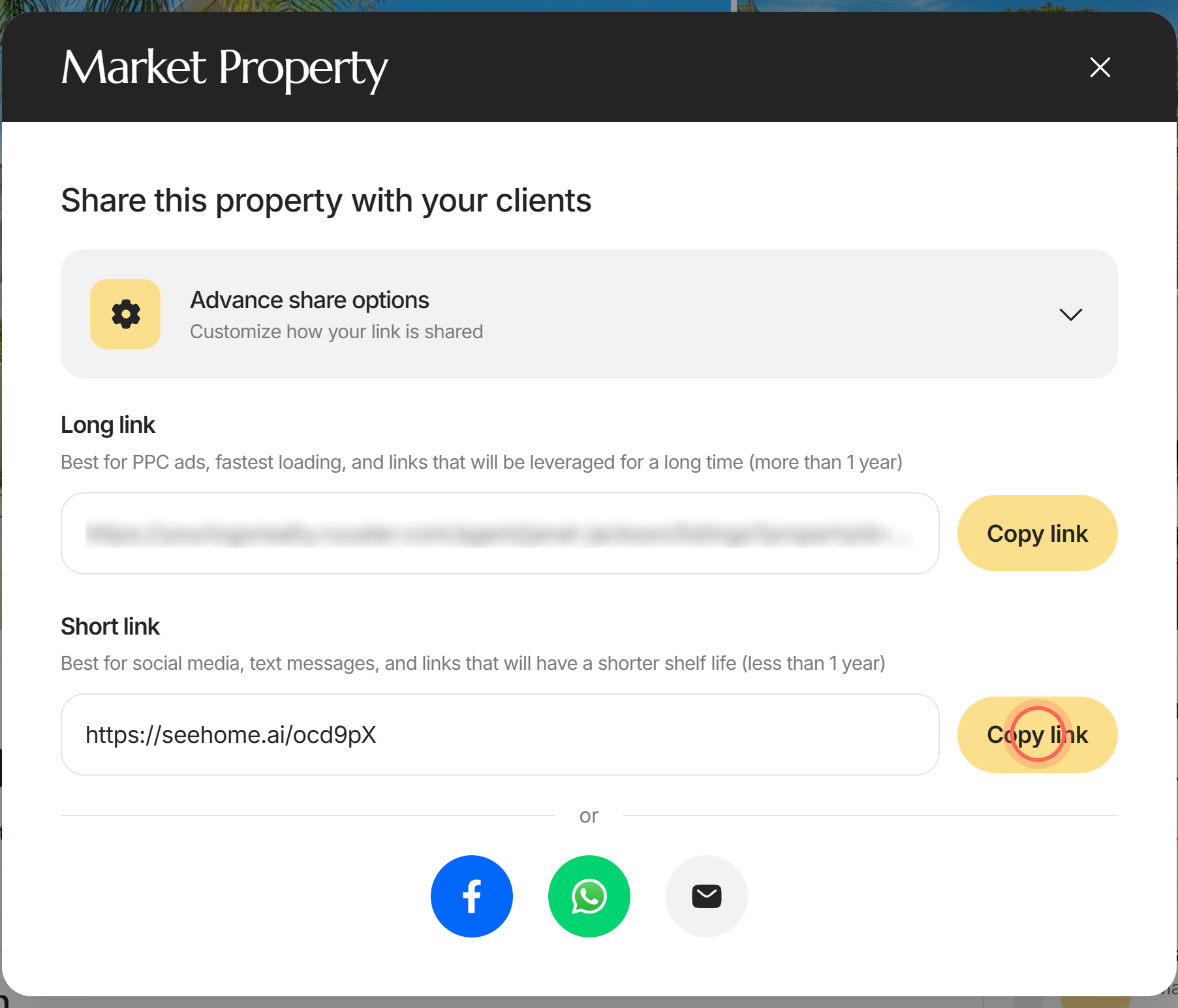
- Click Copy link next to Long link or Short link.
- Paste the link into your ad, post, text or email.
The button reads Copied! for 2 seconds. The link opens the home on your brokerage's site, credited to you. The share icon on the home's photos opens the same window.
| Link | Use it for |
|---|---|
| Long link | Pay-per-click ads and links you'll use for more than a year. It loads fastest. |
| Short link | Social media, text messages, and links you'll use for less than a year. |
Below the links, after or, the Facebook, WhatsApp and email buttons share the short link. The email button opens your mail app with the link title, description and short link.
Make visitors sign up to see the home
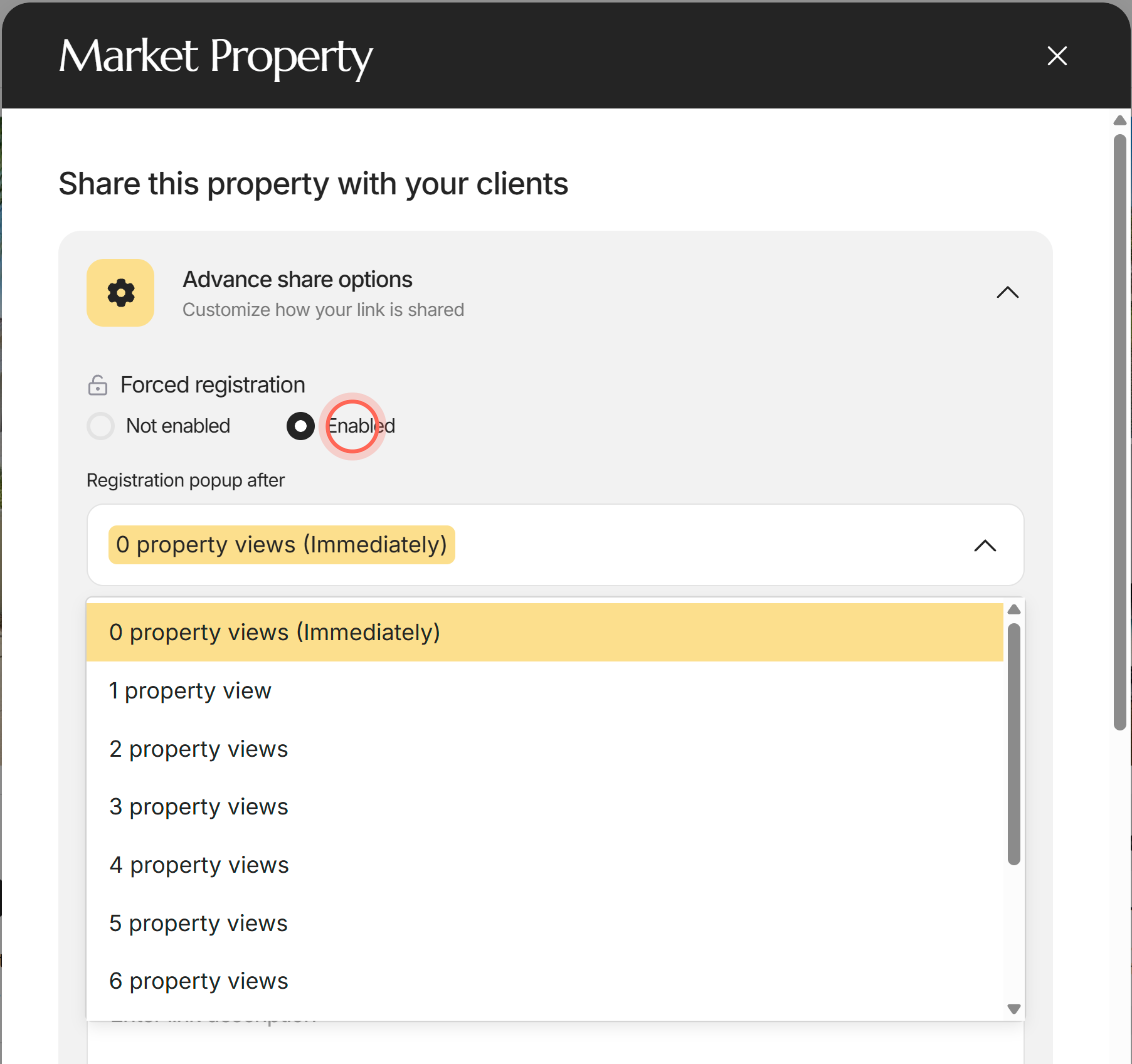
- In the Market Property window, click Advance share options.
- Under Forced registration, click Enabled.
- In Registration popup after, choose when the form appears, from 0 property views (Immediately) to 10 property views.
- Copy the link.
Visitors who aren't signed in get a "Free access" form asking for their first and last name, email and phone number. The phone number also becomes their password. They can't close the form, but Sign In lets people with an account sign in. Signed-in clients never see it.
With 0 property views (Immediately), the form shows as soon as the home opens. With a number, visitors can view that many different homes first, and the form appears on the next one. Views are counted in each visitor's browser.
Tag and track the people who sign up
- In Advance share options, type a Link title and a Link description.
- Check the Link preview card below them.
- Under Tags, type a tag and press Enter or add a comma.
- Click UTM parameters (Advanced).
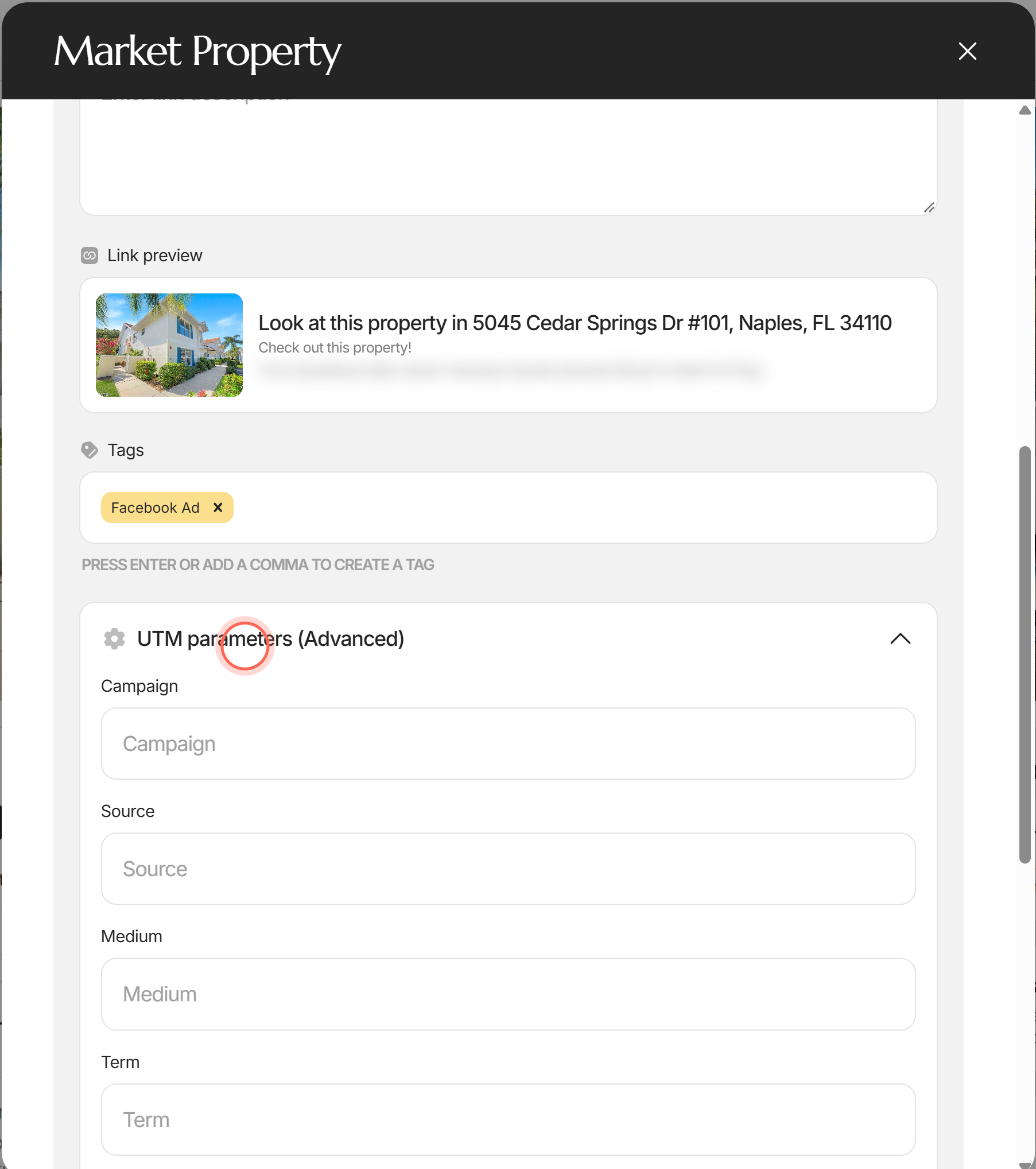
- Fill in Campaign, Source, Medium, Term and Content as your campaign needs.
- Copy the link.
People who sign up through the link are tagged with your tags, so your CRM can route and follow up on them. Visitors who send a question or a tour request from it without signing up get your tags too.
The link title and description show in the preview and in the WhatsApp and email text. Left blank, the title reads "Look at this property in" plus the address, and the description reads "Check out this property!". Reset all parameters clears every option.
Send the leads to another agent
Admins only.
- In Advance share options, click Register to leads to.
- Pick the agent who should get the leads, or Unassigned.
- Copy the link.
The link now points to that agent's page, so people who sign up become their clients. You're listed first. Unassigned shows only when your brokerage allows unassigned leads, and agents don't see this field. With Unassigned, the home's page shows your default user's contact details, and leads reach your CRM with no agent so its routing rules pick one.
Good to know
- One agent per link. A link sends every sign-up to one agent. There's no round robin.
- The short link follows your changes. It's created when the window opens and updates as you change options. Set your options, then copy.
- Add a page title. Type a Page title to show it as the title at the top of the page your link opens. Tick Show number of properties before page title to put the number of homes before it.
- Clients can share too. A client's share icon opens a plain Share Link window or their phone's share menu. Their links still credit you.
FAQ
How do I create a tracking link so ad leads go to our ISA team instead of one agent?
Each link sends leads to one person. An admin can pick the ISA's account in Register to leads to. Add a tag and UTM codes too, so your CRM can route and report on those leads.
Should I use the long link or the short link?
Use the long link for paid ads and links that stay up for over a year. Use the short link for social posts and texts.
Will my current clients have to sign up again?
No. The sign-up form only shows to visitors who aren't signed in.
Where do the leads from my link show up?
On All Clients, assigned to you or to the agent an admin picked, with your tags.
What's the difference between Market property and Share with clients?
Share with clients sends the home to people already in your app, in chat or by push notification. Market property gives you a link for ads, posts and anyone new. See Share a property with clients.
Still need help? Reach out to us at helpme@ruuster.com and we'd be happy to assist!