
Put leads on AI Nurture
Apply an AI search from All Clients or a client's page, or add its CRM tag. Searches added by tag can take up to 24 hours to start.
A lead is on AI Nurture when they carry an AI search's tag. Add the tag in your CRM. Or apply it in Ruuster to up to 25 leads from All Clients, or to one lead from their page. The search shows as Pending and starts within 24 hours.
Before you start
- You need an AI search (Create an AI search) and your Ruuster account linked to your CRM.
- Each lead needs a record in your CRM. Leads without one can't join an AI search.
- Your own AI searches reach only your leads. Brokerage-level AI searches reach any lead in the brokerage.
Add the tag in your CRM
- Open the lead in your CRM.
- Add the AI search's tag, spelled exactly as it shows on Templates.
If the lead isn't in Ruuster yet, adding the tag brings them in too.
Within 24 hours, the AI search appears in the lead's Searches section with "Applied via CRM tag" and the tag. To use your Default search, add Ruuster Default Search instead. See What is the Ruuster Default Search?
Apply an AI search to many leads
- Open All Clients.
- Tick the box on each lead's row.
- Click Bulk actions.
- Click Apply AI search.
- Click the AI search you want.
- Click Continue.
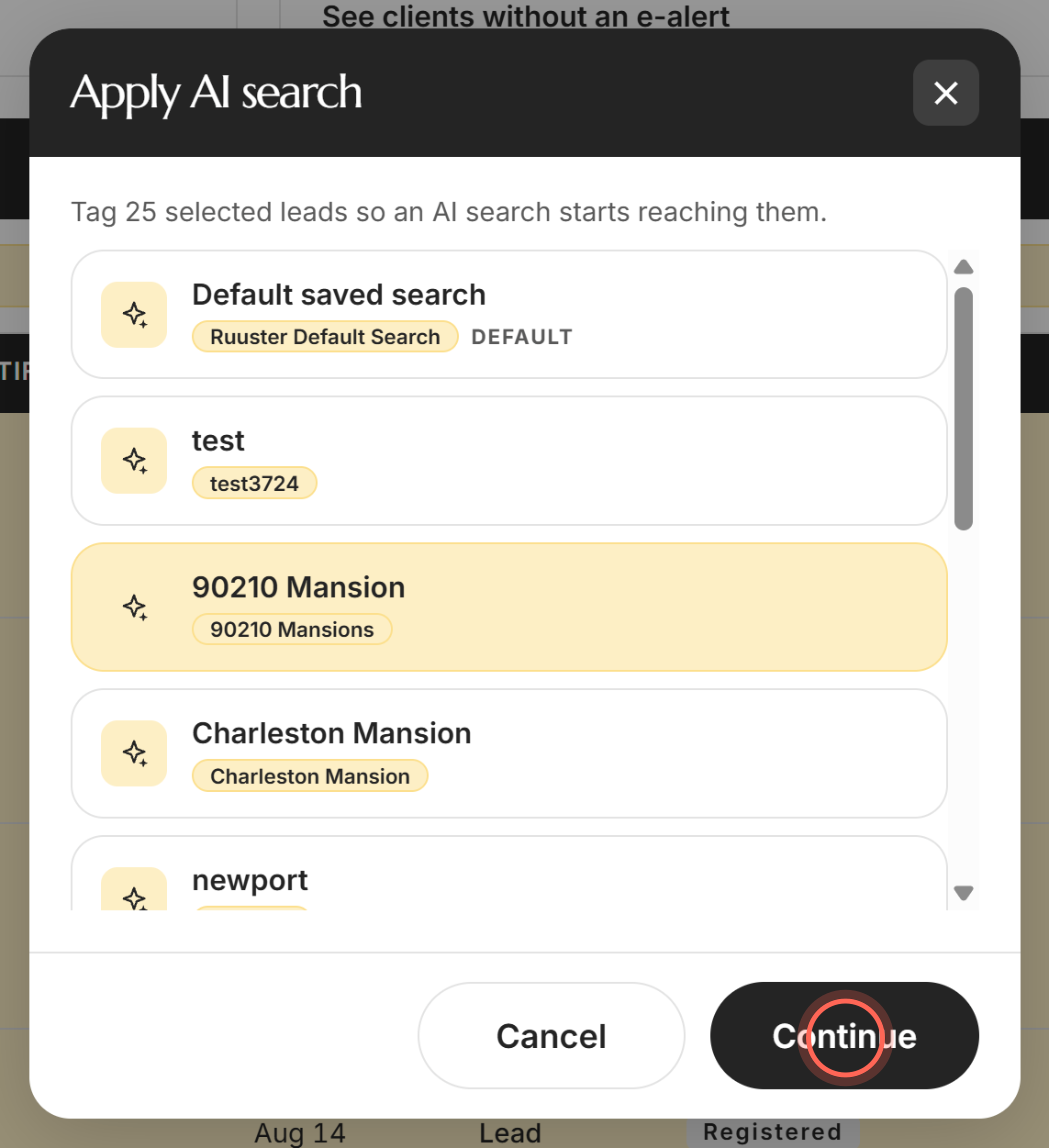
- Click Apply AI search.
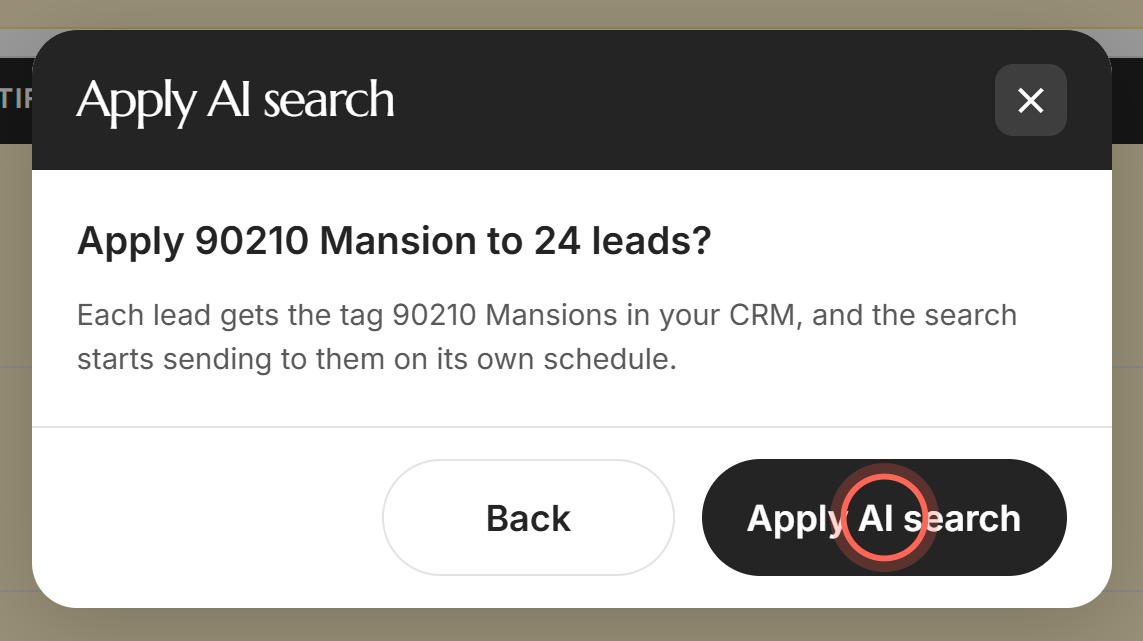
The confirmation names the search, how many leads it reaches and the tag they'll get. Afterward, a message confirms how many leads were tagged. If anyone was skipped, a summary sorts leads into Tagged, Already on this search and Not connected to your CRM. Click Done to close it.
Add an AI search to one lead
- On All Clients, click the lead's name to open their page.
- Click Searches.
- Click Add a search.
- Click From a template.
- Click Continue.
- Click the AI search. AI searches show their tag under the name.
- Click Apply search.
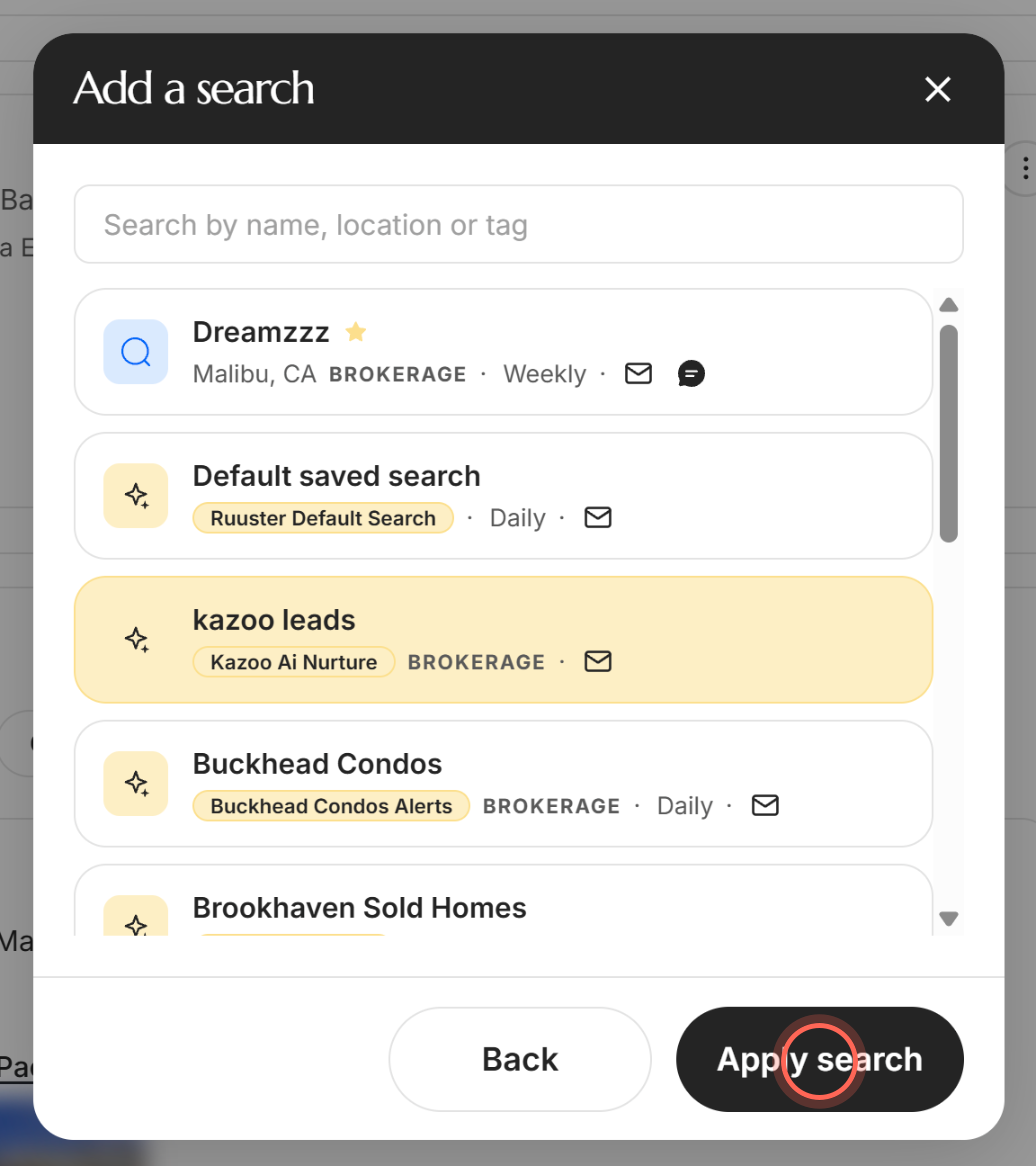
A message confirms the search was applied and that the lead now carries its tag in your CRM. The search appears in Searches as Pending, then turns Active once its criteria arrive.
Good to know
- 25 leads per apply. If your selection is bigger than one page, the confirmation warns that only the first 25 would be tagged. Filter the list and repeat. See Act on many clients at once.
- Re-applying is safe. A lead who already has the tag is left alone, so they never get a second copy. You'll see "Already on this search" or "was already applied".
- Unsubscribed leads stay Paused. Applying an AI search doesn't override an unsubscribe or a stop tag.
- One AI search sends at a time. If the lead is already active on another AI search, the new one shows Paused.
- Reach depends on the search's level. If your selection spans agents, or a lead has no agent, only brokerage-level AI searches are offered. Tagging another agent's lead with your own AI search's tag sends nothing.
FAQ
I tagged a lead. How do I know it worked?
Within 24 hours the AI search shows in the lead's Searches section, first as Pending, then Active. On All Clients, the AI Search column switches to On.
Why were some leads skipped when I applied an AI search?
Leads under Already on this search had the tag already. Leads under Not connected to your CRM have no CRM record, so they can't join until they're in your CRM.
Why do I only see brokerage-level AI searches?
Your selection includes leads from more than one agent, or a lead with no agent. Only a brokerage-level AI search can reach all of them.
How do I take a lead off an AI search?
On the lead's page, delete the AI search from Searches. That also removes the tag in your CRM. See Stop or pause AI Nurture for a lead.
Can I bulk apply a regular template the same way?
No. Apply AI search is for AI searches only. Custom searches go on one client at a time. See Add a search for a client.
Still need help? Reach out to us at helpme@ruuster.com and we'd be happy to assist!