
Edit a saved search
Change a saved search's criteria, frequency, delivery method, CC and subject, or remove it from a client.
To change a client's search, open their page and click the search in the Searches section. The Edit search window changes its name, frequency, method, subject and CC. The pen next to Filters opens the map so you can change its area.
Edit a client's search
- Open the client's page from All Clients.
- In the Searches section, click the search, or choose Edit from its Search actions menu.
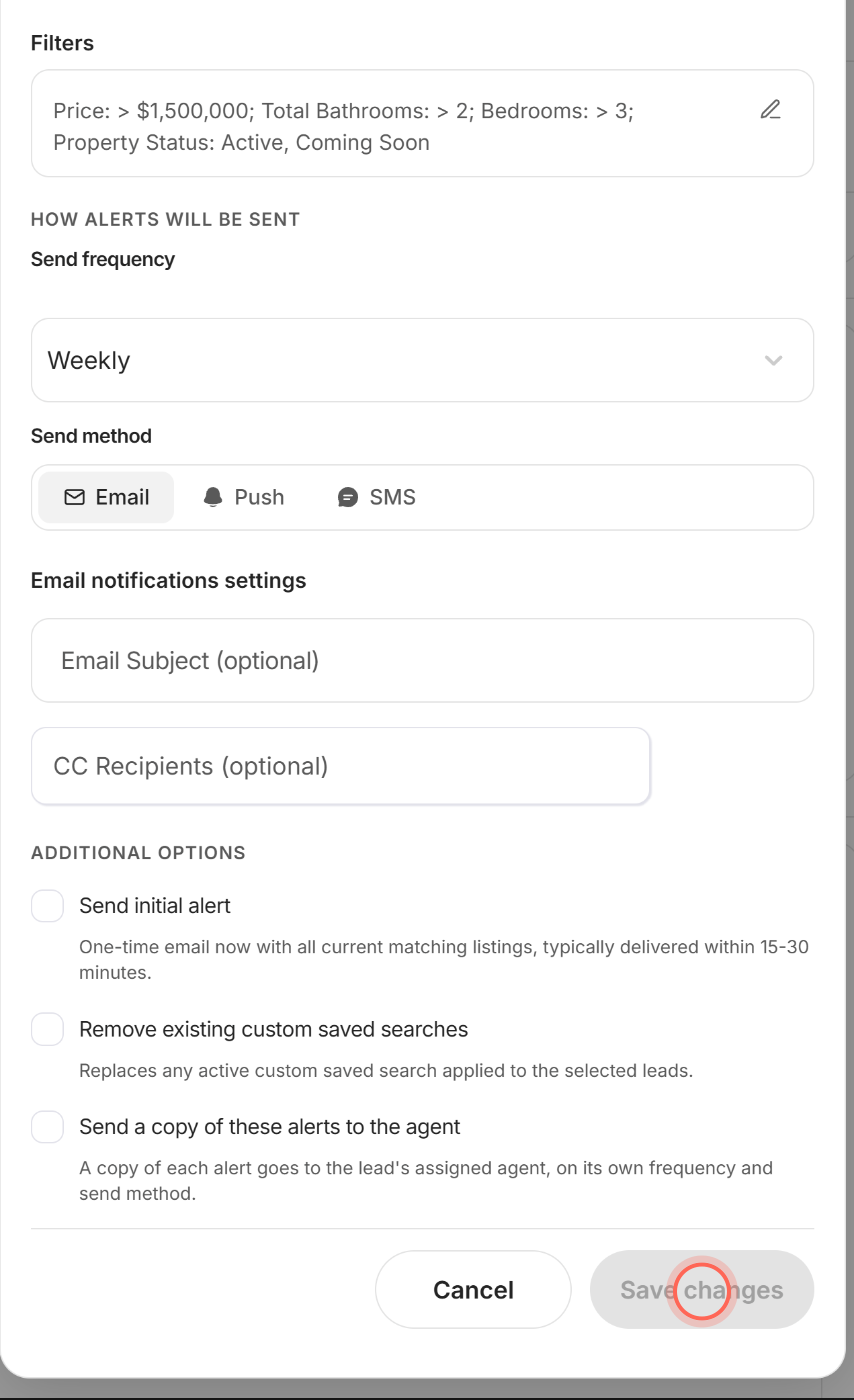
- Change Name Your Search* if you need to.
- Under How alerts will be sent, change Send frequency or Send method.
- Under Email notifications settings, edit Email Subject (optional) or CC Recipients (optional).
- Under Additional options, tick any option you need.
- Click Save changes.
A Success message appears, and the search's Client alerts line on the client's page shows the new settings. Save changes stays grey until you change something.
Frequency runs from Instant to Quarterly, or No update to pause the client's alerts. The options under Additional options do this:
| Option | What it does | Learn more |
|---|---|---|
| Send initial alert | Emails the client every current match the next time you change the area or filters on the map. | Send an initial alert with a search |
| Remove existing custom saved searches | Removes the client's other active custom searches when you save. | |
| Send a copy of these alerts to the agent | Sends the client's assigned agent a copy, on its own frequency and method. | Get a copy of your clients' alerts |
Change the area or filters
- In the Edit search window, click the pen next to Filters (Edit criteria on the map).
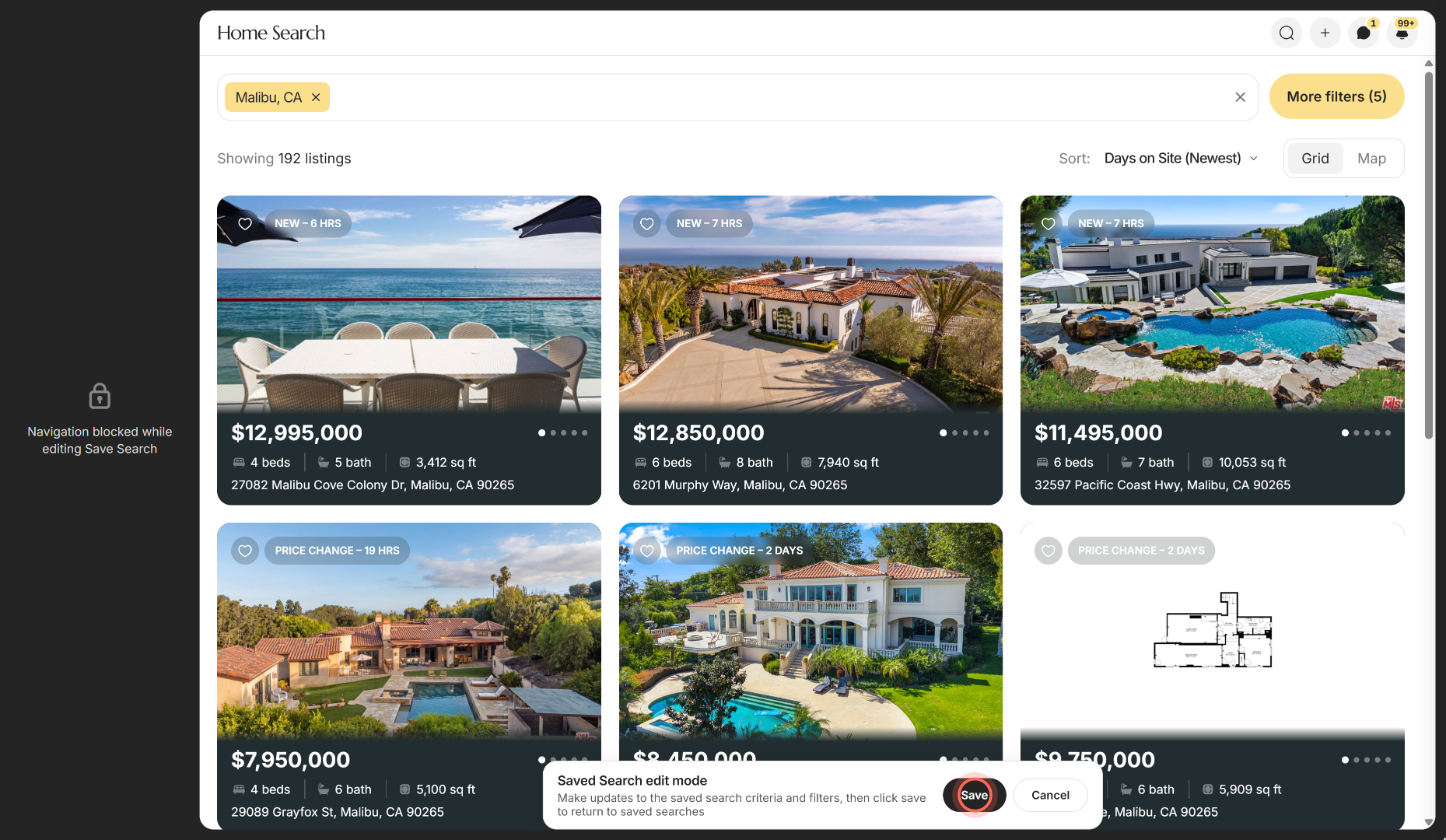
- Change the area or filters on the map.
- Click Save in the Saved Search edit mode bar.
Saved search successfully updated appears, and you return to the page you started from. The sidebar is locked while you edit, so use Cancel to leave without saving. If you remove every location, you see Search area required.
Edit a template
- On Templates, click the pen (Edit) on the template's row.
- Change the name, Send frequency, Send method or Email Subject (optional).
- Turn on Mark as favorite to pin the template to the top of Templates.
- Click Save changes.
A Success message appears and the row updates. Mark as favorite saves the moment you switch it, even if you cancel. Only admins can edit Brokerage rows. The pen on an AI search opens the AI search form instead; see Create an AI search.
Remove a search from a client
- On the client's page, open the search's Search actions menu (three dots) in the Searches section.
- Click Delete.
- Click Delete search to confirm.
A Success message appears and the search leaves the list. Deleting an AI search here removes that search's CRM tag from the client.
Good to know
- One recipient per search. Applied to shows who the search sends to, and it can't be changed. To give another client the same search, save it for several clients from Home Search.
- Any agent in your brokerage can edit. That covers every custom search on a client's page, even one the client saved. Templates and AI searches stay with whoever made them.
- Template edits don't reach clients. A search started from a template is the client's own copy, so edit it on their page.
- Leads without an account get email only. Their search shows an Unregistered User card, and Push and SMS don't appear.
- CC works on one-client searches. CC Recipients (optional) shows while Email is on and takes up to 10 addresses. Templates don't have it.
FAQ
Can I add my client's spouse to the same saved search?
Yes, as a CC. Edit the search, type their email in CC Recipients (optional) and click Save changes. They get the same email alerts.
Can I edit a search my client saved themselves?
Yes. Those searches say Saved by client under the name. Click one to open it in Edit search like any other.
How do I stop every saved search for one lead?
Delete each one from the Searches section. For a lead on AI Nurture, see Stop or pause AI Nurture for a lead.
I get "Oops! Something went wrong" when I save. What now?
Reload the page and try again. A search holds up to 20 locations, so trim the list if you're near that limit.
Can I change the filters on an AI Nurture search?
Not from a client's page. Clicking an AI search there opens its listings. Edit it from its row on Templates, and the change applies to every lead on that search.
Still need help? Reach out to us at helpme@ruuster.com and we'd be happy to assist!