
Save a search for clients from Home Search
Build a search in Home Search, then save it for one or more clients with Apply to clients, picking frequency, method and the first alert.
On Home Search, set the area and filters, click Save and pick one or more clients under Apply to clients (optional). Choose how alerts are sent and click Save search. Each client gets their own copy of the search and starts receiving alerts.
Before you start
- Pick at least one client. A search saved with nobody attached sends no alerts and doesn't show on Templates or any client's page.
- The picker lists your clients, invited clients and leads, including leads from your CRM.
Save a search for one or more clients
- On Home Search, choose an area and set your filters.
- Click Save above the listings.
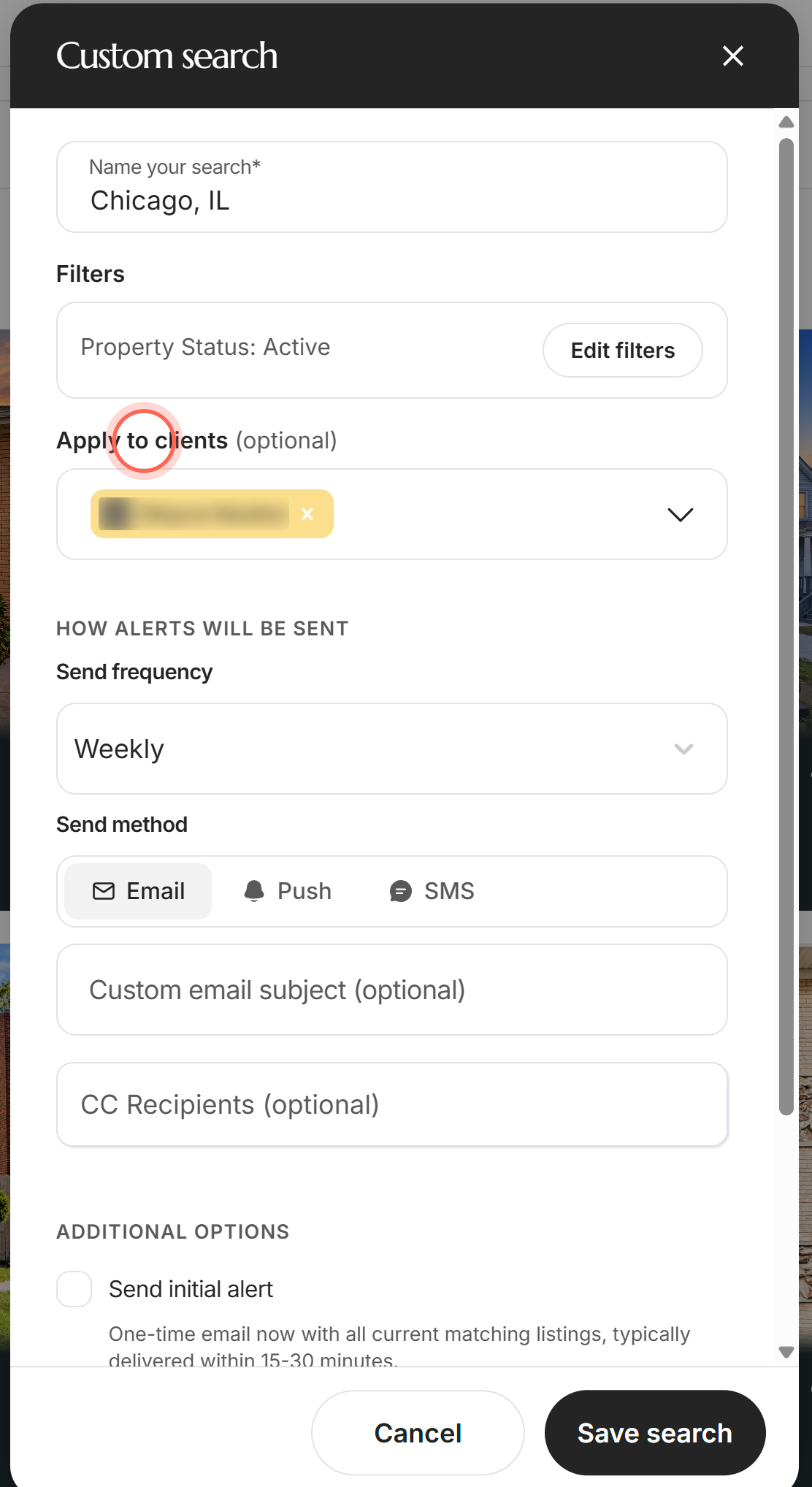
- Check the suggested name in Name your search*.
- Under Apply to clients (optional), type a client's name and pick them. Repeat for each client.
- Under How alerts will be sent, choose a Send frequency and a Send method.
- Add a Custom email subject (optional) or CC Recipients (optional) if you want them.
- Under Additional options, tick the options you want.
- Click Save search.
Saved search created confirms it. With several clients, the message says each one has their own copy. The search appears in the Searches section of each client's page.
Save a search from a client's page
- On the client's page, click Add a search in the Searches section.
- Choose New custom search and click Continue.
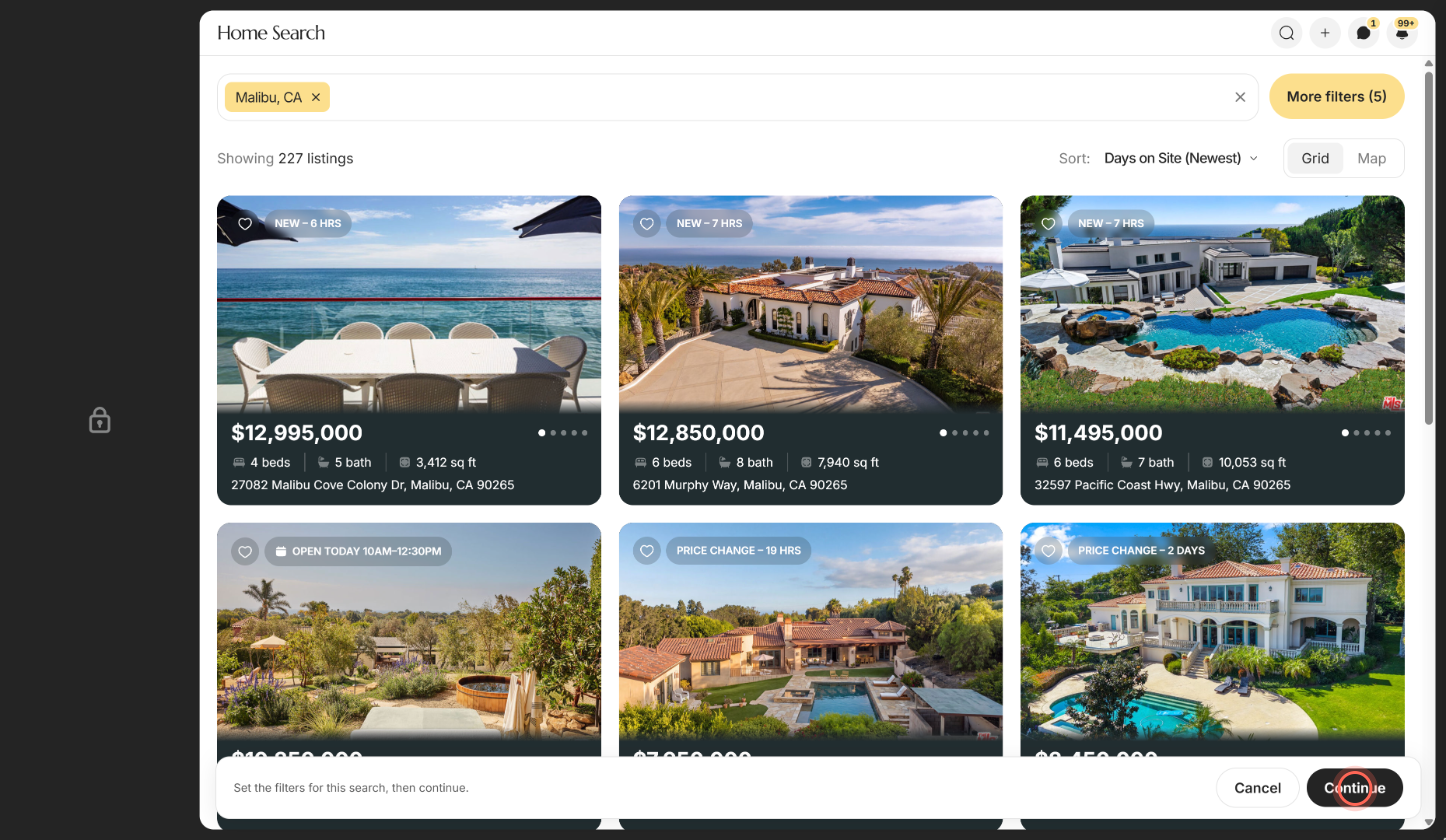
- Choose the area and filters on the map.
- Click Continue in the bar at the bottom.
- Fill in the Custom search panel. The client is already attached, so there's no picker.
- Click Save search.
Saved search created appears and you return to the client's page. To start from one of your templates instead, see Add a search for a client.
What each setting does
| Setting | What it does | Learn more |
|---|---|---|
| Name your search* | Filled in from your filters, such as "Boston, MA · 3+ beds". Type over it to rename the search. | |
| Filters | Sums up the criteria. Edit filters takes you back to the map, and Continue brings you back. | |
| Apply to clients (optional) | Attaches the search to each client you pick. Only on Home Search. | |
| Send frequency | Instant, Daily, Biweekly, Weekly (the default), Bimonthly, Monthly, Quarterly or No update. | |
| Send method | Email, Push or SMS. Pick one or more. Push shows when your brokerage has its own app, and SMS unless your brokerage turned texts off. | |
| Custom email subject (optional) | Replaces the default subject line. Shows while Email is on. | |
| CC Recipients (optional) | Extra addresses that get the same email alerts. Separate them with a comma or space, up to 10. | |
| Send initial alert | Emails all current matches once, typically within 15 to 30 minutes. | Send an initial alert with a search |
| Remove existing custom saved searches | Removes the clients' other active custom searches when you save. | |
| Send a copy of these alerts to the agent | Sends the client's assigned agent a copy, with its own Agent send frequency and Agent send method. | Get a copy of your clients' alerts |
Good to know
- Additional options need a client. They appear once you pick at least one client.
- Email stays on for leads without an account. Text and push alerts need an account. You can't turn Email off while such a lead is picked.
- No update turns alerts off. It also greys out Send method.
- A failed save can be partial. If saving for several clients fails, some may already have the search. Check their pages before you try again, or they get a second copy.
- The sidebar locks while you pick an area. Click Cancel to leave without saving.
FAQ
Can I save one search for a bunch of clients at once?
Yes. Pick each client under Apply to clients (optional). Each gets their own copy, so you can change or delete it for one client without touching the others.
Why can't I click Save search?
The search needs an area. Click Select filters, choose a city, zip code or neighborhood on the map, then click Continue.
The client picker says it couldn't load my clients. What now?
Under We couldn't load your clients., click Try again.
It says it couldn't save my search. Did anything save?
For one client, Could not save this search means nothing was saved, so try again in a moment. For several clients, check their pages first.
Can I keep this search as a reusable template instead?
Templates are made from the Templates page. See Create a custom template.
Still need help? Reach out to us at helpme@ruuster.com and we'd be happy to assist!