
Create a custom template
Build a reusable search on the map, name it, set alert frequency and method, and save it as a template for any client.
On Templates, click New Template, keep Template selected and pick an area and filters on the map. Name it, choose how alerts will be sent and click Save search. The template is then ready to apply to any client.
Before you start
- A template is for clients you know, with exact criteria. For leads you don't know yet, create an AI search instead.
- The map opens on your default search area. To change where it starts, set your default search.
Create a template
- In the sidebar, open Home Search and click Templates.
- Click New Template.
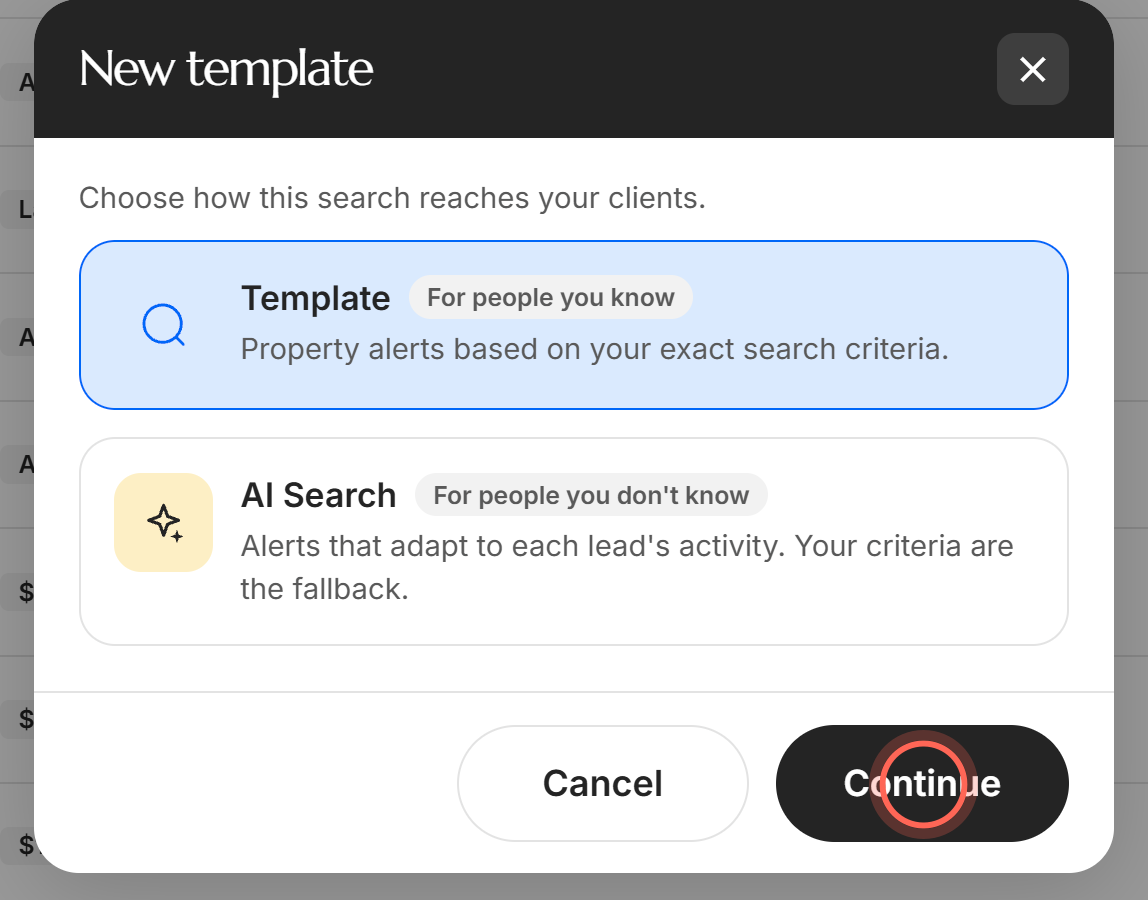
- Leave Template selected and click Continue.
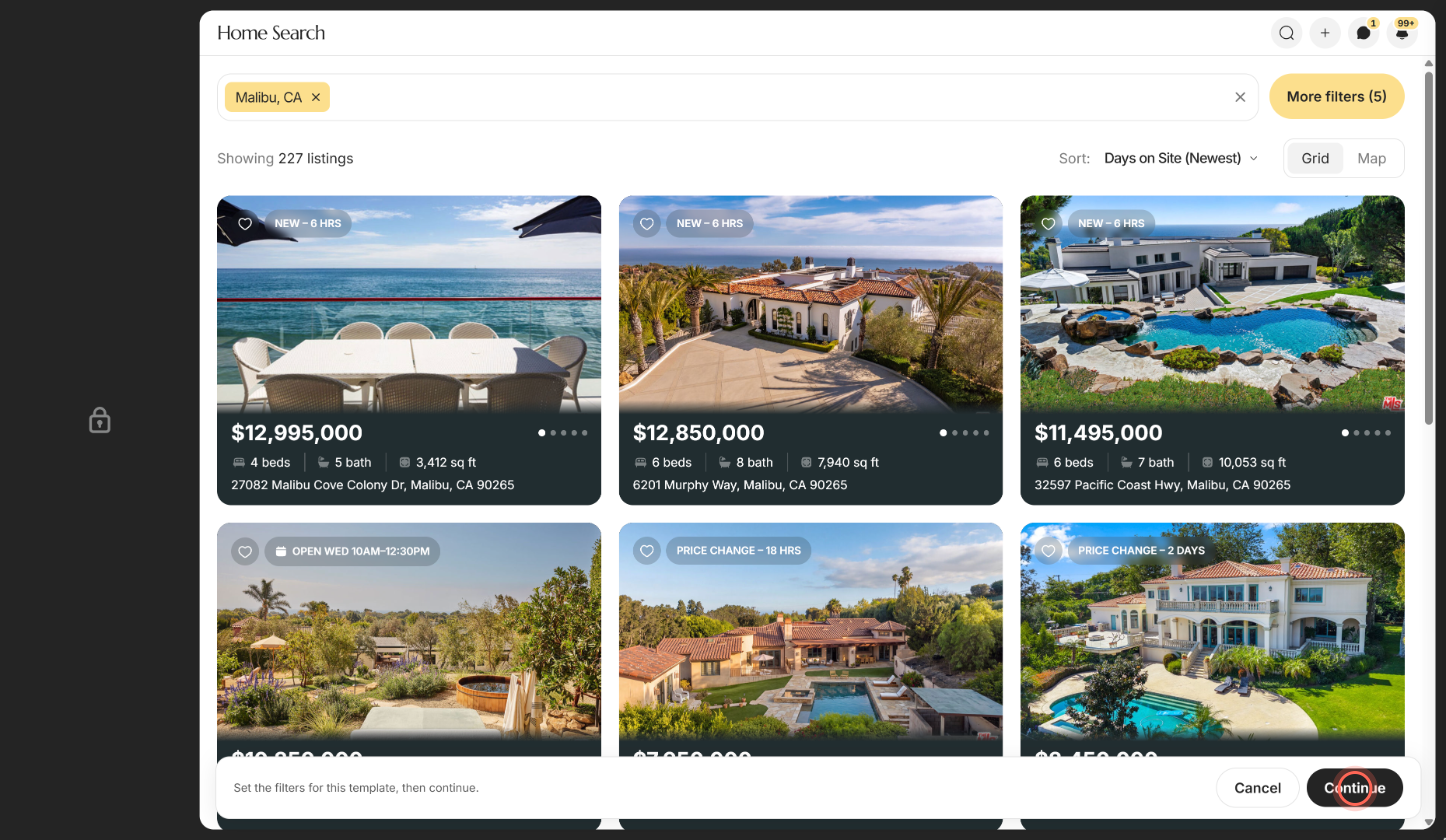
- Choose an area on the map and set your filters.
- Click Continue in the bar at the bottom.
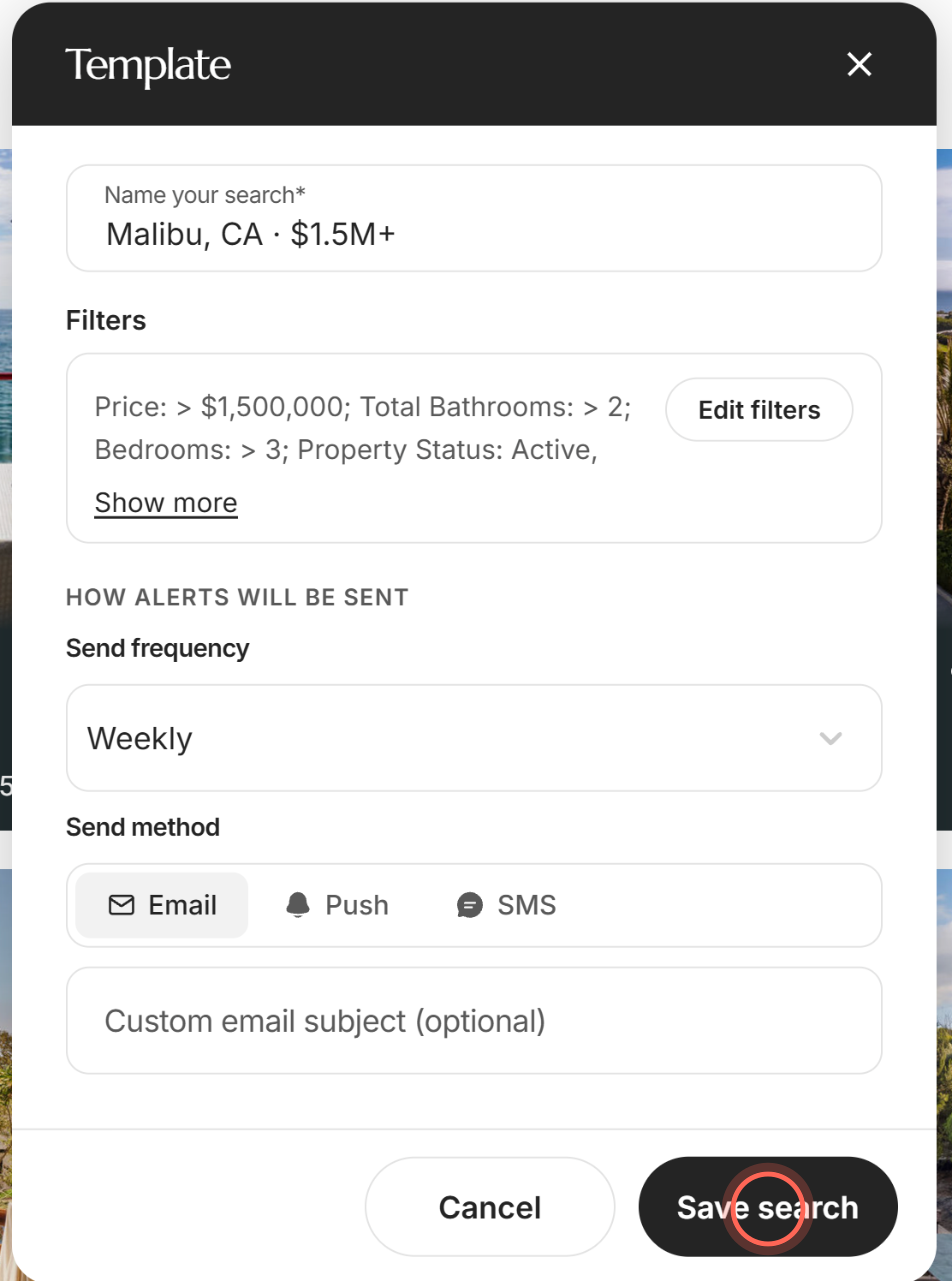
- Keep the suggested name in Name your search* or type your own.
- Under How alerts will be sent, choose a Send frequency and a Send method.
- Click Save search.
A Template saved message confirms it, and you land back on Templates with the new row in the table. Cancel at any step returns you to Templates without saving.
Share a template with your whole brokerage
Admins only. A brokerage-level template is available to every agent in the brokerage.
- Start a new template from New Template on Templates and choose its area.
- On the Template panel, tick Brokerage level.
- Click Save search.
The new row shows a Brokerage marker. Leave the box unticked and the template stays within your agency.
Good to know
- Starts weekly by email. New templates start on Weekly and Email. With Email on, you can add a Custom email subject (optional).
- Fewer options than a client search. CC recipients, Send initial alert and the agent copy appear when you apply the search to a client. A template has no recipient.
- Clients get their own copy. Applying a template creates a separate search for that client, so editing the template later doesn't change it.
- Other ways to start. New Template in the + menu in the header opens Templates; click New Template there. An empty page shows the button under No templates yet.
- Star it from the table. There's no favorite option while you create a template. Star its row on Templates afterwards.
FAQ
How do I give a template to a client?
Open the client's page, click Add a search in the Searches section and choose From a template. See Add a search for a client.
Why can't I click Continue or Save search?
A template needs an area. The bar reads Choose an area on the map to continue. until you pick a city, zip code or neighborhood, or draw an area.
Why is the AI Search card greyed out?
AI Search needs a CRM connection. Without one the card reads Connect your CRM to use AI Search.
Can I turn one of my client's searches into a template?
No. Create a new template with the same area and filters instead.
It says it couldn't save my template. What now?
The message Could not save this template means nothing was saved. Wait a moment and click Save search again.
The Templates page won't load. What do I do?
Under We couldn't load your templates., click Try again. If it keeps failing, check your connection and reload the page.
Still need help? Reach out to us at helpme@ruuster.com and we'd be happy to assist!