
Set your default search
Using Ruuster 1.0? Read the 1.0 version of this article.
Set the area and filters your clients first see in Home Search and your new searches start from, or go back to your brokerage's default.
Your default search is where your clients' first search and your new searches start. In Settings under Default search, click Edit, change the search on the map and click Save. Until you set your own, your brokerage's default is used.
Before you start
- Default search is for agents. Admins without an agent role don't see it in Settings.
- Admins set the brokerage-wide default separately. See Set the default search for your brokerage.
Set your default search
- Click your name at the bottom of the sidebar, then click My Account.
- Click the Default search chip at the top of Settings.
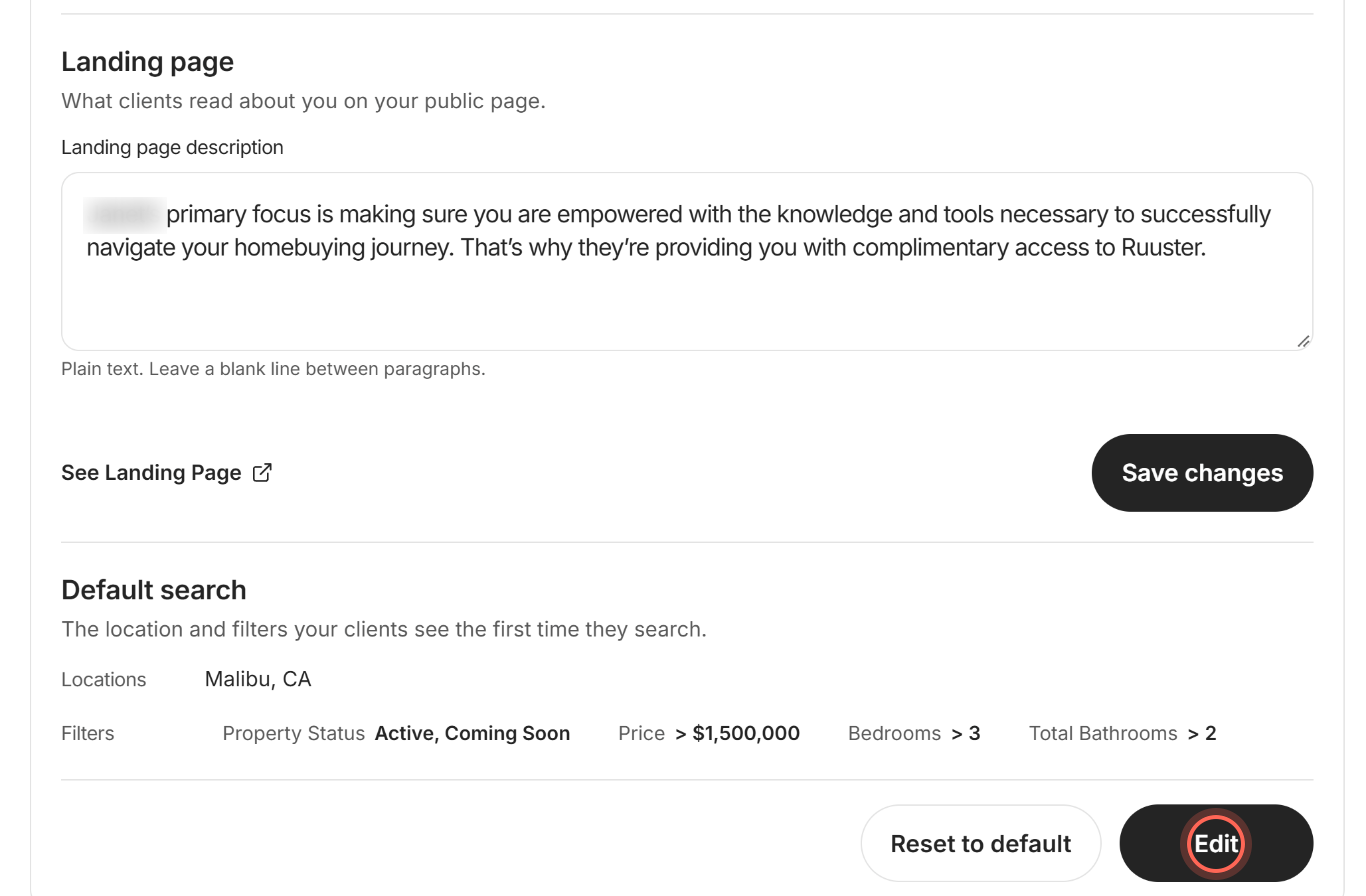
- Click Edit. Home Search opens in Default search edit mode.
- Search a city, ZIP or neighborhood, or draw an area on the map.
- Set any filters your clients should start with.
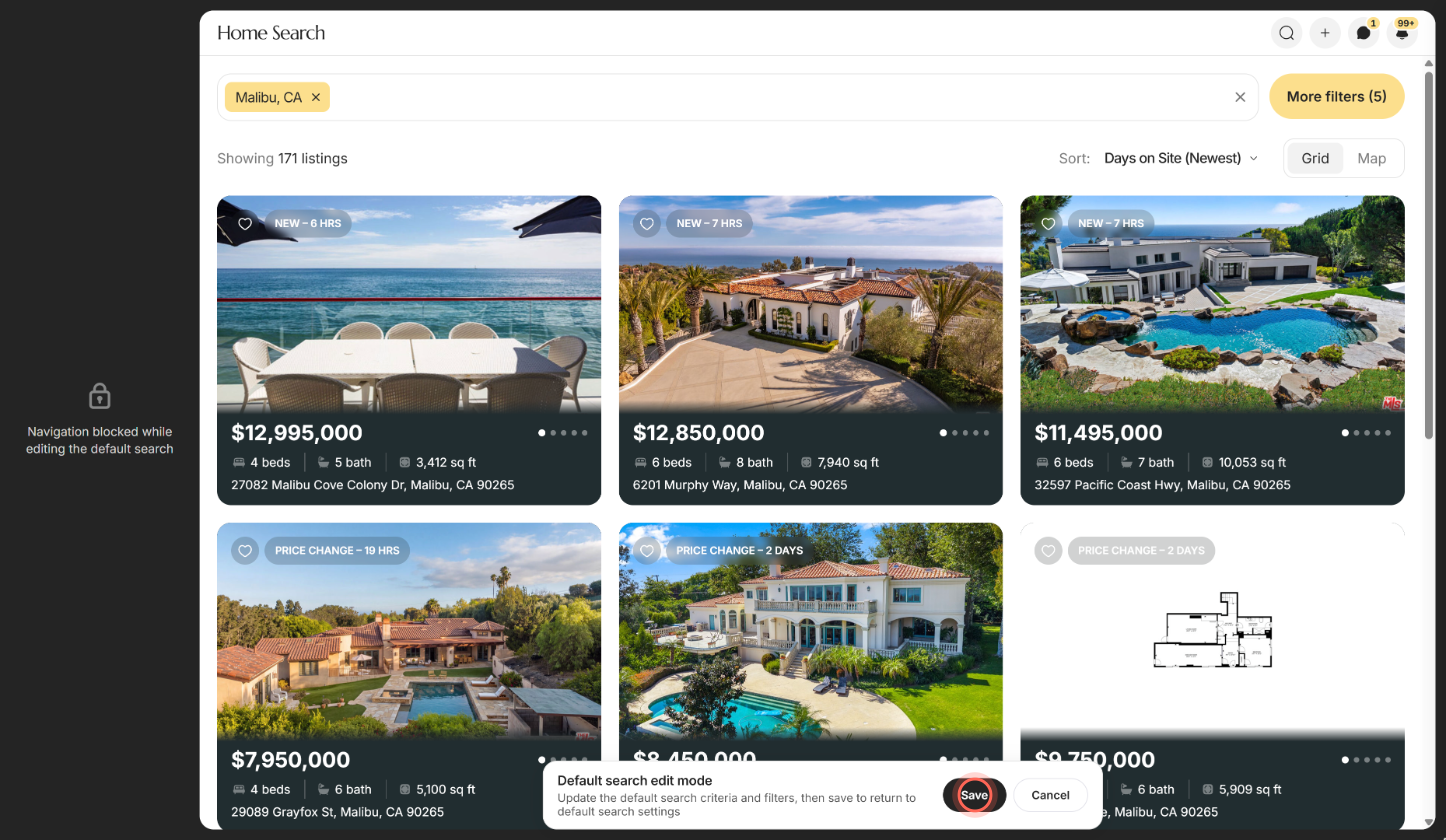
- Click Save.
Settings opens again at the top. Default search now lists your Locations and Filters. A drawn shape shows as "Map drawn boundaries", and a moved map with no place name as "Map area".
To leave without saving, click Cancel in edit mode. You go back to Settings and nothing changes.
Go back to your brokerage's default
- On Settings, click the Default search chip.
- Click Reset to default.
Your own default is removed right away, with no confirmation. Default search then says "Using your brokerage's default search."
What your default search changes
| Where | What happens |
|---|---|
| Your clients' Home Search | It opens on your default the first time they search. Clients who gave a ZIP code in the sign-up questions start there instead. After that, it reopens their last search. |
| New searches you create | New templates, AI searches and searches added for a client start from your default. You can change anything before saving. |
| Your Ruuster Default Search | Saving also updates the area and filters of your Ruuster Default Search on Templates. |
Good to know
- Yours wins for your clients. Your default replaces the brokerage default for your clients only. Other agents' clients keep theirs.
- An area is required. Without a city, ZIP, neighborhood or drawn area, Save shows "Search area required."
- Other pages wait. While you edit, a note says "Navigation blocked while editing the default search." Click Save or Cancel to move on.
- Save needs a change. Save stays greyed out until you change the area or a filter.
- Reset needs two defaults. Reset to default shows only when you and your brokerage both have a default and they differ.
FAQ
Why does my search open on an old location instead of our default area?
Home Search reopens the last search you ran. Your default only applies when there's no earlier search. Search the area you want, and Home Search opens there next time.
What's the difference between my default search and the brokerage default?
Admins set the brokerage default for everyone. Yours overrides it for your own clients and your new searches.
Why do my new templates start in a certain city?
That's your default search, or your brokerage's if you haven't set one. Change it in Settings and new searches start from the new area.
I don't see a Reset to default button. Why?
You're already using the brokerage default, or the brokerage has none to go back to.
Does changing it update my clients' existing saved searches?
No. Custom searches already saved for your clients keep their own area and filters.
I got "Error on saving default search settings." What now?
Reload the page and try again. If it keeps happening, reach out to us.
Still need help? Reach out to us at helpme@ruuster.com and we'd be happy to assist!