
Your landing page
Using Ruuster 1.0? Read the 1.0 version of this article.
Copy your landing page link from the menu on your name, edit your bio in Settings, and see what visitors who sign up as your clients see.
Your landing page is your public sign-up page, and anyone who signs up from it becomes your client. Copy its link with the copy icon next to View Landing Page in the menu on your name. Edit your bio in Settings under Landing page.
Before you start
- Landing pages are for agents. Admins without an agent role don't have one.
- Your name, phone, email and photo on the page come from your Settings, so keep them current.
Copy and share your link
- Click your name at the bottom of the sidebar.
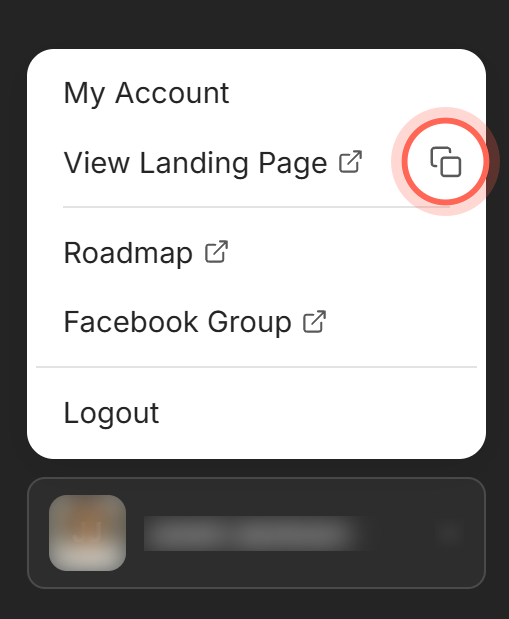
- Click the copy icon next to View Landing Page.
- Paste the link into a text, email signature or social profile.
A "Landing page URL copied" message appears. To open the page in a new tab instead, click View Landing Page. You can also click Copy my link on the My landing page link card on your dashboard.
Edit your bio
- Click your name at the bottom of the sidebar, then click My Account.
- Click the Landing page chip at the top of Settings.
- Write your bio in Landing page description, with a blank line between paragraphs.
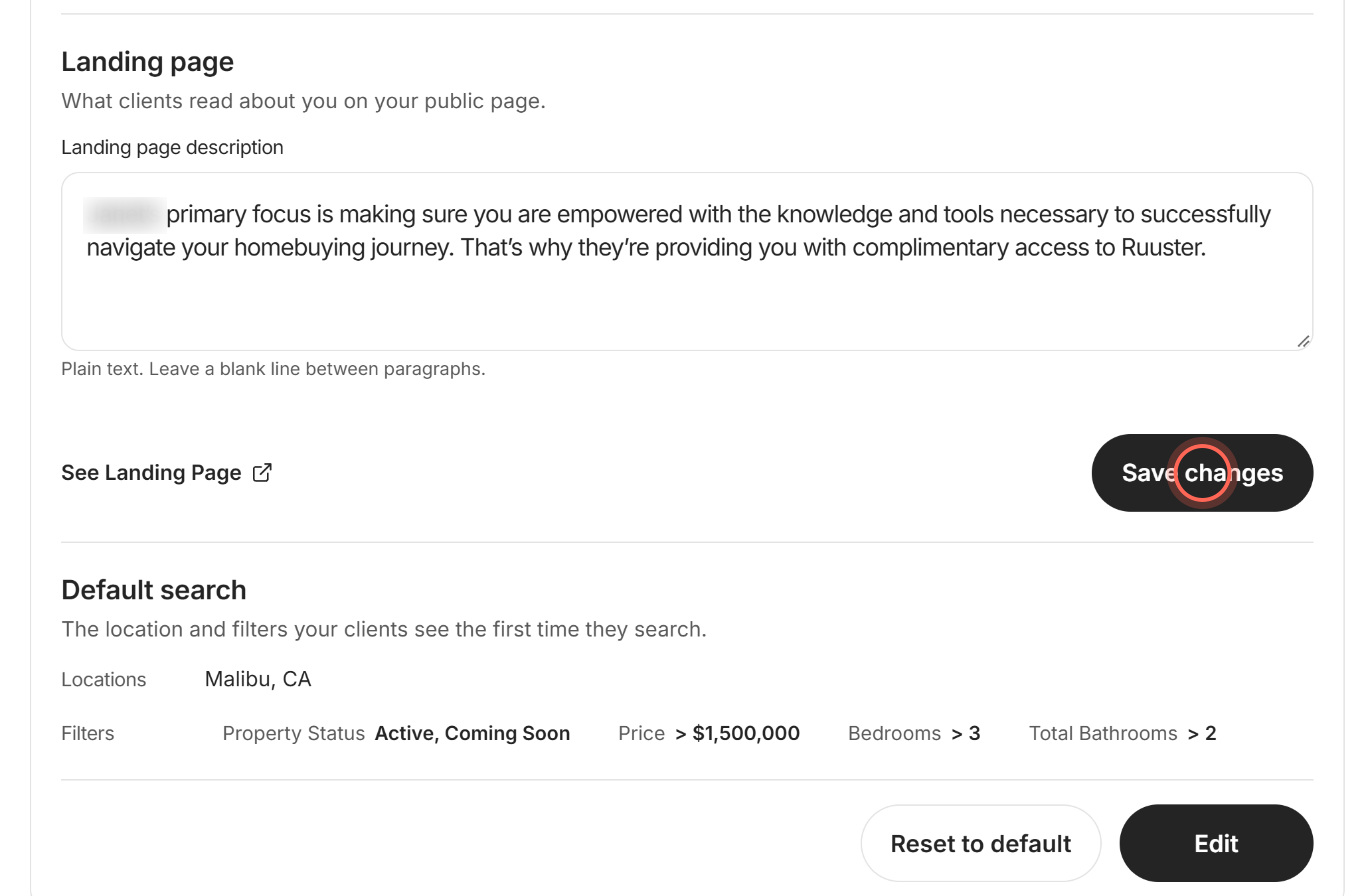
- Click Save changes.
- Click See Landing Page to check it in a new tab.
A Success message says "Changes saved." Your landing page shows the new bio as soon as it loads again.
What visitors see on your landing page
There's nothing to edit on the landing page itself. Each part comes from somewhere else.
| Part of the page | Where it comes from |
|---|---|
| Logo at the top | Your agency logo. Admins set it in Set your agency logo. |
| Line above your name | Your agency name, usually your brokerage's. With none, it reads "Your real estate agent". To change it, contact helpme@ruuster.com. |
| Your name | First Name and Last Name in Settings. |
| Bio | Landing page description in Settings. Until you write your own, a default paragraph shows that starts "I'm here to make sure you are empowered". |
| Phone | The number under Agency Phone number in Settings, as a tap-to-call link. See Update your contact information. |
| Your account Email, as an email link. | |
| Photo | The Landing Page Photo crop of your headshot. A stock photo shows until you upload one. See Update your photo. |
| Get the app | App Store and Google Play buttons that open the sign-up pop-up. Without a branded app, a Get started now button opens sign-up instead. |
| Welcome pop-up | Opens on each visit with your profile photo, first name and a short sign-up form. |
| Listings | Tabs for Home search, your own listings (for example Riley's listings) and Office listings. |
Good to know
- Your listings include sold homes. Your own tab shows every status for your MLS agent IDs, including pending and sold. Office listings shows active and under contract homes.
- Empty tabs are hidden. A listings tab appears only when your MLS IDs are saved in Settings and have listings behind them.
- Plain text only. The bio has no bold, links or other formatting. Leave a blank line to start a new paragraph.
- Changing the address. Only an admin can change your landing page address, from Team. See Edit a team member.
FAQ
Where do I find my landing page URL?
Click your name at the bottom of the sidebar and click the copy icon next to View Landing Page. The Copy my link button on your dashboard copies the same link.
How do people sign up from my page?
They use the welcome pop-up or the app buttons. Anyone who creates an account from your page becomes your client and shows up on All Clients.
Whose photo and contact info do clients see in the app?
Their assigned agent's. Your clients see your profile photo and name in chat, and your landing page shows your client-facing phone and email.
Why don't I see my listings tab?
Your MLS agent or office IDs aren't saved in Settings under MLS credentials, or there are no listings for them yet.
Can I change my landing page link?
Not yourself. Ask an admin to change your landing page address on Team. The old address keeps redirecting to the new one.
Still need help? Reach out to us at helpme@ruuster.com and we'd be happy to assist!