
Edit a team member
Open a user from Team to change their role, name, email, phone, headshot, MLS IDs or landing page address.
Admins only. On Team (Admin), click a person's name or the pen icon to open Edit user. Change their role, name, email, phone, headshot, MLS IDs or landing page address, then click Save changes.
Before you start
- Admins only. You can't change your own role or the account owner's role.
- For someone who hasn't signed up yet (Invited), you can edit the role, name, email, phone and headshot. MLS IDs, the landing page address and Make default user appear once they sign up.
Edit a team member's details
- In the sidebar, click Team under Admin.
- Click the person's name, or the pen icon (Edit user) on their row.
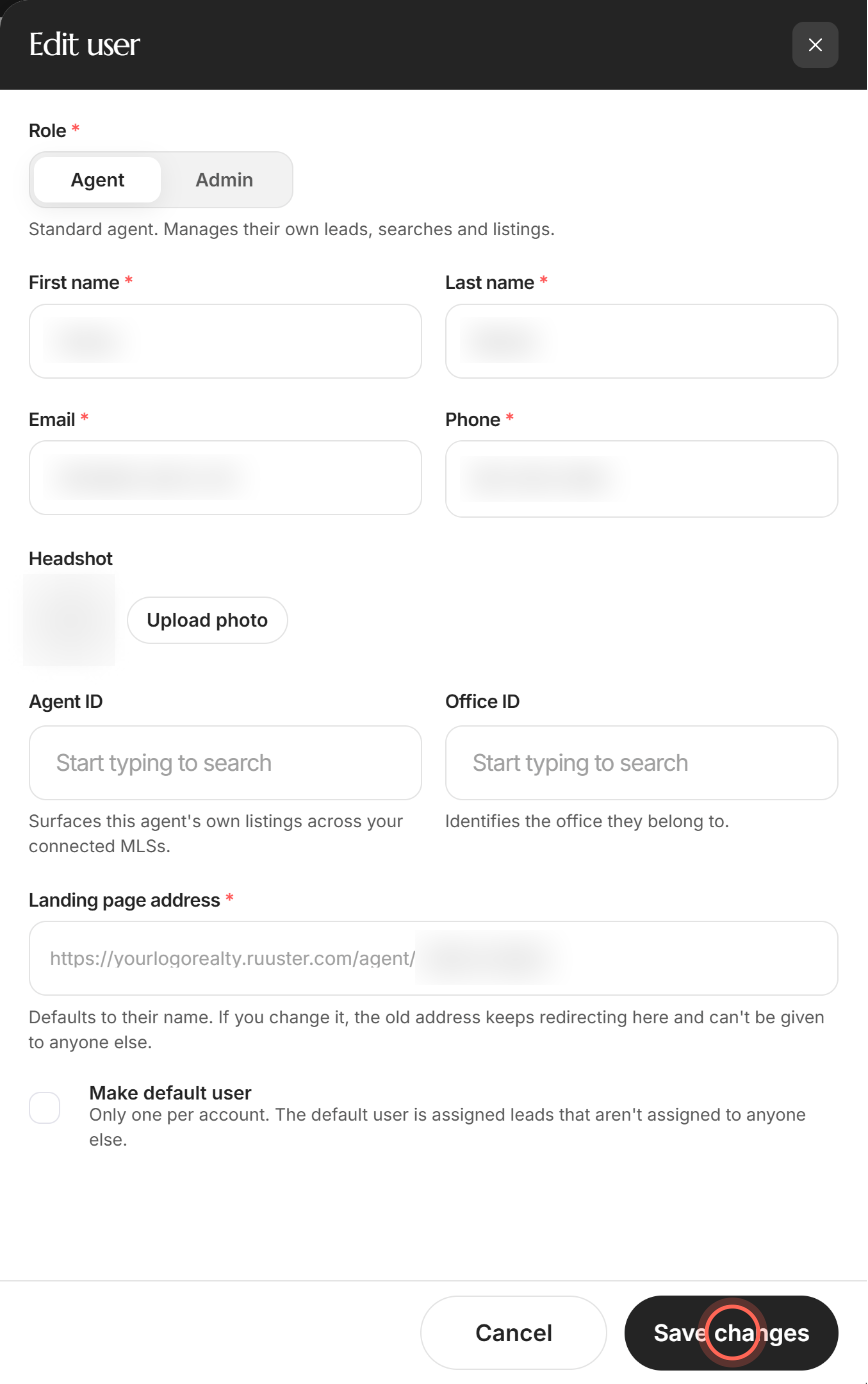
- Change the fields you need (see the table below).
- Click Save changes.
A User updated message says "Changes to {name} were saved." and their row flashes on Team. If something is wrong, a red line at the top of the panel says what to fix.
| Field | What it changes |
|---|---|
| Role | Agent or Admin. The line under it says what each role can do. |
| First name and Last name | Their name everywhere in Ruuster, up to 50 characters each. |
| Their sign-in email. A warning appears when you change it. | |
| Phone | Their phone number. For an invited person, it's also their new first password. |
| Headshot | Upload photo or Change photo opens one upload with two crops: Landing page photo and Profile photo. 20 MB max. |
| Agent ID and Office ID | Their MLS agent and office IDs. Start typing and pick from your connected MLSs. |
| Landing page address | The end of their landing page link. |
| Make default user | Makes them the person who gets sign-ups without an agent. See Choose who gets new sign-ups. |
Make someone an admin
- On Team, click the person's name.
- Under Role, click Admin.
- Click Save changes.
Their Role column on Team now shows Admin. To take admin access away, choose Agent and save.
Change a landing page address
- On Team, click the person's name.
- In Landing page address, type the new address.
- Click Save changes.
- In Change agent slug, click Yes.
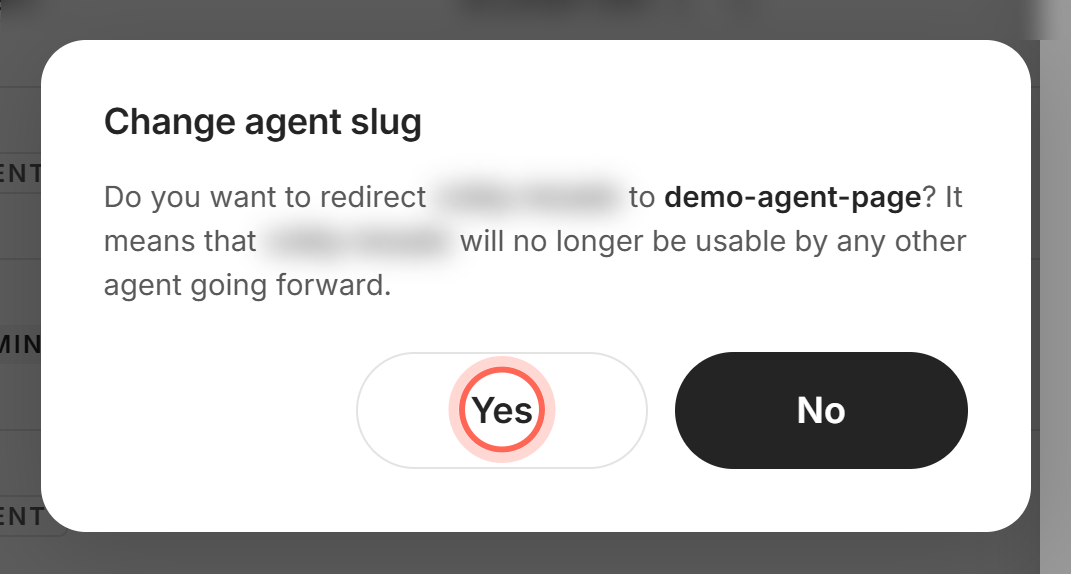
The User updated message adds "Their landing page is now" with the new link, and says the old address redirects there. Click No instead to keep the old address and save your other changes.
Good to know
- Email is their sign-in. Changing it changes how they sign in, and may break their CRM, marketing and chat connections. Tell them first.
- Names don't move the address. A new name doesn't change their landing page address. Edit Landing page address too if it should match.
- Address rules. Use 3 to 60 lowercase letters and numbers, separated by single hyphens. An old address stays reserved for that person.
- Latest photo wins. Agents can also change their own photo in their settings. Whichever upload comes last is the one that shows.
- Cancel discards. Cancel closes the panel without saving, and there's no warning about unsaved changes.
FAQ
How do I get admin access so I can manage clients for our agents?
Ask an admin or your account owner. They open Team, click your name, choose Admin under Role and click Save changes.
How do I change an agent's name on their profile and landing page?
On Team, click their name, edit First name and Last name, and click Save changes. Their landing page shows the new name, but its address stays the same.
Why is Save changes greyed out?
Nothing has changed yet, or First name, Last name, Email or Phone is empty.
Why can't I change the owner's role?
The account owner's role can't be changed from Team. Reach out to us if ownership needs to move.
Why don't I see MLS IDs or the landing page address?
The person hasn't signed up yet. Those fields appear once their Invited badge is gone.
It says "That landing page address is taken." What now?
Another person already uses that address, or it belonged to another agent and is reserved. Try a variation, such as adding a middle initial.
Still need help? Reach out to us at helpme@ruuster.com and we'd be happy to assist!