
Add a team member
Using Ruuster 1.0? Read the 1.0 version of this article.
Add an agent or admin from Team or the + menu. Ruuster sends their sign-in details, and their phone number is the first password.
Admins only. On Team (Admin), click Add user, choose Agent or Admin, enter their name, email and phone number, then click Add agent. Ruuster creates their account and emails their sign-in details, and their phone number is their first password.
Before you start
- Admins only. Each person you add takes one seat. If every seat is in use, you add seats first (see Add seats to your account).
- Have their first name, last name, email and phone number ready. All four are required.
- Use an email that no one else on your account uses, including your clients.
Add a team member from Team
- In the sidebar, click Team under Admin.
- Click Add user (on an empty Team, it's in the No users yet. message).
- Under Role, click Agent or Admin.
- Enter First name, Last name, Email and Phone number.
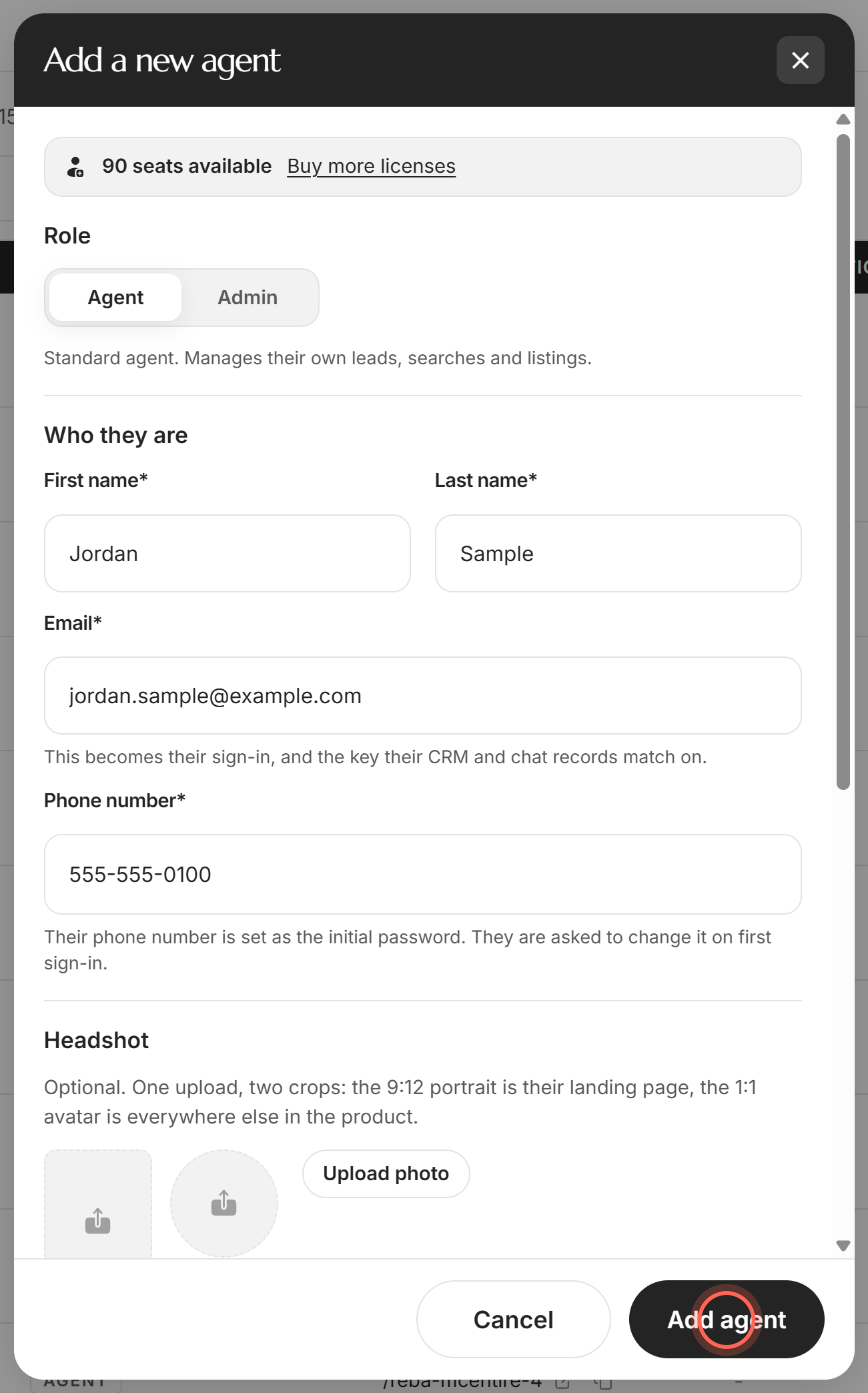
- Optional: under Headshot, click Upload photo and pick their photo.
- Optional: under Agency logo, click Add logo to give them a different logo.
- Click Add agent.
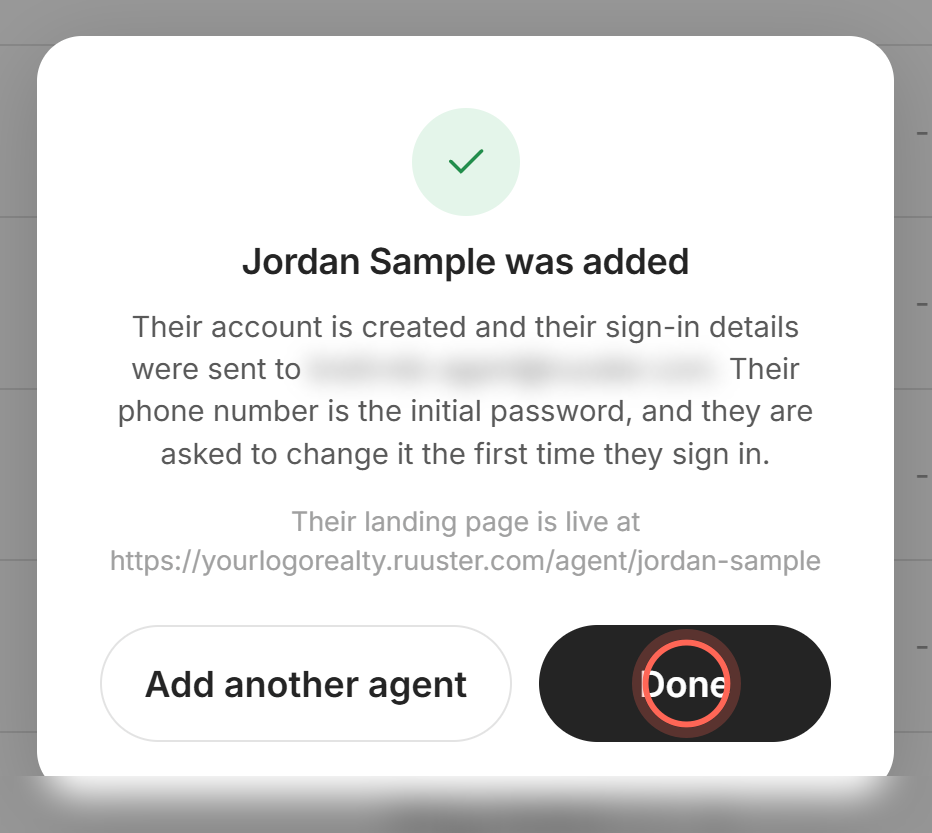
- Click Done, or Add another agent to start a new form.
A message says "Invitation sent successfully." The confirmation reads "{name} was added" and shows where their sign-in details went and their landing page address. They appear on Team with an Invited badge until they sign up.
Add a team member from the + menu
- Click the + button in the header.
- Click Add a New Agent.
- Complete the Add a new agent form and click Add agent.
Team opens with the form on top, and the new person appears in the list once they're added.
Add several people in a row
- In the Add a new agent form, tick Keep this open to add another agent.
- Fill in the first person and click Add agent.
- Fill in the next person in the cleared form.
The form clears after each add instead of showing the confirmation, and Team updates behind it.
Good to know
- Their phone is the first password. They sign in with their email and phone number, and they're asked to change the password the first time they sign in.
- Admin adds more access. Admin can manage other users, integrations and billing on top of everything an agent does. The Owner role can't be given here.
- Preview before you add. Their landing page shows their card and address as you type. The address comes from their name, and you can change it after they sign up.
- The logo is optional. Leave Agency logo blank and they use your brokerage logo.
- Out of seats. At your seat limit, Add user opens Add more user seats first. If the form shows No seats available, click Add seats and what you typed is kept.
FAQ
Do new agents get an email or a text telling them how to log in?
An email. It goes to the address you entered and includes their sign-in details. Their phone number is their first password.
I get an error when I try to add a new agent. Why?
Most often the email is already used on your account, for example by a client. The Email field shows the reason, so use a different email for their agent account. If you see "We couldn't add this agent", nothing was created and your typing is kept, so try again.
My new agent never got their login email. What do I do?
Ask them to check spam. Then on Team, click Send login info on their row (see Resend or withdraw a team invite).
How do I make someone who's already on the team an admin?
On Team, click their name, choose Admin under Role and click Save changes. See Edit a team member.
The form says "We couldn't open this form." What now?
Ruuster couldn't read your seat count and MLS connections. Check your connection and click Try again.
Still need help? Reach out to us at helpme@ruuster.com and we'd be happy to assist!