
Delete a team member
Delete a user from Team and choose whether to reassign their clients to another agent or delete them.
Admins only. On Team (Admin), click the trash icon on the person's row, choose who takes over their clients, type delete and click Delete user. Deleting is permanent, and their seat frees up right away.
Before you start
- Admins only. Only the account owner can delete another admin.
- You can't delete the account owner or the default user. To delete the default user, make someone else the default first (see Choose who gets new sign-ups).
- Decide which agent should take over their clients (see Reassign a departing agent's clients).
Delete a team member
- In the sidebar, click Team under Admin.
- Find the person and click the trash icon (Delete user) on their row.
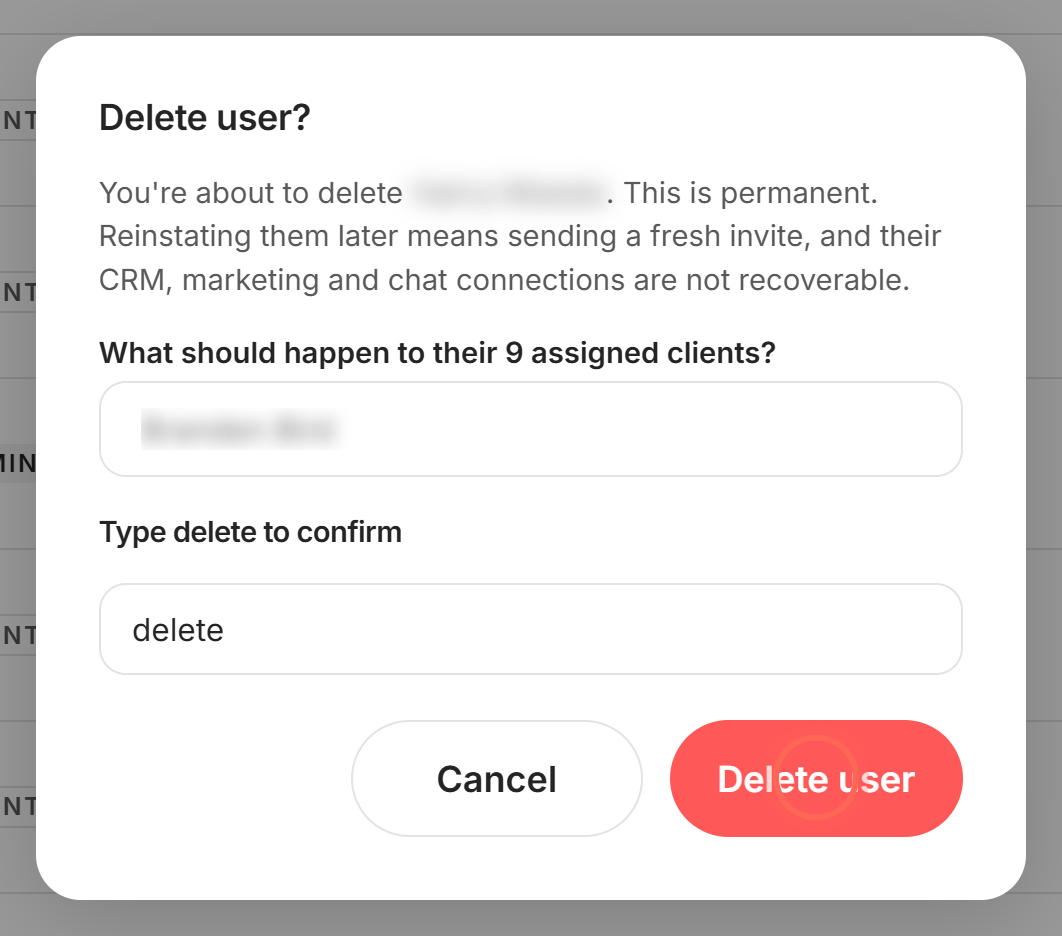
- Click Choose what happens and pick an agent under Reassign to.
- Type delete in Type delete to confirm.
- Click Delete user.
A User deleted message says "{name} was deleted." and how many clients went to which agent. The person leaves Team, and the seat count at the top goes down by one.
If the person has no clients, the window skips the reassign question. You only type delete and click Delete user.
Delete a team member and their clients
Use this only when nobody should keep the person's clients.
- On Team, click the trash icon (Delete user) on the person's row.
- Click Choose what happens and pick Don't reassign, delete these clients.
- Type delete in Type delete to confirm.
- Click Delete user.
Before you click, a warning says these clients will be permanently deleted and can't be recovered. The User deleted message then says how many clients were permanently deleted.
Good to know
- There's no undo. To bring someone back, you add them again as a new user. Their CRM, marketing and chat connections can't be recovered.
- Deleted clients are gone too. Clients you don't reassign are permanently removed from your Ruuster account.
- Saved searches move with clients. Reassigned clients keep their saved searches, now under their new agent.
- Connected CRM. If your brokerage has a connected CRM, reassign to an agent who's also connected to it.
- The seat frees up. You can add a replacement without adding a seat.
FAQ
If I delete an agent, will their leads be deleted too?
Only if you choose Don't reassign, delete these clients. Pick an agent under Reassign to and every client moves to them. Deleting an agent in Ruuster doesn't delete their leads in your connected CRM. If you don't reassign, their leads stay in the CRM and stop syncing to Ruuster.
Why is there no trash icon on someone's row?
That person is the account owner or the default user. Neither can be deleted from Team.
I can't delete an agent. It says "Could not delete this user." Why?
If the person is an admin, only the account owner can delete them. With a connected CRM, the agent you reassign to must be connected to it too. Still stuck? Reach out to us.
How do I cancel an invite I sent by mistake?
Use the trash icon on their row to withdraw it. See Resend or withdraw a team invite.
When an agent leaves, how do I stop property alerts on their leads?
Reassigned clients keep their saved searches and alerts. To stop them, delete those searches from each client's page (see Edit a saved search).
Still need help? Reach out to us at helpme@ruuster.com and we'd be happy to assist!