
Reassign a departing agent's clients
Using Ruuster 1.0? Read the 1.0 version of this article.
When an agent leaves, delete them from Team and choose who receives their clients. That's how clients move between agents in Ruuster today.
Admins only. To move a departing agent's clients, delete the agent from Team (Admin) and pick who receives their clients in the delete dialog. Ruuster has no separate reassign button for agents who are staying.
Before you start
- Admins only. The owner and the default user can't be deleted, so their clients can't move this way.
- With a CRM connected, the agent who receives the clients must be connected to the same CRM.
- Deleting the agent is permanent. Decide who takes over their clients before you start.
Move a departing agent's clients
In the sidebar, open Admin and click Team.
Find the departing agent with Search name, email or MLS ID.
Click the trash icon (Delete user) on their row.
Under the question about their assigned clients, open Choose what happens.
Under Reassign to, pick the agent who takes them over.
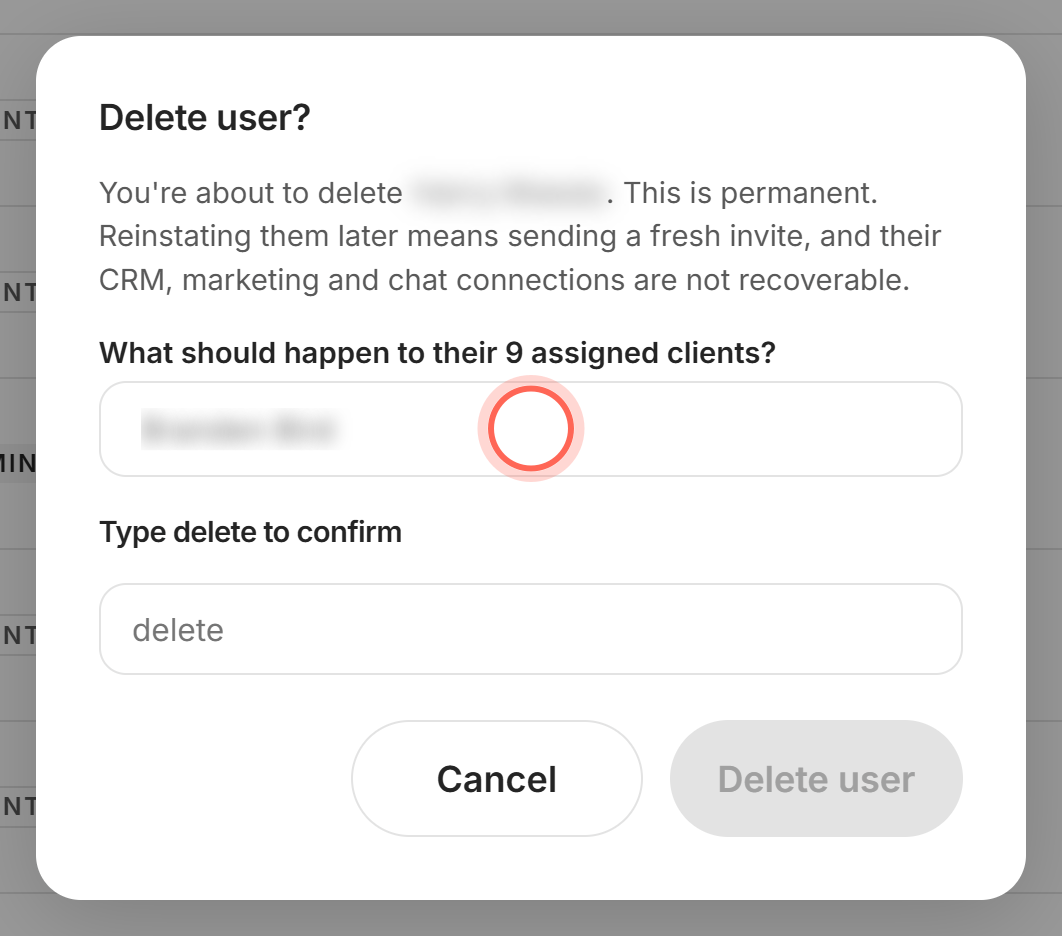
Type delete in Type delete to confirm.
Click Delete user.
A User deleted message lists how many clients were reassigned and to whom. The clients move first, then the agent is removed, and the new agent sees them on All Clients right away.
What moves with the clients
| What | What happens |
|---|---|
| Clients, invitations and leads | They're assigned to the new agent. |
| Custom saved searches the departing agent set up | They move to the new agent and keep sending. |
| AI searches from the departing agent's own templates | They stop for these clients, and their tags stay on the clients in your CRM. Brokerage AI searches carry on. To keep a client on AI Nurture, apply a brokerage AI search or one of the new agent's. |
| Chat | The new agent takes over each conversation, with its history. |
| Your connected CRM | Ruuster updates each client's assigned agent there. |
Good to know
- One receiver. All of the agent's clients go to the one agent you pick.
- Deleting instead. Don't reassign, delete these clients deletes every one of them permanently. A red warning confirms it before you can continue.
- No clients, no question. If the agent has no clients, the dialog only asks you to type delete.
- Invited team members. A pending team invite shows Withdraw invitation instead. Invited members have no clients yet.
- If the move fails. You see "Could not delete this user", and the agent and their clients stay as they were.
FAQ
Can I move clients between two agents who are both staying?
Not from Ruuster's screens. If your brokerage has a CRM connected, change the assigned agent in your CRM. When both agents are connected to your CRM, Ruuster moves the client to match. Otherwise, email helpme@ruuster.com.
What happens to a client's saved searches when I reassign them?
Custom saved searches the departing agent set up move to the new agent and keep sending. AI searches from the departing agent's own templates stop for those clients, and brokerage AI searches carry on. Apply another AI search if you want them nurtured.
Can I split one agent's clients between several agents?
No. The dialog sends all of the agent's clients to one agent.
Why did I get "Could not delete this user"?
Nothing was changed. The most common cause is a receiving agent who isn't connected to the same CRM as the clients. Pick another agent, or connect them to your CRM, then try again.
Why is there no delete icon on some rows?
The owner and the default user can't be deleted. To free up the default user, first choose someone else to get new sign-ups.
Still need help? Reach out to us at helpme@ruuster.com and we'd be happy to assist!