
Choose who gets new sign-ups
The default user receives clients who sign up without an agent's link. Change it from Team, and see why a sign-up went to the wrong agent.
Admins only. The default user gets new clients who sign up without an agent's link or invitation. To change who it is, open the person on Team (Admin), tick Make default user, type confirm, then click Save changes.
Before you start
- Admins only. Each account has exactly one default user, marked with a Default user badge on Team.
- The person must have signed up. You can't make an invited person the default.
Make someone the default user
- In the sidebar, click Team under Admin.
- Click the name of the person who should be the default.
- In Edit user, tick Make default user.
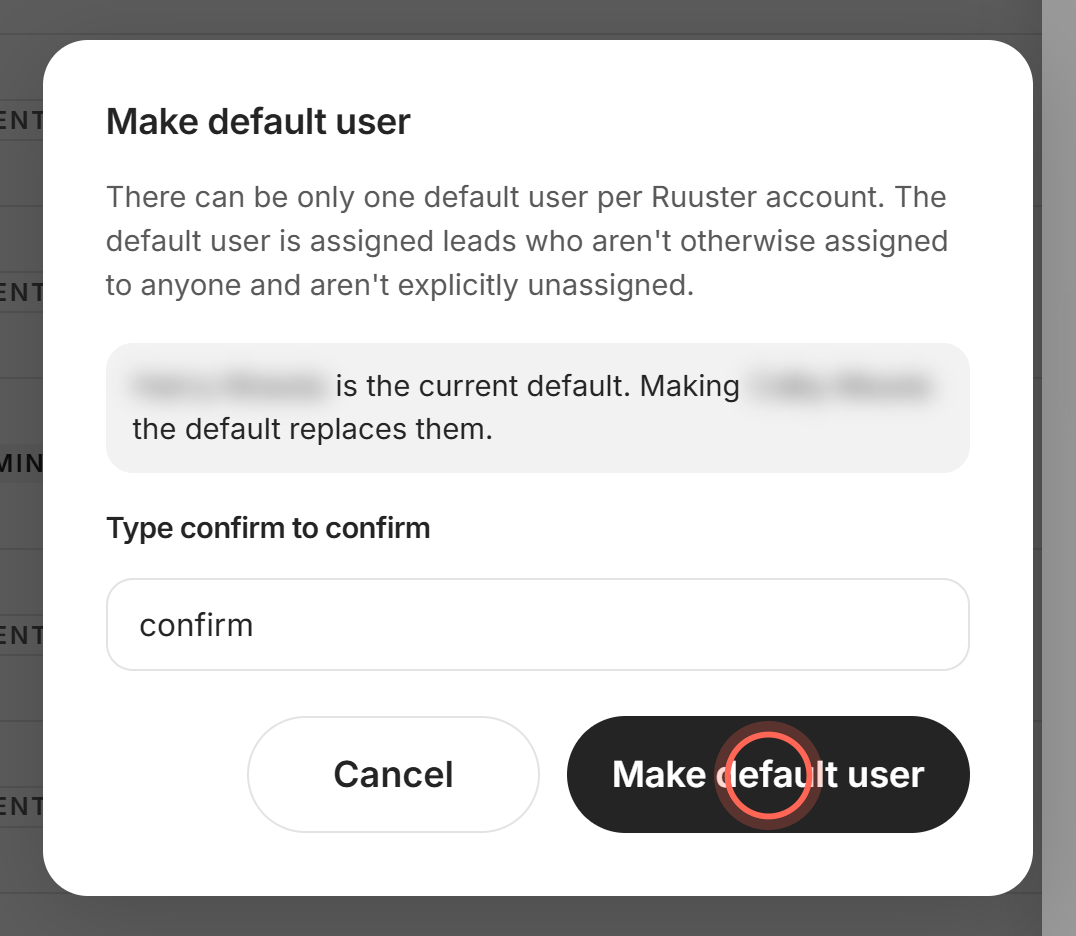
- Type confirm in Type confirm to confirm.
- Click Make default user.
- Click Save changes.
A User updated message confirms the save, and the Default user badge moves to this person on Team. The window also names the current default, so you know who you're replacing.
Find out why a sign-up went to someone else
When a new client signs up, Ruuster checks these in order and assigns the first match.
| Order | When the client... | They're assigned to |
|---|---|---|
| 1 | Signs up from an agent's landing page or link | That agent |
| 2 | Was invited by an agent | The agent who invited them |
| 3 | Is already an agent's unregistered lead in Ruuster | That agent |
| 4 | Matches none of these | The default user |
Your CRM's lead owner isn't checked at sign-up. A client who matches none of the first three goes to the default user, even if your CRM lists another agent.
Good to know
- One at a time. Making someone the default replaces the current one. You can't untick the box; make someone else the default instead.
- Cancel changes nothing. Cancel in the window unticks the box again.
- Saving makes it count. The swap happens only when you click Save changes.
- Existing clients stay put. A new default only gets sign-ups from then on.
- The default can't be deleted. To delete them, make someone else the default first (see Delete a team member).
FAQ
Why was my new client assigned to a different agent when they signed up?
They most likely signed up without your landing page link or an invitation from you, so they went to the default user. Share your own link or invite them directly next time.
Can we change the default agent who gets app sign-ups?
Yes. On Team, open the new person, tick Make default user, type confirm and click Save changes. Only one person can be the default at a time.
New app sign-ups skip our Follow Up Boss lead routing and all go to one person. How do we fix that?
New sign-ups go to the Ruuster default user. To use your CRM's lead routing instead, pick Unassigned as the agent in your listings embed or share link. Those leads sit under the default user in Ruuster, and your CRM's routing rules assign them. Visitors on those pages see the default user's name and contact details. If you don't see Unassigned, email helpme@ruuster.com to turn it on. Agents can also share their own landing page links.
Can we have two default users?
No. Each account has exactly one.
Still need help? Reach out to us at helpme@ruuster.com and we'd be happy to assist!