
Add a search for a client
Add a template, AI search or new custom search to a client from their page, choose how often alerts go out, and send the first one now.
Open a client's page and click Add a search in the Searches section. Choose From a template to apply a template or AI search, or New custom search to set the area and filters yourself. The client then gets an alert when a matching home hits the market.
Before you start
- You can add searches to your own clients. Admins can add them to any client.
- AI searches show only when your account is linked to your CRM and the client has a CRM record. See What is AI Nurture?
- To start from a template, create it first on Templates. See Find your way around Templates.
Apply an AI search
Open the client's page from All Clients.
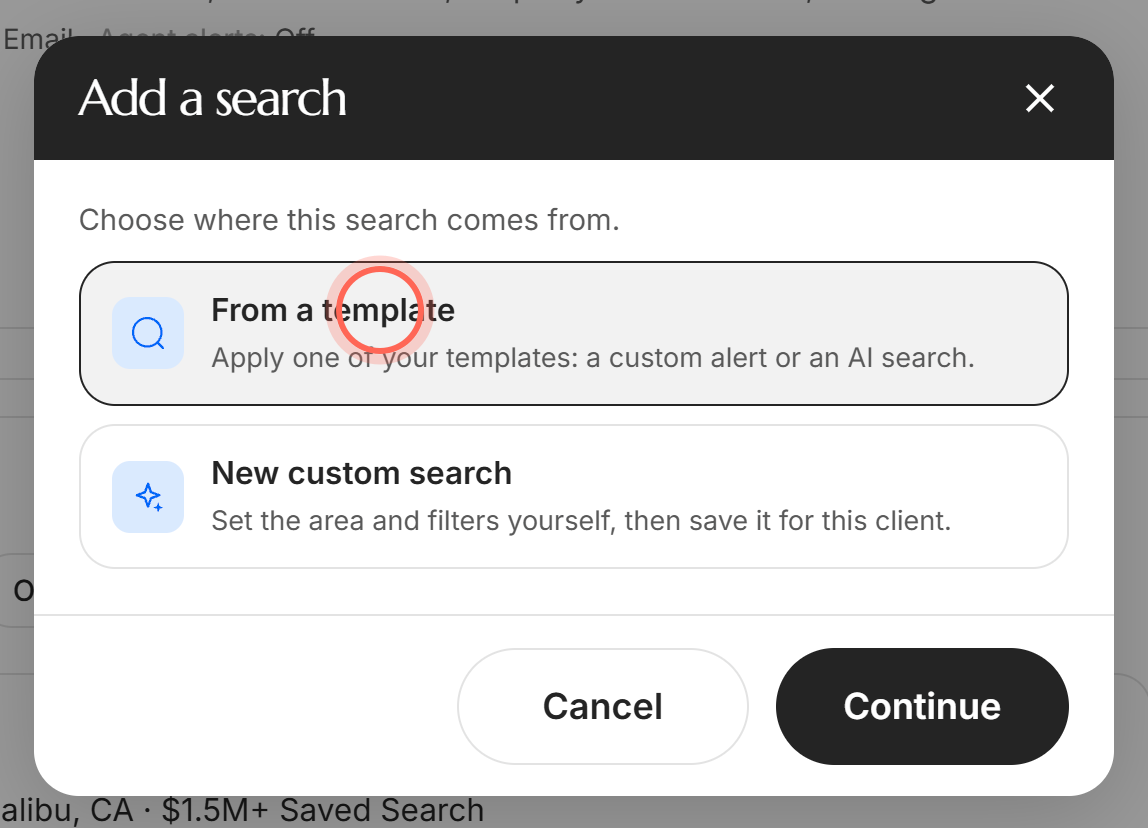
In the Searches section, click Add a search.
Choose From a template, then click Continue.
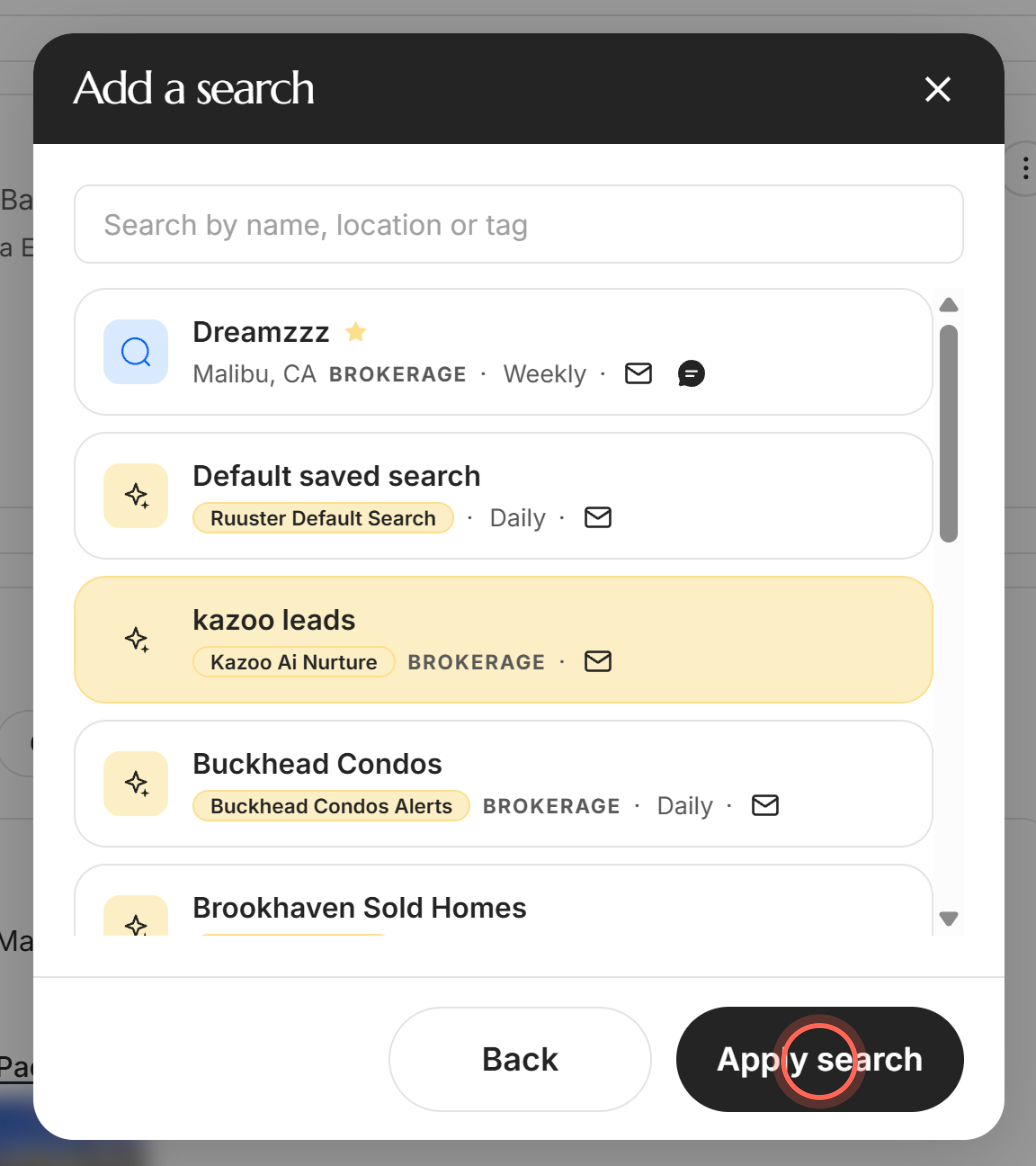
Type in Search by name, location or tag to find the AI search.
Click the AI search in the list.
Click Apply search.
A message names the search as applied and says the lead now carries its tag in your CRM. The search appears in the client's Searches section.
Add a custom search
On the client's page, click Add a search in the Searches section.
Choose From a template or New custom search, then click Continue.
If you chose a template, click a custom template, then click Continue.
In Home Search, set or adjust the area and filters for this client.
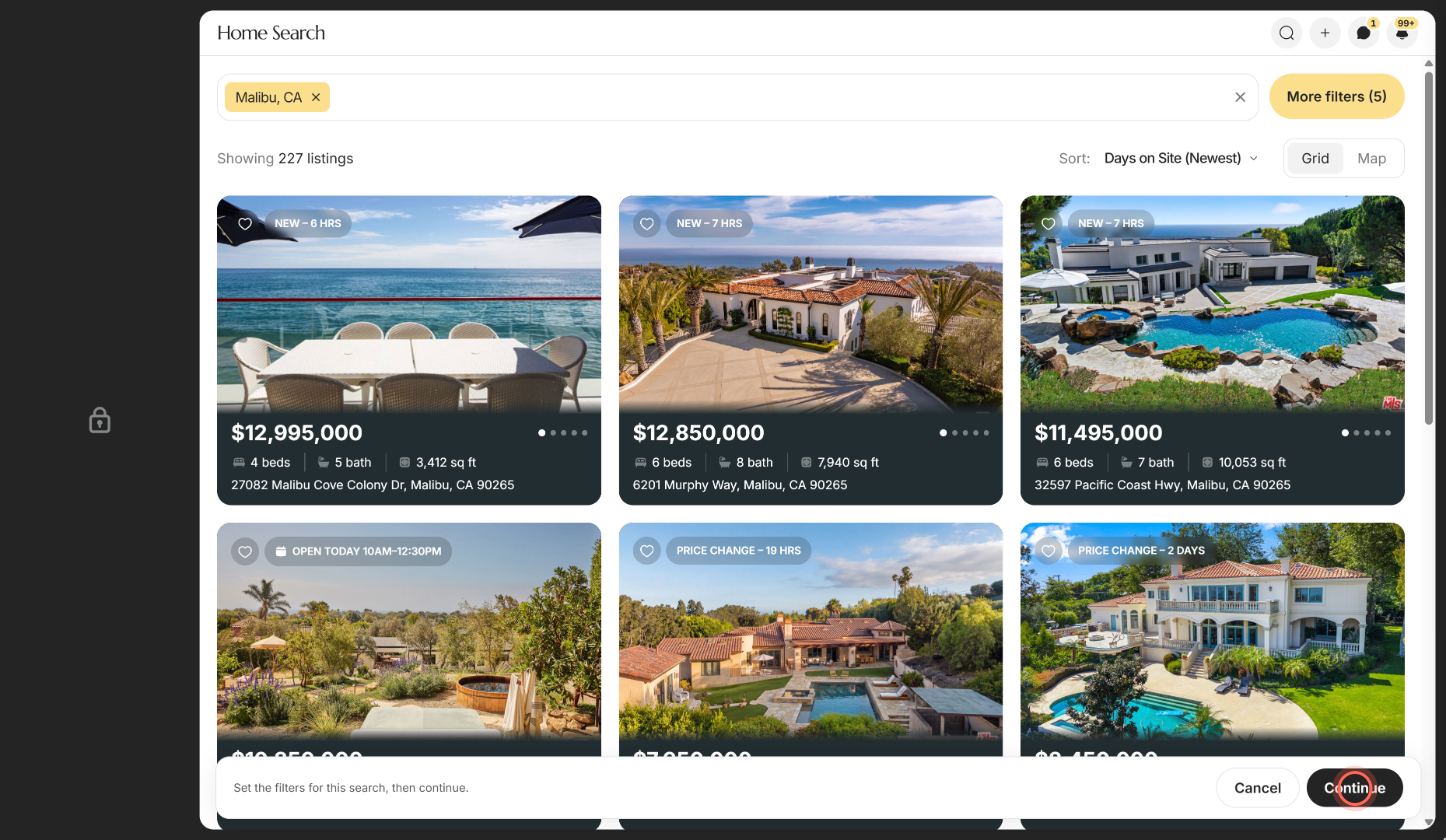
Click Continue.
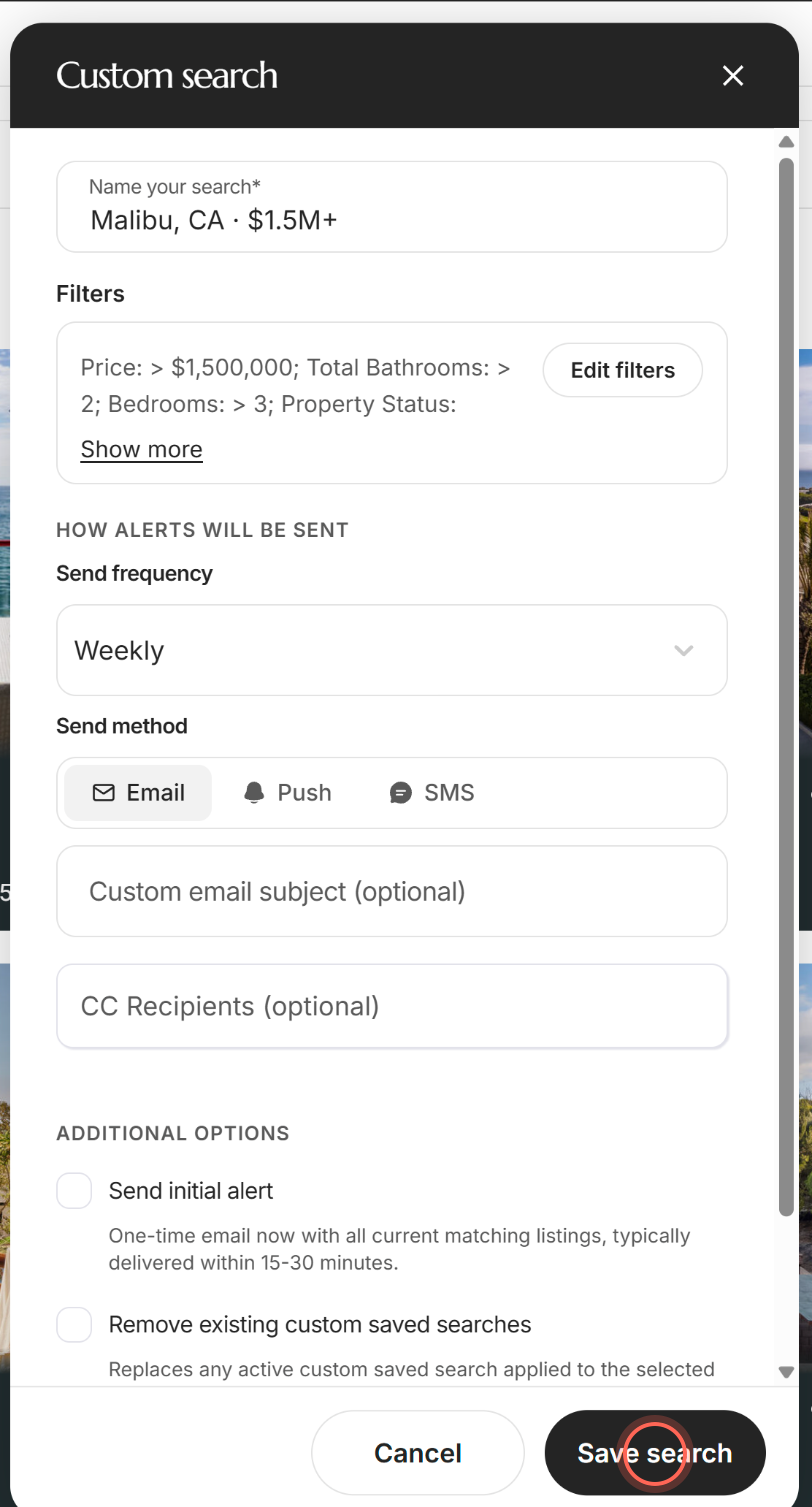
Check Name your search, Send frequency and Send method.
Tick Send initial alert to email the current matches now (optional).
Click Save search.
A message confirms "Saved search created", and you land back on the client's page with the new search listed. The initial alert usually arrives within 15 to 30 minutes. See Send an initial alert with a search.
Check a client's searches
The Searches section lists AI searches first, then custom searches, 10 at a time. Click Load more to see the rest.
| What you see | What it means |
|---|---|
| (Criteria Updated Nightly) after the name | An AI search whose criteria refresh every night |
| For Rent | A search saved from the separate Rental Search page some apps have. View results opens it there. Rental searches saved from Home Search don't show this. |
| N total matches | Listings that match today (counted for the first 5 searches) |
| Alerts on, and a frequency | How often an AI search sends |
| Client alerts: or Agent alerts: | How often and how a custom search's alerts reach the client, or you |
| Applied via CRM tag, Saved by client or Applied by | Who added the search, and when |
Open a row's Search actions menu (the three dots). Custom searches offer Edit, View results and Delete; AI searches offer Delete. View results opens Home Search on the search's criteria. See Edit a saved search.
Good to know
- AI searches work by tag. Applying one adds its tag to the client in your CRM. If they already carry it, the message says it was already applied and nothing changes.
- Which AI searches you see. Your own and your brokerage's, marked Brokerage. A client who isn't in your CRM gets custom searches only, and a lead with no assigned agent gets brokerage AI searches only.
- Templates stay untouched. Saving makes a separate copy for this client. Editing that copy never changes the template.
- Colleagues can help. Any agent in your brokerage who opens the client can edit or delete their custom searches.
- Replace old searches. Tick Remove existing custom saved searches to replace the client's other custom searches with this one.
FAQ
Can I edit a search on another agent's client?
Yes, for custom searches. On the client's page, open the search's Search actions menu and click Edit. Adding a new search to another agent's client is for admins only.
Can I put lots of clients on the same search at once?
Custom searches go on one client at a time. For AI searches, select clients on All Clients and use Apply AI search. See Put leads on AI Nurture.
I can't find my template in the list. Where is it?
Type part of its name, a location or its tag in the search field. Starred templates come first, and more load as you scroll.
Why don't I see the Add a search button?
It shows on your own clients' pages. Admins see it on every client's page.
I added a search but my client isn't getting listing alerts. Check the search's Client alerts line, then see Why isn't my client getting property alerts?
Still need help? Reach out to us at helpme@ruuster.com and we'd be happy to assist!