
Find your way around a client's page
Using Ruuster 1.0? Read the 1.0 version of this article.
A client's page shows contact actions, Ruuster and CRM details, onboarding answers, searches, activity, sent emails and viewed homes.
A client's page shows everything about one client: contact buttons, Ruuster and CRM details, onboarding answers, searches, activity, sent emails and viewed homes. Click a name on All Clients to open it beside the list, or click a name in Client Activity for the full page.
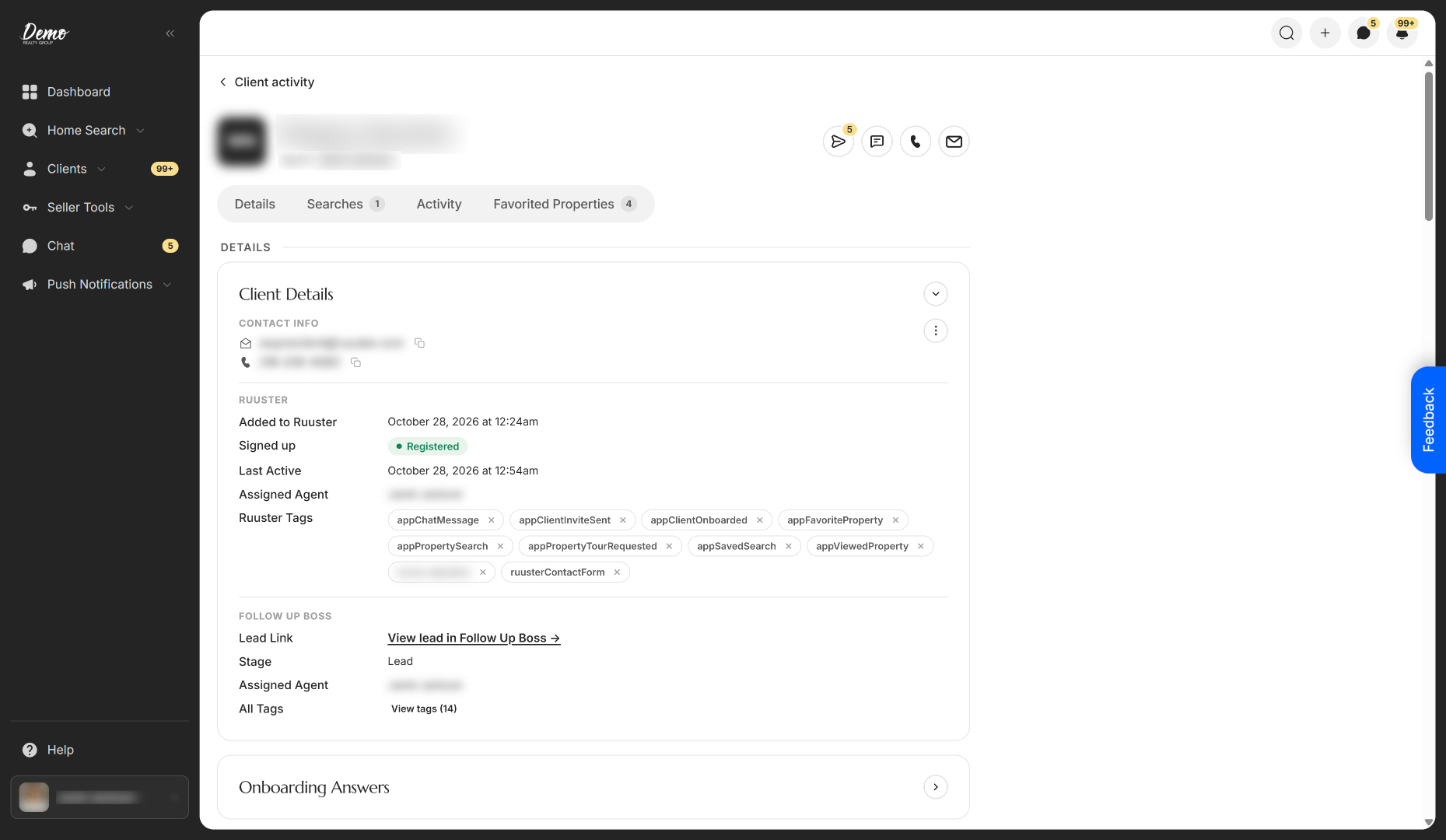
Use the header and section tabs
| Control | What it does | Learn more |
|---|---|---|
| ← back link | Returns to where you came from and names it, such as All clients, Client activity, Templates, Chat or Dashboard. | |
| Agent: name | The agent the client is assigned to. | |
| Chat | Opens your conversation with the client. Reads "Chat (N unread)" when they have sent messages you haven't read. Greyed out when the client is assigned to another agent. | Chat with your clients |
| Text | Opens your phone or computer's messaging app with the client's number. It doesn't send from Ruuster. | |
| Call | Opens your phone or computer's dialer with the client's number. | |
| Opens your email app addressed to the client. Nothing is sent from Ruuster. | ||
| Details, Searches, Activity, Favorited Properties | Jump to that section. Each tab shows a count and "N new" for things you haven't seen. | Notifications and badges |
| Bar at the top while you scroll | Keeps the back link, the client's name, the section tabs and the contact buttons in view. |
Text and Call show only when the client has a phone number, and Email only when they have an email.
Read the Client Details card
| Control | What it does | Learn more |
|---|---|---|
| Arrow beside Client Details | Collapses or expands the card. It opens expanded again next time. | |
| Contact info | The client's email and phone. Click either to email or call. | |
| Copy buttons | Copy the email address or phone number. The tooltip changes to "Copied". | |
| ⋯ (More actions) | Holds Delete, which deletes the client. | Delete a client |
| Ruuster | Added to Ruuster, Signed up (with a Registered badge), Last Active and Assigned Agent. | |
| Ruuster Tags | Tags Ruuster applied in your CRM, such as an AI search tag. Hover a tag to see what it does. | Tags Ruuster adds in your CRM |
| x on a Ruuster tag | Removes that tag from the client and from your CRM, after you confirm. |
When your brokerage has a CRM connected, a second part of the card is named after it (for example Follow Up Boss). It reads live from your CRM and can't be edited here.
| Control | What it does | Learn more |
|---|---|---|
| Lead Link | View lead in (your CRM) opens the client's CRM record in a new tab. | |
| Stage, Assigned Agent, Assigned Pond, Collaborators | The client's lead stage, owner, pond and collaborators in your CRM. Each row shows only when your CRM has a value. | |
| All Tags | View tags (N) lists every CRM tag on the client. Hide tags folds the list. | |
| "This lead has no (CRM) record." | Your CRM has no matching person for this client. | |
| "Your brokerage has no CRM connected." | Shows when no CRM is connected. Admins get a Set up your CRM integration link. | Find your way around Integrations |
Remove a Ruuster tag
- On the client's page, find Ruuster Tags in the Client Details card.
- Click the x on the tag you want to remove.
- Click Remove tag.
A message confirms "Tag removed". The tag is gone from the client and from your connected CRM.
Review answers, searches and activity
| Control | What it does | Learn more |
|---|---|---|
| Onboarding Answers | The client's questionnaire answers: Time to Purchase, Stage, Price Range, Location, Credit Score, Property Type, Property Use, First Time Buyer and Pre-Qualified. Starts collapsed; click the arrow to open it. | Turn the client questionnaire on or off |
| Searches | The client's AI searches and custom searches, with Add a search. | Add a search for a client |
| Client activity | The client's history by day, with "N new" for unseen items. Shows notes, star ratings (Price, Fixtures, Size, Location), photos, tour request dates and search criteria. | See your clients' notes, ratings and photos |
| All, Views, Notes, Tours, Other | Filter the history by type. Tick several at once; All clears them. | |
| A home's address | Opens that home. Coming back returns you to the same spot on the page. | |
| A search's location | Opens Home Search with the client's search criteria. | |
| opened a saved search email | Shows a preview of the email the client opened. | |
| clicked a link in an email | Opens the link the client clicked, in a new tab. | |
| Load more | Loads older activity. |
Check sent emails and viewed homes
| Control | What it does | Learn more |
|---|---|---|
| Sent emails | Every alert email the client was sent, with "N emails" and the opens and clicks for each. | What's in a property alert email |
| Subject line or eye icon | Opens Sent email: the saved search, Opens, Clicks, Status (Delivered or Sent), when and to whom it went, and the email itself. | |
| From saved search: name | Opens Home Search with that saved search's criteria. | |
| Load more | Loads more sent emails. | |
| Property views | Homes the client saved, with a photo, listing badge and how many times they viewed each. Shows six, then Show all N homes. | |
| Sort | Most Recent or Most Viewed. | |
| A home card | Opens that home. Rentals open the rental details. |
Pages for leads and invitations
A lead who hasn't signed up gets the same page, with a Lead details card and a Send invite or Resend invite button. It has no Chat button and no Favorited Properties section.
A pending invitation shows the details section only. See Leads who haven't signed up yet.
Good to know
- Opening a client clears badges. When you open your own client, their new activity is marked as seen. Admins viewing another agent's client leave it unread.
- Tag removal is one way. Tags can't be added back from this page. Removing an AI search tag takes the client off that AI search.
- Two kinds of stage. Stage under Onboarding Answers is what the client told you at sign-up. Stage in the CRM part is their lead stage in your CRM.
- Missing clients. "This client isn't available." means the client was deleted or moved to another brokerage.
FAQ
Can I see which alert emails a client received and whether they opened them?
Yes. Scroll to Sent emails on the client's page. Each email shows its opens and clicks, and clicking the subject shows exactly what the client received.
Where do I see the homes my client favorited?
Click the Favorited Properties tab. Property views lists the homes the client saved. Set Sort to Most Viewed to see the ones they keep coming back to.
How do I change my client's email address?
You can't edit a client's email or phone on their page. Changing the email in your CRM doesn't update Ruuster, so update it in Ruuster too to keep the two matching. A client who signed up can change it in their own account settings. Otherwise, email helpme@ruuster.com.
Why is the Chat button greyed out?
The client is assigned to another agent. Only the assigned agent can chat with them.
Why don't I see Onboarding Answers?
Your brokerage has turned the client questionnaire off, so the section is hidden for every client.
Still need help? Reach out to us at helpme@ruuster.com and we'd be happy to assist!