
Find your way around Integrations
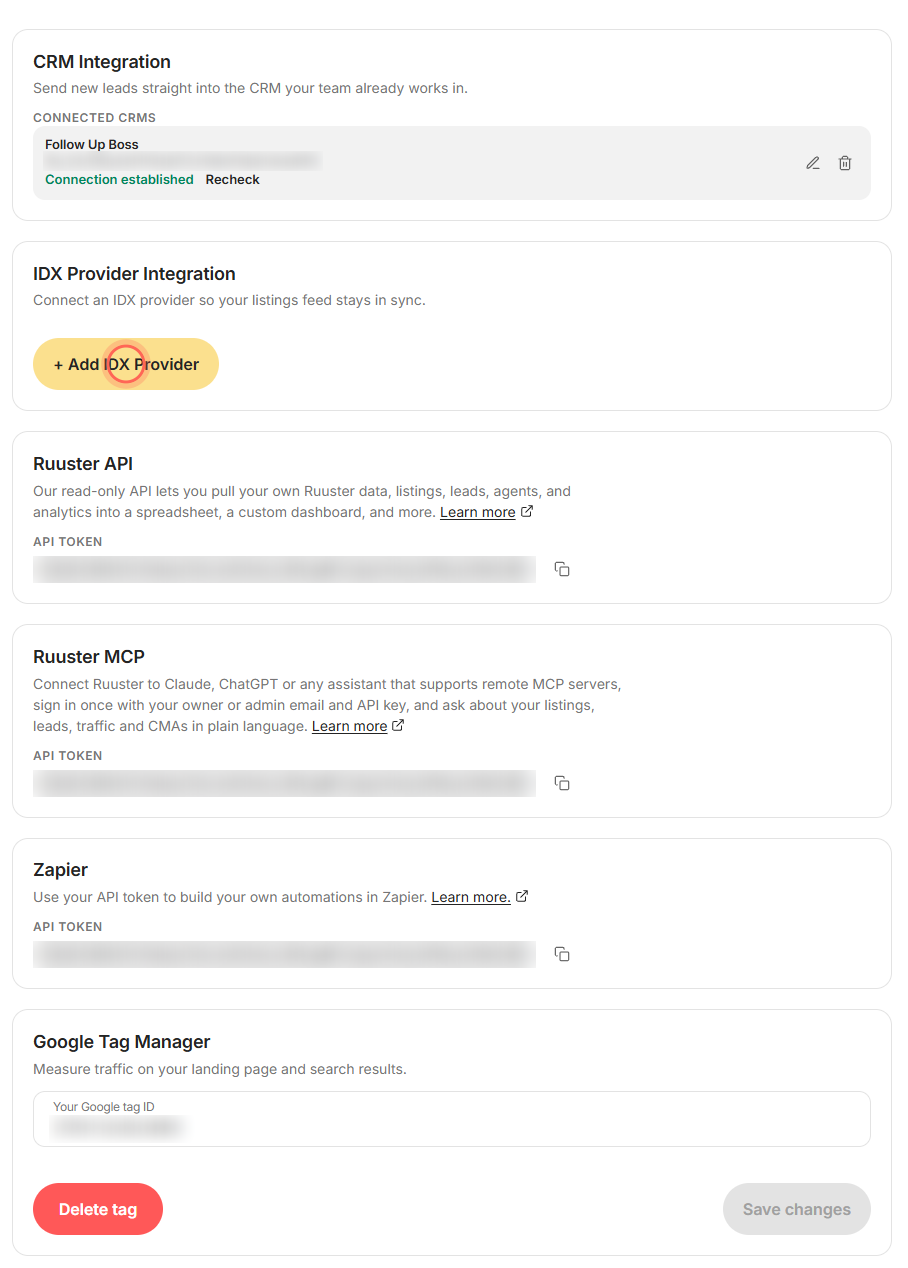
Integrations connects your CRM and IDX provider, shows your API token for the Ruuster API, Ruuster MCP and Zapier, and holds your Tag Manager ID.
Admins only. Integrations (Admin) connects Ruuster to Follow Up Boss, Sierra Interactive or Sure Send, and to your IDX provider. It also shows your API token for the Ruuster API, Ruuster MCP and Zapier, and holds your Google Tag Manager ID. Open it from the sidebar under Admin.
Before you start
- Admins only. Agents don't see Admin in the sidebar.
- If Integrations sends you back to your home page, your plan doesn't include admin pages. See Billing, seats and your subscription.
The cards on Integrations
| Control | What it does | Learn more |
|---|---|---|
| CRM Integration card | Sends new leads straight into your CRM. + Add CRM connects Follow Up Boss, Sierra Interactive or Sure Send with its API key. | Connect Follow Up Boss |
| Connected CRM row | Lists each CRM under Connected CRMs with its API key and "Connection established". Recheck tests the connection again, the pen edits it and the trash deletes it after you confirm. If your account allows more than one CRM, + Add Another CRM sits under the list. | |
| IDX Provider Integration card | + Add IDX Provider connects Sierra Interactive as your IDX provider. Each provider is listed under Connected providers with a pen to change its key and a trash icon to remove it. | Connect your IDX provider |
| Ruuster API card | Our read-only API pulls your Ruuster listings, leads, agents and analytics into a spreadsheet or your own dashboard. Shows your API token with a copy icon; Learn more opens the API guide in a new tab. | |
| Ruuster MCP card | Connects Ruuster to Claude, ChatGPT or another assistant that supports remote MCP servers. Sign in there with your owner or admin email and this API token, then ask about listings, leads, traffic and CMAs in plain words. Learn more opens the setup guide. | |
| Zapier card, API token and copy icon | Shows your personal API token. The copy icon copies it so you can connect Ruuster in Zapier. | Connect Ruuster to Zapier |
| Learn more. link in the Zapier card | Opens Ruuster's page on Zapier in a new tab. | Ruuster Zapier triggers and actions |
| Google Tag Manager card | Your Google tag ID and Save changes add your Tag Manager container. Delete tag removes it after you confirm. | Track lead conversions with Google Tag Manager |
| "We couldn't load your integrations." with Try again | Shows in the CRM and IDX cards when the page couldn't read your connections. Nothing is lost. Click Try again. |
Good to know
- Embed Listings is a separate page. The code that puts your search on your website lives on Embed Listings, also under Admin. See Put Ruuster listings on your website.
- Most settings cover everyone. The CRM, IDX and Google Tag Manager settings apply to your whole brokerage. The API token belongs to you alone.
- One token, three cards. The Ruuster API, Ruuster MCP and Zapier cards show the same token. After you copy, the message names the card, such as "Ruuster API token copied to clipboard".
- Keys show on screen. The page displays your CRM API key and API token, so don't share screenshots of it.
- Deletes ask first. Removing a CRM connection, an IDX provider or the tag ID opens a confirmation before anything changes.
FAQ
Which CRMs does Ruuster work with?
Follow Up Boss, Sierra Interactive and Sure Send connect directly from the CRM Integration card. For other CRMs, use Zapier.
Where do I paste my CRM's API key?
On Integrations, click + Add CRM in the CRM Integration card, choose your CRM and paste the key into API key.
Where's my Zapier token?
In the Zapier card on Integrations, under API token. Click the copy icon next to it.
Can I ask ChatGPT or Claude about my Ruuster data?
Yes. Copy the token from the Ruuster MCP card, then click Learn more in that card for the steps to add Ruuster to your assistant.
Why can't my agents open Integrations?
It's admin only, because these settings connect the whole brokerage.
The page says "We couldn't load your integrations." Did we lose our CRM connection?
No. Your saved connections are safe. Check your internet connection and click Try again.
Still need help? Reach out to us at helpme@ruuster.com and we'd be happy to assist!