
Add the search bar to your website
Build a search bar in Embed Listings that sends visitors to your listings page, set its look and results address, and paste the snippet.
Admins only. On Embed Listings (Admin), open the Search Bar tab, enter your listings page and click Generate code. Style the bar, pick the agent and copy the snippet. Visitors who search from it land on your results page.
Before you start
- Admins only. Embed Listings is under Admin in the sidebar.
- You need a results page: a page on your site with a Listings Search snippet. See Put Ruuster listings on your website.
- The loader tag from Installation must be on every page that holds the bar.
Build the search bar
- In the sidebar, click Embed Listings under Admin.
- Click the Search Bar tab.
- In Results page, enter the full address of your listings page, starting with https://.
- Click Generate code.
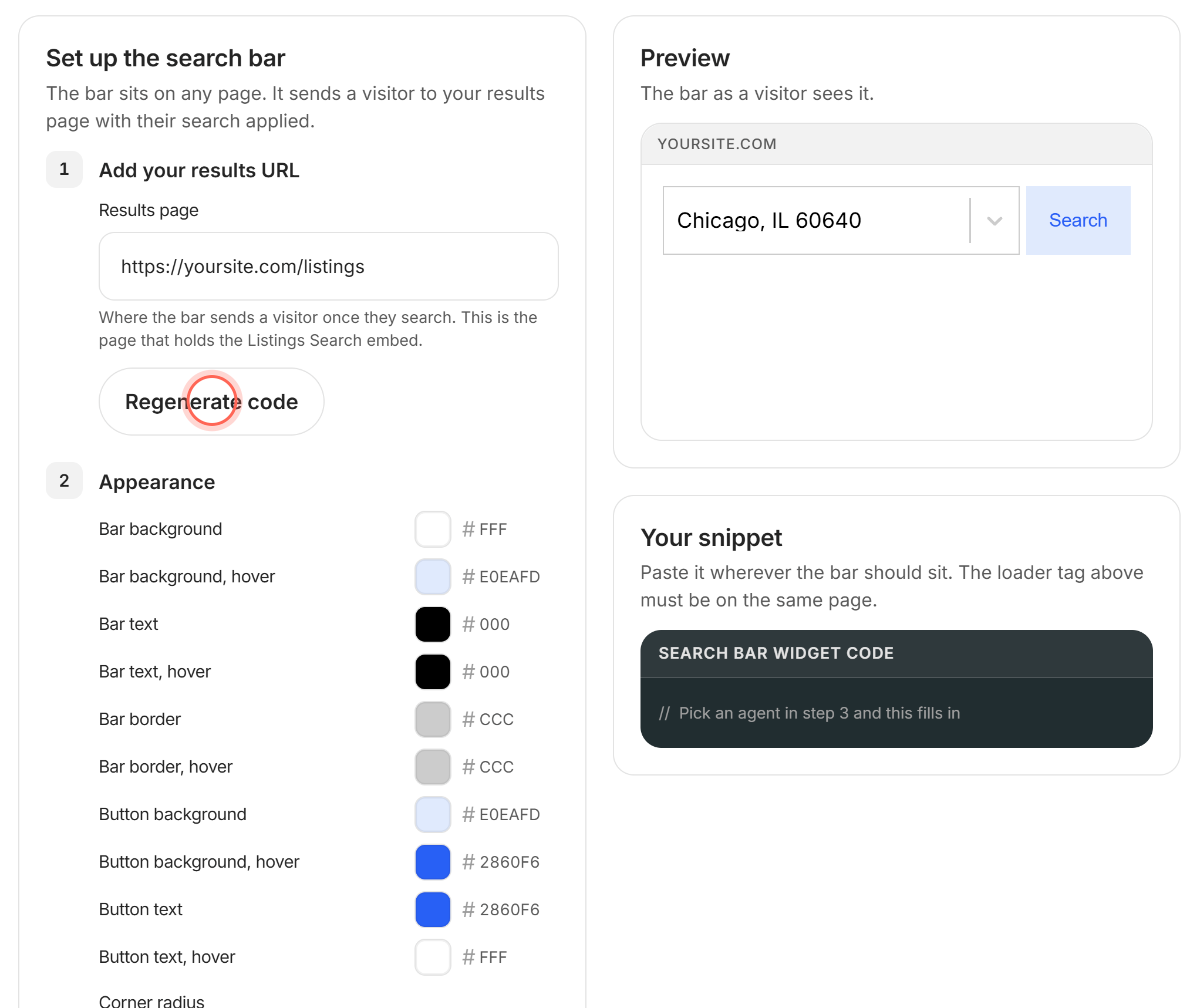
- Under Appearance, pick the bar and button colors and enter a Corner radius.
- Under Assign leads to an agent, choose the agent in Agent.
- In Your snippet, select the code under Search Bar widget code and copy it.
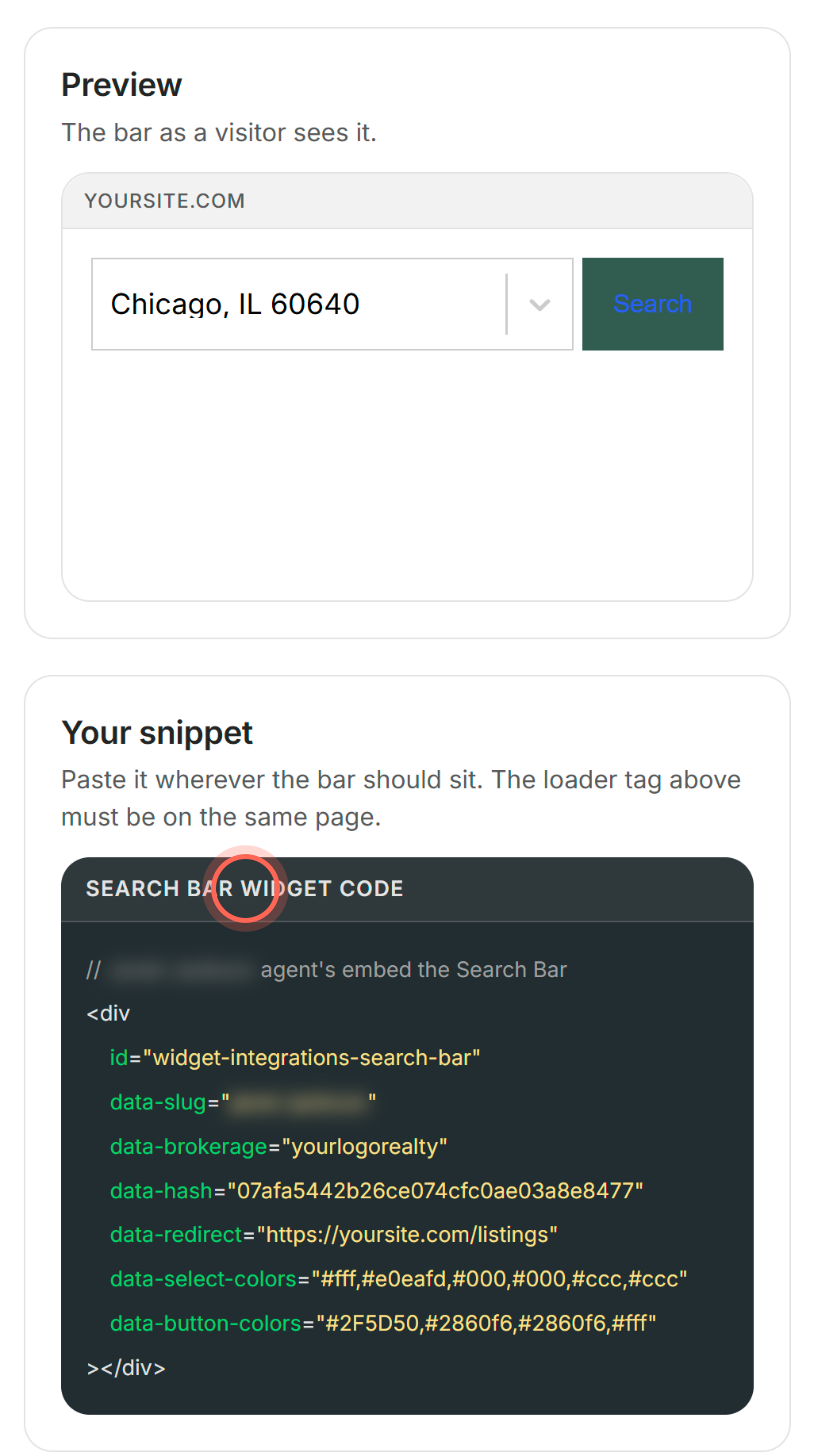
- Paste it on your page where the bar should sit.
The Preview shows the bar as visitors see it, and hovering Search shows your hover colors. On your site, a search sends the visitor to your results page.
Set up the results page
- On the Search Bar tab, click Go to Listings Search under Set up the results page.
- Build the Listings Search snippet and copy it.
- Paste it on the page you entered in Results page.
Visitors who search from the bar now see listings for the address they picked.
Colors you can set
| Field | Default |
|---|---|
| Bar background / Bar background, hover | White / light blue (#e0eafd) |
| Bar text / Bar text, hover | Black / black |
| Bar border / Bar border, hover | Light gray (#ccc) / light gray |
| Button background / Button background, hover | Light blue (#e0eafd) / blue (#2860f6) |
| Button text / Button text, hover | Blue (#2860f6) / white |
| Corner radius | 4 pixels, for the bar, its menu and the button |
Good to know
- Settings aren't saved. Colors and the agent reset when you reload the builder, so copy the snippet before you leave.
- Changing the address clears the code. Editing Results page hides the snippet until you click Generate code again.
- The bar's agent gets the lead. A visitor who arrives from the bar is credited to the bar's agent, even if the results page names someone else.
- Unassigned follows your CRM. If your brokerage allows unassigned leads, choose Unassigned so your CRM's routing rules pick the agent.
- Searches start fresh. A search from the bar shows active listings at that address, without the results page's own price or bed filters.
FAQ
I see "Invalid redirect URL". What's wrong?
The results address isn't complete. Enter it with https:// at the start, for example https://yoursite.com/listings, and click Generate code.
Why can't I see the color or agent settings?
They appear after you enter a Results page and click Generate code.
Can I put the bar on more than one page?
Yes. Paste the same snippet on any page that also has the loader tag.
Do I still need the Listings Search?
Yes. The bar only takes the visitor's search. The Listings Search on your results page shows the homes.
What goes in Corner radius?
A number of pixels, such as 0 for square corners or 12 for rounder ones. Letters show "Only a number can be entered here".
Still need help? Reach out to us at helpme@ruuster.com and we'd be happy to assist!