
Find your way around Templates
Using Ruuster 1.0? Read the 1.0 version of this article.
Templates lists your custom templates and AI searches with criteria, leads, frequency and method, plus search, filters and stars.
Open Home Search in the sidebar and click Templates to see every reusable search you can apply. That's your custom templates, your AI searches and the ones your brokerage shares. On Templates you can search, sort, filter and star rows, and view, edit or delete each one.
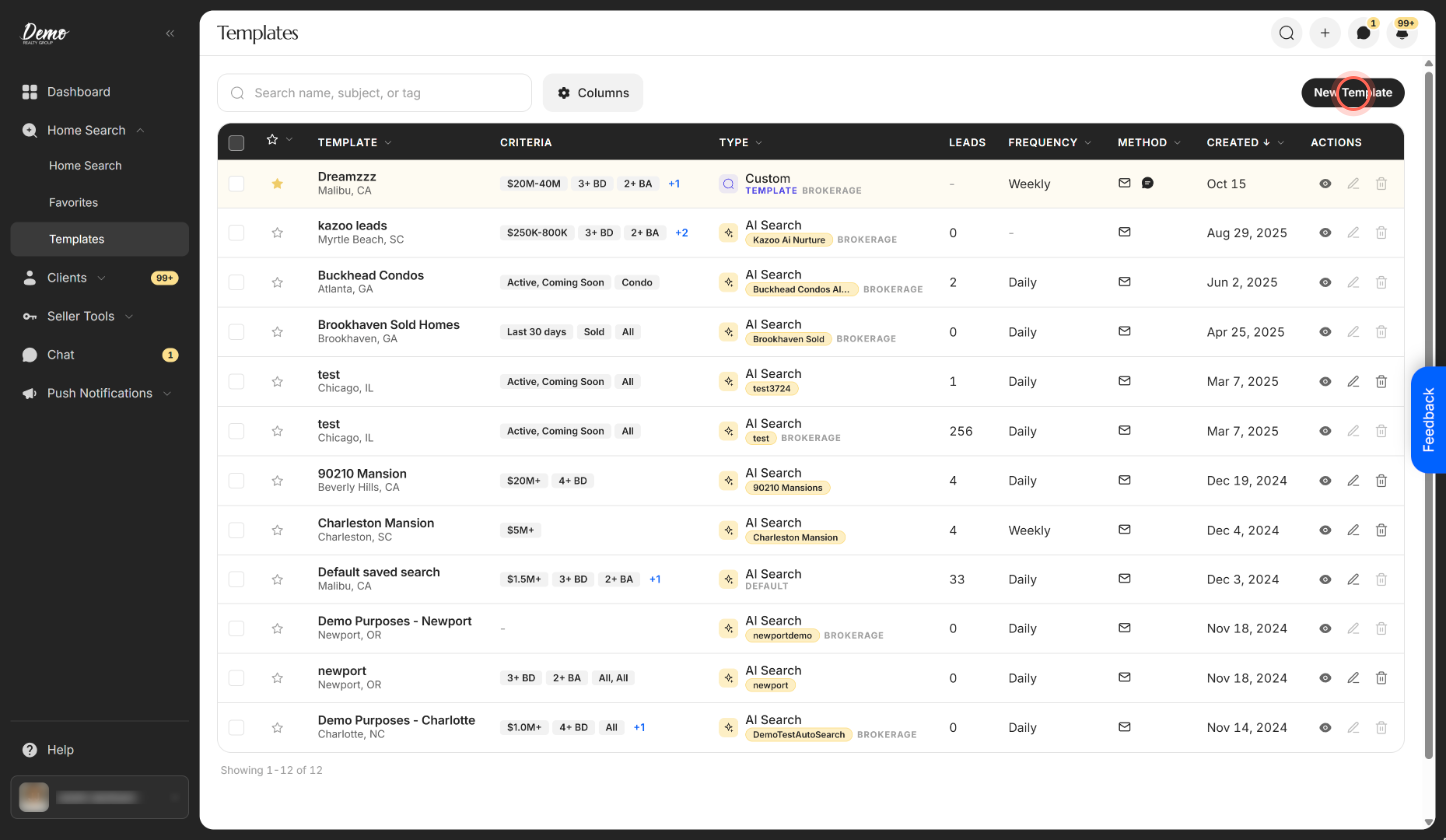
Find a template
| Control | What it does | Learn more |
|---|---|---|
| Search name, subject, or tag | Finds rows by name, email subject or an AI search's CRM tag. It doesn't match locations or client names. | |
| New Template | Starts a new custom template or AI search. | Create a custom template |
| Column headers | Click Template, Type, Frequency, Created or Updated to sort, for example A to Z or Newest first. Open the menu on the star, Type, Frequency or Method column to filter. | |
| Star filter | Starred shows only your pinned rows. Not starred shows the rest. With no stars yet, Show all templates clears it. | |
| Type filter | Custom or AI Search. | |
| Frequency filter | Instant, Daily, Bi-weekly, Weekly, Bi-monthly, Monthly, Quarterly or No updates. | |
| Method filter | Email, Push or SMS. | |
| Filtered: chips | Show the filters that are on. Click the x on a chip to remove that filter, or Clear all to reset every filter and the search box. When nothing matches, Clear all filters does the same. | |
| Columns | Shows or hides Leads, Method, Created and Updated, and lets you drag columns into a new order. Reset column order puts the order back. | |
| Filters | Appears when you hide Method, so you can still filter by it. The number on it counts the filters that are on. | |
| Previous page, Next page | Move through the list, 25 rows a page. The line beside them counts every matching row. |
Read a row
| Control | What it does | Learn more |
|---|---|---|
| Star | Pin to top keeps the row at the top of the list. Click it again to Unpin. You can keep up to 100. | |
| Template | The search's name and its area, such as "Austin, TX +2". | |
| Criteria | Up to three filter chips. Click +N to see every criterion. | |
| Type | Custom or AI Search. An AI search shows its CRM tag. Markers show Template, Default (your agency's Ruuster Default Search) and Brokerage (shared with the whole brokerage). | What is the Ruuster Default Search? |
| Leads | How many leads an AI search reaches. It fills in a moment after the page loads. Custom templates show a hyphen. | Put leads on AI Nurture |
| Frequency | How often alerts go out. A hyphen means no set schedule. | |
| Method | Icons for how alerts are delivered: envelope for Email, bell for Push, chat bubble for SMS. Hover one to see its name. | |
| Created, Updated | When the row was made and last changed. Updated starts hidden. |
Act on a row
| Control | What it does | Learn more |
|---|---|---|
| View listings (eye) | Opens Home Search with the row's area and filters. A row saved from the separate Rental Search page some apps have opens there instead, and is greyed out if your app doesn't have that page. Admins: if rentals aren't turned on, email helpme@ruuster.com and we'll turn them on for your brokerage. | Search for rentals |
| Edit (pen) | A custom template opens the Edit search window. An AI search opens its form over the map. | Edit a saved search, Create an AI search |
| Delete (trash) | Asks Delete this template? or Delete this AI search?, then removes the row and stops its alerts. Deleting an AI search leaves its tag on your leads in the CRM. |
Select several templates
| Control | What it does | Learn more |
|---|---|---|
| Row checkbox | Selects one row. Ticked rows stay ticked when you change pages. | |
| Select all rows on this page | The header checkbox. When more rows match, a banner offers Select all N matching templates. | |
| Bulk actions | Mark as Favorite (N) stars the selected rows and Remove Favorite (N) unstars them. The number is how many rows will change. | |
| Clear selection | Unticks every row. |
Good to know
- Some rows are locked. Only admins can edit or delete Brokerage rows, and the Default search can't be deleted. Hover a grey icon to see why.
- Stars follow your account. At 100 stars you see "Favorites are full". A new star moves its row up the next time the list loads.
- Column order stays on this device. Columns you hide come back when you leave the page.
- Phones show cards. Each card has View listings and Edit, and Sort & filter opens sorting and filters. Delete rows from a computer.
- Old bookmarks still work. Links to the old AI Nurture page open Templates, filtered to starred rows if the link was for favorites.
FAQ
How do I star a template?
Click the star at the start of its row. It saves right away, and the row moves to the top the next time the list loads.
Why don't I see the searches I made for individual clients?
Templates lists reusable searches only. A search built for one client lives in the Searches section of that client's page. See Find your way around a client's page.
What do the little icons in the Method column mean?
The envelope is Email, the bell is Push and the chat bubble is SMS. Hover an icon to see its name.
Can I favorite a bunch of templates at once?
Yes. Tick their checkboxes, open Bulk actions and choose Mark as Favorite. A message confirms how many were marked.
Can I delete several templates at once?
No. Delete them one at a time with the trash icon on each row.
Still need help? Reach out to us at helpme@ruuster.com and we'd be happy to assist!