
Search for rentals
Find rentals in Home Search by setting Home type to Rental, then send them to clients or save the search so clients get rental alerts.
Rentals are part of Home Search. Pick an area, click Home type and tick Rental to see homes for rent. You send a rental to clients, or save a rental search for them, the same way as any other home.
Before you start
Open question: In 2.0 Home Search, is Rental under Home type hidden (or are rental results dropped) when rentals are off for the brokerage? The 2.0 home type list has no rentals check; only the 1.0 filters and the search box suggestions check the brokerage's rentals setting.
- Rentals show in Home Search when they're turned on for your brokerage. Admins: if rentals aren't turned on, email helpme@ruuster.com and we'll turn them on for your brokerage.
- Home type sits beside the search box on a wide screen. On smaller screens, you set it in More filters.
Find rentals in Home Search
- In the sidebar, under Home Search, click Home Search.
- In the search box, type a city, zip code or address and pick a suggestion.
- Click Home type beside the search box.
- Tick Rental and untick any other home types.
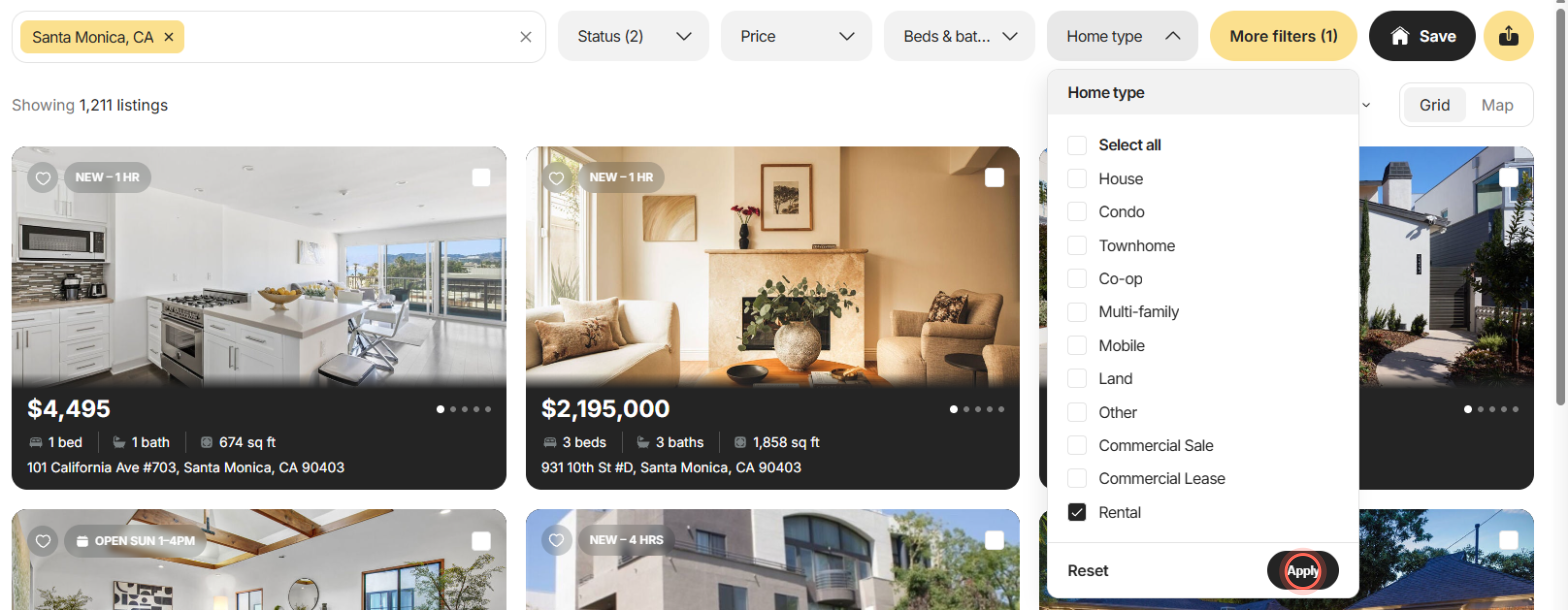
- Click Apply.
The results show the rentals in your area, and the button reads Home type (1). Rentals look like any other home card, and clicking one opens its page. On a smaller screen, click More filters, tick Rental in the home type filter and click Show results.
Send a rental to clients
- Open a rental from your results.
- In the Share and Market panel, click Share with clients. On a phone, tap Share with clients at the bottom.
- Under Choose share method, leave Chat selected.
- Under Select clients, pick one or more clients, or tick Select all clients.
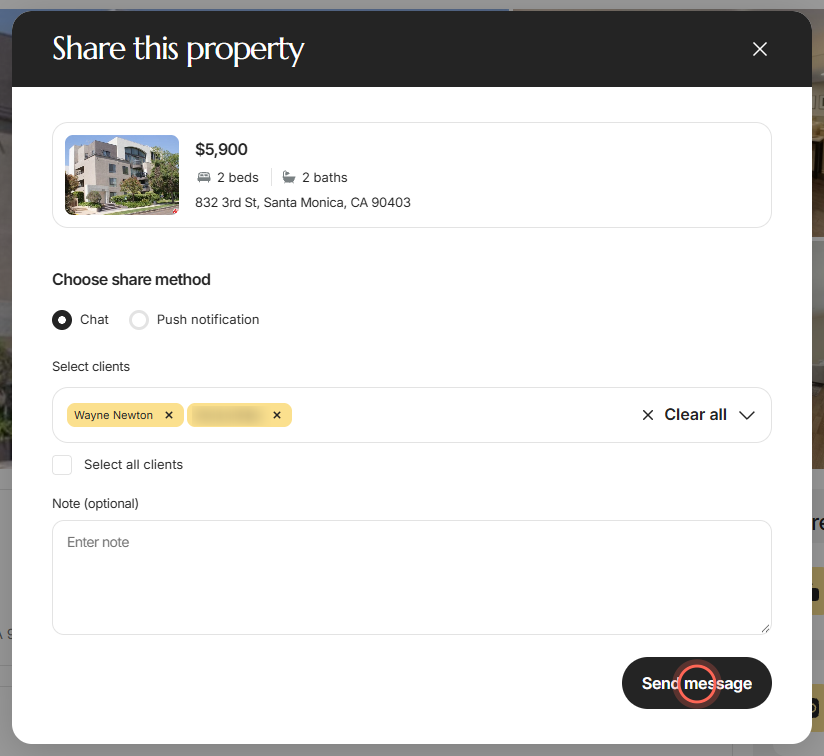
- Type a message in Note (optional) if you like.
- Click Send message.
"Your message has been delivered" confirms it, and each client gets the rental as a card in their chat with you. To send it as a push notification, or to send several rentals in one link, see Share a property with clients.
Save a rental search for clients
- On Home Search, pick an area and tick Rental under Home type.
- Click Save above the listings.
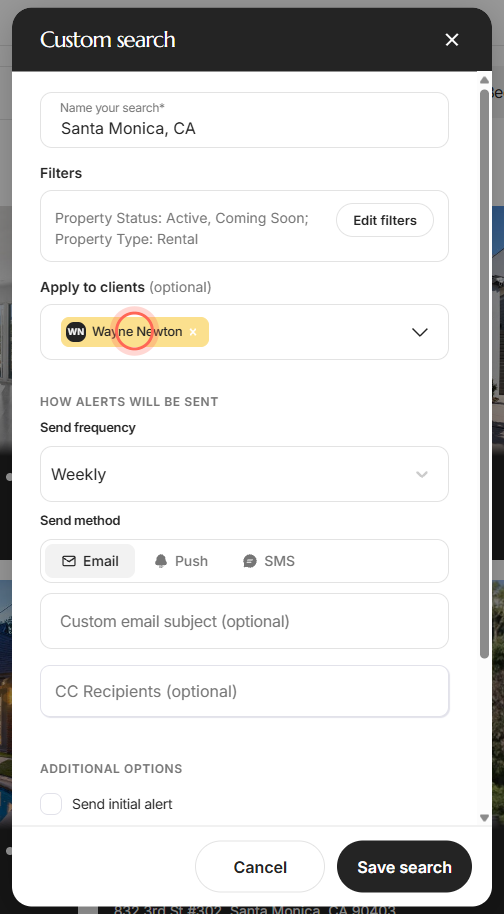
- Check the name in Name your search*.
- Under Apply to clients (optional), type a client's name and pick them. Repeat for each client.
- Check the Send frequency and Send method.
- Click Save search.
Saved search created confirms it. Each client gets alerts for new rentals that match, and the search shows in the Searches section of their page. For every setting, see Save a search for clients from Home Search. To start from a client's page instead, see Add a search for a client.
If your app has a Rental Search page
Some apps have a separate Rental Search page in the menu, under Home Search in place of Favorites. There you pick from a list of rental neighborhoods instead of typing an address.
In the sidebar, under Home Search, click Rental Search.
Click Select Neighborhood(s).
Tick the neighborhoods you want, or click a city's name to pick the whole city.
Click the filter icon beside the box to open Filters.
Set the Move in month, Price (minimum, maximum), Bedrooms and Bathrooms you need.
Tick With Pets or With Parking if your client needs them.
Click the See ... listings line at the bottom to close Filters.
On this page, Map View lets you draw an area, Save Search saves the search for clients, and the chat icon on a rental's page sends it to clients. Searches saved here show For Rent on a client's page.
Good to know
- No home type, mixed results. With no Home type ticked, results can include rentals next to homes for sale. Tick the types you want to keep them apart.
- Rental addresses in suggestions. With rentals on, the search box also suggests rental addresses.
- Rental details. A rental's page can show Pets, Rent Includes and Available Date when the listing has them. See Find your way around a property page.
FAQ
Where is Rental Search? I don't see it in my sidebar. Most apps don't have a separate Rental Search page. Rentals are in Home Search: click Home type and tick Rental.
I ticked Rental but see no rentals. Why?
There may be no rentals in that area, or rentals aren't turned on for your brokerage. Admins: email helpme@ruuster.com and we'll turn rentals on for your brokerage.
Can my client get alerts for new rentals?
Yes. Tick Rental under Home type, click Save and pick the client under Apply to clients (optional).
Why do rentals show up in my buyer's search?
Results with no home type picked can include rentals. Click Home type and tick only the types your buyer wants.
Can I send a rental by push notification?
Yes. In the Share this property window, choose Push notification under Choose share method. Clients need your brokerage's app to get it.
Still need help? Reach out to us at helpme@ruuster.com and we'd be happy to assist!