
Create an AI search
Create an AI search tied to a CRM tag with fallback criteria, so tagged leads get listings that adapt to what they look at.
Create an AI search on Templates. Click New Template, choose AI Search, and give it a name, a CRM tag and fallback criteria. After you click Save search, every lead who carries that tag in your CRM gets alerts that adapt to them.
Before you start
- Your Ruuster account must be linked to your CRM. If it isn't, the AI Search card is grayed out and reads "Connect your CRM to use AI Search."
- Pick a tag of up to 32 characters that no other AI search in your brokerage uses.
Start a new AI search
- In the sidebar, open Home Search and click Templates.
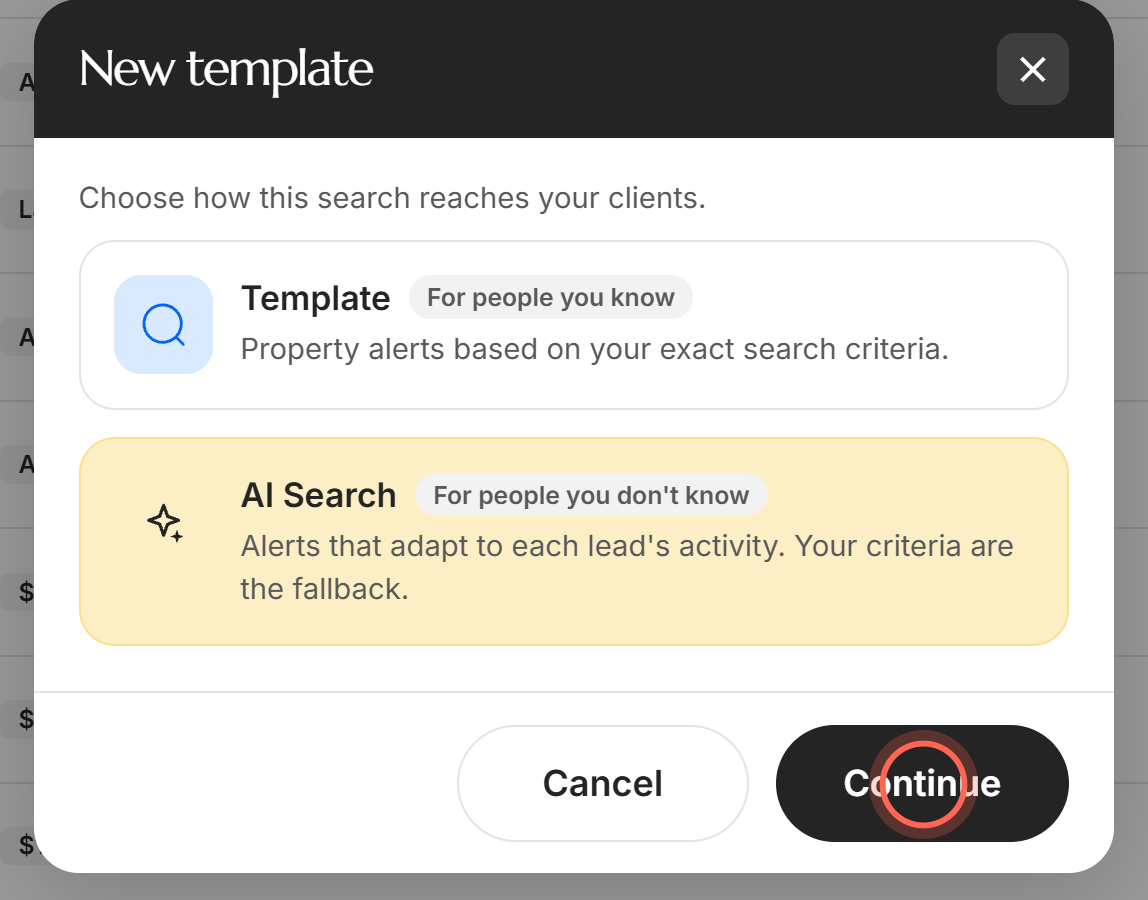
- Click New Template.
- Click the AI Search card, marked For people you don't know.
- Click Continue.
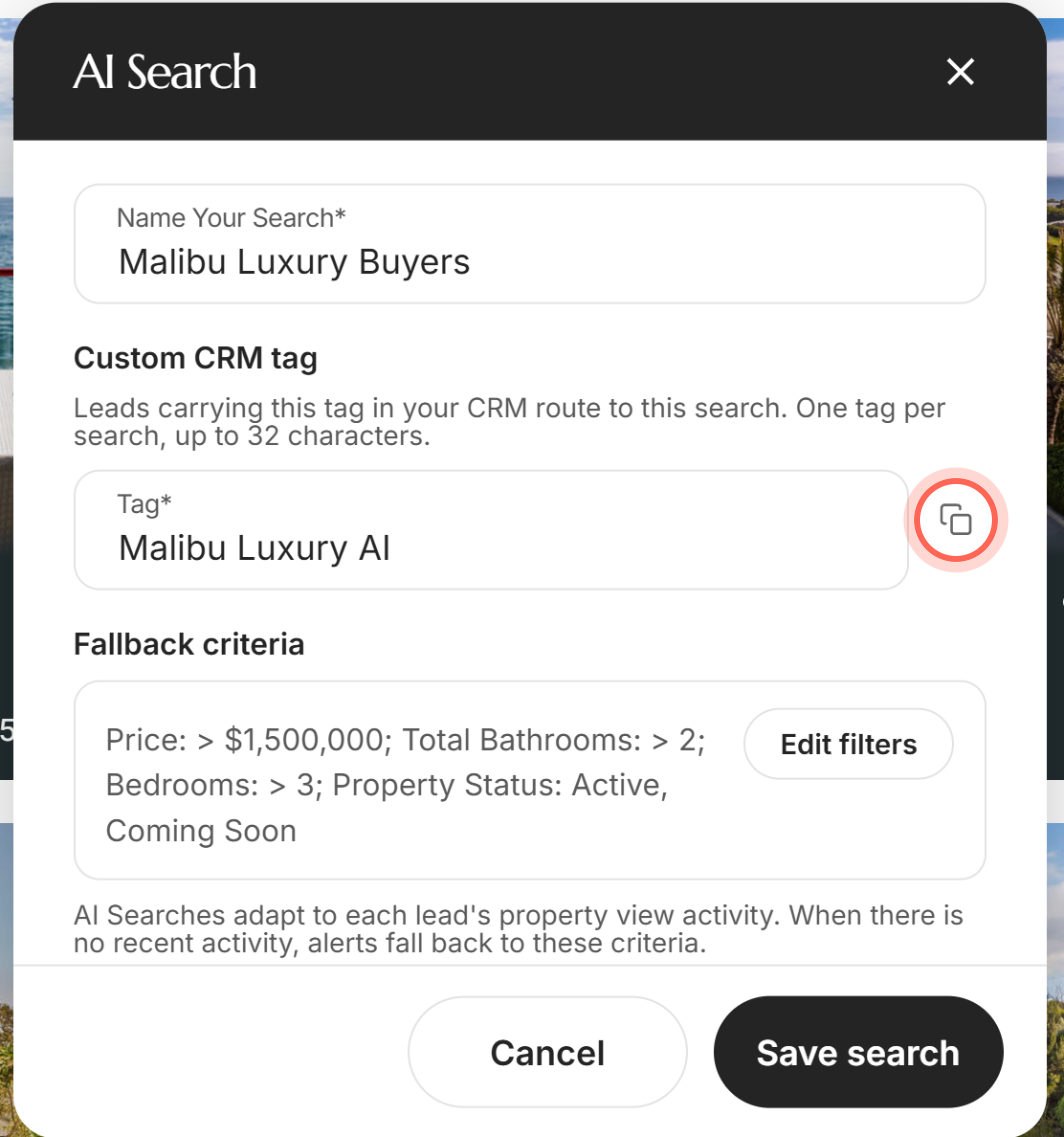
- In Name Your Search*, type a name of 2 to 100 characters.
- In Tag*, type the tag your leads will carry in your CRM.
- Click the copy icon next to the tag, so you can paste it into your CRM.
- Admins only: tick Brokerage level so every agent in the brokerage can apply it.
The AI Search form keeps what you typed while you set the fallback criteria. You can also start from the + button in the header by choosing New Template.
Set the fallback criteria and save
- Under Fallback criteria, click Select filters.
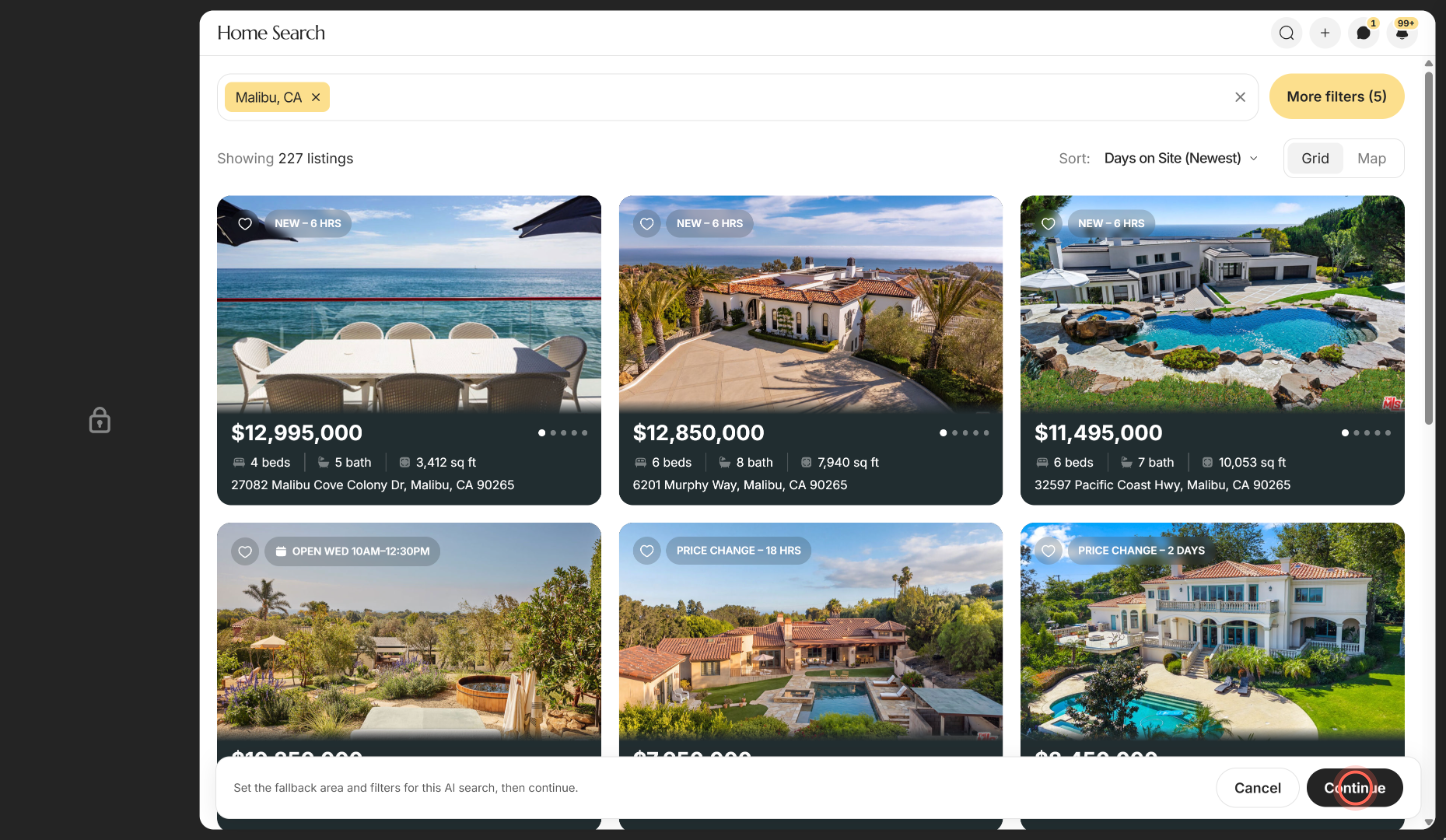
- Pick an area and any filters on the map.
- Click Continue at the bottom of the map to return to the form.
- Click Save search.
A message confirms "AI search saved" and reminds you that leads carrying your tag in your CRM route to it. You land back on Templates, where the new row shows AI Search under Type. Next, put leads on AI Nurture.
Save search stays grayed out until you choose an area. Until then the card reads "Choose an area on the map. An AI search needs one before it can be saved."
Edit an AI search
- On Templates, find the AI search's row.
- Click the Edit icon (the pen) on that row.
- Change the name, or click Edit filters to change the fallback criteria.
- Click Save search.
A message says "AI search updated." New fallback criteria reach every lead's fallback right away. Leads on AI-based criteria pick up the change at the next nightly refresh. Brokerage level can't be changed after you create the search.
Good to know
- Nothing to schedule. There's no frequency, send method, subject or CC to set. Alerts go by email, each lead's frequency adjusts automatically, and you don't get a copy.
- Homes for sale only. AI searches don't cover rentals.
- Tag rules. A tag is required and can be up to 32 characters. "This CRM tag already exists" means another AI search in your brokerage uses it.
Ruuster Default Searchis reserved for the Default search. - Cancel on the map closes the form. On the map, use Continue to go back. Cancel returns to Templates without saving.
- The Leads column counts tags. On Templates, Leads shows how many leads carry the tag, paused ones included. Frequency shows a hyphen.
FAQ
Why is the AI Search option grayed out?
Your Ruuster account isn't linked to your CRM, so AI Search can't route leads by tag. Email helpme@ruuster.com and we'll help you get connected.
Where do I put the CRM tag for an AI search?
Type it in Tag* on the AI Search form. Then add that same tag to leads in your CRM, or apply the search to them in Ruuster.
How do I make an AI search available to every agent in my brokerage?
Admins tick Brokerage level when creating it. That choice is fixed once you save, so create a new AI search if you need the other level.
Can I change the tag later?
You can, from the Edit form, but avoid it on a search leads are already on. Ruuster doesn't change the tag on your leads, so leads with the old tag fall off the search. To switch tags, create a new AI search with the new tag, then move your leads to it in your CRM.
Can an AI search be for rentals?
No. AI searches send homes for sale only.
Why can't I edit a brokerage-level AI search?
Only admins can. Hover the grayed-out icon and you'll see "Brokerage searches are managed by your admin."
Still need help? Reach out to us at helpme@ruuster.com and we'd be happy to assist!