
Update your contact information
Using Ruuster 1.0? Read the 1.0 version of this article.
Change your name, email, sign-in phone (confirmed by a texted code), the phone number clients see, and your MLS IDs in Settings.
Open Settings from My Account in the menu on your name. In Profile, change your name, email, client-facing phone or MLS IDs and click Save changes. Your sign-in phone number is confirmed with a texted code and has its own Save button.
Before you start
- To change your sign-in phone, keep the new phone handy. A 6-digit code is texted to it.
- If you sign in with Google, your email comes from your Google account and can't be changed in Settings.
- Admins without an agent role see only name, sign-in phone, email and password in Profile.
Update your name, email or client-facing phone
- Click your name at the bottom of the sidebar, then click My Account.
- In Profile, edit First Name, Last Name or Email.
- Under Agency Phone number, enter the number clients should call in Phone Number.
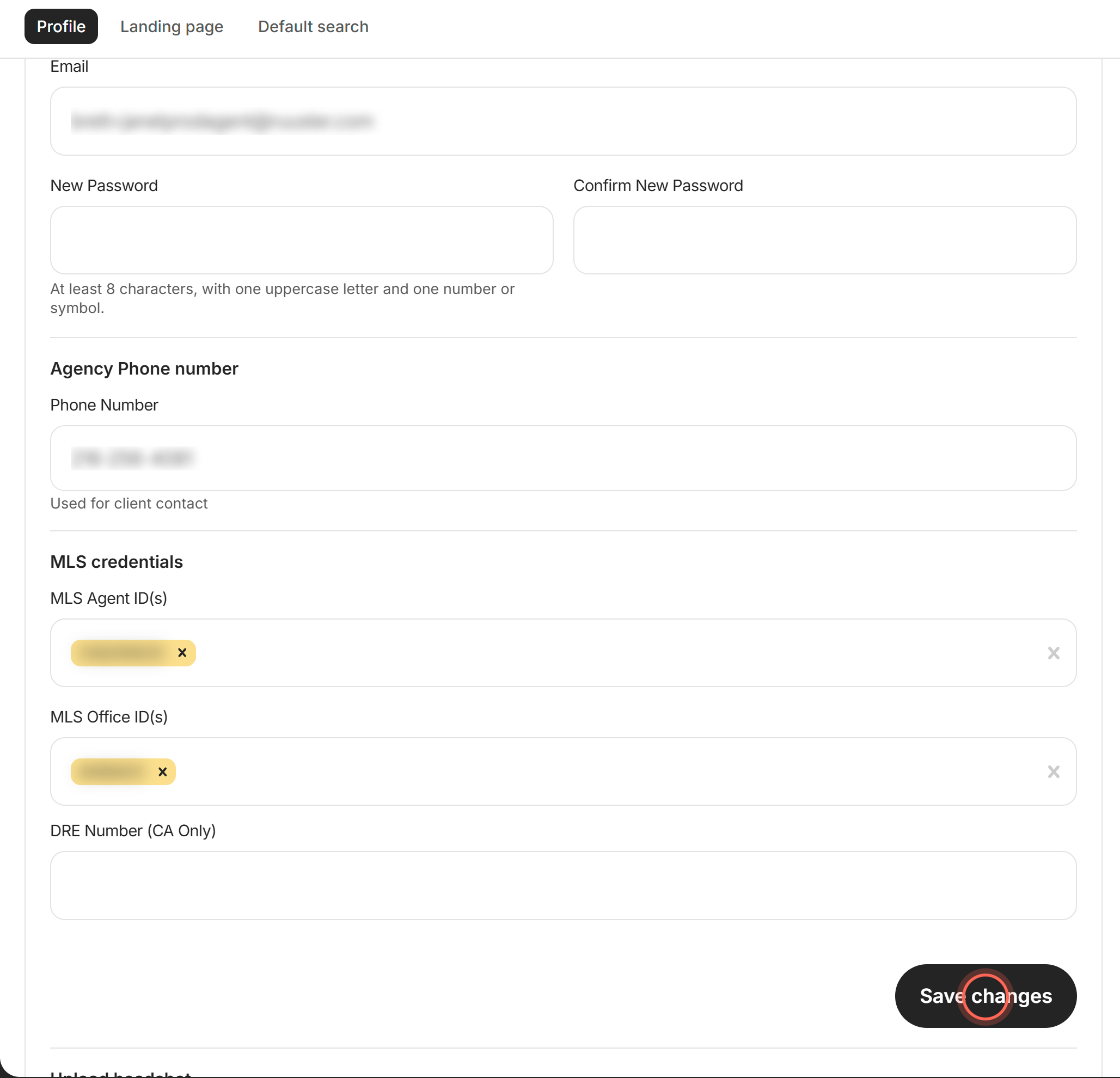
- Click Save changes.
A Success message says "Changes saved." Only the fields you changed are saved. A new name or client-facing phone shows on your landing page right away.
Change the phone number you sign in with
On Settings, in Profile, type your new number in the first Phone Number field, below your name.
Click Send confirmation code.
Enter the 6-digit code from the text in Confirmation Code.
Click Save next to the code.
A Success message says "Phone number updated." Ruuster also emails you an Account Updated notice. Your old number keeps working until you click Save.
Update your MLS IDs and license number
- On Settings, in Profile, go to MLS credentials.
- In MLS Agent ID(s), start typing your agent ID and pick it from the list.
- In MLS Office ID(s), start typing your office ID and pick it.
- If you're licensed in California, enter your license in DRE Number (CA Only).
- Click Save changes.
A Success message says "Changes saved." Your agent IDs fill My listings on your dashboard and your listings tab on your landing page. Your office IDs fill Office listings in both places. To remove an ID, click the x on it, then save.
Good to know
- Two phone numbers. The first Phone Number is your sign-in number, also used for texts and alerts to you. The one under Agency Phone number is the number clients see.
- No code at some brokerages. If the hint under your sign-in number doesn't mention a confirmation code, your brokerage doesn't use one. The number saves with Save changes.
- Email is your sign-in. A new email changes how you sign in. If your brokerage uses a connected CRM, keep it the same as your CRM login email.
- Jump to a section. The Profile, Landing page and Default search chips at the top of Settings scroll to each section.
- Privacy Policy. The Privacy Policy link at the bottom of Settings opens your brokerage's privacy policy in a new tab.
FAQ
Which number do my agent text alerts go to?
Your sign-in number, the first Phone Number in Profile. To change it, type the new number, click Send confirmation code and enter the code.
I never got the confirmation code. What should I do?
Check the number you typed. Then refresh Settings, enter the number again and click Send confirmation code. Your old number stays until you save a code.
The code field says "OTP is not correct." What now?
The code didn't match. Use the code from the newest text, typed exactly, then click Save again.
Why can't I edit my email address?
You sign in with Google. The hint under Email says it comes from your Google account, so change it in Google instead.
My new email won't save. Why?
A User Update Error with "An account with that email address already exists" means someone in your brokerage already uses it. Pick a different address.
Why is Save changes greyed out?
Nothing has changed yet, or a field shows an error in red. Fix the field and the button turns on.
Still need help? Reach out to us at helpme@ruuster.com and we'd be happy to assist!