
Update your photo
Using Ruuster 1.0? Read the 1.0 version of this article.
Upload and crop a new headshot in Settings. It becomes your landing page photo and the profile photo clients see next to your name in chat.
Open Settings from My Account, scroll to Upload headshot in Profile and click Edit. Upload a photo, adjust its two crops and click Save headshot. One upload becomes both your landing page photo and the round profile photo clients see in chat.
Before you start
- Use a PNG, JPG or WEBP photo of 15 MB or less.
- Headshots are for agents. Admins without an agent role don't see Upload headshot.
Upload a new headshot
- Click your name at the bottom of the sidebar, then click My Account.
- In Profile, scroll to Upload headshot and click Edit.
- Drag your photo into Upload your Headshot, or click browse to pick a file.
- On Landing Page Photo, drag the crop box to frame your portrait.
- On Profile Photo, drag the crop box to center your face in the circle.
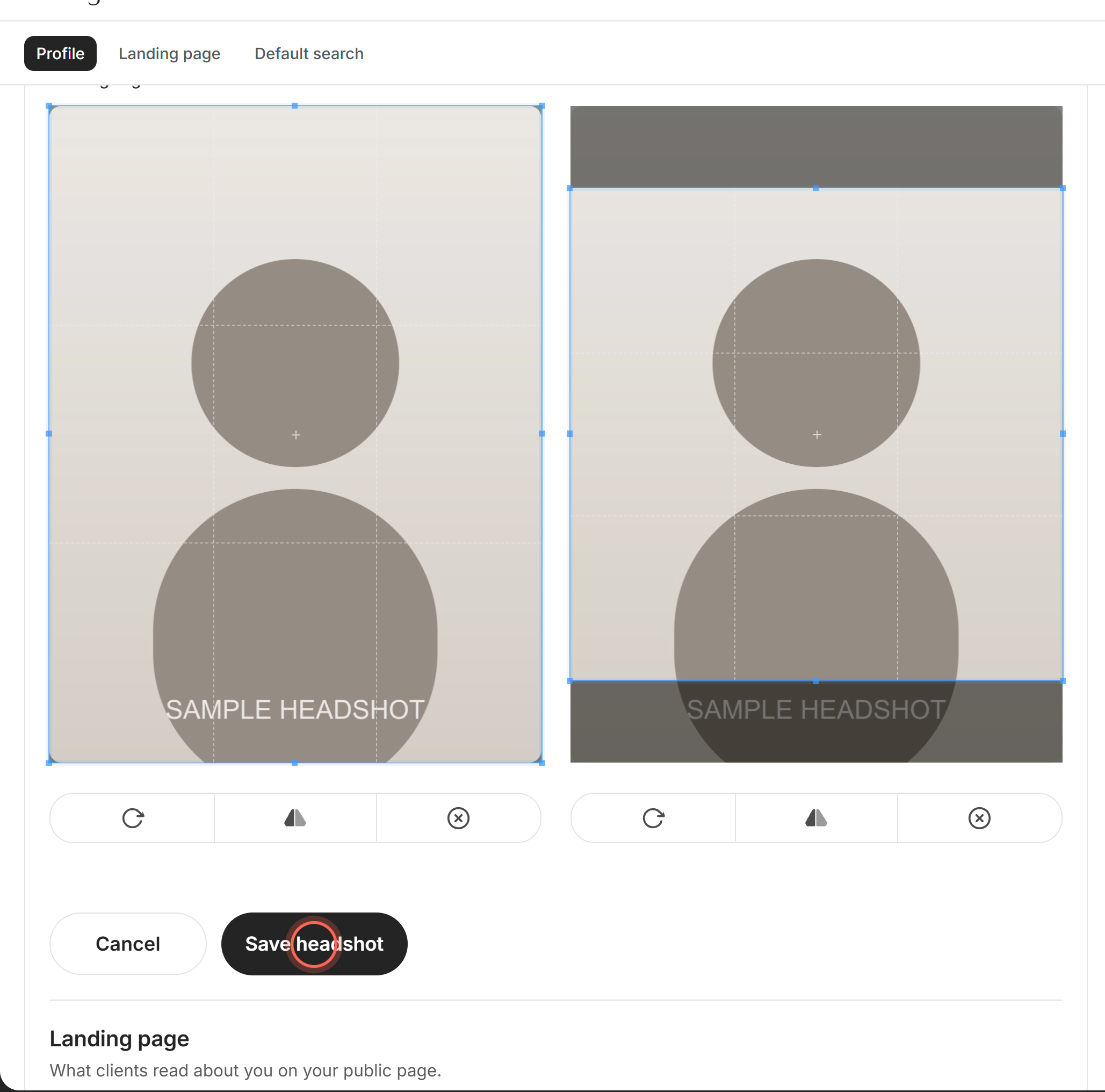
- Click Save headshot.
A Success message says "Headshot saved." The section then shows your two saved photos side by side. No headshot yet? The upload area is already open, so skip Edit.
Rotate, flip or reset a crop
Each crop has three small buttons under it. Hover over one to see its name.
| Button | What it does |
|---|---|
| Rotate | Turns the photo a quarter turn clockwise. |
| Scale | Flips the photo upside down. Click it again to flip it back. |
| Reset Changes | Puts that crop back the way it started. |
To keep your current photo instead, click Cancel next to Save headshot. The new photo is discarded.
Good to know
- Saves on its own. Save headshot saves the photo right away. The Save changes button above it doesn't include your photo.
- Where it shows. Landing Page Photo is the tall photo on your landing page. Profile Photo shows in chat, on the chat button in your clients' app and next to your name in the sidebar.
- To recrop, upload again. Save headshot stays greyed out until you add a file. To recrop your current photo, upload the same file again.
- No delete. You can replace your headshot, but you can't remove it.
- Your admin can change it. Admins can upload your headshot from Team, as in Edit a team member. The latest upload is the one that shows.
FAQ
My headshot won't upload. What's wrong?
Check the file. Files over 15 MB show "File too large." Other file types, like iPhone HEIC photos, are skipped with no message. Save the photo as a JPG and try again.
I saved a new photo but still see the old one. Why?
Refresh the page. Chat and your clients' app show the new photo once they reload.
Why do I crop the picture twice?
Your landing page uses a tall portrait and the rest of the app uses a small circle. Cropping each one keeps your face centered in both.
Where do my clients see my profile pic?
In chat, on the chat button in their app, and in the welcome pop-up on your landing page. The landing page itself uses your tall Landing Page Photo.
Can I delete my headshot?
No. You can upload a different photo at any time, but there's no way to remove it.
Still need help? Reach out to us at helpme@ruuster.com and we'd be happy to assist!