
Stop or pause AI Nurture for a lead
Take a lead off AI Nurture by removing the tag or deleting the AI search from their page, or pause it with a stop tag in your CRM.
To take a lead off AI Nurture, remove the AI search's tag. Do it in your CRM, or delete the AI search from the lead's page in Ruuster, which removes the tag in your CRM too. To pause instead, add a stop tag such as ruuster_sunset in your CRM.
Remove the tag in your CRM
- Open the lead in your CRM.
- Remove the AI search's tag, or
Ruuster Default Searchfor the Default search.
A tag you remove in your CRM reaches Ruuster within a few minutes. The lead then leaves that AI search, and it drops off their Searches section.
Delete the AI search from the lead's page
- On All Clients, click the lead's name.
- Click Searches.
- On the AI search's row, click the three-dot menu.
- Click Delete.
- Click Delete search.
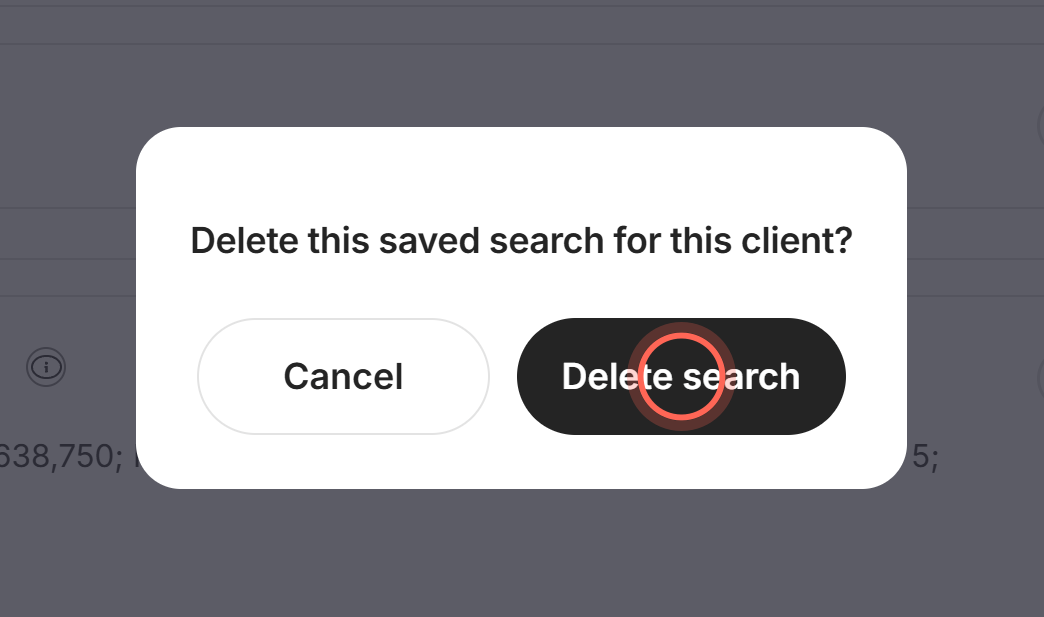
The row disappears, and the tag comes off the lead in Ruuster and in your CRM.
You can also remove the tag from Details: under Ruuster Tags, click the x on the tag, then click Remove tag. A "Tag removed" message confirms it.
Pause AI Nurture with a stop tag
- Open the lead in your CRM.
- Add the tag
ruuster_sunset.
Every AI search for that lead turns Paused: "This search is inactive, and no alerts will be sent to the lead." An "Unsubscribed from search alerts" banner shows in their Searches section, and the Email status column on All Clients reads "Stopped by agent".
ruuster_unsubscribe, ruuster_e-alert_unsubscribed, ruuster_invalid and ruuster_e-alert_invalid_e-mail work the same way. To resume, remove the stop tag. See Unsubscribe tags and stopping emails for every tag.
Stop an AI search for every lead
- Open Templates and find the AI search's row.
- Click the Delete icon (the trash can).
- Click Delete.
The search stops for everyone on it. As the confirmation says, "The tag itself stays on your leads in the CRM." The Default search can't be deleted.
What else stops or pauses AI Nurture
| What happens | What it does to AI Nurture |
|---|---|
| The lead clicks Unsubscribe in an alert | Adds ruuster_e-alert_user_unsubscribed in your CRM. Every AI search for the lead is Paused, and custom searches stop emailing. |
| The email bounces or is marked as spam | Adds ruuster_e-alert_auto_unsubscribed, with the same effect. |
| The lead moves to another agent | The old agent's own AI searches end for that lead. Brokerage-level searches continue, and the Default runs on the new agent's Default. See Reassign a departing agent's clients. |
| The client is deleted | They come off every search. See Delete a client. |
| An admin deletes the CRM connection on Integrations (Admin) | Affected leads lose their CRM tags, so AI Nurture stops for them. |
| Another AI search is already active for the lead | This one shows Paused. Only one sends at a time. |
Good to know
- Custom searches aren't touched. Removing an AI search's tag doesn't remove custom searches. Delete those separately.
- Respect unsubscribes. Only remove an unsubscribe tag when the lead asks to hear from you again. Applying an AI search again doesn't lift a stop tag.
- Signing up doesn't stop it. A lead who creates a Ruuster account stays on AI Nurture.
FAQ
How do I keep active buyers, sellers or past clients out of AI Nurture?
Don't give them an AI search's tag. If your CRM adds tags automatically, exclude those stages there. To hold one lead back, add ruuster_sunset.
If I remove the AI Nurture tag, will Ruuster ever add it back on its own?
No. The tag only returns if someone applies the search again or one of your CRM automations adds it.
How do I turn off AI Nurture for everyone?
Remove the AI search tags in bulk in your CRM, including Ruuster Default Search. You can also delete the AI searches you created on Templates.
Does removing the tag also remove the searches I set up by hand?
No. Custom searches keep running. Delete them from the lead's Searches section if you want them gone too.
How do I turn AI Nurture back on after a lead unsubscribed?
Only do this if the lead asked. Remove ruuster_e-alert_user_unsubscribed in your CRM, and their AI searches become eligible to send again.
Still need help? Reach out to us at helpme@ruuster.com and we'd be happy to assist!