
Complete your setup
Walk through the setup wizard on your dashboard to add your email, phone, headshot, bio, MLS IDs and default search so clients see a complete profile.
The setup wizard opens over your dashboard when you first sign in. It walks you through six steps: email, phone, headshot, bio, MLS IDs and default search. To come back later, click Finish account setup on the dashboard banner.
Before you start
- The wizard is for agents. Owner accounts without the agent role don't see it.
- Have a headshot ready: PNG, JPG or WEBP, up to 15 MB.
- Know your MLS agent ID and, if your MLS asks for it, your license (DRE) number.
Finish the setup wizard
On each screen, click Next to save and move on. When we already have the detail on file, the button reads Looks good instead.
- Click Let's get started! on the Welcome to the Flock screen.
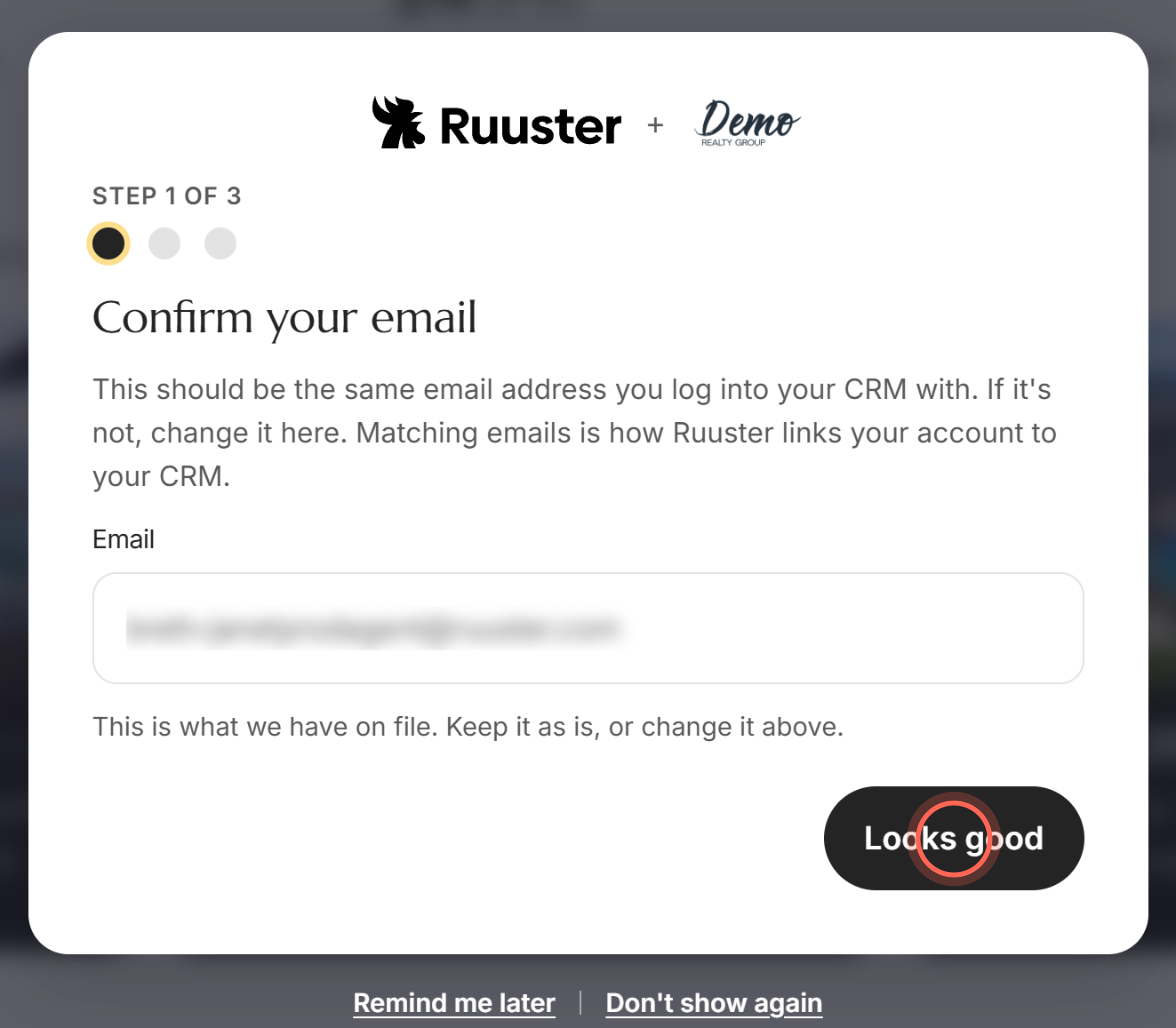
Check that Email is the address you sign in to your CRM with.
Enter the Phone number your clients already see, not your personal cell.
Drag your photo onto Upload your Headshot, or click browse to pick it.
Personalize the starter bio under Your bio, or keep it as written.
Type in MLS Agent ID(s) and pick your ID from the list.
Click Looks right, continue to keep the default search shown.
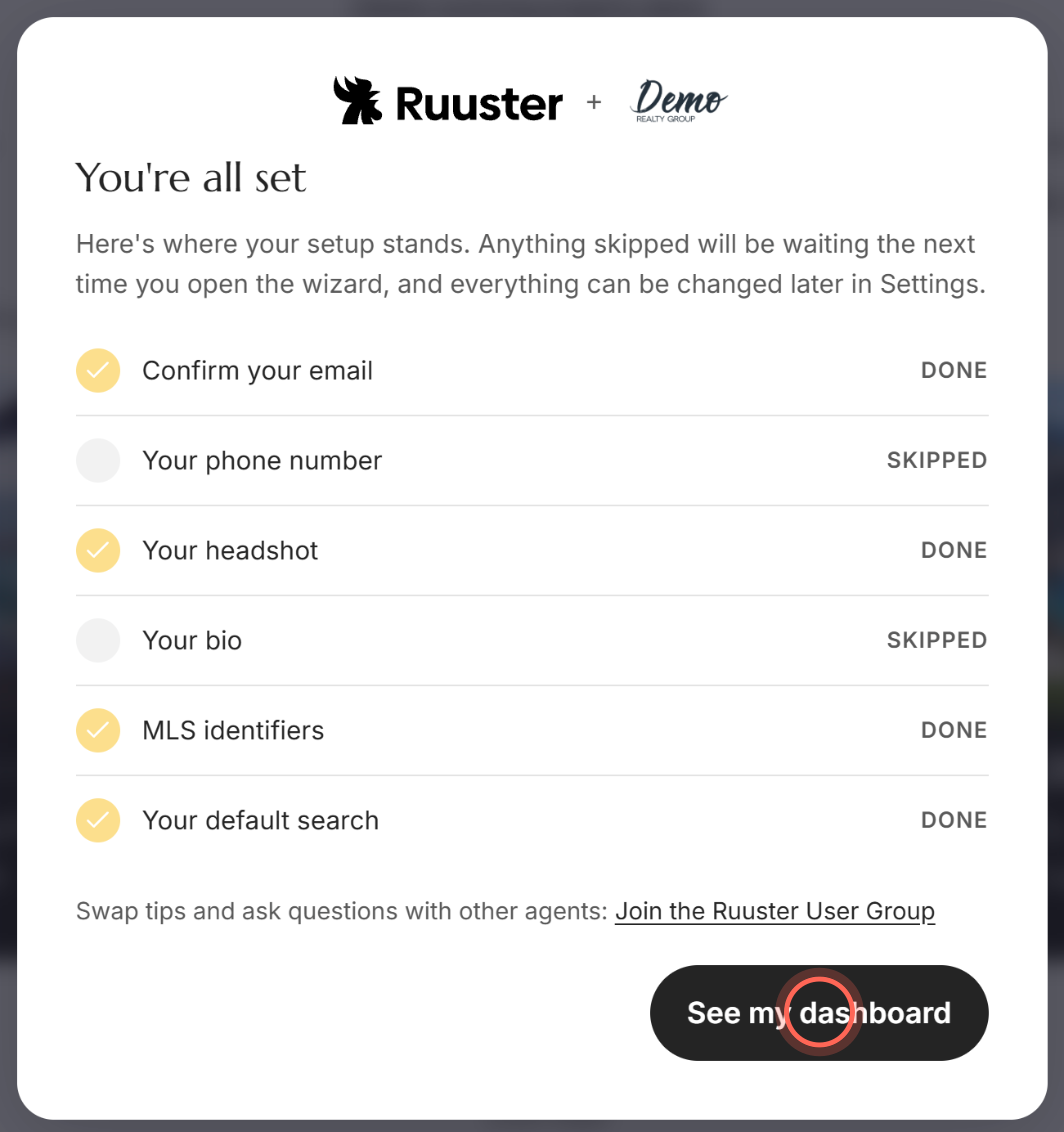
- Click See my dashboard on the You're all set screen.
The wizard closes and your dashboard refreshes. Once all six steps are done, the setup banner goes away. You're all set also links to Join the Ruuster User Group on Facebook, where agents swap tips.
Change your default search during setup
Your default search is your main coverage area and what a new lead sees on their first search. With no default search at all, Looks right, continue is greyed out, so set one here.
- On Your default search, click Update my default search (or Set my default search if you have none).
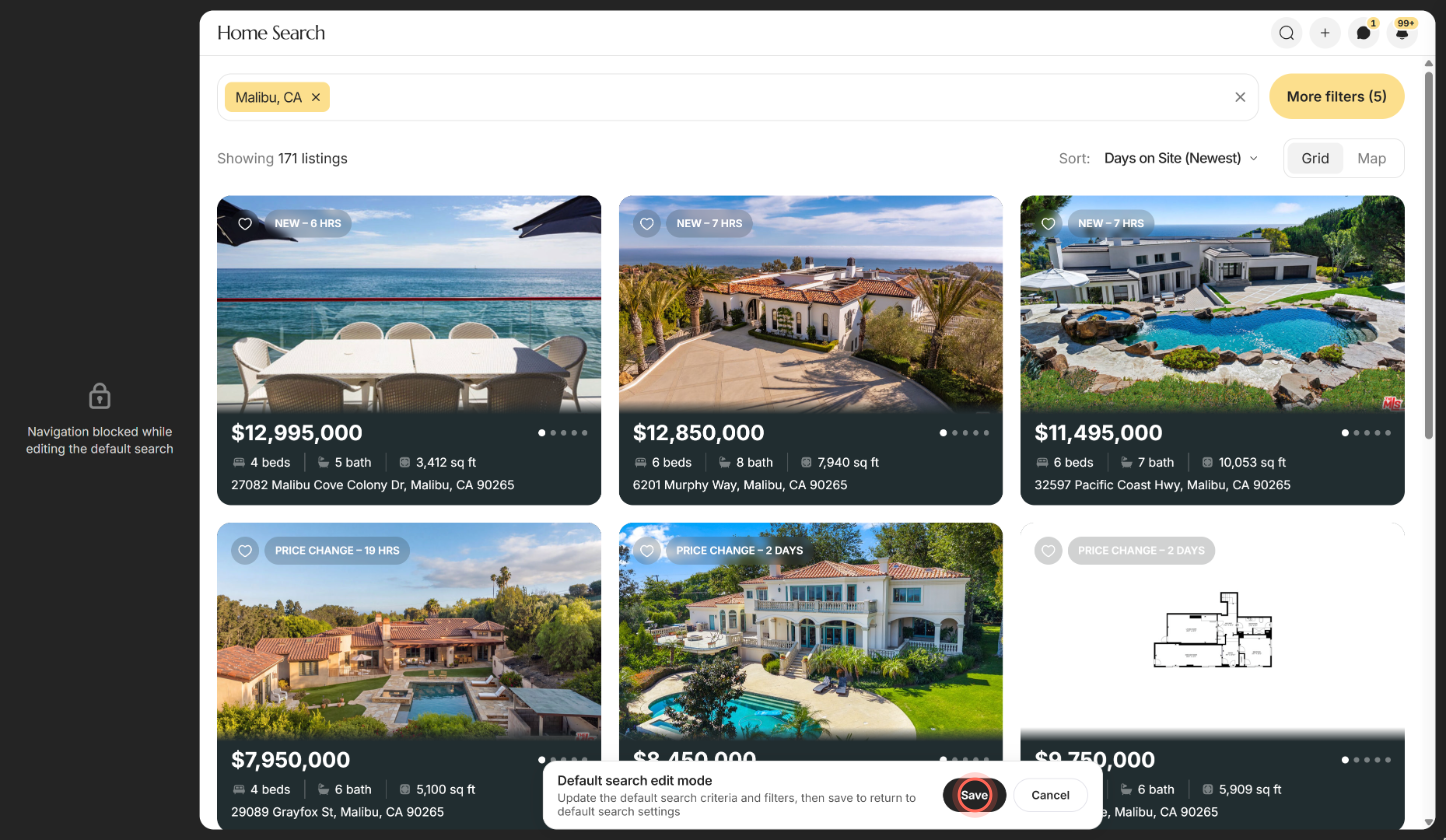
- Move the map and set the filters you want in Home Search.
- Click Save in the Default search edit mode bar.
You return to your dashboard and the wizard reopens at You're all set. Click Cancel instead to go back to the default search step. To change it later, see Set your default search.
Skip a step or finish later
| Control | What it does |
|---|---|
| Skip for now | Moves on without saving. Shown on the phone, headshot and MLS steps. The step shows as Skipped and comes back next time. |
| I'll write this later | The same, for the bio step. |
| Back | Returns to the previous step. You can also click any dot you've already visited at the top. |
| Remind me later | Below the wizard. Closes it until your next browser session. |
| Don't show again | Below the wizard. Stops it opening by itself and hides the dashboard banner. |
| Finish account setup | On the dashboard banner "Finish setting up your account: N steps left." Reopens the wizard. The × on the banner hides it for good. |
Good to know
- First run shows all six. The first time, every step appears, even ones already filled in. After that, the wizard shows only what's missing.
- Once per session. The wizard opens by itself once per browser session. Pressing Esc or clicking outside it works like Remind me later.
- Two crops from one photo. Your headshot makes a Landing Page Photo and a round Profile Photo. Drag the box, or use Rotate, Scale and Reset Changes. To replace a photo on file, click Change Headshot. See Update your photo.
- This phone is client-facing. It shows on your landing page and in messages. It isn't the number you sign in with.
- MLS IDs fill your listings. MLS Agent ID(s) and the optional MLS Office ID(s) fill My listings and Office listings on your dashboard and landing page. DRE number is your license number, which some MLSes require.
FAQ
What is the window that pops up over my dashboard?
It's the setup wizard. It collects the details clients see on your profile and the search new leads start from.
How do I get rid of the setup banner on my dashboard?
Finish every step and it goes away. To hide it without finishing, click the × on the banner.
Why is the Next button greyed out?
The step needs a value first: a valid phone number, a photo, or at least one MLS agent ID. Or click Skip for now.
Why does Ruuster want my headshot and MLS ID?
Your headshot appears in the invitation emails your clients get, in their app and beside your answers to property questions. Your MLS IDs connect your listings to your profile.
I clicked Don't show again. How do I finish setup now?
Open the setup wizard link, or update each detail in My Account.
Can I skip the email step?
No. Matching your CRM email is how Ruuster links your account to your CRM. Click Looks good if it's right. If you sign in with Google, the email is locked here.
Still need help? Reach out to us at helpme@ruuster.com and we'd be happy to assist!