
Use Ruuster on your phone
Use the bottom bar, + button and menu on a phone, install your brokerage's app and turn on notifications.
Yes. Open your brokerage's Ruuster address in your phone's browser, or install your brokerage's own app. On a phone, a bar along the bottom gives you Menu, Dashboard, a gold +, Search and Activity.
Get around with the bottom bar
The bottom bar shows on phones and on tablets held upright. Everything else lives behind Menu.
| Control | What it does |
|---|---|
| Menu | Opens the full sidebar as a drawer, with every page, Help and your account menu. Tap a page, or the dark area beside the drawer, to close it. |
| Dashboard | Opens your dashboard. |
| Gold + | Opens the create menu upward: Invite a Client, New Template and, for admins, Add a New Agent. |
| Search | Opens Home Search. It stays highlighted in Home Search and Templates, and on the separate Rental Search page some apps have. |
| Activity | Opens Client Activity. The red number counts unread activity from your clients. |
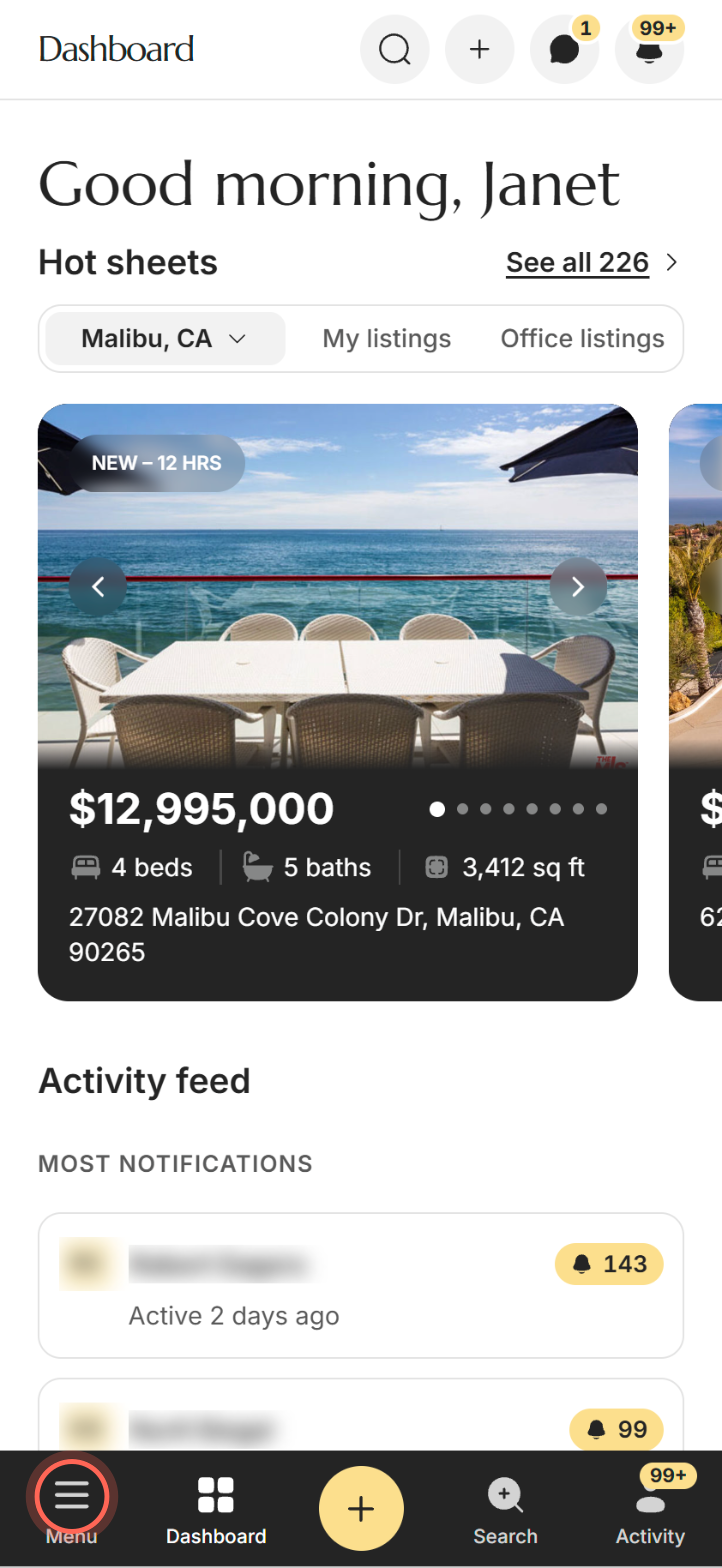
The header at the top still has the page name, Search, +, Chat and the bell. See Find your way around Ruuster.
Install your brokerage's app
- Open your brokerage's Ruuster address in your phone's browser and sign in.
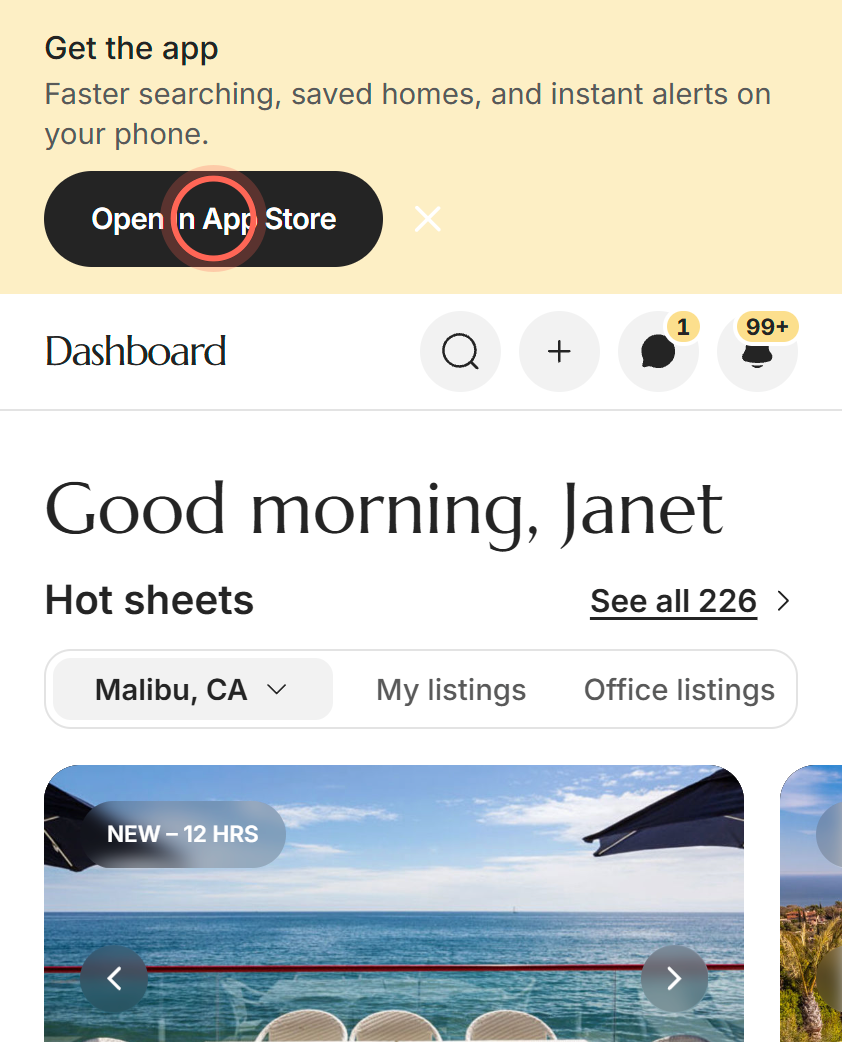
- On the Get the app banner at the top, tap Open in App Store (iPhone) or Open app (Android).
- Install the app.
- Sign in to the app with the same email and password.
The app opens to your dashboard. On Android, Open app opens the app directly if it's already installed. Your brokerage's sign-in page also shows App Store and Google Play badges in a browser when it has an app.
Turn on notifications in the app
- In your brokerage's app, tap Enable on the Turn on notifications banner.
- Tap Allow on your phone's prompt.
The banner goes away. If you blocked notifications before, the banner changes to Notifications are turned off. Tap Open settings and allow notifications for the app there.
Good to know
- Banner only with an app. Get the app shows only in a phone browser, and only if your brokerage publishes its own app.
- Dismissed banners come back. The × on either banner hides it for this session only. It shows again on a later visit.
- Written for clients too. Both banners mention homes and searches, because your clients see them as well.
- Sign in once in the app. Opening your dashboard in the app sets that phone up for push notifications. See Notifications and badges.
- Feedback stays on the computer. The Feedback button doesn't show on phones. Use Roadmap in your account menu.
FAQ
I can sign in on my computer but the phone app shows an error or a blank screen. What should I do?
Get your brokerage's app from the Get the app banner in your phone's browser, then sign in with the same email and password. See Your brokerage's branded app.
How do I send listings to a client from my phone?
Tap Search, open a home, then tap Share with clients in the bar at the bottom of the listing. See Share a property with clients.
Where is the menu on my phone?
Tap Menu at the bottom left. There's no menu button at the top of the screen.
How do I log out on my phone?
Tap Menu, tap your name at the bottom of the drawer, then tap Logout.
Why don't I see the Get the app banner?
It shows only in a phone browser, never inside the app, and only if your brokerage has an app. You may also have closed it this session.
Still need help? Reach out to us at helpme@ruuster.com and we'd be happy to assist!