
Use the Client Activity feed
Client Activity ranks clients by unread or recent activity and shows a live feed of views, favorites, tours and notes you can filter.
Client Activity, under Clients in the sidebar, shows what your clients are doing. It opens on Full feed, a live stream of views, favorites, notes and tour requests. Two more tabs rank your leads: Most notifications and Recently active.
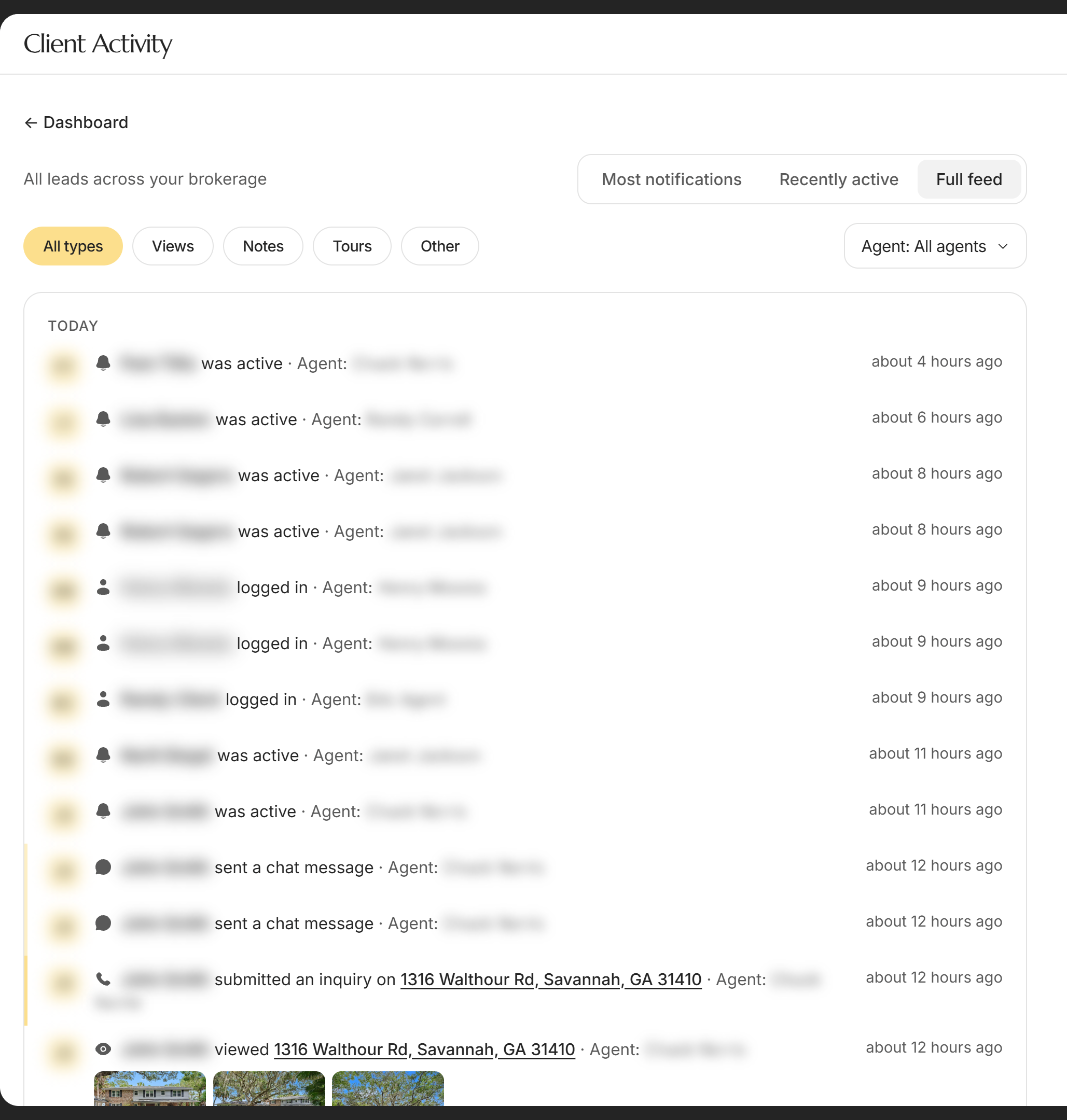
Switch between the tabs
| Control | What it does | Learn more |
|---|---|---|
| ← Dashboard | Goes back to your dashboard. | Find your way around your dashboard |
| Most notifications | Lists only the leads with unread activity, most unread first. When nobody has any, it says "You’re all caught up." with a See all clients button. | Notifications and badges |
| Recently active | Lists every lead, the one with the newest activity first. | |
| Full feed | Every client action from the last 30 days, grouped under Today, Yesterday and earlier dates. New actions appear on their own while the page is open. | |
| Page arrows and numbers | Move through Most notifications and Recently active, 20 leads per page. |
On a phone, tap Activity in the bottom bar to open Client Activity. Before you have any clients, the lists say "No clients yet." with an Invite a client button. If a list doesn't load, click Try again.
Filter the feed
| Control | What it does | Learn more |
|---|---|---|
| All types | Shows every kind of activity. It's selected when no type is ticked. | |
| Views, Notes, Tours, Other | Narrow the feed to one or more types. Tours includes offers. Other covers favorites, chat messages, saved searches, budget updates, email opens and clicks, and logins. | |
| Agent: All agents | Admins and owners only. Pick one or more agents to see only their clients. It has Search agents, Select all and Deselect all, and applies to all three tabs. | |
| Clear filters | Shows when your filters leave nothing to see. It removes the type and agent filters. |
The type pills show only on Full feed.
Open clients and homes
| Control | What it does | Learn more |
|---|---|---|
| A client's name, action or note | Opens that client's page. | Find your way around a client's page |
| A home's address or photos | Opens that home's details. | |
| Agent: name | Admins and owners see which agent each action belongs to, unless they filtered to one agent. | |
| Colored stripe | Marks stronger signals. Offers, tour requests, notes and contact requests get the strongest stripe; favorites, chat messages and saved searches a lighter one. | |
| Load more | Loads older actions from the last 30 days. | |
| A lead card | Opens the lead. Shows their name, an Unregistered badge for leads who haven't signed up, the unread count, Agent: for admins and "Active 2 hours ago". |
Good to know
- Your role sets the scope. The line under the page title reads "All leads across your brokerage" for admins and owners, or "Your assigned leads" for agents.
- The feed covers 30 days. For older history, open the client's page.
- Counts catch up in minutes. Unread counts are recounted about every 5 minutes, and Most notifications refreshes every 2 minutes.
- Plain searches stay out. Listing searches a client runs don't show in the feed. Searches they save do, under Other.
- Every opened home counts. Each home a client opens in the app is logged as a view.
FAQ
Where did the Favorites filter go?
Favorites are under Other. Tick Other, or keep All types selected, to see them.
How can I tell a lead is seriously interested?
Look for the strongest colored stripe in Full feed: tour requests, offers, notes and contact requests. On the client's page, sort Property views by Most Viewed to see homes they keep coming back to.
Can I see only one agent's clients?
Yes, if you're an admin or owner. Use Agent: All agents and pick that agent. Agents always see their own clients only.
Who needs my attention today?
Click Most notifications. It lists the leads with activity you haven't seen, the busiest first.
Can I see activity older than 30 days?
Not on this page. Open the client's page, where Client activity keeps their full history.
Still need help? Reach out to us at helpme@ruuster.com and we'd be happy to assist!