
Search for properties
Using Ruuster 1.0? Read the 1.0 version of this article.
Search by city, ZIP, neighborhood, address or school, then sort, switch between grid and map, and open any home.
Open Home Search from the sidebar, type a city, ZIP, neighborhood, address or school in the search box and pick a match. The results show as listing cards with a count above them, and you can sort them, switch to Map or open any home.
Search an area
- In the sidebar, open the Home Search group and click Home Search. On a phone, tap Search.
- Click the search box that reads City, address, zip....
- Type at least 2 characters of a city, ZIP, neighborhood, county, address or school.
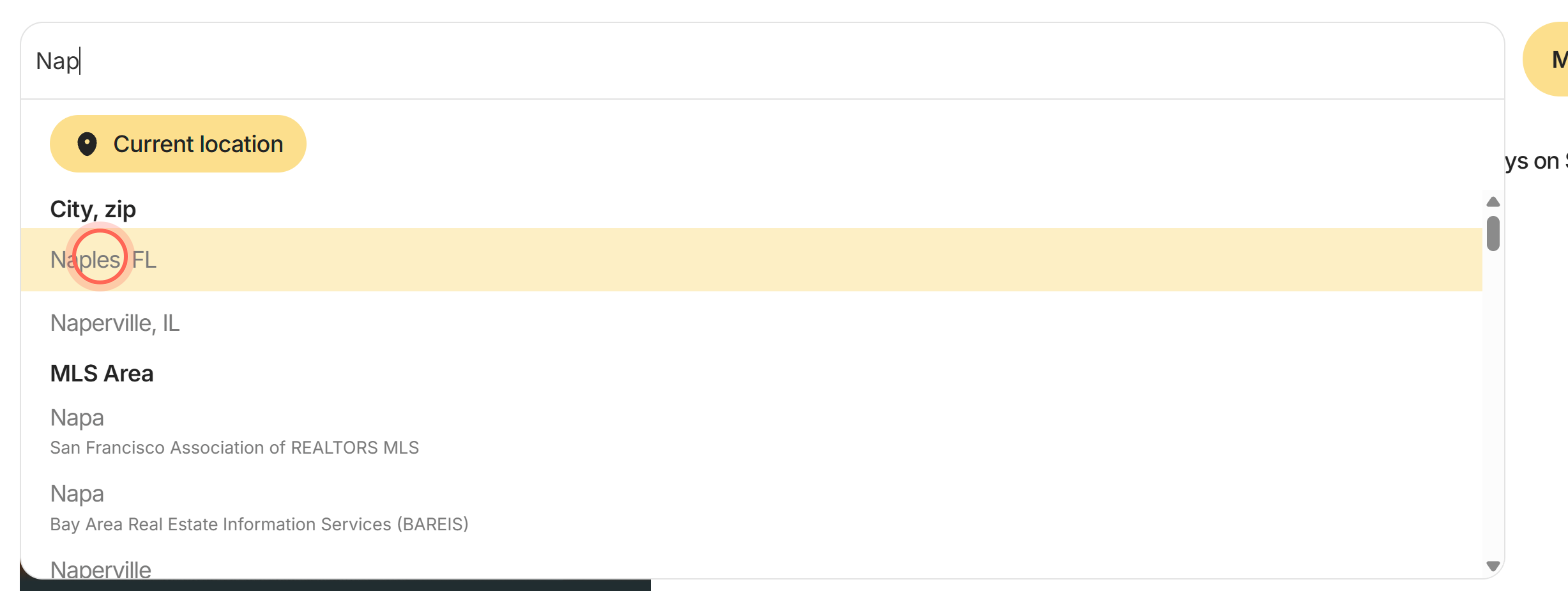
- Pick a match from the list. Matches are grouped under headings such as City, zip, Address, Neighborhood and School.
- To add another place, type it and pick it. Each place becomes a chip in the search box.
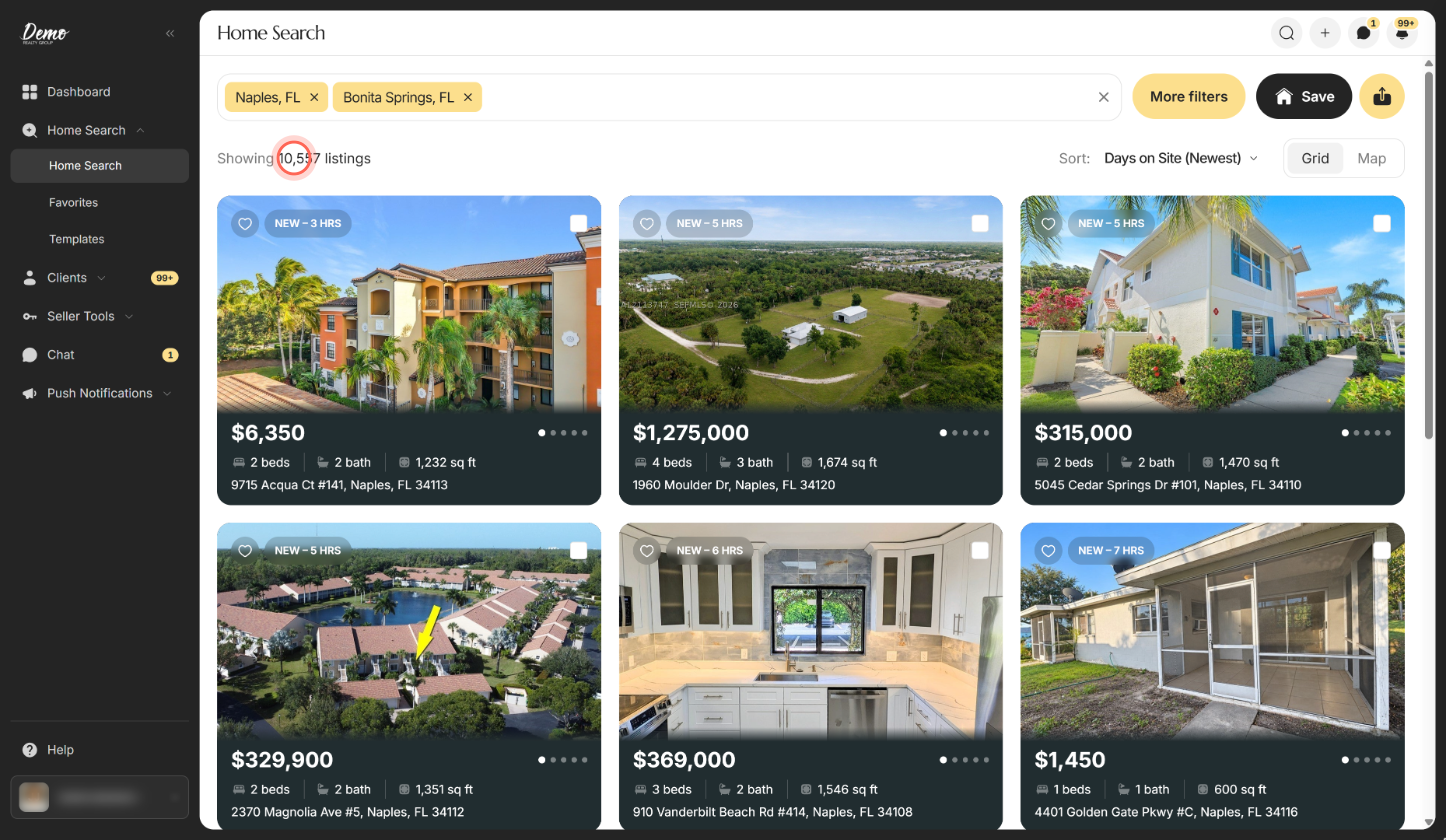
The count above the results reads, for example, "Showing 1,240 listings", and the cards cover every place in the box. Suggestions only come from the states your brokerage's MLSs cover. If a place doesn't appear, see I can't find a city, neighborhood or address.
Sort the results and switch views
- On Home Search, click the menu next to Sort:. It starts on Days on Site (Newest).
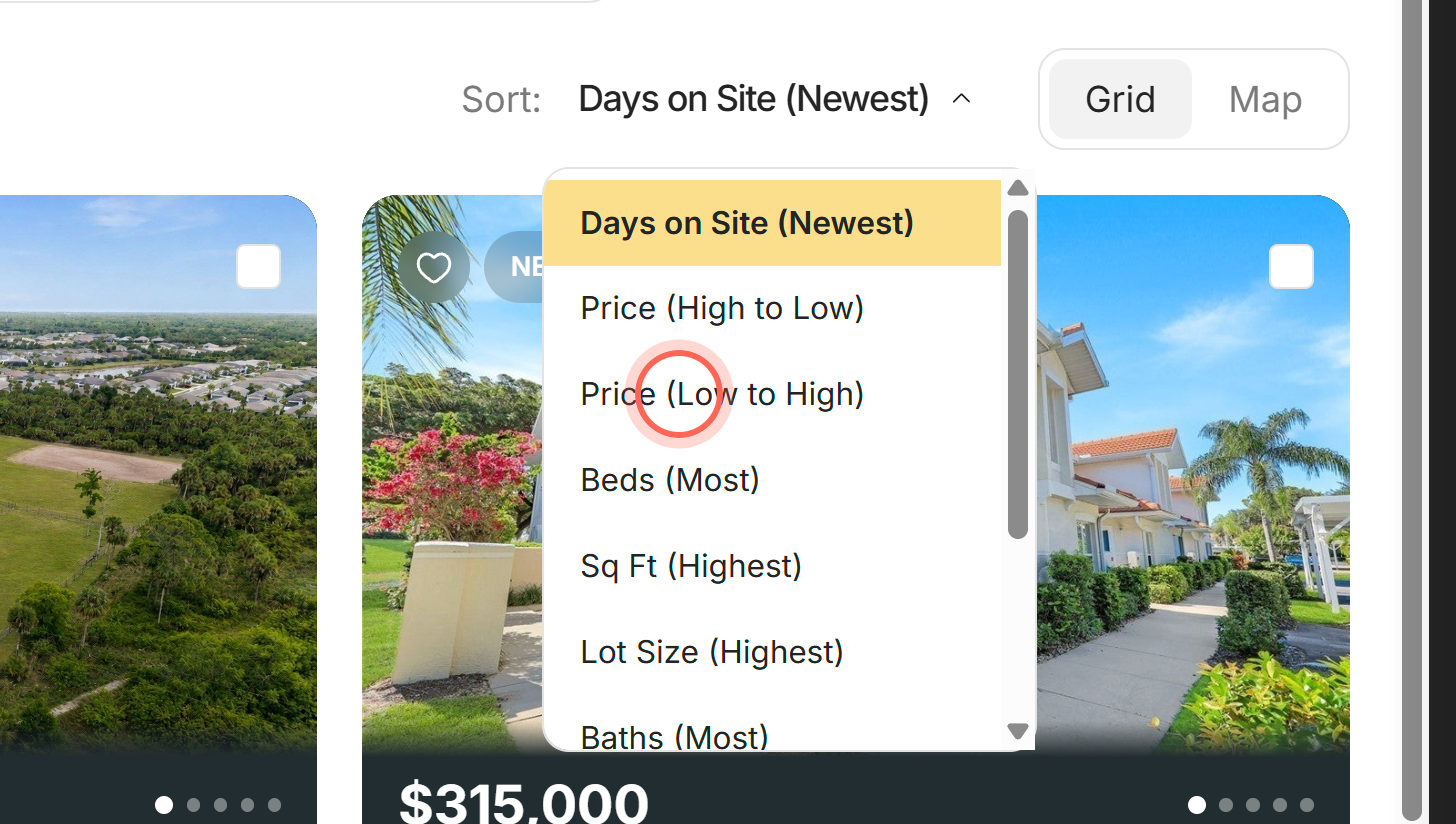
- Pick an order, for example Price (Low to High) or Recently Reduced Price.
- Click Map above the results to see them as price pins on a map.
- Click Grid to go back to listing cards.
The cards reorder as soon as you pick. The other orders are Price (High to Low), Beds (Most), Sq Ft (Highest), Lot Size (Highest), Baths (Most), Days on Site (Oldest) and Featured.
To narrow the results, use Price, Beds & baths and Home type beside the search box, or click More filters. See Filter your search with More filters. For drawing areas and moving the map, see Search on the map.
Leave a place out of your search
- On Home Search, add the wider area to the search box, for example a county.
- Add the place you want to leave out, for example a city inside that county.
- Click that place's chip. It turns red, and its outline on the map turns red too.
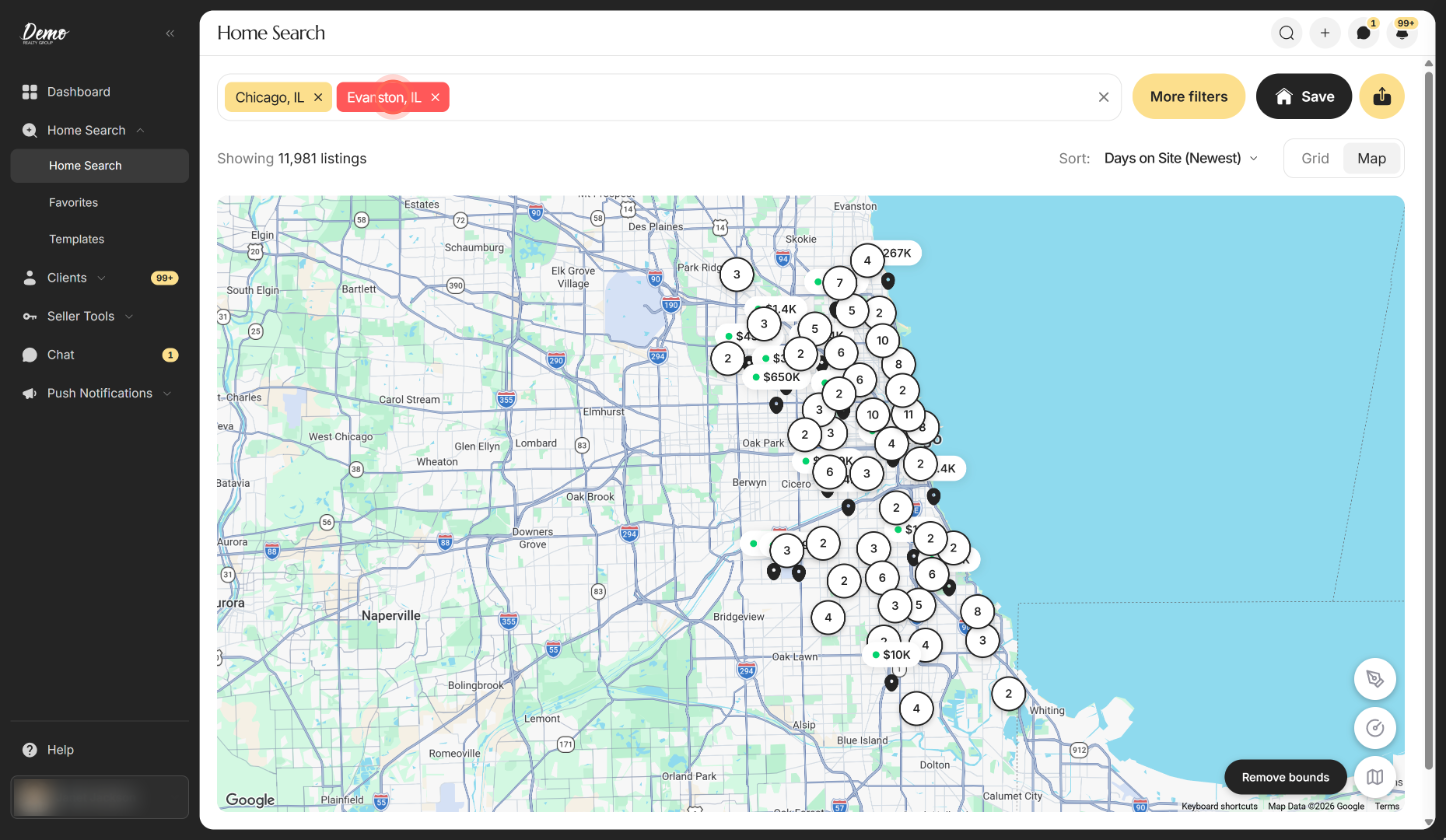
Home Search now leaves out the homes in the red place. Click the chip again to include it. Only agent accounts can exclude places.
If every chip is red, you see "All selected locations are excluded. Please include at least one." and Save, sharing, Sort: and Grid/Map are turned off until you include one.
Search near you or rerun a recent search
- On Home Search, click the search box before you type anything.
- Click Current location at the top of the list.
- Allow location access if your browser asks.
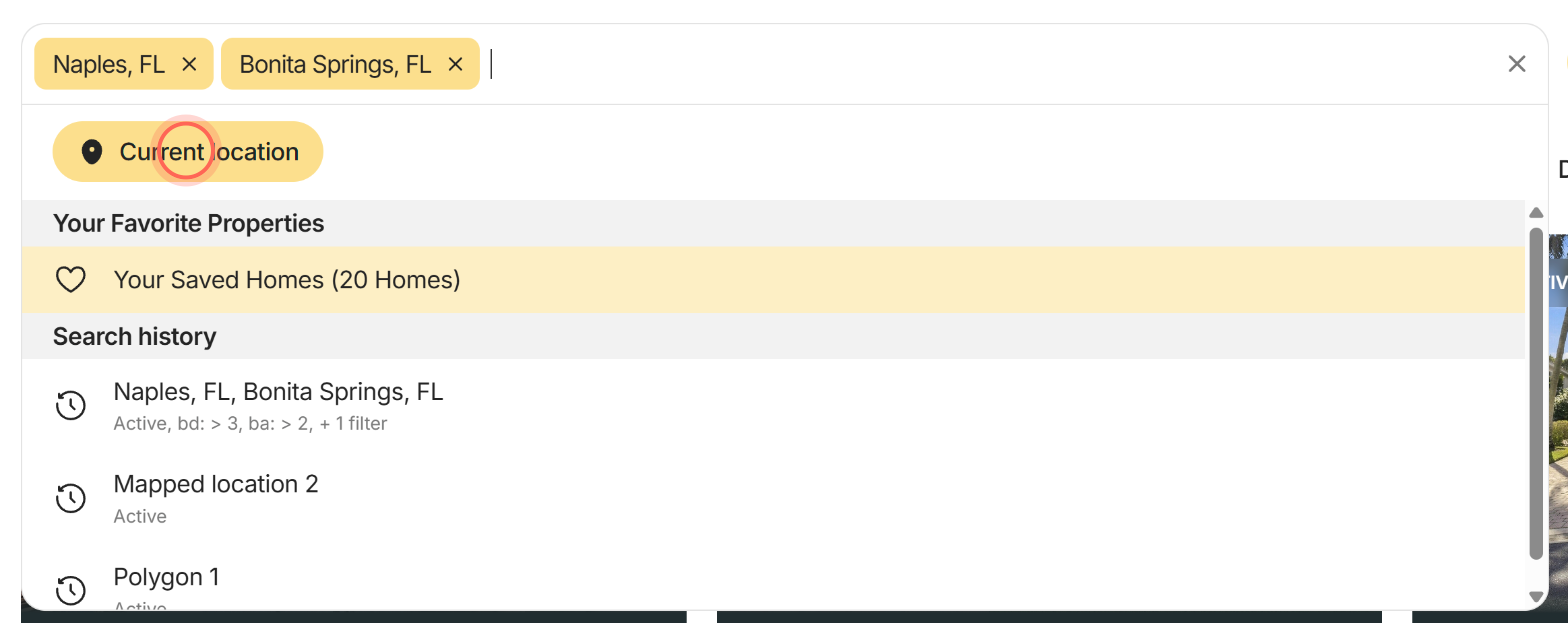
The box then reads "User location" and the map shows a "Your location" pin. If you see "Permission denied" or "Position unavailable", allow location for this site in your browser settings and try again.
To rerun a search, click it under Search history in the same list. It replaces your current places and filters. History is kept in this browser only, shows your 3 most recent searches and skips current-location searches.
What's on a listing card
| Control | What it does | Learn more |
|---|---|---|
| Photo arrows and dots | Flip through the home's photos without opening it. On a phone, swipe. "No images available" shows when a listing has no photos. | |
| Badge | Shows an upcoming open house, such as "Open now" or "Open today" with the time. Otherwise it shows the status and how long the home has had it. | |
| Price, beds, baths, sq ft and address | The key facts and the listing brokerage's courtesy line. Some MLSs hide the address. | |
| Heart | Adds the home to your Favorites. | Favorite properties |
| Checkbox | Selects the home so you can share several at once, up to 25. | Share a property with clients |
| The card itself | Opens the home's page over your results. Middle-click or right-click to open it in a new tab. | Find your way around a property page |
More homes load as you scroll near the end of the list. The MLS disclaimers appear below the last result.
Good to know
- Up to 20 places. You can search 20 locations at once. A 21st shows "Too many locations"; click Ok to close it.
- Clearing the box keeps results. If you empty the search box, the results stay on the last place. Pick a new place to change them.
- Rename drawn areas. Click the pencil on a "Polygon 1" or "Circle 1" chip and type a name of up to 30 characters.
- Your page address credits you. Home Search adds your agent link to the address bar. A link you copy from there credits you, and signed-out visitors land on your public page.
- Client searches are logged. A signed-in client's searches go to Client Activity and your connected CRM. At most one is sent every 20 seconds.
FAQ
Can I search by MLS number without picking a city?
Yes. Type the MLS number in the search box and pick it under MLS ID. You can also type an agent or office MLS ID. See Look up listings by MLS number or agent ID.
Can I search by school or school district?
Yes. Type the school or district name and pick it under School. A school pin marks it on the map. Results follow location, so they can include homes outside the school's attendance zone.
Can I see all of a listing's pictures without opening it?
Yes. Use the arrows on the card's photo, or swipe on a phone.
Why does it say "Showing 0 listings"?
Nothing matches your places and filters. Remove a filter or add a wider area.
Can I switch Home Search to Spanish?
Home Search follows your brokerage's language, English or Spanish. There's no switch for each person.
Still need help? Reach out to us at helpme@ruuster.com and we'd be happy to assist!