
Look up listings by MLS number or agent ID
Type an MLS number in the Home Search box to find that listing, or search an agent or office MLS ID to see only their listings.
In the Home Search box, type an MLS number and pick it under MLS ID to find that home. Type an agent or office MLS ID and pick it under List Agent MLS ID or Listing Office ID to see only their listings. Only agents can do these lookups.
Before you start
- Agents only. Clients and website visitors can't search by MLS number or ID.
- Your own agent ID is under MLS credentials in Settings.
- For searching by city, zip or address, see Search for properties.
Find a listing by its MLS number
- In the sidebar, click Home Search.
- In the search box, type the MLS number.
- Pick the listing under MLS ID. The line below the number shows the address.
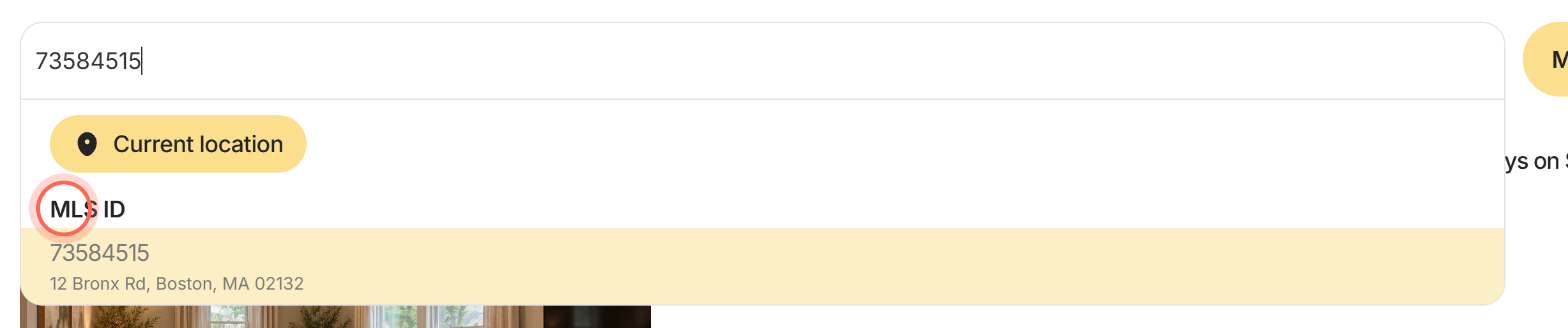
- Click the listing's card to open it.
The number becomes a chip in the search box, and the results show that listing.
Look up several MLS numbers at once
- Type the first MLS number and pick it under MLS ID.
- Type the next MLS number and pick it.
- Repeat for each listing, up to 20 in one search.
Each number is its own chip, and the results show every listing you added.
Show one agent's or office's listings
- In the search box, type the agent or office MLS ID.
- Pick it under List Agent MLS ID or Listing Office ID. The line below names the MLS.
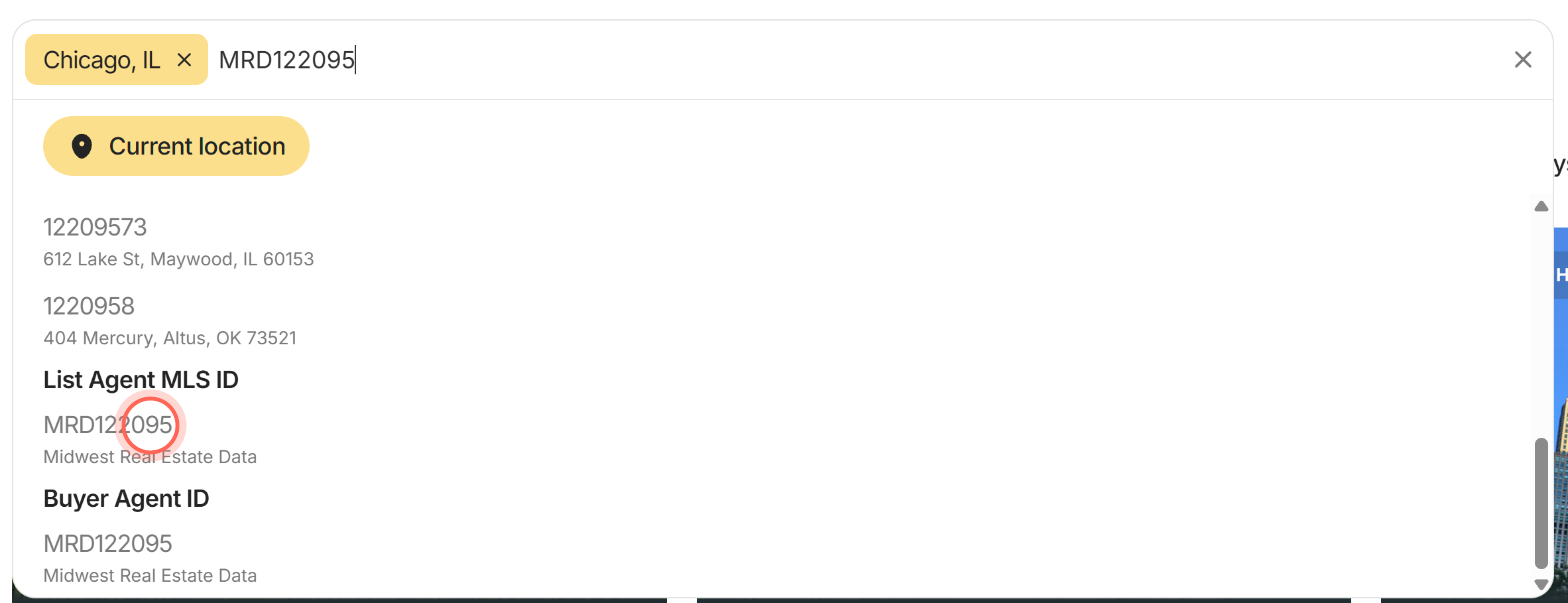
- Optional: to see their sales, open More filters and add Sold under Status.
The results show only listings with that agent or office. To see homes where they worked with the buyer, pick the ID under Buyer Agent ID or Buyer Office ID and add Sold.
Your dashboard also has My listings and Office listings hot sheets, see Browse hot sheets on your dashboard. To send these listings to clients as alerts, see Save a search for clients from Home Search.
Good to know
- Type the number only. Leave out "MLS#" and spaces. Dashes and # signs are ignored.
- Partial numbers work. After 2 characters, the suggestions show MLS numbers that start with what you typed.
- Remove other locations first. To see only the listing or agent you looked up, clear any other chips from the search box.
- Exclude instead of include. Click an ID chip to switch it to exclude, for example to leave your office's listings out of a search.
- Status doesn't hide a listing you look up. A listing you search by its MLS number shows whatever its status, even if Status doesn't include it.
FAQ
Why can't I find a home when I search its address?
Search its MLS number instead. Address suggestions come only from listings in your MLSs, and some MLSs hide a listing's address. For more causes, see I can't find a city, neighborhood or address.
Can my clients look up a listing by MLS #?
No. Only agents can search by MLS number, agent ID or office ID. Clients search by city, zip, neighborhood or address.
Where do I find my agent or office ID?
Your agent ID is under MLS credentials in Settings. Admins can see every agent's and office's IDs on Team.
Can I search by my MLS's own areas?
Yes. Type the area name and pick it under MLS Area. Like MLS numbers, this is for agents only.
Still need help? Reach out to us at helpme@ruuster.com and we'd be happy to assist!