
Find your way around Team
Using Ruuster 1.0? Read the 1.0 version of this article.
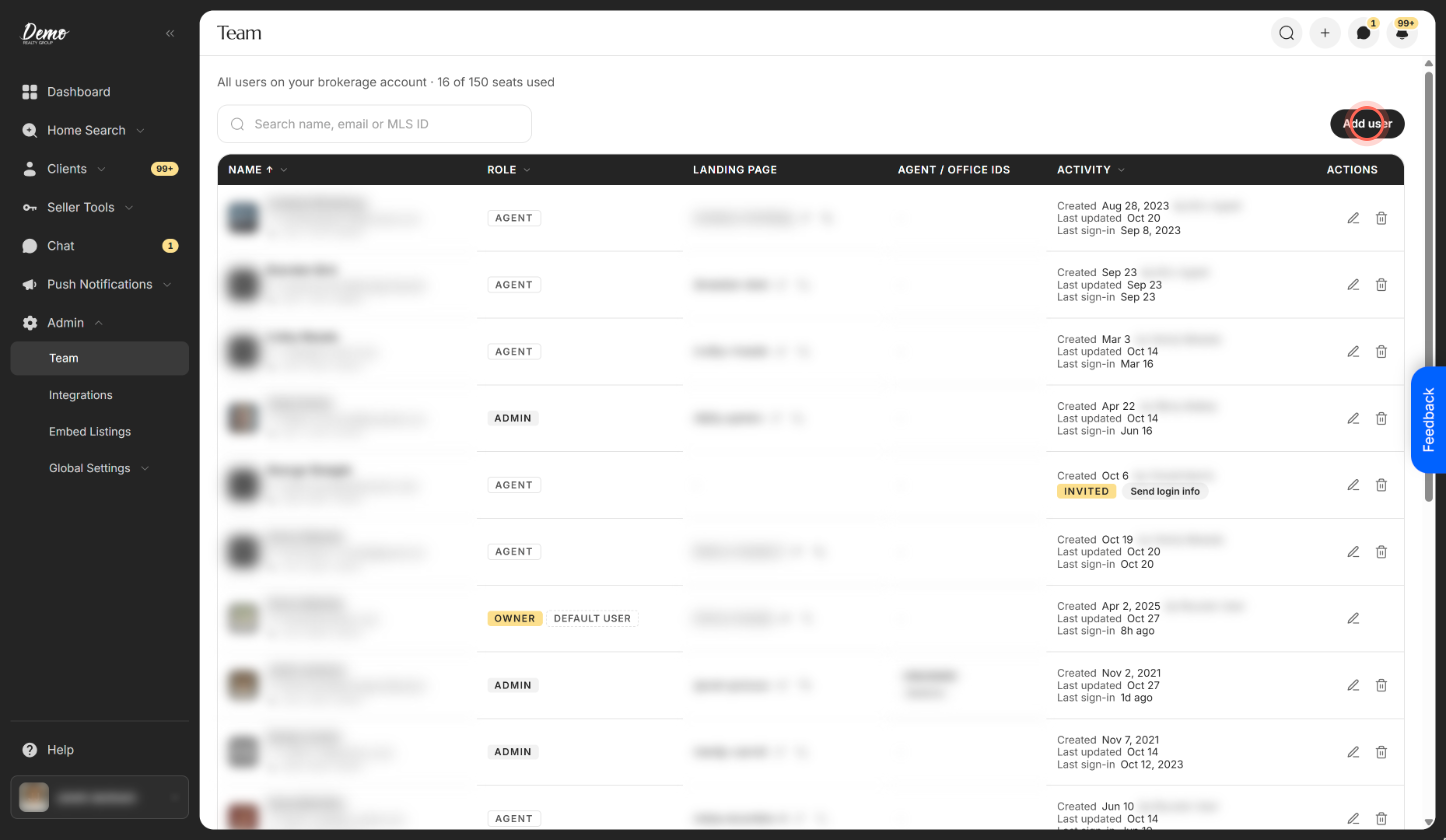
Team lists every user with role, landing page, MLS IDs and activity, and shows how many seats you've used.
Admins only. Team (Admin) lists every user on your brokerage account with their role, landing page, MLS IDs and activity, and shows how many seats you've used. Open it from the sidebar under Admin, then use the buttons on each row to edit, delete or resend sign-in details.
Before you start
- Admins only. Agents don't see Admin in the sidebar.
- If Team sends you back to your home page, your plan doesn't include admin pages. See Billing, seats and your subscription.
Controls at the top of Team
| Control | What it does | Learn more |
|---|---|---|
| Seat line, for example "All users on your brokerage account · 16 of 150 seats used" | Shows how many seats are in use out of your limit. It reads "no seat limit set" when your account has no limit. | Add seats to your account |
| Search name, email or MLS ID | Finds people by first or last name, email, or a current MLS agent or office ID. | |
| Add user | Opens the Add a new agent form. If every seat is in use, it opens Add more user seats first. | Add a team member |
| Filtered: bar | Appears while a filter is on and shows each filter as a chip. Click the x on a chip to remove that filter. | |
| Clear all | Removes every filter, clears the search and goes back to page 1. |
Sort and filter the columns on Team
| Control | What it does | Learn more |
|---|---|---|
| Name column header | Sorts A to Z or Z to A. Team starts sorted A to Z, and the Name column stays in place when the table scrolls sideways. | |
| Role column header | Sorts A to Z or Z to A. Filter by Role shows only Owner, Admin or Agent, with Search role, Select all and Deselect all. | |
| Activity column header | Sorts Newest first or Oldest first. Filter by Activity shows only Active or Invited people. |
What each row on Team shows
| Control | What it does | Learn more |
|---|---|---|
| Name, email and phone | Click the name to open the Edit user panel. | Edit a team member |
| Pen icon (Edit user) | Opens the same Edit user panel. | |
| Role badge | Shows Owner, Admin or Agent. A Default user badge marks the person who gets sign-ups that come in without an agent. Invited people show the role chosen when they were added. | Choose who gets new sign-ups |
| Landing page | Shows the person's page address. The arrow icon (View landing page) opens it in a new tab. The copy icon (Copy landing page URL) copies the link. | |
| Agent / Office IDs | Shows their current MLS agent IDs, with office IDs on a second line. | |
| Activity | Shows "Created" with the date and who added them, "Last updated" and "Last sign-in". People who haven't signed up show Invited and Send login info instead. | Resend or withdraw a team invite |
| Trash icon (Delete user) | Deletes the person after you decide what happens to their clients. The owner and the default user have no trash icon. | Delete a team member |
Move between pages and use Team on a phone
| Control | What it does | Learn more |
|---|---|---|
| Page arrows and page numbers | Team shows 25 people per page. The footer reads, for example, "Showing 1-25 of 40". | |
| Sort & filter (phone) | On a phone, Team shows one card per person. Sort & filter opens Sort by, Role and Activity, with Clear all and Done. | |
| Card buttons (phone) | Tap the name to edit. Each card also has the pen, the trash and the copy icon, plus Send login info for invited people. |
Messages you might see on Team
| Control | What it does | Learn more |
|---|---|---|
| "No users match these filters." with Clear all filters | Your search or filters match nobody. Click Clear all filters to see everyone again. | |
| "We couldn't load your team." with Try again | Team didn't load. Check your connection and click Try again. | |
| "No users yet." with Add user | Nobody is on your account yet. Click Add user to add the first person. |
Good to know
- Search covers MLS IDs. Search matches current agent and office IDs. IDs that were removed from a person don't match.
- Copying is silent. The copy icon doesn't show a message. Paste the link where you need it.
- Views are shareable. Your search, sort and filters stay in the page address, so you can bookmark or share that view.
- Deleted people leave the list. Once you delete someone, they no longer appear on Team.
FAQ
Where do I see everyone who uses our account?
Open Team under Admin in the sidebar. It lists every owner, admin and agent, including people who were added but haven't signed up yet.
How do I edit an agent's role or email?
On Team, click their name. Change Role or Email in the Edit user panel and click Save changes.
How do I change an agent's MLS ID?
On Team, click their name, then start typing in Agent ID or Office ID and pick the match. Click Save changes.
How do I grab an agent's landing page link?
On Team, click the copy icon in their Landing page cell, then paste it into a text or email.
Who counts toward our seats?
Everyone listed on Team, including invited people who haven't signed up yet.
Still need help? Reach out to us at helpme@ruuster.com and we'd be happy to assist!