
Put new leads on AI Nurture automatically
Put new leads on AI Nurture as they arrive by adding the AI search's tag through your CRM's automations or the tags on your embed and share links.
Ruuster doesn't put leads on AI Nurture by itself. To start it as new leads arrive, have your CRM add an AI search's tag automatically, through an automation, action plan or lead routing rule. Each tagged lead starts within 24 hours.
Before you start
- You need an AI search and its tag. Tags are up to 32 characters. See Create an AI search.
- You need access to your CRM's automations, action plans or lead routing.
- To use your Default search, the tag is
Ruuster Default Search. See What is the Ruuster Default Search?
Tag new leads with a CRM automation
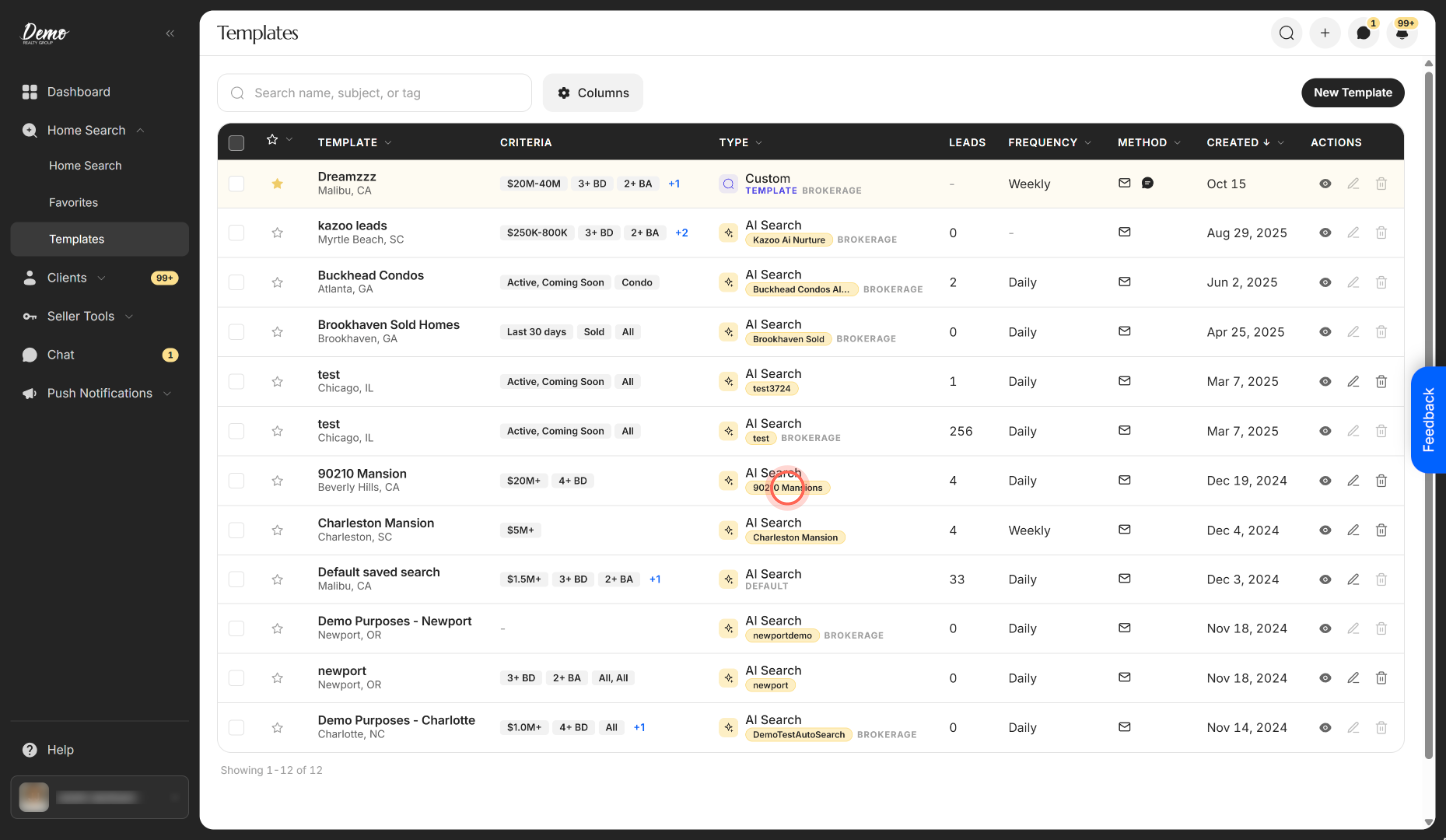
- Open Templates and note the AI search's tag on its row.
- In your CRM, open the automation, action plan or lead routing rule for new leads.
- Add a step that applies the AI search's tag, spelled exactly as on Templates.
- Save the automation in your CRM.
New leads that get the tag show the AI search in their Searches section within 24 hours, first as Pending, then Active. Leads still need a record in your CRM, which new CRM leads already have.
Tag sign-ups from your website or a share link
Admins only for the embed. New sign-ups start AI Nurture only if they get the AI search's tag. Put that tag in your embed or share link tags, and everyone who registers, asks about a home or requests a tour through them gets it in your CRM. You can also add it with a CRM automation, as above.
- Open Embed Listings (Admin) and stay on Listings Search (IDX).
- Turn on Forced registration.
- In CRM tags, type the AI search's tag and press Enter.
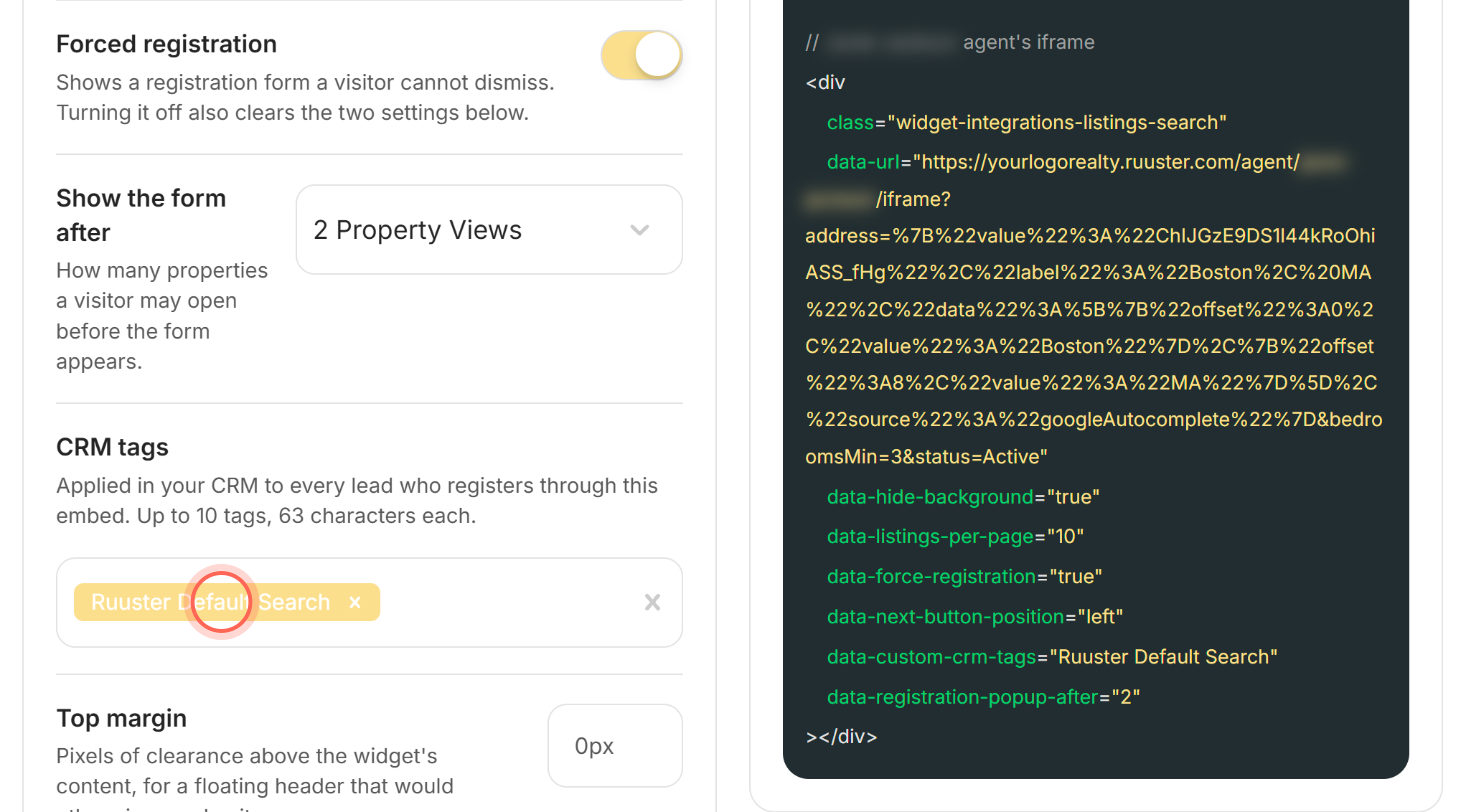
- Copy the updated code from Your snippet to your website.
CRM tags only shows when your brokerage has a CRM connected and Forced registration is on. For the full setup, see Put Ruuster listings on your website.
For a share link, open Advanced share options and add the tag under Tags. See Share a search link to get new leads.
Good to know
- Keep tags to 32 characters. CRM tags on the embed accepts longer tags, but an AI search's tag is never more than 32 characters.
- Exclude leads in your CRM. AI Nurture reaches whoever your automation tags. Add conditions there to skip leads you don't want on it.
- One AI search sends at a time. If two automations add two AI search tags, only one sends. The other shows Paused.
- The tag comes from you. Ruuster won't add an AI search's tag unless you or your CRM does. To take a lead off, remove the tag. See Stop or pause AI Nurture for a lead.
FAQ
Can AI Nurture start as soon as a lead comes in?
It starts once the lead carries the tag. If your CRM adds it on arrival, the AI search shows on the lead's page within 24 hours.
Do I have to tag every lead by hand?
No. Let your CRM's automations do it. In Ruuster, you can also apply an AI search to 25 leads at a time from All Clients. See Put leads on AI Nurture.
Can my website sign-ups be tagged for an AI search automatically?
Yes. Add the AI search's tag to CRM tags on your embed, or to Tags on a share link. Without that tag, new sign-ups don't start AI Nurture.
Which tag should my automation use?
The tag of the AI search you want, as shown on Templates. Use Ruuster Default Search for your Default search.
Still need help? Reach out to us at helpme@ruuster.com and we'd be happy to assist!