
Create your account
Create your account from your agent's invitation or sign-up page, and get a new link if your invitation no longer works.
Open the invitation your agent sent you, check the details already filled in, and click Create account. No invitation? Sign up from your agent's page or the sign-up page. There's no password to make up: your phone number is your password until you choose one.
Before you start
- Have your first name, last name, email and mobile phone number ready. All four are needed.
- Your phone number doubles as your password. On the sign-up form, a number like 555-555-1234 is fine. When you sign in, type it as digits only, with no spaces, dashes or country code.
Accept your agent's invitation
- Open the invitation email from your agent and click its sign-up link.
- On Finish setting up your account, check your name, Email and Phone.
- Fix anything that's wrong.
- Click Create account.
A chip at the top says "Invited by your agent" with their name, so you know you're in the right place. Your account joins that agent.
Sign up without an invitation
- Open your agent's page, or the sign-up page.
- Enter your First name and Last name.
- Enter your Email.
- Enter your mobile number in Phone.
- Click Create account.
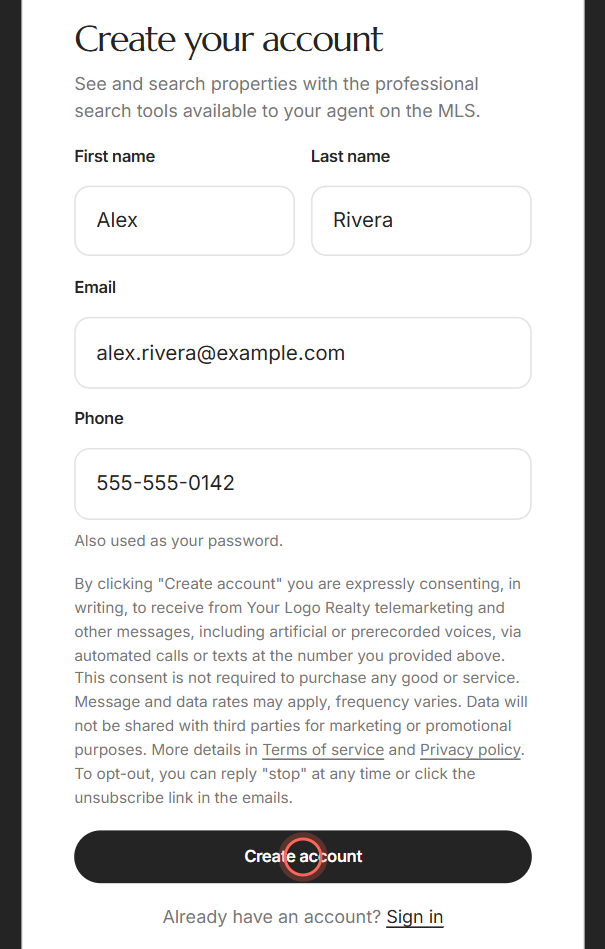
The button reads "Waiting" while your account is made. Signing up on your agent's page connects you with that agent. To learn about the sign-up windows on agents' pages, see Why you're asked to sign up to see homes.
What happens after you click Create account
| Step | What you see | Learn more |
|---|---|---|
| 1. Confirm your phone | If your agent's app asks for it, Secure your account texts you a 6-digit code. Otherwise Setting up your account shows for a few seconds. | Verify your account |
| 2. Answer a few questions | Quick questions about your home search, like your area and price range. Some brokerages skip them. | The questions you answer when you join |
| 3. Your dashboard | Your home page in the app, with your agent's chat bubble in the corner. | Your dashboard |
If your invitation link no longer works
Invitation links stop working once they're used or after they expire. You see This invitation link no longer works.
- Click Sign up without an invitation.
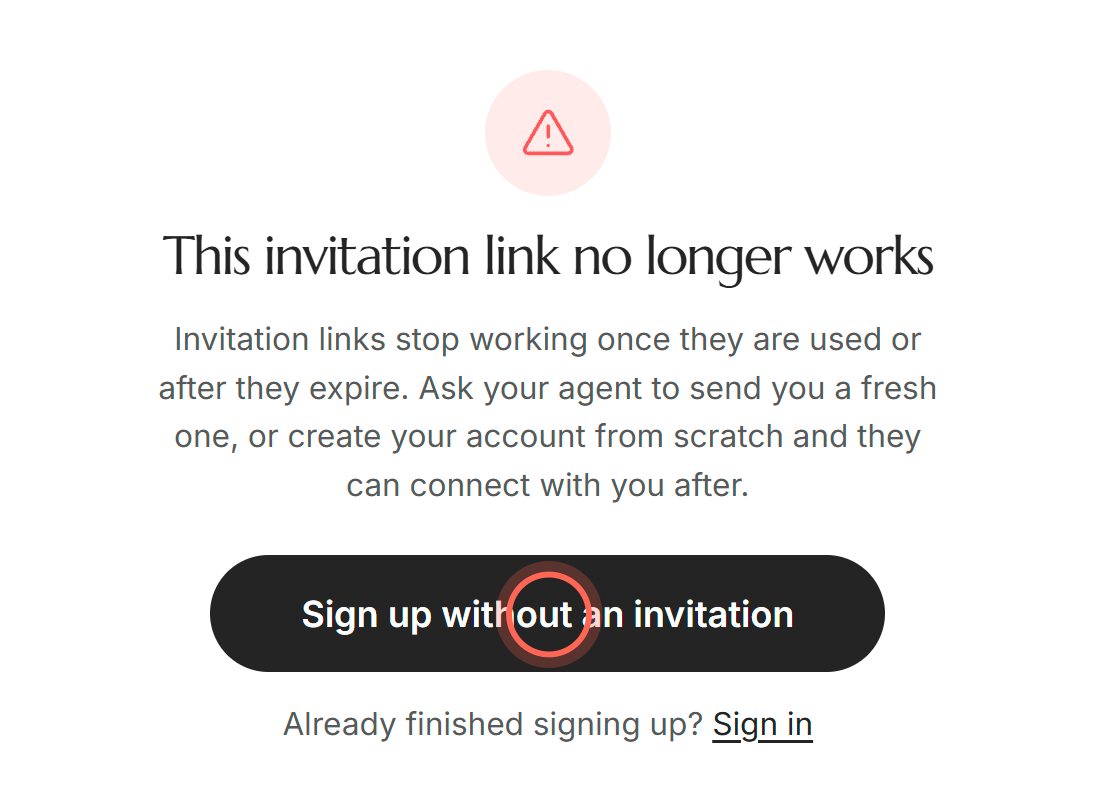
- Fill in the form.
- Click Create account.
You can also ask your agent for a fresh invitation. Already finished signing up? Click Sign in under the button instead.
If your email already has an account
Under Email, you see "An account with that email address already exists".
- Click Sign in instead, or reset your password if you don't remember it.
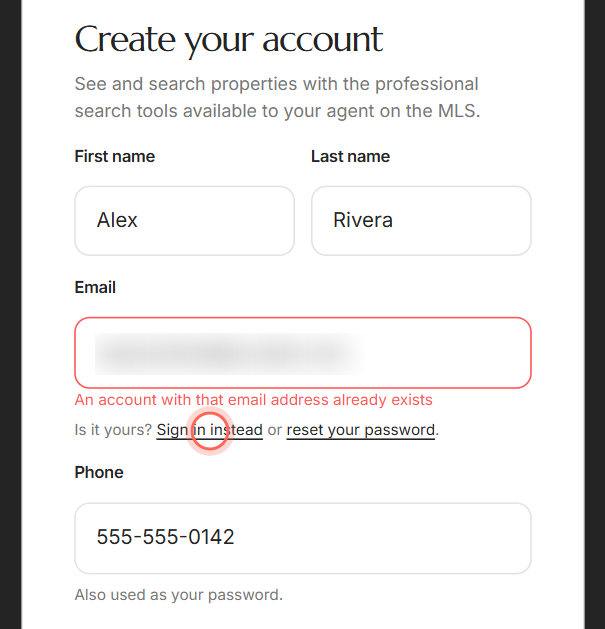
You don't need a second account. Sign in with your existing one, or see Sign in and reset your password.
Good to know
- Your phone is your password. Sign in with your email and your phone number as digits only. You can set a real password anytime in Settings. See Change your password or phone number.
- About the note by the button. It explains that creating an account lets your brokerage call and text you. Reply "stop" to a text, or click unsubscribe in an email, to opt out.
- Invitation needed in the app. In your agent's own phone app, sign-up works only for an email your agent invited. A message says "Access is invite only" otherwise.
- Typo messages. If you leave a field with a mistake, you see "Please enter a valid email address" or "Please enter a valid phone number". Correct it and carry on.
- Nothing is lost on a bad connection. If you see "We could not reach the server, so your account was not created", click Try again. Everything you typed is still there.
FAQ
Why is there no password field when I sign up?
Your phone number is your first password, so there's nothing extra to make up. You can choose your own password later in Settings.
What is my password?
The mobile number you signed up with, digits only, without spaces, dashes or the country code. For example, 5555551234.
Do I need an invitation to sign up?
No, not in a web browser. An invitation fills in the form and connects you to your agent right away, but you can sign up from your agent's page or the sign-up page too.
I don't want to sign up. Do I have to decline the invitation?
No. If you don't create an account, nothing happens.
I signed up with the wrong phone number. Can I fix it?
Yes. If you're asked for a text code, click Wrong number? on the code screen and enter the right one. You can also change it later in Settings (see Update your contact information). Your password stays the number you first typed, so choose a new password in Settings, or use Forgot password? if you can't sign in.
Still need help? Reach out to us at helpme@ruuster.com and we'd be happy to assist!