
Change your password or phone number
Using Ruuster 1.0? Read the 1.0 version of this article.
Set a new password in Settings, change the phone number on your account, and reset a forgotten password from the sign-in page.
Your first password is the phone number you signed up with. To choose your own, open Settings from My Account, fill in New Password and Confirm New Password, and click Save changes. Changing your phone number there doesn't change your password.
Before you start
- Your first password is your sign-up phone number, digits only, without the country code.
- A new password needs at least 8 characters, with an uppercase letter, a lowercase letter, and a number or symbol. The hint on screen leaves out the lowercase letter, but you need one.
Set a new password
- Click your name at the bottom of the sidebar. On a phone, tap Menu first.
- Click My Account.
- On Settings, in Profile, type your new password in New Password.
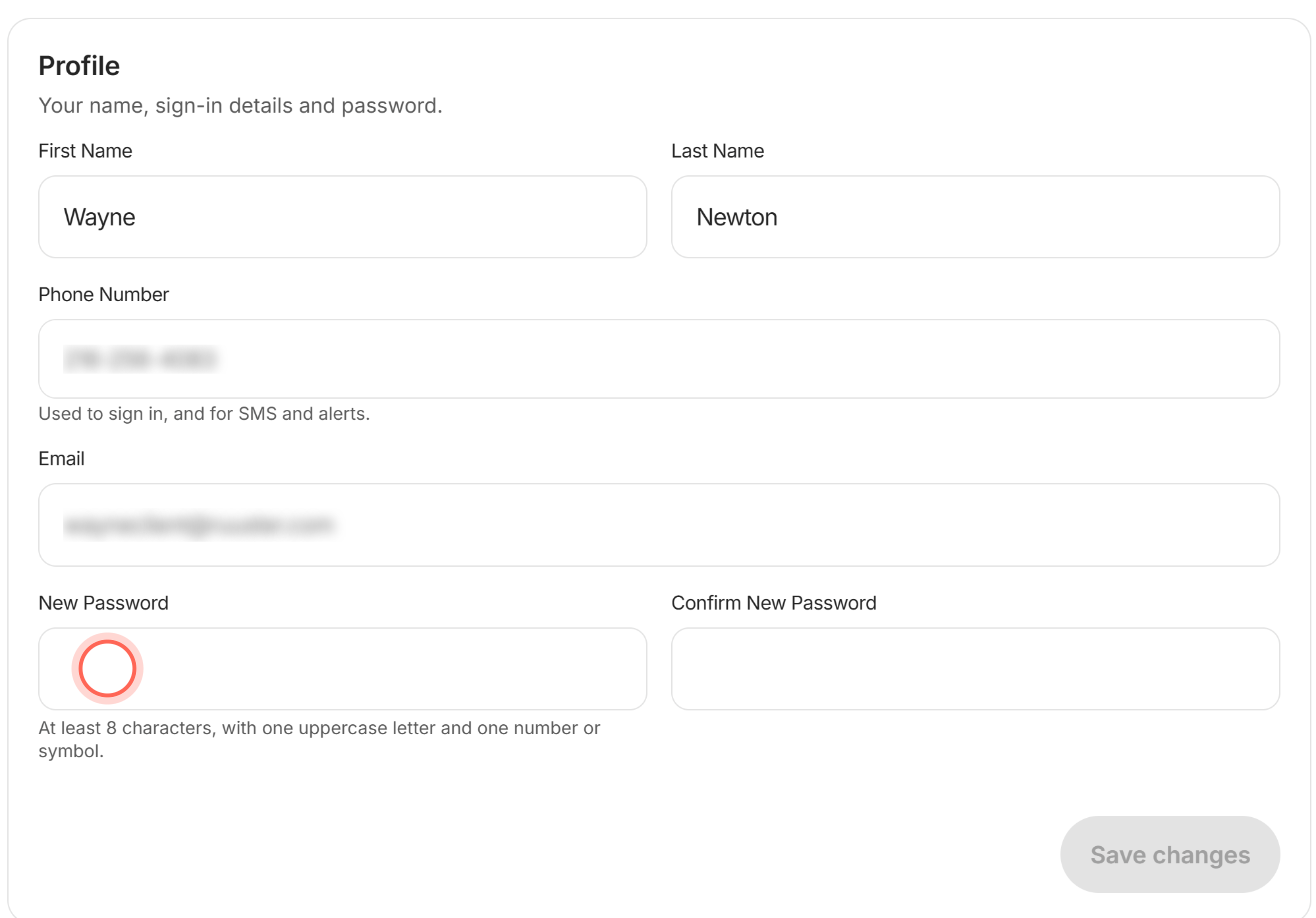
- Type it again in Confirm New Password.
- Click Save changes.
A Success message says "Changes saved," and we email you an "Account Updated" notice. You stay signed in and use the new password next time you sign in.
Change your phone number
Use this when the hint under Phone Number reads "Used to sign in, and for SMS and alerts." with no mention of a code. "Used to sign in" doesn't mean a new number changes your password. Your password stays the same.
- On Settings, in Profile, type your new number in Phone Number.
- Click Save changes.
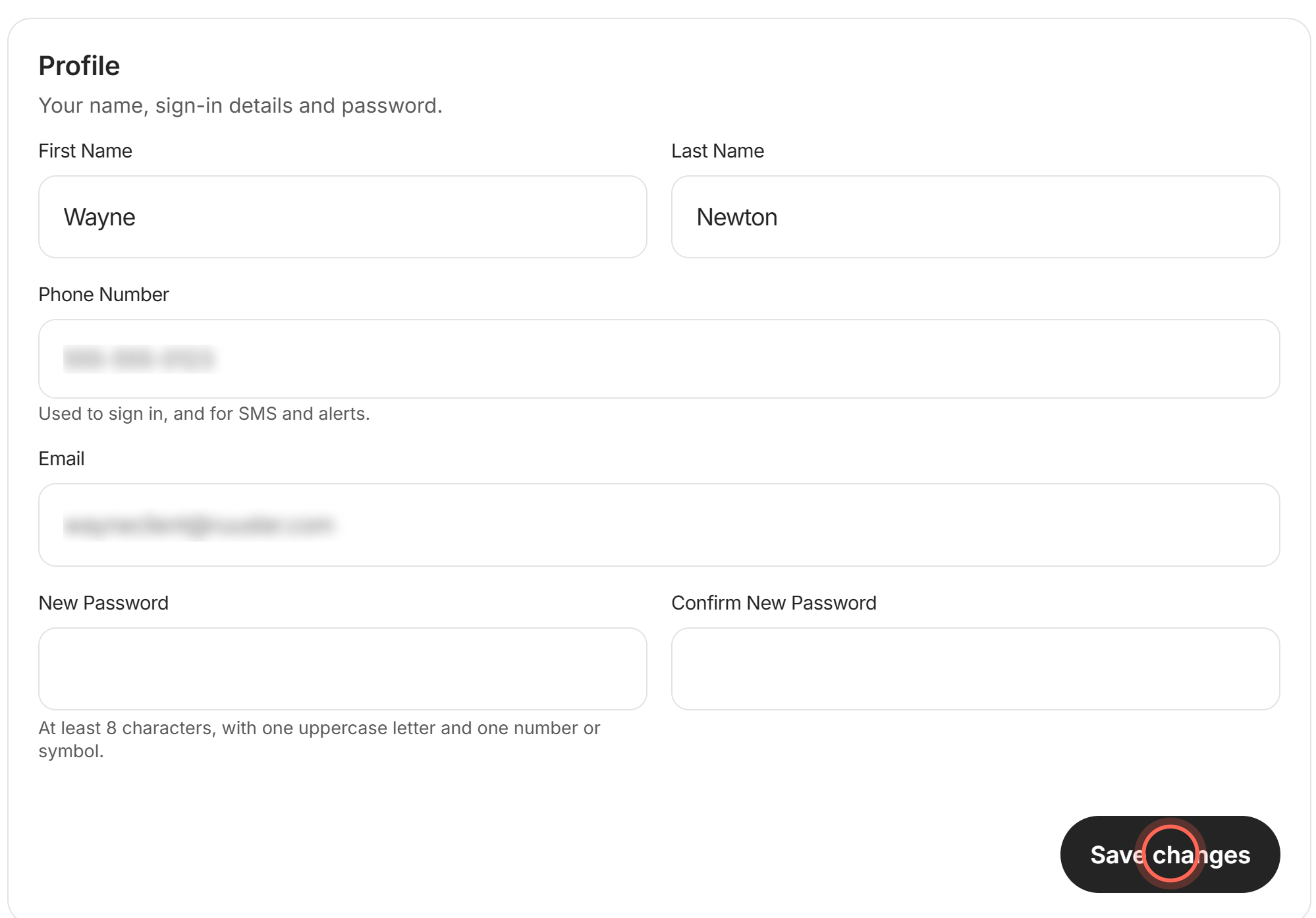
A Success message says "Changes saved," and we email you an "Account Updated" notice.
Change your phone number with a confirmation code
If your agent's app uses text codes, the hint under Phone Number says "Changing it requires a confirmation code."
- On Settings, in Profile, type your new number in Phone Number.
- Click Send confirmation code.
- Type the 6-digit code texted to your new number in Confirmation Code.
- Click Save.
A Success message says "Phone number updated," and we email you an "Account Updated" notice. Your old number stays on your account until you click Save.
Reset a forgotten password
Use this when you can't sign in. For more on signing in, see Sign in and reset your password.
- On your agent's sign-in page, click Forgot password?.
- In the Reset password window that opens, enter the email you sign in with.
- Click Send reset link.
- Open the "Reset Your Password" email and click Reset password.
- On Choose a new password, type it in New password.
- Type it again in Confirm new password.
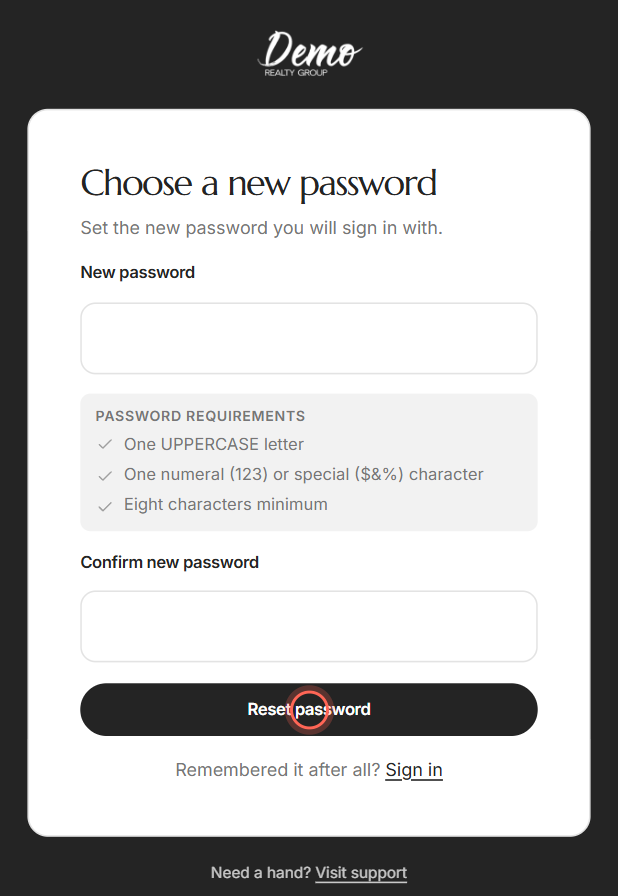
- Click Reset password.
You see "Your password has been reset." Sign in with your email and your new password.
Good to know
- A new phone keeps your old password. If your password is your old phone number, it stays that number until you set a new password.
- One exception. If your agent's app asks you to confirm your number on Secure your account, the number you enter there becomes your password.
- Characters that work. Use letters, numbers and these symbols: ! @ # $ % ^ & * . - and _. Spaces aren't allowed.
- Reset links expire. A reset link works once and stops working after a while. If it says "This reset link no longer works," click Request a new link.
FAQ
What is my password?
If you never set one, it's the phone number you signed up with, digits only, without the country code. If that doesn't work, click Forgot password? on the sign-in page.
Why is my phone number my password?
It keeps signing up short, with nothing extra to invent. You can set your own password in Settings at any time.
I changed my phone number. What's my password now?
The same as before. If your password was your old number, keep using it, or set a new password in Profile.
Why is Save changes greyed out?
The two password fields don't match ("Confirm password should match"), or the password breaks a rule ("Please enter a valid password"). Check that it has a lowercase letter, which the hint doesn't mention.
I never got the reset email or the confirmation code. Check your spam folder and the number or email you typed. See I'm not getting emails or my sign-in code.
Still need help? Reach out to us at helpme@ruuster.com and we'd be happy to assist!