
Change your name
Using Ruuster 1.0? Read the 1.0 version of this article.
Fix or change your first or last name in the Profile section of Settings, then click Save changes. Your agent sees the new name too.
Open Settings from My Account in the menu on your name. In Profile, edit First Name or Last Name and click Save changes. Your new name shows right away, including to your agent.
Change your name
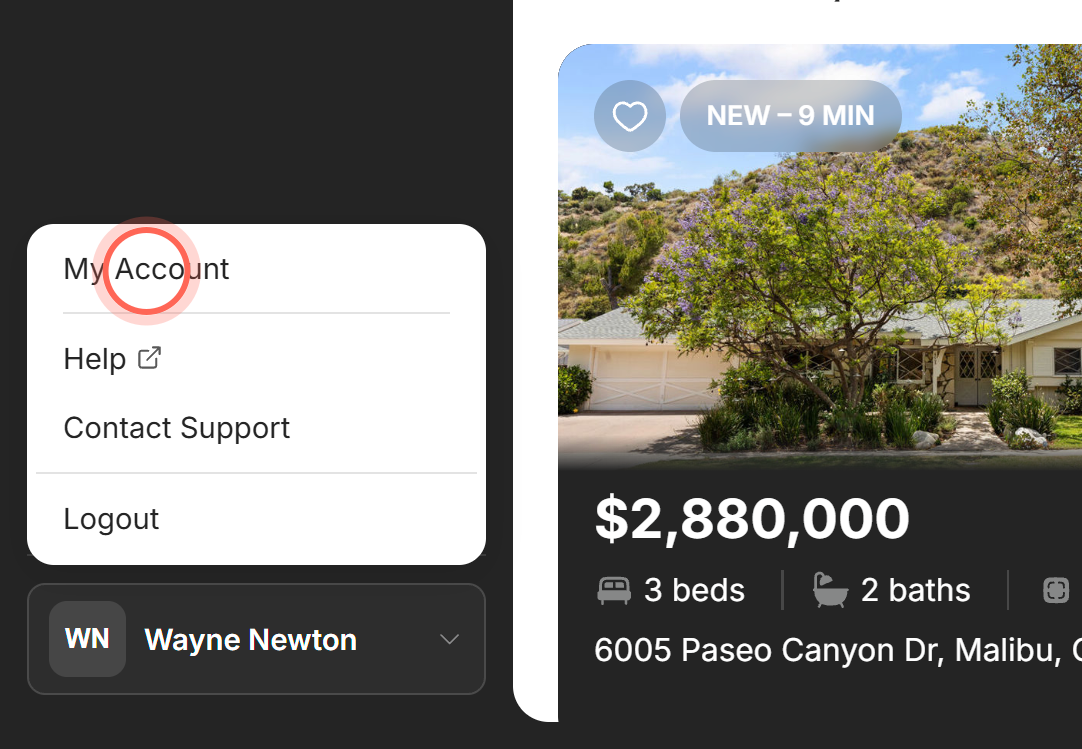
- Click your name at the bottom of the sidebar. On a phone, tap Menu first.
- Click My Account.
- On Settings, in Profile, edit First Name or Last Name.
- Click Save changes.
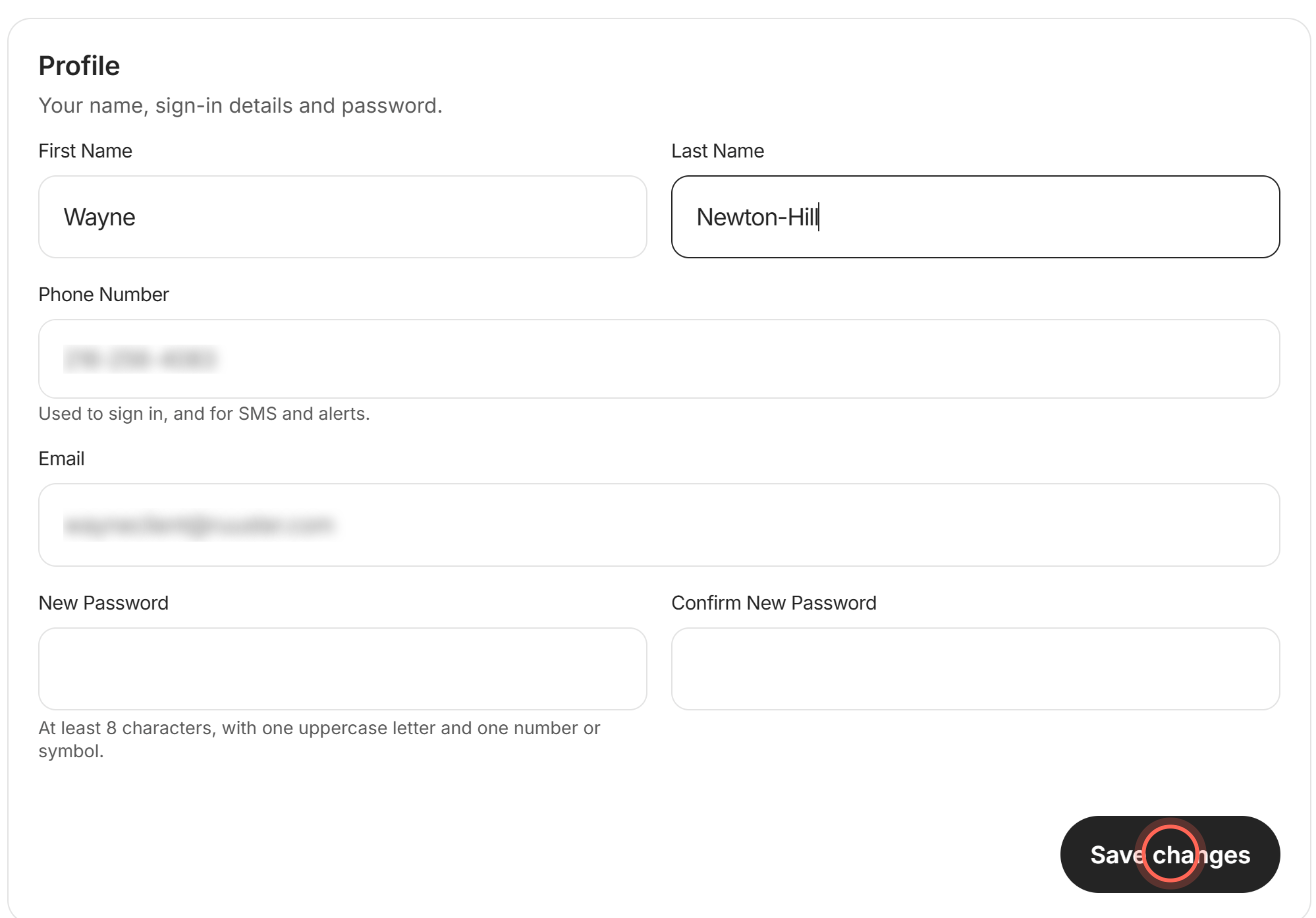
A Success message says "Changes saved." Your agent sees the new name, including in your chat with them.
Good to know
- Your sign-in stays the same. Changing your name doesn't change your email or password.
- Only changes are saved. Save changes saves only the fields you edited.
- Two letters or more. Each name needs at least 2 characters. Shorter names show "Please enter a valid first name" or "Please enter a valid last name."
- Emails already sent. Messages that went out before the change keep your old name.
FAQ
The Save changes button is greyed out. Why?
Nothing has changed yet, or a field shows an error in red. Fix the field and the button turns on.
Can I change how my name appears to my agent?
Yes. The name you save here is the one your agent sees, in their list and in your chat.
Do I need to update my name anywhere else?
No. One save in Settings updates your name across the app.
My name came in with a typo from my invitation. Can I fix it?
Yes. A name from an invitation starts out as your agent typed it, and you can correct it in Settings at any time.
Still need help? Reach out to us at helpme@ruuster.com and we'd be happy to assist!