
Change or stop email alerts
Get fewer new-home emails by changing a saved search's frequency, pause or stop them, and turn them back on from Saved Searches.
New-home alert emails come from your saved searches. To get fewer, open Saved Searches, click Edit on a search and pick a slower frequency, or No update to pause it. Unsubscribe at the bottom of an alert email turns off alert emails for all your saved searches.
Change how often a search emails you
- In the sidebar, click Saved Searches.
- On the search's card, click Edit.
- Under How often should we alert you?, pick a frequency, such as Weekly.
- Under Where should alerts go?, keep Email ticked.
- Click Update search.
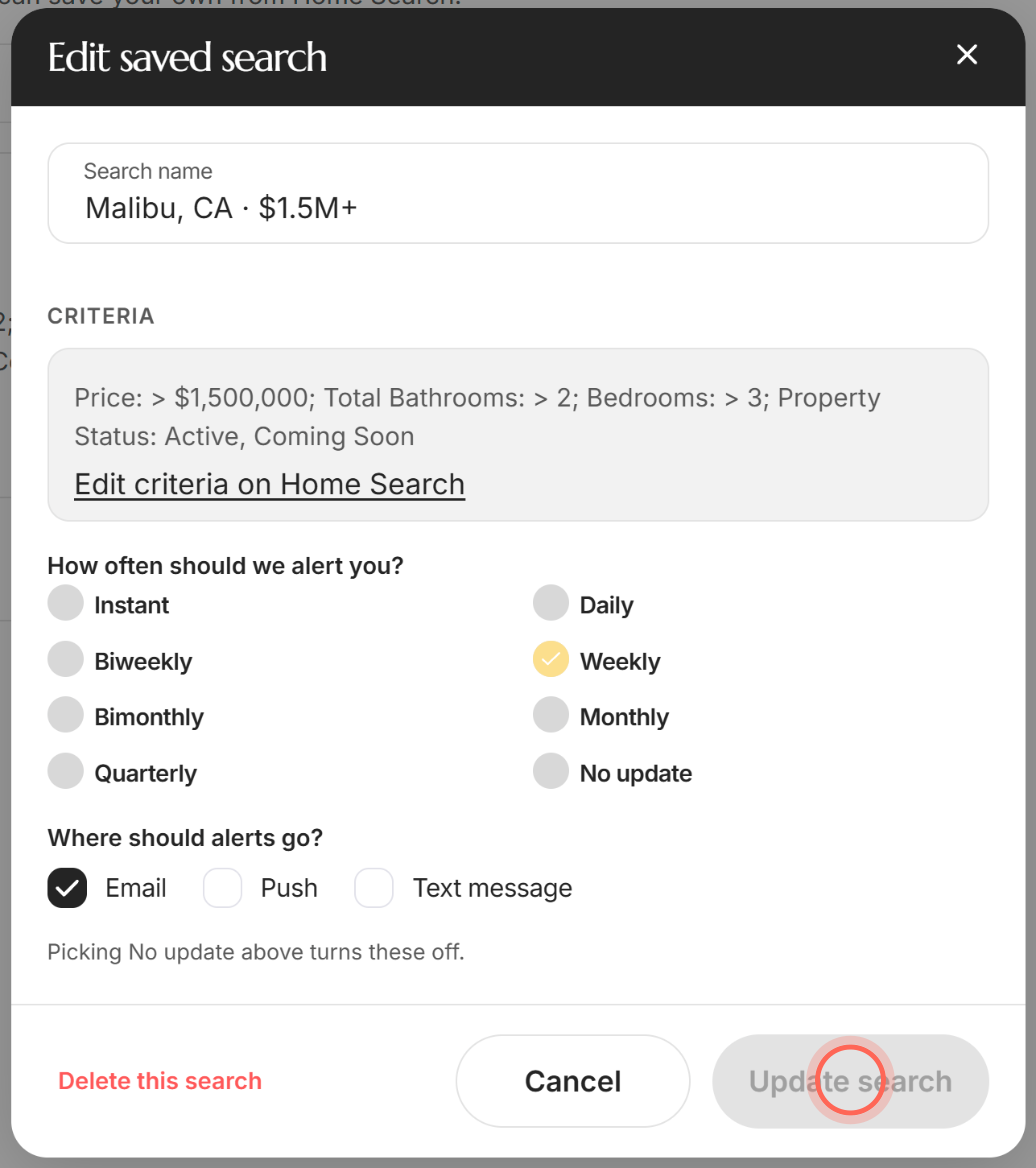
The window closes and the card shows the new frequency. The choices are Instant, Daily, Biweekly, Weekly, Bimonthly, Monthly and Quarterly. Update search stays greyed out until you change something in the window.
Stop emails for one search
- On Saved Searches, click Edit on the search.
- Under Where should alerts go?, untick Email.
- Click Update search.
That search stops emailing you, and any push or text alerts you picked keep coming. To pause every kind of alert for it, click No update under How often should we alert you? instead. The search stays on your list, and View results still works.
Unsubscribe from all alert emails
- Open any new-home alert email.
- Scroll to the bottom and click Unsubscribe, on the last line under the copyright.
Open question: In live alert emails, does the footer Unsubscribe (SendGrid link) turn off Email on all of the client's saved searches, as trackEmailEvents.js does, and which email link, if any, opens /unsubscribe/saved-search/<id>/<hash> (which deletes that one search)?
Email alerts stop for all your saved searches. Searches that only emailed you switch to No update, and searches that also send push or text alerts keep those. Your searches stay on Saved Searches. The automatic new-home emails your agent set up for you stop too.
A page may confirm "You're unsubscribed." Click Open followed by your brokerage's name to go to the app.
If a page says "Email alerts turned off"
Some links open a page titled Email alerts turned off. That one saved search is removed from your Saved Searches list. Your other searches keep their own alerts.
- Click Manage saved searches.
- Sign in if you're asked to.
Saved Searches opens with your remaining searches. To get the removed one back, save the search again from Home Search.
Turn email alerts back on
- In the sidebar, click Saved Searches.
- Click Edit on a search.
- Under How often should we alert you?, pick a frequency.
- Under Where should alerts go?, tick Email.
- Click Update search.
Open question: After a client unsubscribes through the alert footer (a SendGrid unsubscribe), do alerts reach them again once they tick Email on a search, or does SendGrid's unsubscribe list keep blocking them?
New matches for that search start emailing you again. Repeat for each search you want emails from.
Good to know
- Who sends them. Alerts come from "The Team at" your brokerage, from savedsearches@ruuster.com. A reply goes to your agent.
- Up to four homes each. Click See latest search results in the email to see the rest in the app.
- A first email right away. When your agent sets up a search for you, they can send a first alert at once with current matches.
- Push and text. Push shows only if your brokerage has its own app, and Text message only if your brokerage sends texts. See Get the app and turn on notifications.
- Account emails keep coming. Unsubscribing stops new-home alerts only. Emails like password resets still arrive.
FAQ
Did unsubscribing turn off all my alerts?
It turned off email alerts for all your saved searches. Push and text alerts keep coming. To stop those too, edit each search and pick No update.
Open question: Does the live alert email still say "See latest search results"? The redesigned alert in the code (emails/property-alert.js, no live sender) reads "See all search results"; has the alerts service shipped it?
I clicked See latest search results and got a sign-in page or an error. The link opens your agent's app, which needs you signed in. Sign in with your email and password and the results open. If they don't, open Saved Searches and click View results on that search.
Will my agent know I turned alerts off?
Yes. Your agent can see that you unsubscribed, so they know why you're not getting new listings by email.
Open question: Where does "Update your preferences" in the alert footer lead (a SendGrid preference page or the app), what can a client change there, and does it change the Unsubscribe scope described above?
What is Update your preferences at the bottom of an alert?
It's a link next to Privacy policy in every alert's footer, above the copyright and Unsubscribe. To change how often one search emails you, or stop it, the surest way is Edit on that search in Saved Searches.
Is deleting a search the same as pausing it?
No. The red Delete button on the search's card, or Delete this search in the Edit window, removes it from your list for good. No update keeps it, so you can turn alerts back on later.
How do I stop every email from the app?
Unsubscribe stops new-home alerts. To stop everything, including account emails, you can delete your account.
Still need help? Reach out to us at helpme@ruuster.com and we'd be happy to assist!