
Save a search and get alerts
Using Ruuster 1.0? Read the 1.0 version of this article.
Save a search to get emails about new homes, then change how often they come, edit or delete it on Saved Searches.
Set up your search on Home Search, click Save, choose how often and how you want alerts, and click Save search. New homes that match then reach you by email, push notification or text, and you can change or delete the search any time on Saved Searches.
Save a search from Home Search
- On Home Search, pick a place and set your filters.
- Click Save, the button with the house icon.

- In the Custom search window, check the name in Name your search, or type one if it's empty.
- Check the Filters summary, or click Edit filters to change them.
- Under Send frequency, pick how often alerts come, for example Daily.
- Under Send method, Email is already on. Click Push or SMS to add them too.
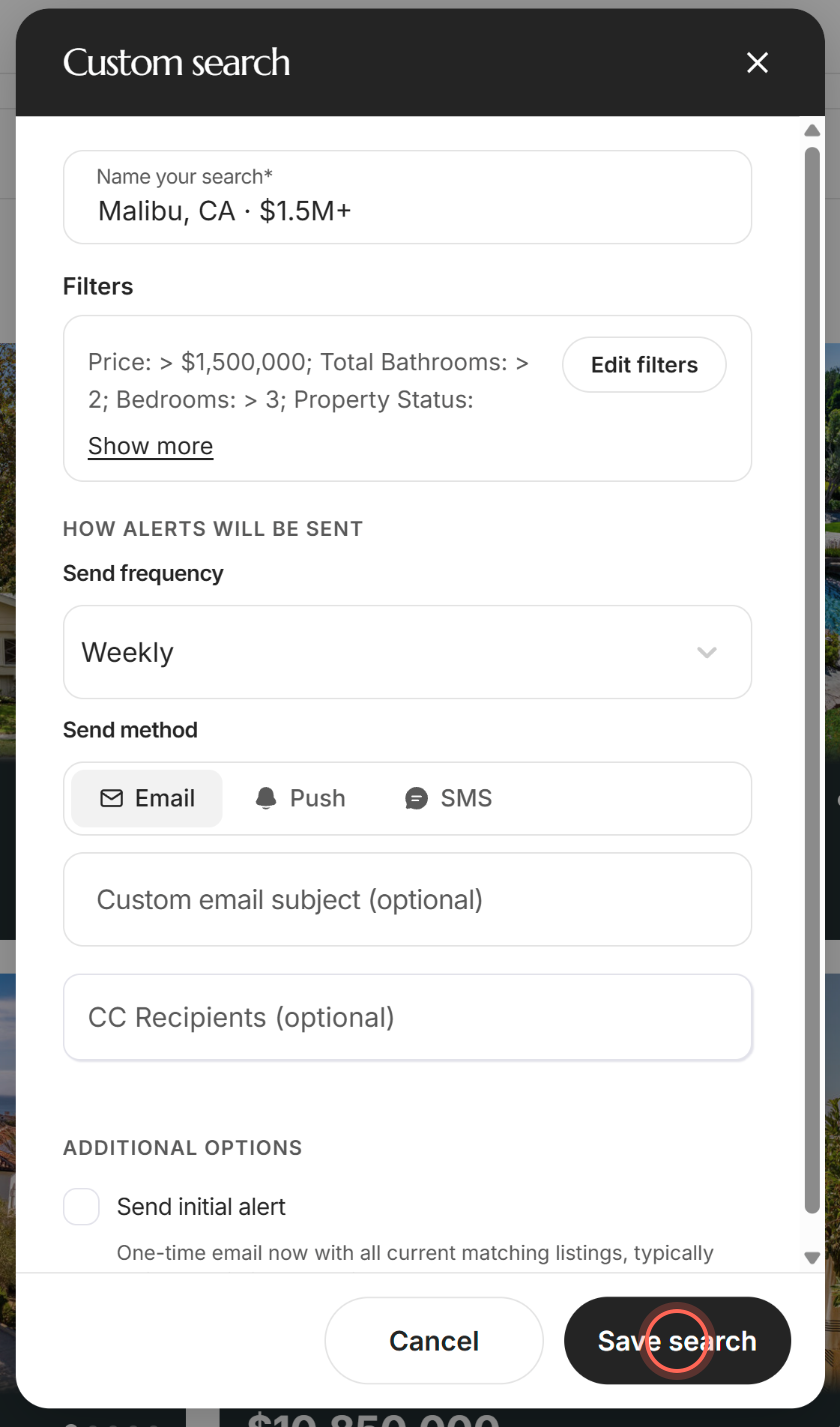
- Optional: tick Send initial alert to get today's matching homes by email now.
- Click Save search.
A "Saved search created" message confirms it, and the search appears on Saved Searches. The frequencies are Instant, Daily, Biweekly, Weekly (the default), Bimonthly, Monthly, Quarterly and No update.
A name is required, so type one if the box is empty. Clicking Email turns it off and hides the email subject and CC boxes. Keep at least one send method on.
Edit filters hides the window so you can adjust the search on Home Search; click Continue to come back. With Email on, you can also fill in Custom email subject (optional) and add people under CC Recipients (optional). Send initial alert usually arrives within 15 to 30 minutes.
See and edit your saved searches
- In the sidebar, click Saved Searches.
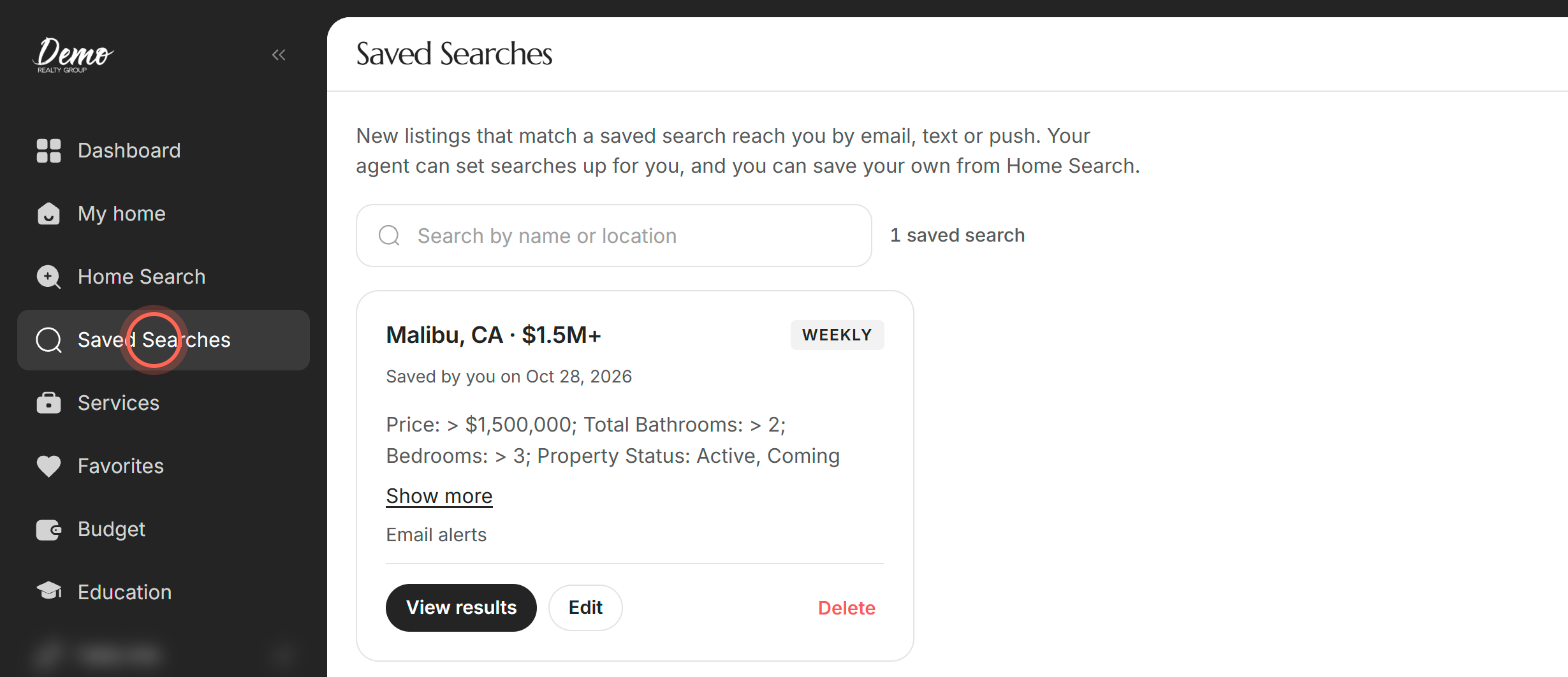
- Click Edit on the search's card.
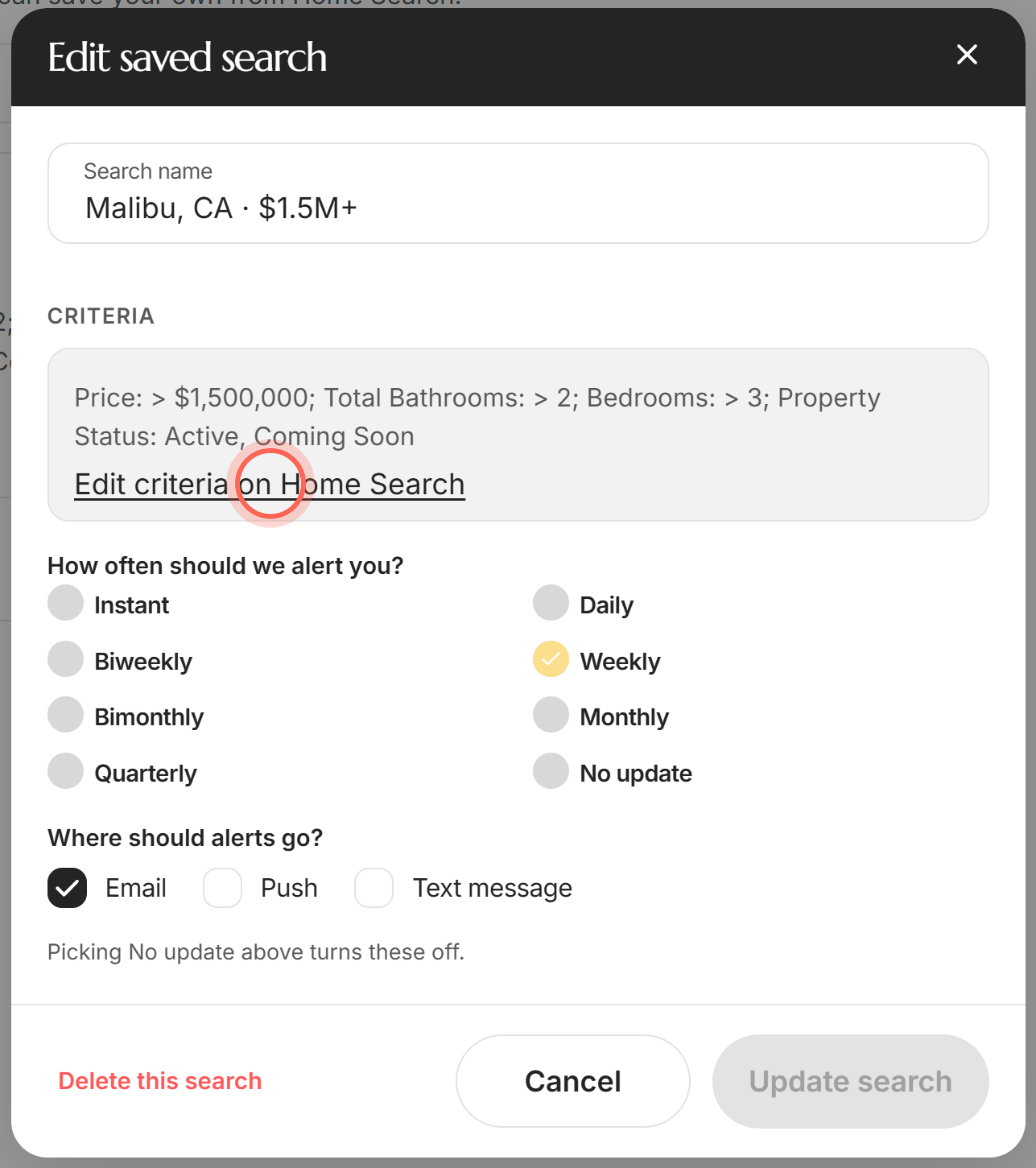
- Change the Search name if you like.
- Under How often should we alert you?, pick a frequency.
- Under Where should alerts go?, tick Email, Push or Text message.
- Click Update search.
A "Success" message confirms it. Update search stays gray until you change something, and picking No update turns alerts off. Cancel closes the window without saving.
Each card shows the search's name, how often it alerts you (for example WEEKLY), its criteria and where alerts go, such as "Email alerts". A search you saved says "Saved by you on" and the date. One your agent set up shows "From" and your agent's name.
To find one search, type in Search by name or location. Click the x in the box, or Clear search, to see them all again. View results on a card shows that search's homes on Home Search.
Change the area or filters of a saved search
- On Saved Searches, click Edit on the search's card.
- Click Edit criteria on Home Search.
- On Home Search, change the places, the map area or the filters.
- Click Save in the Saved Search edit mode bar at the bottom of the screen.
"Saved search successfully updated" appears and you return to Saved Searches. Cancel in the same bar returns you without changes. The usual Save button on Home Search is hidden while you edit. While you edit, the sidebar is paused and shows "Navigation blocked while editing Save Search".
Delete a saved search
- On Saved Searches, click Delete on the search's card. Delete this search in the Edit window does the same.
- In "Delete this saved search?", click Delete search.
The search stops sending alerts and leaves your list. Cancel keeps it.
Good to know
- Searches from your agent. Your agent can set up searches for you. They show "From" and your agent's name, and work like your own.
- Editing your agent's search. Your changes are saved as your own copy, marked "Saved by you", in its place. Your agent's original isn't changed.
- Push and text options. Push shows only if your brokerage has its own app, and texts only if your brokerage sends them.
- A search needs an area. If your search has no area yet, the Custom search window shows Select filters and asks you to choose one on the map first.
- Rentals too. Set Home type to Rental before you click Save to get alerts for new rentals. See Search for rentals.
FAQ
Why can't I delete a saved search my agent set up for me?
You can. Click Delete on its card, then Delete search. It stops the alerts to you and leaves your list.
How do I stop the emails but keep the search?
Click Edit on the card, pick No update, then click Update search. For more ways to manage alert emails, see Change or stop email alerts.
I saved a search but I'm not getting alerts. What should I check?
Look at the card. "Alerts are off for this search" means it's set to No update. Otherwise, check your spam folder and see I'm not getting emails or my sign-in code.
Can my partner get the alerts too?
Yes. When you save the search, add their email under CC Recipients (optional). Email must be one of your send methods.
Where do I see the homes a saved search found?
Click View results on its card. On Home Search, you can also click the search box and pick it under Your saved searches.
Still need help? Reach out to us at helpme@ruuster.com and we'd be happy to assist!