
Favorite homes
Using Ruuster 1.0? Read the 1.0 version of this article.
Click the heart to save a home you like, then find all your saved homes in Favorites any time.
Click the heart on a home in Home Search, or over the photos on a home's page, to save it. Every home you save waits for you in Favorites in the sidebar. Click the heart again to remove it.
Save a home
- In the sidebar, click Home Search.
- Click a home to open its page.
- Click the heart over the photos.
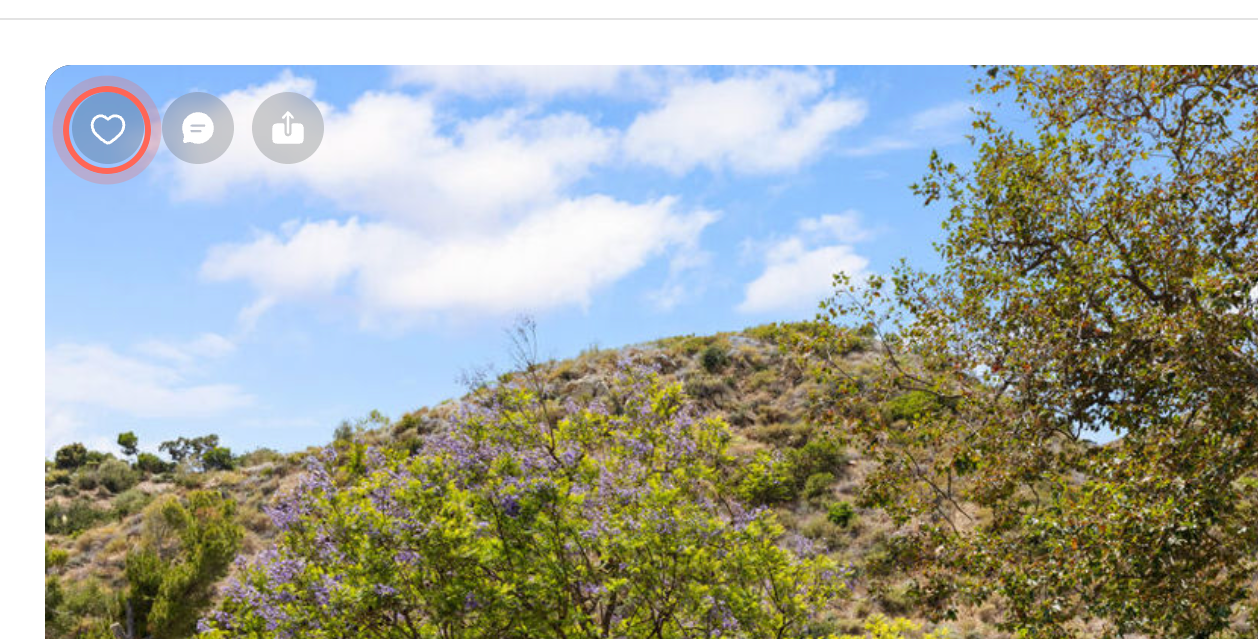
The heart fills in and the home is added to Favorites. On the map, saved homes show a heart on their pin.
You can also click the heart in the top left corner of a home's card in your search results, or Add to favorites in the full photo gallery.
See your favorites
- In the sidebar, click Favorites.
- Scroll down to load more homes.
- Click a home to open it.
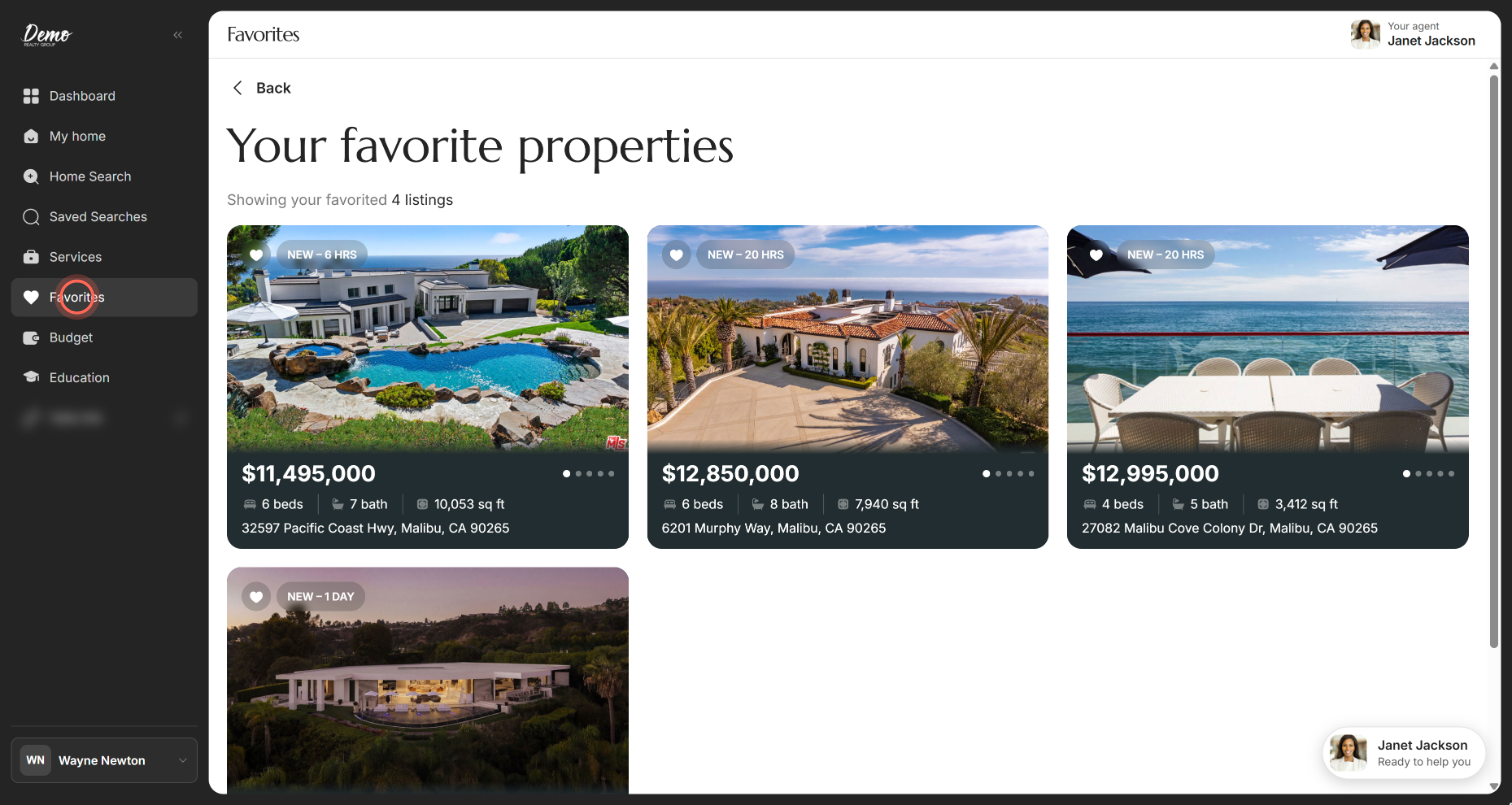
The page is headed "Your favorite properties" and counts your homes, for example "Showing your favorited 4 listings".
Back at the top opens Home Search with your most recent search, which may not be the one you had open before. The page title and the sidebar still say Favorites, but the homes showing are search results.
Other ways in: on your phone, tap Favorites in the bar at the bottom of the screen. You can also click the Saved homes card on your Dashboard. Or click into the search box and, under Your Favorite Properties, pick Your Saved Homes, which shows how many homes you've saved (for example "Your Saved Homes (4 Homes)").
Remove a home from your favorites
- In the sidebar, click Favorites.
- Click the filled heart on the home's card.
The heart empties and the home drops off your list. A filled heart in your search results or on a home's page works the same way.
Save a home before you have an account
If you're browsing homes on your agent's page and aren't signed in, the heart asks you to create a free account first.
- Click the heart on a home.
- In the Welcome! window, enter your First Name, Last Name, Email and Phone number.
- Click Continue.
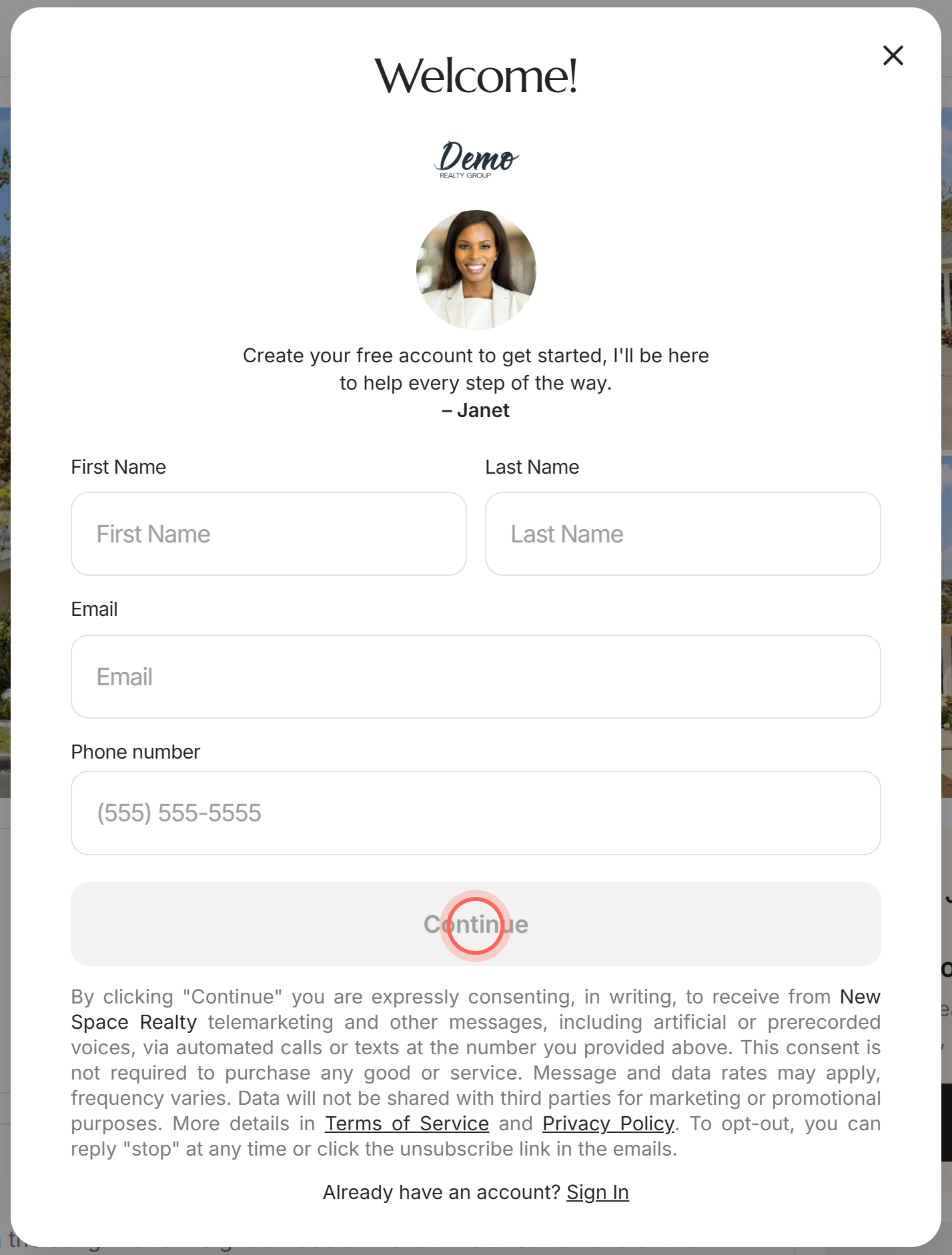
If your agent's app asks for a code, enter it to finish. Once your account is ready, the home you hearted is saved to your favorites for you.
Good to know
- A plain list. Favorites has no filters, sort or map. To narrow your saved homes, search in Home Search and look for the filled hearts.
- No Favorites in your sidebar? Some apps have a separate Rental Search page in the menu, in the spot where Favorites usually sits. Open your favorites from the Saved homes card on your dashboard, the Favorites tab on your phone, or the search box.
- Requests save homes too. When you request a tour or send your agent a question with Contact agent, that home is added to your favorites for you.
- Your agent sees them. Your agent can see the homes you save, which helps them find more homes like them.
- If the heart doesn't change. You'll see "Could not update favorites. Please try again." Click the heart again.
FAQ
How do I unheart a home?
Click the filled heart on its card or its page. It empties and the home leaves Favorites.
Does the seller find out when I favorite their home?
No. Sellers and their agents aren't told. Your agent is the one who sees the homes you save.
Where is Favorites on my phone?
In the bar along the bottom of the screen, next to Search. Tap it to see your saved homes.
Can I get an alert when homes like my favorites come up?
Yes, with a saved search. See Save a search and get alerts.
I saved a home by mistake. How do I undo it?
Click the heart again. It empties right away and the home is removed from your list.
Still need help? Reach out to us at helpme@ruuster.com and we'd be happy to assist!